C
Save and send
Save as a draft
Flexible payroll software for service businesses – as you dream it. Every amount is recorded per service and team member, so any figure can be traced back to the appointment it came from
C
Save and send
Save as a draft
C
Save and send
Save as a draft
14,000+
businesses in 90+ countries
5.5 million
appointments a month
4.8
App Store rating
under 3 min
support reply
The other systems couldn’t give us payroll for our staff. And inventory – we can’t count that by hand. Payroll runs entirely on Altegio and we pull our analytics from it too. With a team of 40, having all your business processes joined in one app is great. I’m a happy client
Four steps from a client who showed up to a payout recorded in your books
The client arrives and pays. Service, price, team member and payment type ride along from Online Booking or your receptionist
That team member's own rule applies. It decides what share of that service or product they earn, alone or with an assistant
The period you pick is calculated. Only appointments marked Arrived count, for one team member or for the whole team
The amount is accrued and paid. The accrual is saved against that period and the payout recorded
Appointments on the border of two periods are not an argument: the Compensation calculation date setting decides which period they belong to, once, for every run after that
Eliminate paperwork and complex calculations. Discover all the possibilities of automated payroll with Altegio
Start your 7-day free trialPayroll lives on each team member's own Payroll tab: what they earn from services, assisting, product sales and coming to work
01
A colorist on a percentage, a receptionist on shifts and sales, a manager on a share of the day's profit: each rule sits on that team member's own Payroll tab, with nothing to reconcile between them
02
Percentage or fixed amount per service, product commission, pay per shift, hour or month, a guaranteed minimum, rates with and without an assistant: they combine on one screen instead of a spreadsheet with a tab per case
03
Copy a colleague's rule to the new team member and change only what differs, so growing the team does not mean setting payroll up from scratch every time
Individual where it matters. Two team members in the same role can still carry different rates, because the rule sits on the person, not on the position
Best for: a team where every role is paid differently
Once the rule is set, every appointment answers three questions on its own: which rate this service carries, who on the appointment earns it, and what comes off before it is paid
Set a default rate, then override it for an individual service or a whole category. New services automatically use the default rate
Best for: businesses with a varied service listSet separate rates for a team member working alone, a team member working with an assistant, and the assistant. For example, the team member earns 10% alone or 8% with help, while the assistant receives a fixed amount
Best for: teams that work with assistantsConsumables recorded in the bill of materials or added manually can be deducted from the team member's payout. Deduct the full cost, a share matching their commission rate, or nothing
Best for: services with significant material costsFor classes and workshops, choose no extra pay for running the event, a fixed amount per attendee, or a rate that rises with attendance. For example, pay 60% of the service price for 1–10 clients, then add 15% for each client above 10
Best for: businesses that run paid group eventsSet the rates once. From then on every appointment works out its own payout, down to who assisted and what was used
Start your 7-day free trialShifts, hours, a monthly salary with a guaranteed minimum, a receptionist's commission, a manager's share of the day: every way your team is used to being paid is a value on their rule, not a separate system
Pay a base salary per hour, per day or per month, plus additional compensation on top of it
Best for: a solo owner on a base salary, or anyone paid per shift
Set a floor per day or per month, and the team member receives it even when base salary plus percentages add up to less, so a slow week does not cost you the person
Best for: a low-load period or a new hire
A base salary per month is accrued once, on the first day of the month that follows, and only if the team member had working hours in that month, so a month off never pays out by mistake
Best for: a team on a monthly salary rather than per-visit pay
A receptionist can earn per shift, a percentage of product sales, an amount per appointment created and a percentage per service in an attended appointment, so the front of house has a reason to sell too
Best for: a reception desk paid per shift
Additional reward pays a percentage of the location's daily profit, so a manager earns when the location does. On a day with 3,000 € in profit, 5% or 150 € may go to the manager
Best for: any role that delivers no services
Reusable templates carry a default amount you can change at the moment of accrual: a bonus for a returning client, a deduction for lateness, poor-quality work or damaged equipment
Best for: a team on a percentage with a monthly bonus
Accrue an extra payment without creating a statement, and it still appears in the Settlements table. Money owed today does not wait for the pay run
Best for: an urgent payout between periodsswipe through the pay types →
A percentage of what the client actually paid, or of the margin: you choose which, and the product decides the rate
Salary calculation takes the percentage for product sales from the amount actually paid at the cash register, so a sale rewards the person who made it
Include the product cost in the calculation so that commission is paid on the gross profit from product sales
You choose whether the client discount comes off before or after the prime cost, so a discounted product never pays out twice
A promotion pays a percentage of the amount actually paid, or a fixed sum, and each promotion from your list can carry a payout of its own
Give the shelf a payout rate of its own, and retail starts paying for itself
Start your 7-day free trialEvery part of the calculation base is a setting you choose, so a discount, a bonus or a card fee lands where you decided it should
The pre-applied client discount, the bonus, membership, gift card and client account payments each have a setting of their own, and each promotion can carry a payout rate of its own
Best for: a business running a Loyalty ProgramWith the adjustment off, the part paid with bonuses, gift cards or memberships is deducted from the base
Best for: deciding who carries the cost of a discountThe fee can be included or ignored, and how it is shared is one of five options: split between the team member, the assistants and the business by your payroll rules, or left to the team member and the assistants alone
Best for: card-heavy businessesUnder that second option a fee of 10, with the team member on 40% and an assistant on 10%, reduces that team member's payout by 4
Best for: checking a disputed figureA worked example. A service priced at €100 with a 10% client discount is paid at €90. At a 40% payout rate the team member gets €36 with the loyalty adjustment off, and €40 with it on
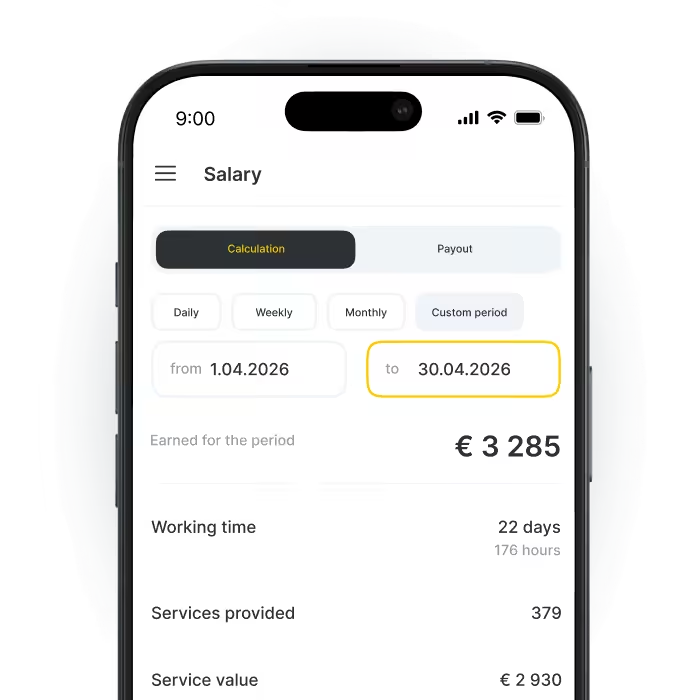
You pick the dates and get one payroll statement per team member, covering every appointment and product sale they handled
Daily or monthly, your call. A single day or any period you choose, for one team member or for the whole team at once
Best for: shifts settled at the end of the dayNothing is entered twice. The run reads the appointments and sales already in Altegio, so no figure is re-typed
Best for: a monthly or biweekly pay runEvery figure keeps its transactions. In Daily Payroll every amount opens the services and products it was earned on, so a disputed figure is settled on the record
Best for: a team member who disagrees with the amountThe payout lands in your books. The “Pay salary” action records the transaction in Finance against the accrual it settles, and any statement exports to Excel
Best for: a pay run that has to reconcile with the booksA chain keeps one profile per person. From the chain interface a team member is assigned to every Location they work in, so there is no second profile to set payroll up in, and the chain Services report shows their payroll next to turnover, filtered by subdivision
Best for: a chain closing the period across several LocationsRun one period and see the whole team's pay, with every figure traceable to the appointment behind it
Start your 7-day free trialPercentage, rate, or both. Per service, per category, per person. Altegio counts 60 payroll parameters, so you set up the scheme you already run – instead of rebuilding it around the software
Six income sources in one rule. Services provided personally, work as an assistant, group events, product sales, appointments handled, and a share of the location's daily sales or profit. Switch on what applies to the role, leave the rest off
You decide what counts as the base. Discounts, bonuses, memberships, client accounts, gift cards, promotions – include each one in the payout base or keep it out. Add prime cost and choose whether it comes off before or after the client discount
Percentage, rate, or both. A percentage of the price or a fixed amount. Per hour, per day, per month. With a guaranteed minimum for slow weeks – and a separate value for any service, product, or category you name
Pay that moves with results. Set a criterion – turnover, profit, or number of services, for one team member or the whole location – and Altegio switches the rule the moment it is met. 40% up to the target, salary plus 35% above it, calculated on its own
Service-based compensation
Salary is calculated from the actual amount paid at the cash register. Include or exclude extras such as discounts, bonuses, memberships, gift cards and promotions
Up to 60 parameters · 6 income sources · 6 payment types in or out of the base · unlimited tiers
Set up one team member, run a single period, and see the payout before you copy the setup to the rest of the team
You choose how many team members the subscription covers, and the term is one, three, six or twelve months
Three ways to work out the same amount, and what each one asks of you every month
Salary calculation in Altegio
Payroll software outside your calendar
A spreadsheet
Where the numbers come from
Attended appointments and product sales already in your calendar
Imported, because the tool holds no appointments
A spreadsheetTyped in by hand
A different rate per service
A default rate plus values per service or category
A rate list of its own, apart from your price list
A spreadsheetA column per service, maintained by you
Discounts and Loyalty Program payments
A setting on the rule, applied to every appointment
Only what the import carried
A spreadsheetRecalculated by hand
Consumables and product cost price
A setting on the rule: deducted fully, in proportion to the commission, or not at all
Unknown to the tool, unless imported too
A spreadsheetA separate stock count, reconciled by hand
The cost of the team against revenue
Payroll and revenue sit in one system, so the team's share of turnover is one report away
Revenue stays in the other system
A spreadsheetTwo files and a calculator
The questions salary calculation gets most often, each answered in full
It is software that calculates what each team member earned from the work already recorded in the system. In Altegio the payout comes from attended appointments and product sales through a rule you configure once for each team member
It is part of every Altegio plan at no extra cost: payroll rules, statements, Settlements, bonuses and deductions and the mobile app view. All of it is available during the 7-day free trial, and the subscription price depends only on how many team members it covers
Open the team member's Payroll tab, set a default payout rate for services, then add individual values for specific services or categories. A ready setup can be copied to another team member, so the second and the tenth take less time than the first
Settlements keeps every accrual and every payout behind the figure, with the payout that settled each accrual next to it. You pick the period and the team member, and the amount is discussed on the record rather than from memory
Payroll access is split into permissions: one for the payroll settings and templates, one for running the calculation, and a narrower one that opens a single team member's payroll. A team member reads their own in the mobile app; the company's cash flow needs separate Finance permissions
Tips are not part of the salary calculation base. A partner tipping service in Integrations sends them straight to the team member in the countries where it is available. They never pass through the business's revenue and never reach a payout rate
Where the money goes after the pay run, and where the numbers behind it live
The section the recorded payout goes to: cash flow, accounts and cash registers
Learn moreAppointments with their service, team member and price – the records the pay run adds up
Learn more