
The Altegio Business Management mobile app shows the payment policy of every appointment that has one. From your phone, you can see whether the client paid a deposit or linked a card, apply the deposit when the client pays for the visit, decide what happens when a client cancels or reschedules late, and charge a no-show fee to the client’s saved card.
This article covers each of these scenarios step by step. To set up the payment policy itself, see Payment policies. The same scenarios in the web version are described in Charging fees and rescheduling visits with a payment policy.
Before you start
- Payment policy: the location has an active payment policy in Deposit or Card guarantee mode. See Deposit mode in payment policies and Card guarantee mode in payment policies.
- Payment provider: Card guarantee mode and a no-show fee higher than the deposit require Adyen. See Adyen Integration: Setup and verification guide.
- Access rights: to charge or waive fees, your role needs the Process the payment access right. See Booking window access rights.
- Permission not to charge: to keep a deposit on the client’s balance or to waive a fee, the payment policy must allow it. In Deposit mode, the setting is Allow receptionist not to charge and credit deposit to client balance in case of no-show or late cancellation. In Card guarantee mode, the setting is Allow receptionist not to charge.
How to see the payment policy of an appointment
- Open the Calendar tab.
- Tap the appointment. The visit screen opens.
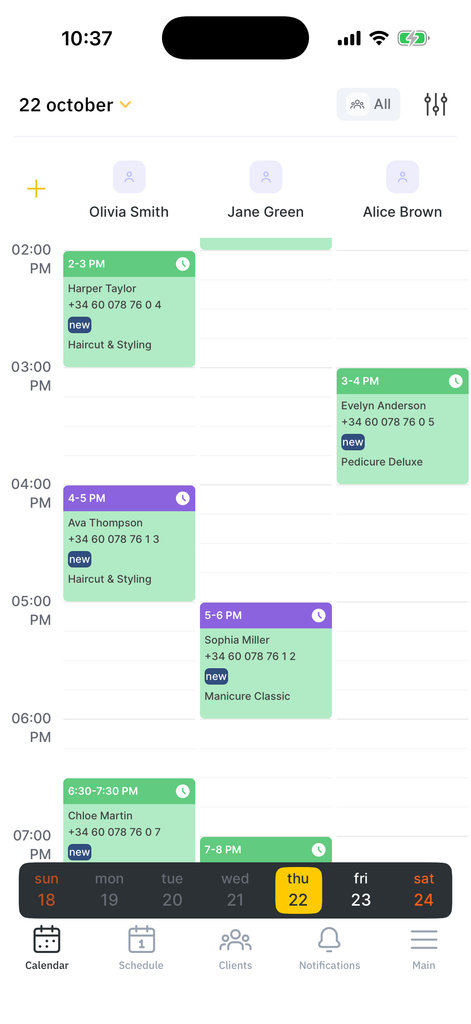
- Scroll down to the Payment policy block.
The Payment policy block shows the policy status next to the block title. Client accepted means the client paid the deposit or linked a card when booking. The amounts in the block are fixed at the moment the client accepted the policy terms.
Card guarantee mode
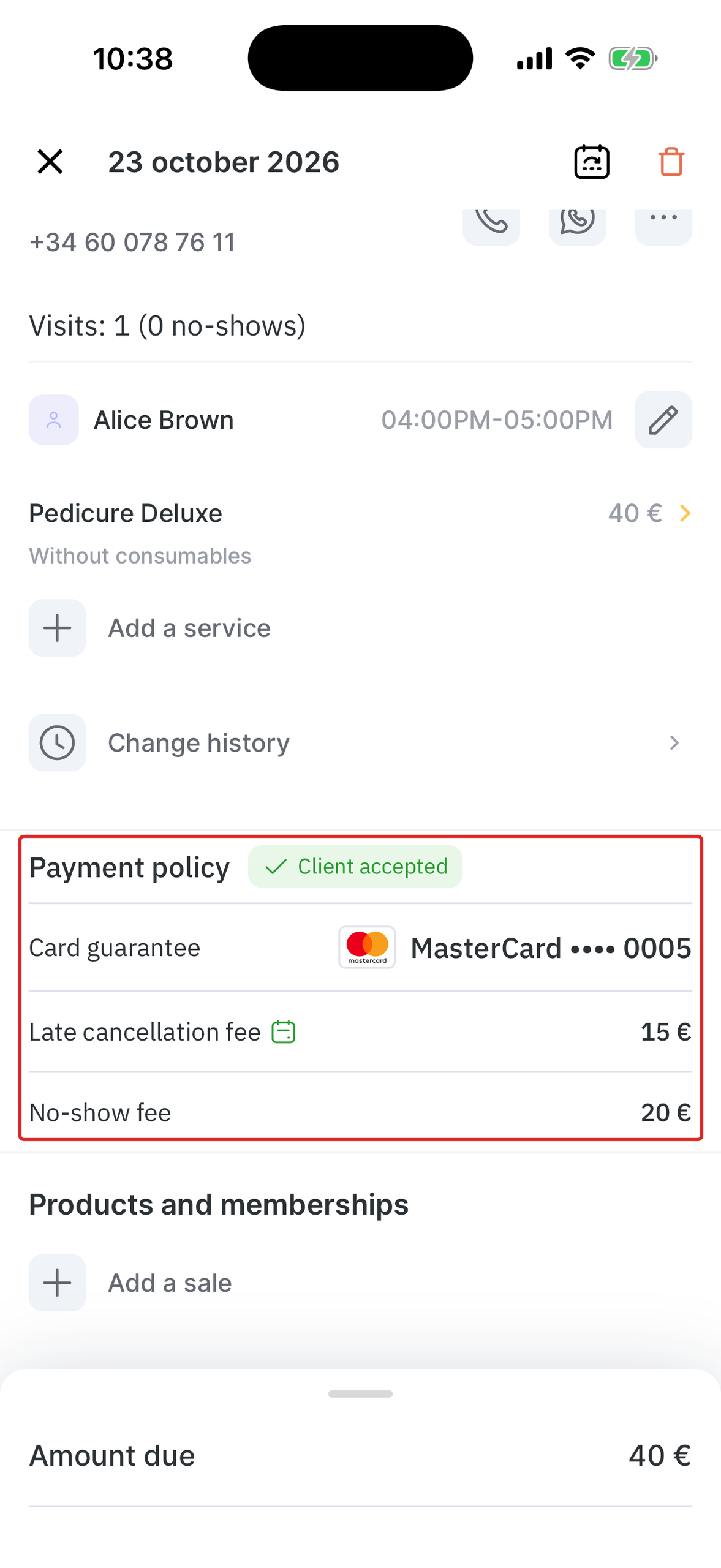
In Card guarantee mode, the Payment policy block shows:
- Card guarantee: the brand and the last 4 digits of the card the client linked (for example, MasterCard •••• 0005).
- Late cancellation fee: the amount charged to the linked card if the client cancels or reschedules after the free cancellation period.
- No-show fee: the amount charged to the linked card if the client doesn’t come.
Deposit mode
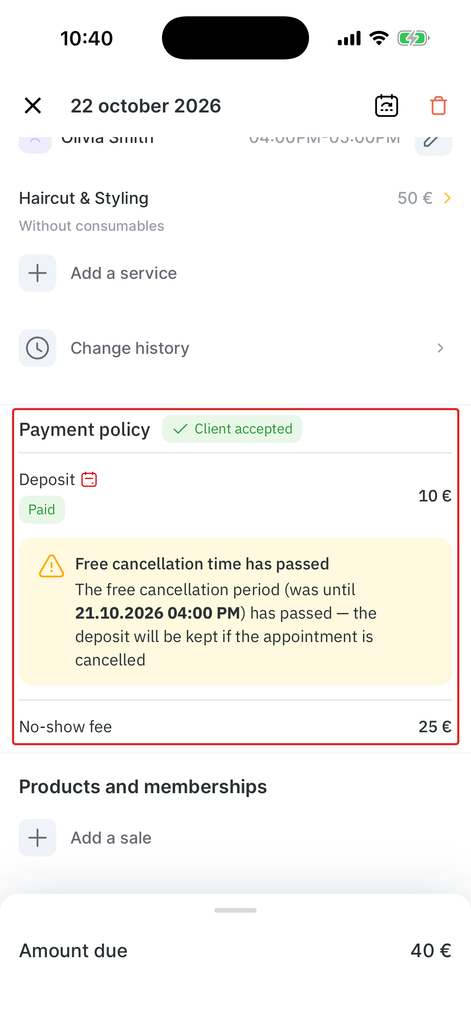
In Deposit mode, the Payment policy block shows:
- Deposit: the deposit amount and its status. Paid means the client paid the deposit online. Charged means the deposit went to the business.
- No-show fee: the full no-show fee set in the policy, including the deposit.
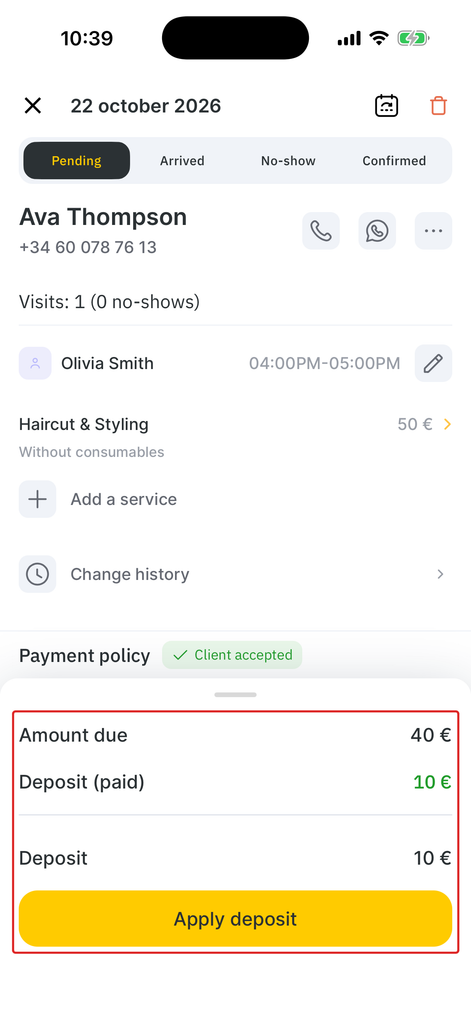
Amount due at the bottom of the visit screen is the visit total minus the paid deposit. For example, for a 50 € service with a 10 € deposit, Amount due is 40 €.
How to check the free cancellation deadline
The free cancellation period is the time before the appointment when the client can cancel or reschedule without losing the deposit or paying the late cancellation fee. Its length is set in the payment policy (for example, 24 hours before the appointment).
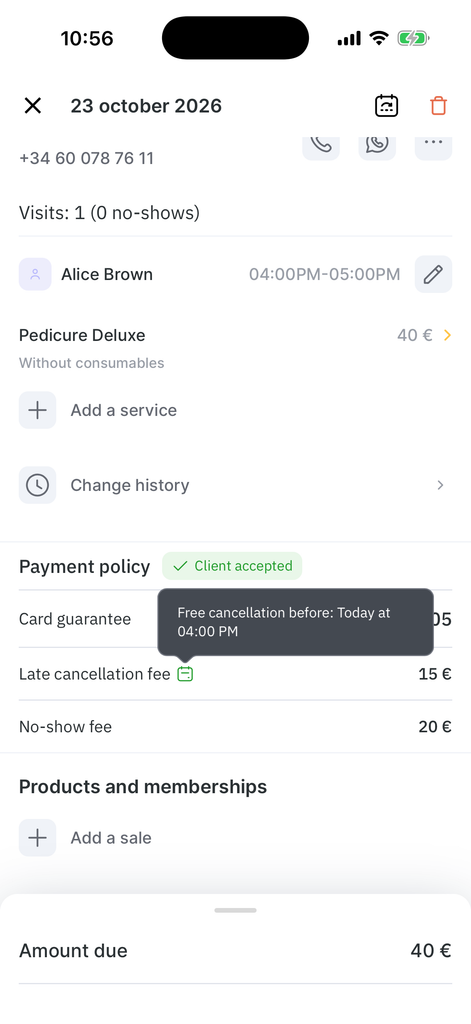
The Payment policy block shows a calendar icon next to Deposit (Deposit mode) or Late cancellation fee (Card guarantee mode):
- Green icon: the free cancellation period hasn’t ended yet. Tap the icon to see the deadline (for example, Free cancellation before: Today at 04:00 PM).
- Red icon: the free cancellation period has ended. In Deposit mode, the block also shows the Free cancellation time has passed banner with the deadline date and time. If the appointment is cancelled after this point, the business keeps the deposit.
How to close a visit with a deposit
When the client comes to a Deposit mode appointment, the paid deposit counts toward the visit payment.
- Open the appointment on the Calendar tab.
- Expand the payment panel at the bottom of the visit screen. The panel shows Amount due, Deposit (paid), and Deposit.
- Tap Apply deposit.
- Pay the remaining Amount due with any payment method.
Example
The Haircut & Styling service costs 50 €, and the client paid a 10 € deposit online. Amount due is 40 €. After you tap Apply deposit, the client pays the remaining 40 €.
How to close a visit with a card guarantee
In Card guarantee mode, the client doesn’t pay anything upfront. Amount due at the bottom of the visit screen equals the full visit total. The client pays for the visit with any payment method, as for an appointment without a payment policy. The linked card isn’t used to pay for services. It is charged only for a late cancellation fee or a no-show fee.
What to do when a client cancels late
A late cancellation is a cancellation after the free cancellation period has ended but before the appointment time. To cancel the appointment, delete it from the visit screen. When the free cancellation period has ended, the app asks what to do with the deposit or the late cancellation fee.
Late cancellation in Deposit mode
- Open the appointment on the Calendar tab.
- Tap the trash bin icon at the top of the visit screen. The Client cancelled late window opens.
- Check the amount in Paid deposit.
- Choose what happens to the deposit:
- To keep the deposit for the business, leave Keep deposit on the client’s balance off. The toggle is off by default.
- To return the deposit to the client’s balance for future visits, turn on Keep deposit on the client’s balance.
- Tap Confirm.
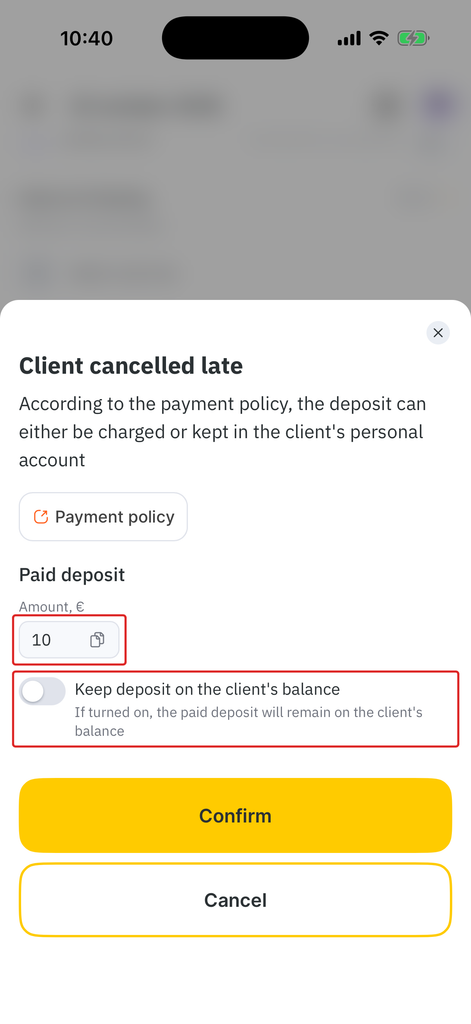
After you tap Confirm, the appointment is deleted from the calendar. To go back to the visit screen without cancelling, tap Cancel.
Late cancellation in Card guarantee mode
- Open the appointment on the Calendar tab.
- Tap the trash bin icon at the top of the visit screen. The Client cancelled late window opens.
- Check the fee in Amount.
- Choose what happens to the fee:
- To charge the late cancellation fee to the client’s linked card, leave Charge late cancellation fee on. The toggle is on by default, and the window shows The fee will be charged to the client’s card.
- To cancel the appointment without a fee, turn off Charge late cancellation fee.
- Tap Confirm.
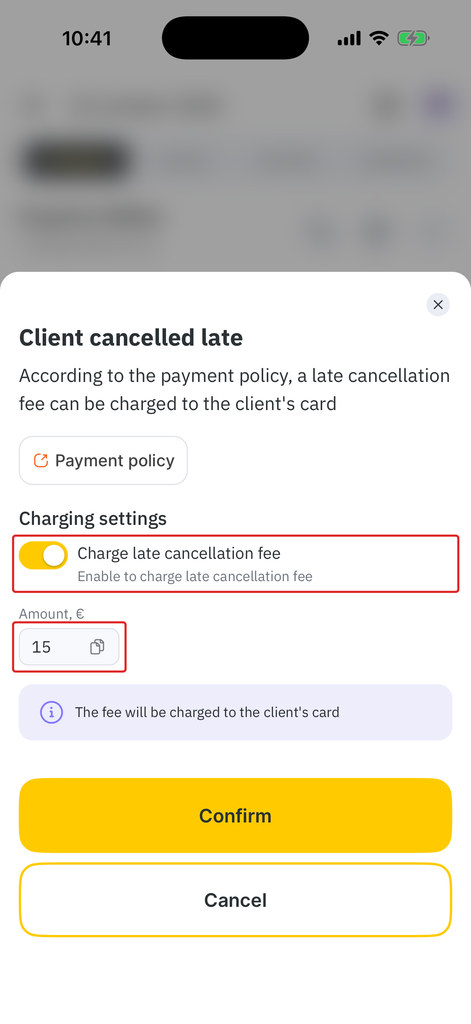
After you tap Confirm, the appointment is deleted from the calendar.
What to do when a client reschedules late
When you move a Card guarantee mode appointment to another date or time after the free cancellation period has ended, the Late reschedule window opens.
- Open the appointment on the Calendar tab.
- Change the date or time of the appointment. The Late reschedule window opens.
- Check the fee in Amount.
- Choose what happens to the fee:
- To charge the late cancellation fee to the client’s linked card, leave Charge late cancellation fee on. The toggle is on by default.
- To move the appointment without a fee, turn off Charge late cancellation fee.
- Tap Confirm.
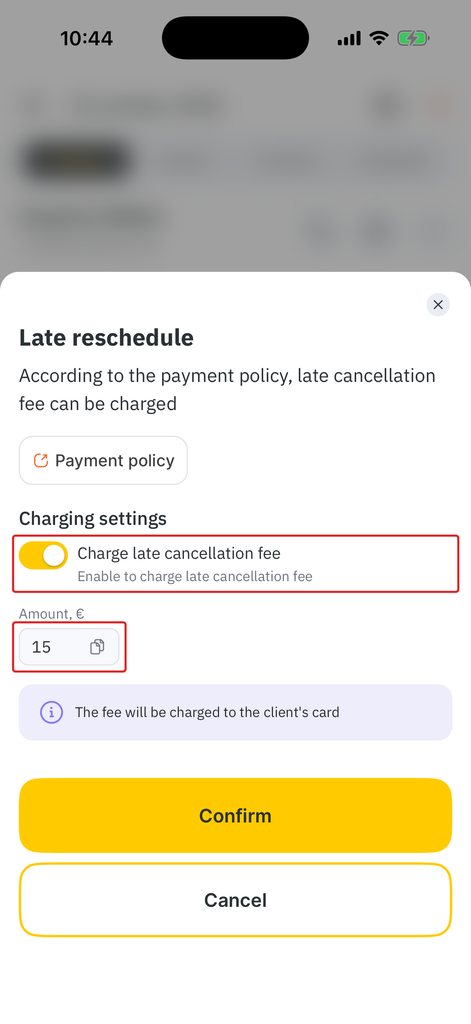
After you tap Confirm, the appointment moves to the new date and time without a payment policy, whether the fee was charged or not. The moved appointment has no linked card and no free cancellation period.
What to do when a client doesn’t show up
Mark an appointment as No-show only after the appointment time, when the client didn’t come. If the client warned you in advance, cancel the appointment instead.
In Deposit mode, when you mark the appointment as No-show, the deposit goes to the business, and the Deposit line shows the Charged status. If the no-show fee in the policy is higher than the deposit (this requires Adyen), the rest of the fee can be charged to the card the client saved when paying the deposit.
Charging the no-show fee in Deposit mode
- Open the appointment on the Calendar tab.
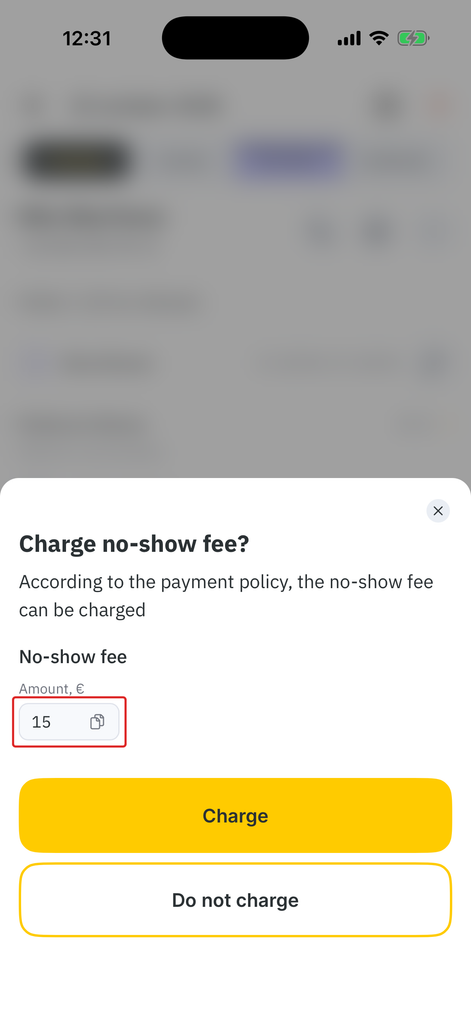
- Tap No-show at the top of the visit screen. The Charge no-show fee? window opens.
- Check the amount in No-show fee. It is the part of the no-show fee left after the deposit. For example, with a 25 € no-show fee and a 10 € deposit, the window shows 15 €.
- Choose what to do:
- To charge the rest of the no-show fee, tap Charge. The Fee payment screen opens.
- To keep only the deposit and not charge the rest of the fee, tap Do not charge.
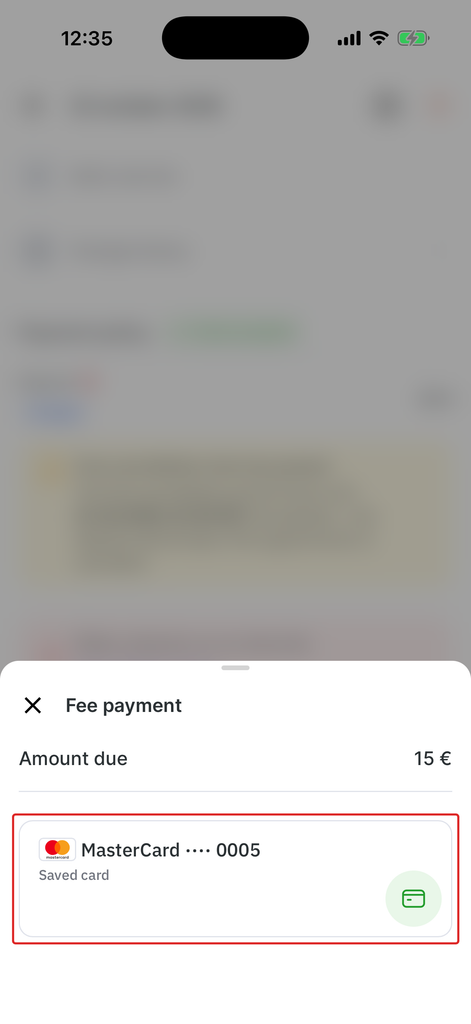
- On the Fee payment screen, check Amount due and tap the client’s saved card (for example, MasterCard •••• 0005, Saved card).
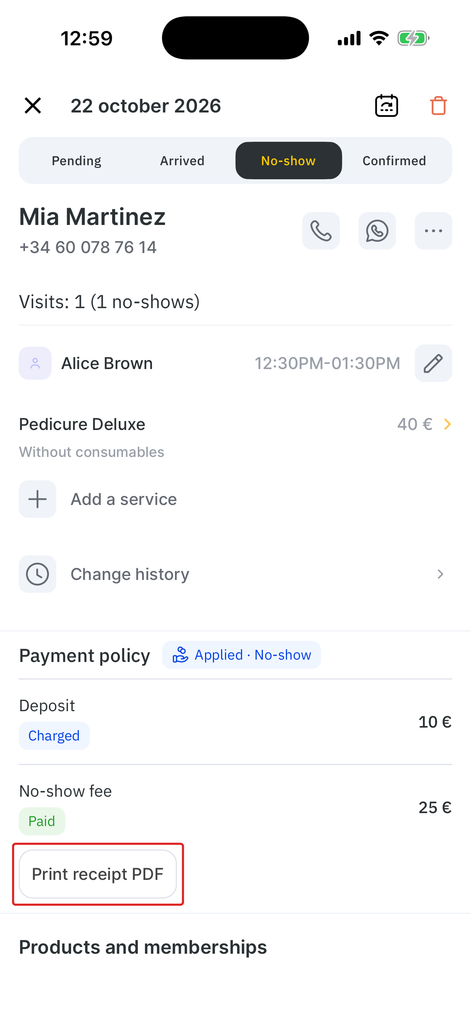
After the payment, the Payment policy block shows the Applied · No-show status. Deposit has the Charged status, and No-show fee has the Paid status with the full fee amount (for example, 25 €). The client’s visit counter shows the no-show (for example, Visits: 1 (1 no-shows)).
Note
If the no-show fee in the policy equals the deposit, the deposit covers the whole no-show fee. There is nothing left to charge to the client’s card.
Deciding on the no-show fee later
Until the no-show fee decision is made, the Payment policy block shows Make a decision on no-show fee with a countdown. The Charge no-show fee toggle (Turn on to charge the no-show fee remainder) shows whether the rest of the fee will be charged. The deposit already has the Charged status.
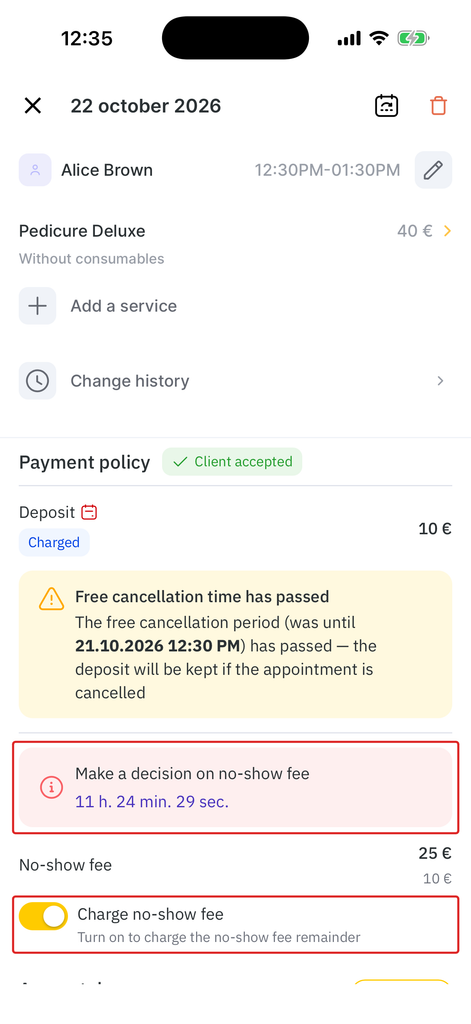
If the countdown ends and no decision was made, Altegio charges the rest of the no-show fee to the client’s card automatically, according to the payment policy.
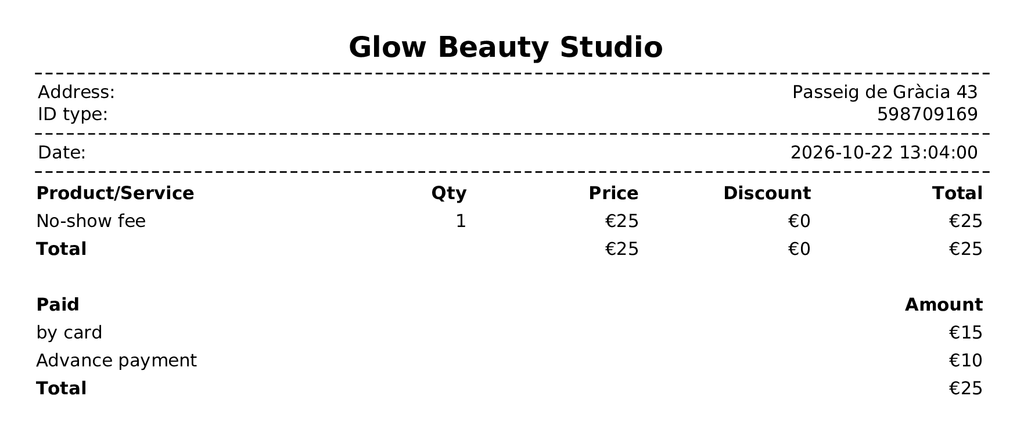
Printing the no-show fee receipt
- Open the appointment with the Applied · No-show status.
- In the Payment policy block, tap Print receipt PDF.
The receipt shows the No-show fee line with the full fee amount. The Paid section splits it into the part charged by card and the deposit, shown as Advance payment.
Where to check client balances and transactions
The client card in the Altegio Business Management mobile app shows the client’s Balance. The client’s Client accounts (where the deposit is held) and the Finance > Financial transactions section open only in the web version of Altegio. For details on the client’s account after a deposit, a late cancellation, or a no-show, see Deposit mode in payment policies and Client accounts (deposit).
FAQ
Open the appointment on the Calendar tab and scroll to the Payment policy block. If the client paid, the block shows the Client accepted status, and Deposit has the Paid status with the deposit amount.
Open the appointment on the Calendar tab. In the Payment policy block, the Card guarantee line shows the card brand and its last 4 digits, for example MasterCard •••• 0005.
Look at the calendar icon next to Deposit or Late cancellation fee in the Payment policy block. A green icon means the free cancellation period is still on. Tap it to see the deadline. A red icon means the period has ended, and a late cancellation keeps the deposit for the business or charges the late cancellation fee.
Open the appointment, tap the trash bin icon, and in the Client cancelled late window turn on Keep deposit on the client’s balance. Tap Confirm. This option works only if the payment policy has Allow receptionist not to charge and credit deposit to client balance in case of no-show or late cancellation turned on.
No. The status of an appointment marked as a no-show can’t be changed after the no-show fee is applied. An appointment marked as a no-show also can’t be rescheduled. Create a new appointment for the client instead.
Open the appointment with the Applied · No-show status and tap Print receipt PDF in the Payment policy block.
The Payment policy block appears only on appointments that have a payment policy. Appointments booked before the policy was turned on, and appointments outside the policy scope, don’t have it. If an appointment has a policy in the web version but not in the app, update the Altegio Business Management mobile app to the latest version.