
Deposit mode collects an upfront payment from the client at booking time, holds it against the appointment, and applies it as the first form of payment when the visit closes. This article is the full guide to Deposit mode: how to set it up, how the money moves, and where you see the result.
When to use
- Your no-show rate is hurting cashflow and you want to require skin-in-the-game from clients booking online.
- You want every visit to start with a non-zero payment committed, so even partial revenue is locked in regardless of show-up.
- You want the same money to roll naturally into the visit total at checkout, without a separate refund step.
If you instead want to authorise a card without taking money upfront, see Card guarantee mode in payment policies. For an overview of both modes, see Payment policies.
Important
The deposit works with any payment system available in your region (Stripe, MonoBank, LiqPay, Qton, and others). One option depends on Adyen:
- Without Adyen: the no-show fee always equals the deposit — you can’t set it higher. The deposit alone is what’s kept on a no-show.
- With Adyen: you can set the no-show fee higher than the deposit. The client then also links a card at booking, and on a no-show the difference (no-show fee minus deposit) is charged off-session from that card.
To connect Adyen, see Adyen Integration: Setup and verification guide.
Before you start
You need:
- The Owner or Manager role, or a custom role with payment-policy permissions in the Finance block: View payment policies (to see the page) and Manage payment policies (to edit and save it). Both live under the Finance block in Team > Team members list > Access. See Finance access rights.
- A connected payment provider. The client’s payment for the service lands in your selected payment system.
How to set up Deposit mode
Step 1. Open the Payment Policy page
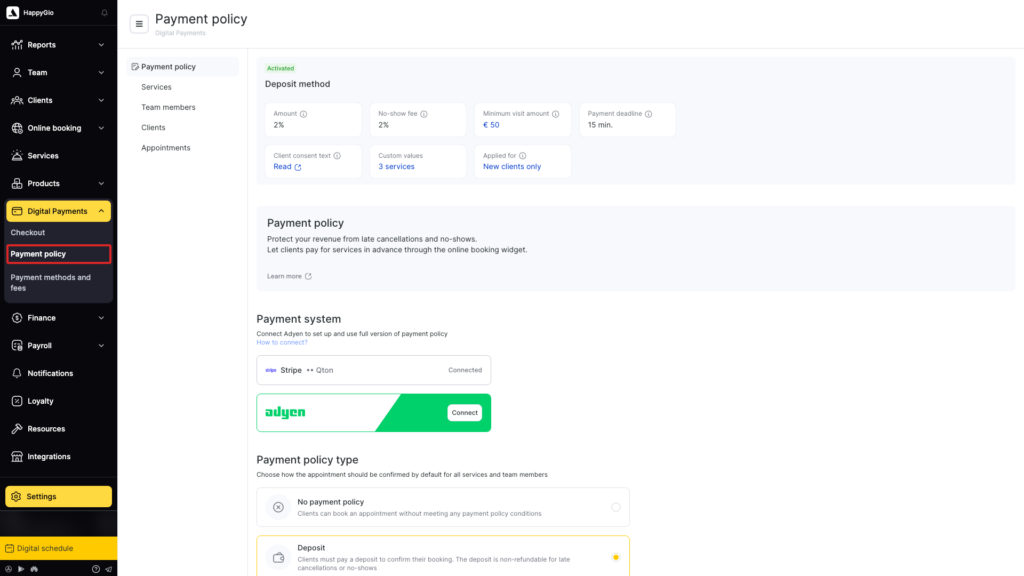
In Administration mode, open Digital Payments > Payment policy in the sidebar. Confirm a payment provider is connected in the Payment system block — if none is connected, the policy can’t be activated.
Step 2. Choose Deposit and set the amounts
In Payment policy type, select Deposit. The deposit fields appear below.
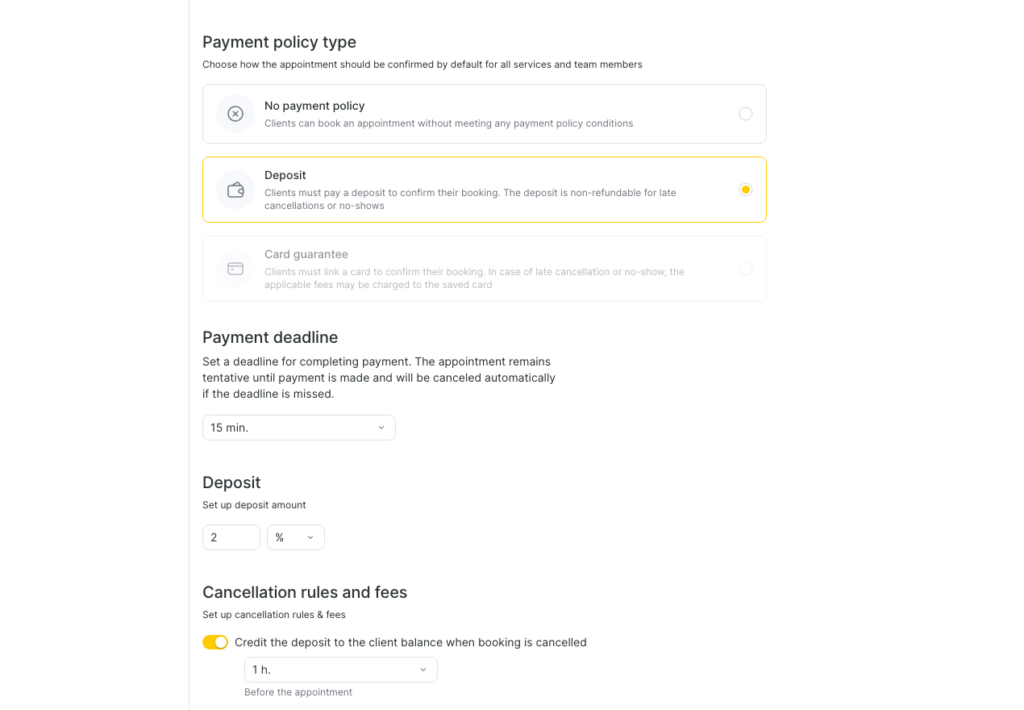
- Payment deadline — how long the booking is held while the client completes payment in the online widget. While the timer runs the booking stays tentative; if the client doesn’t pay before it ends, the booking is cancelled automatically. You set this in the policy; 15 min. by default.
- Amount — the deposit size. Set it as a percentage of the visit cost (
%) or a fixed currency value. The amount cannot be zero.
Cancellation rules and fees
The Cancellation rules and fees block sets the defaults for what happens on a cancellation or no-show.
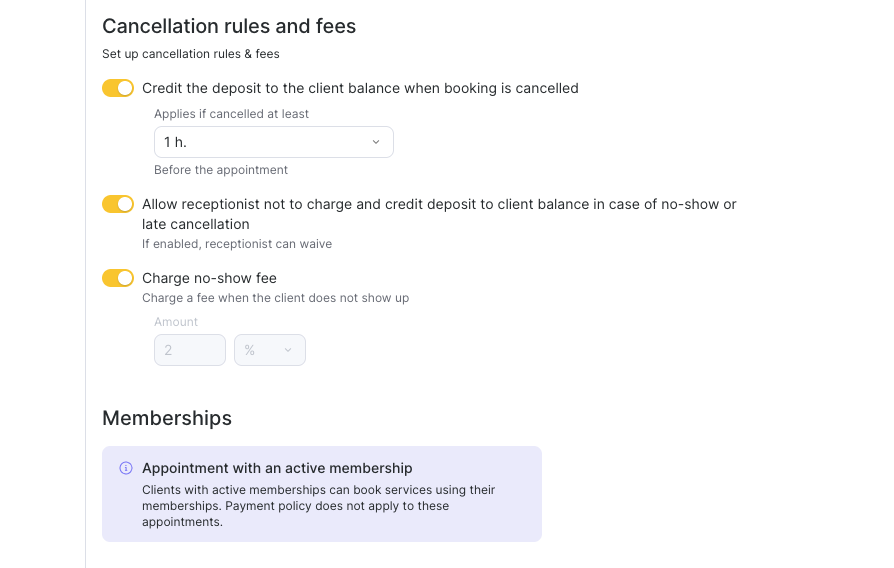
- Credit the deposit to the client balance when booking is cancelled — a toggle.
- Off (default): on a late cancellation the deposit goes to the business.
- On: on cancellation the deposit stays on the client’s balance, available for their next booking. An administrator can still override this at the moment of cancellation.
- Free cancellation window — appears when the toggle is on. It’s how far ahead of the visit the client can still cancel without losing the deposit (1 h. to 72 h.). A cancellation later than this is a late cancellation.
- Allow receptionist not to charge and credit deposit to client balance in case of no-show or late cancellation. When on, anyone with the charge permission can keep the deposit on the client’s balance instead of taking it.
- No-show fee — without Adyen it always equals the deposit (no separate field). With Adyen connected you can set a separate no-show fee above the deposit (see the Important block above).
Below the fees, a Memberships block explains one exception you cannot configure: an appointment booked with an active membership is never subject to the payment policy.
The same controls — crediting the deposit on cancellation, letting an admin not charge, and the no-show fee — can also be set per individual service, overriding these defaults. You do that in the per-service drawer in the Services scope below.
Step 3. Set the scope
Scroll to Conditions and limitations. This defines which bookings the policy applies to. The yellow Payment policy application rules callout explains the logic: the policy applies to bookings that match the selected services and team members; extra limits (client type, visit amount) are checked afterwards.
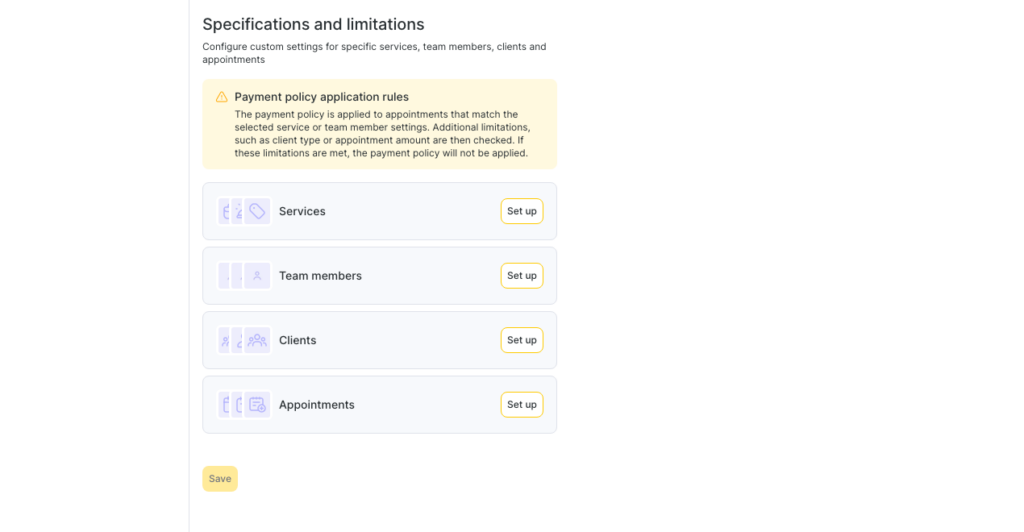
Click Set up on a card (or use the tabs on the left). Here’s what each one does.
Services
Select which services the policy applies to. All are included by default. Services with a zero price are excluded automatically.
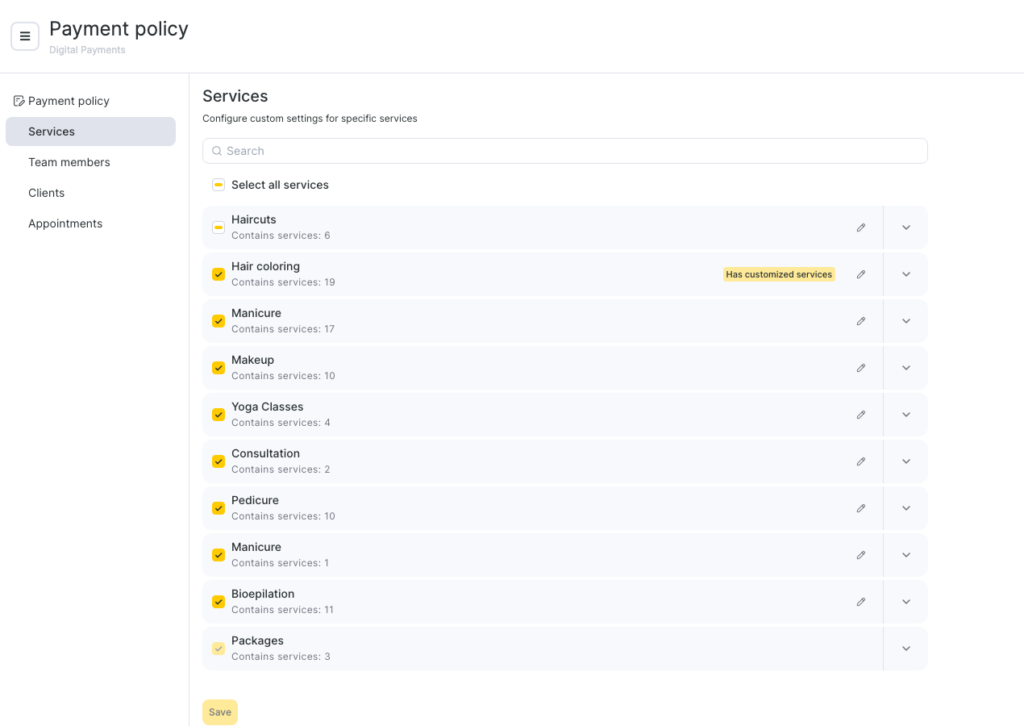
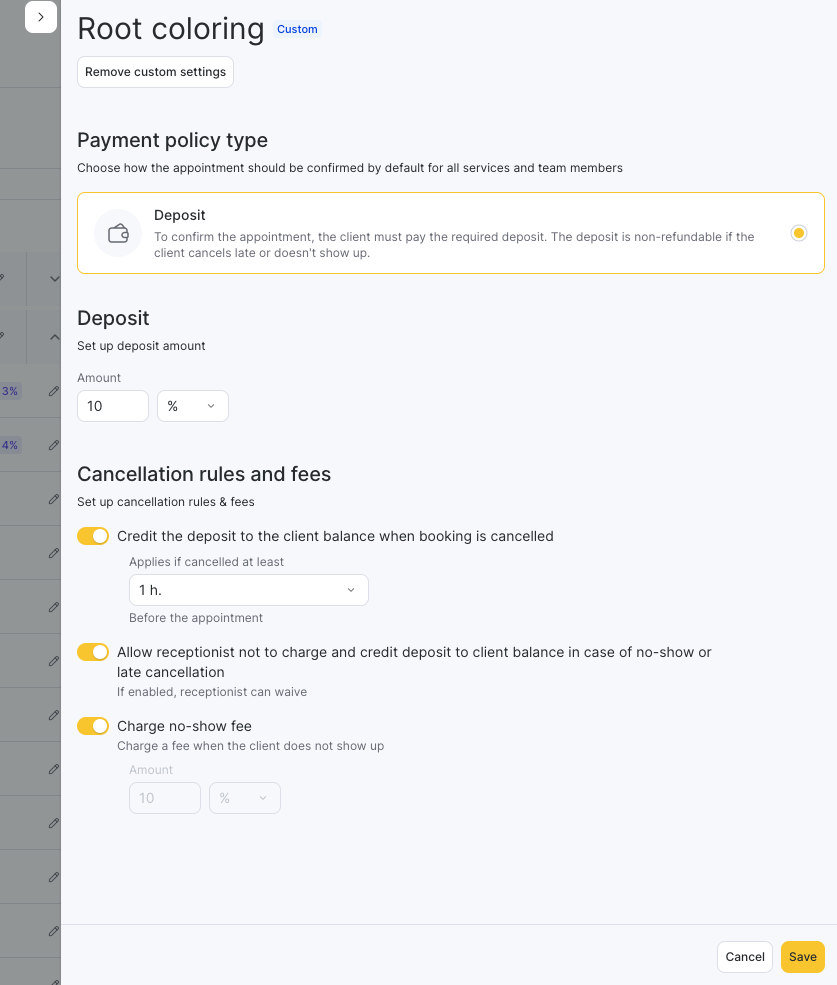
You can include whole categories, individual services, or override the settings for a specific service — click the pencil icon on a service row. A side drawer opens with that service’s own policy type, deposit amount, and the three cancellation controls:
- Credit the deposit to the client balance when booking is cancelled + the free cancellation window — same as the default rule.
- Allow receptionist not to charge and credit deposit to client balance in case of no-show or late cancellation. When on, anyone with the charge permission can keep the deposit on the client’s balance instead of taking it.
- Charge no-show fee. When on, the Amount field sets the fee size. (Above the deposit requires Adyen.)
The override applies only to that service; the default policy keeps applying to all others.
Team members
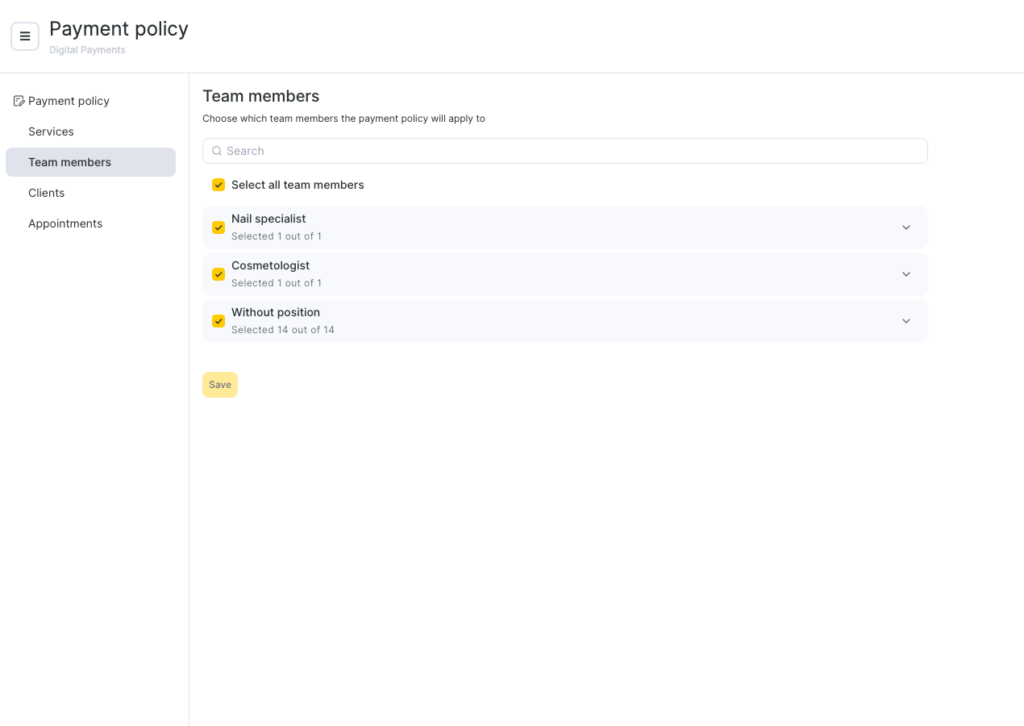
Select which team members the policy applies to. Only active members are listed; all are included by default.
Clients
Choose which client types the policy applies to:
- All clients — default.
- New clients only — clients who are not yet in your client base.
- Existing clients only — clients who are already in your client base.
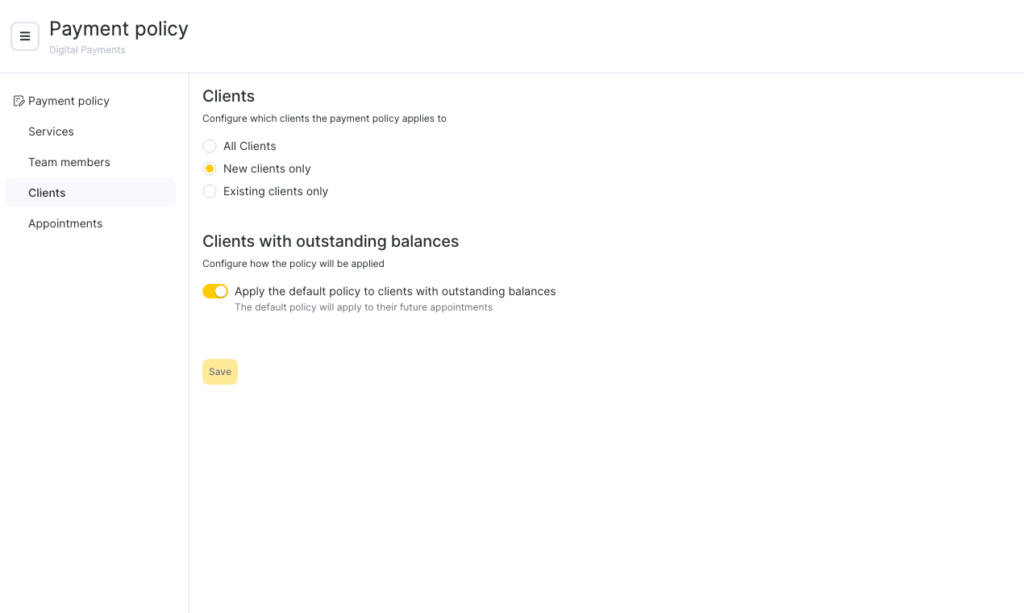
Below is a separate Clients with outstanding balances section. The Apply the default policy to clients with outstanding balances toggle controls whether the policy applies to clients whose location balance is negative (debtors), regardless of the client-type choice above. When on, the default policy applies to their future appointments even if they would otherwise be exempt.
Appointments
Set a minimum visit amount below which the policy doesn’t apply.
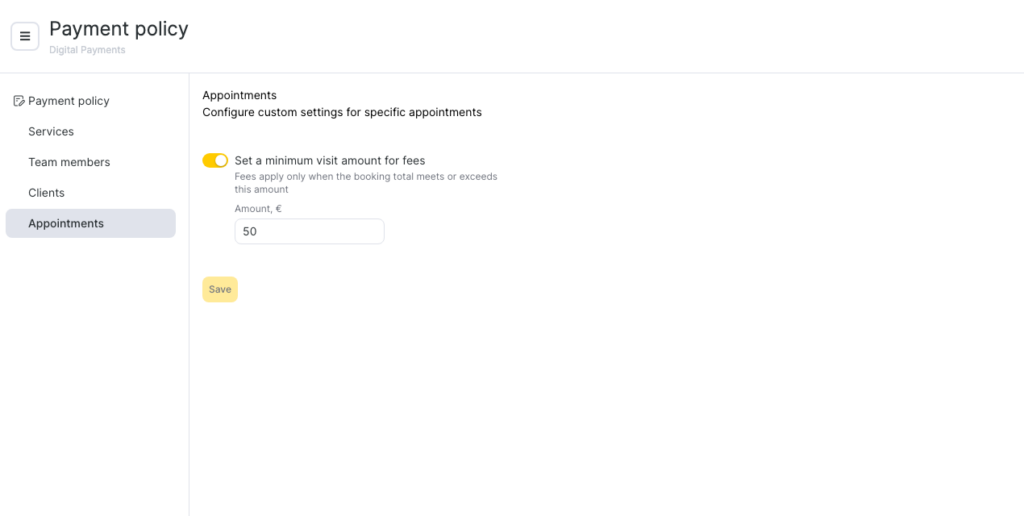
Turn on Set a minimum visit amount for fees and an Amount field appears. Bookings cheaper than this threshold skip the payment policy.
Step 4. Save
Click the yellow Save button at the bottom of Conditions and limitations (or inside each tab). The policy becomes active for new bookings only — existing bookings keep their pre-policy rules.
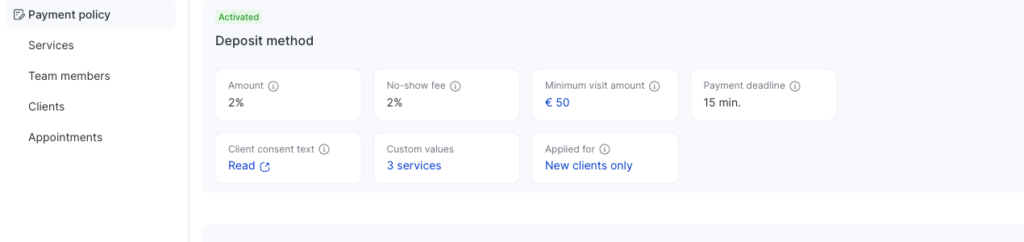
Once saved, the green Activated card at the top of the page summarises what the client will pay: the deposit amount, the no-show fee, the minimum visit amount, the payment deadline, the consent text, and which clients the policy applies to. These same values are locked into every new booking the policy covers.
What changes elsewhere after you activate a policy
This matters mainly if your business used the old online prepayment settings before payment policies. Activating a policy moves or hides several of those older controls. If you’re setting up for the first time and never used online prepayment, you can skip this section.
- Service-card prepayment toggle is hidden. The old “Online prepayment” field in each service card no longer appears — configure coverage through the Services scope instead.
- Team-member-card prepayment toggle is hidden. The “Online prepayment” checkbox in each team member’s Online Booking tab is hidden too — use the Team members scope.
- Online-widget reschedule and cancel toggles are hidden. The settings Allow clients to reschedule prepaid bookings online and Allow clients to cancel prepaid bookings online (in Online booking > Settings > Rules for cancelling and rescheduling) are hidden while a policy is active. With a policy on, clients can always reschedule and cancel online — the policy governs the financial consequences via the free cancellation window.
- Each client gets a new personal account. Altegio creates a read-only “Payment Policy” personal account for every client when you save the policy — it holds deposits and records fees.
How deposits work end-to-end
A single deposit goes through four lifecycle states:
- Reserved — the client books online through the widget and pays the deposit through the connected payment provider. The money lands on the client’s Payment Policy personal account and a hold is placed against it for this specific appointment. The booking moves to Client Accepted status.
- Held until decision — between booking time and the visit’s free cancellation window, the deposit sits as a hold. The client can still cancel without penalty during this window; the hold is released back to their available balance.
- Confirmed at checkout — when the visit is closed and paid, Altegio applies the deposit first against the visit total. The hold becomes a confirmed payment to the business.
- Forfeited (or kept on balance) — if the client doesn’t show up or cancels after the free window closes, the deposit is forfeited to the business by default. If the “Credit the deposit to the client balance” toggle was on at the time the policy was applied, an administrator can override and keep the deposit on the client’s balance instead — see Charging fees and rescheduling visits with a payment policy for the modal walkthrough.
Two amounts are tracked on the client’s Payment Policy account throughout this lifecycle: Balance (the total across all transactions) and Available (Balance minus all active holds). A deposit that’s “Held until decision” shows up in Balance but is subtracted from Available — the client can’t spend it on another booking until it’s released.
What the client sees during booking
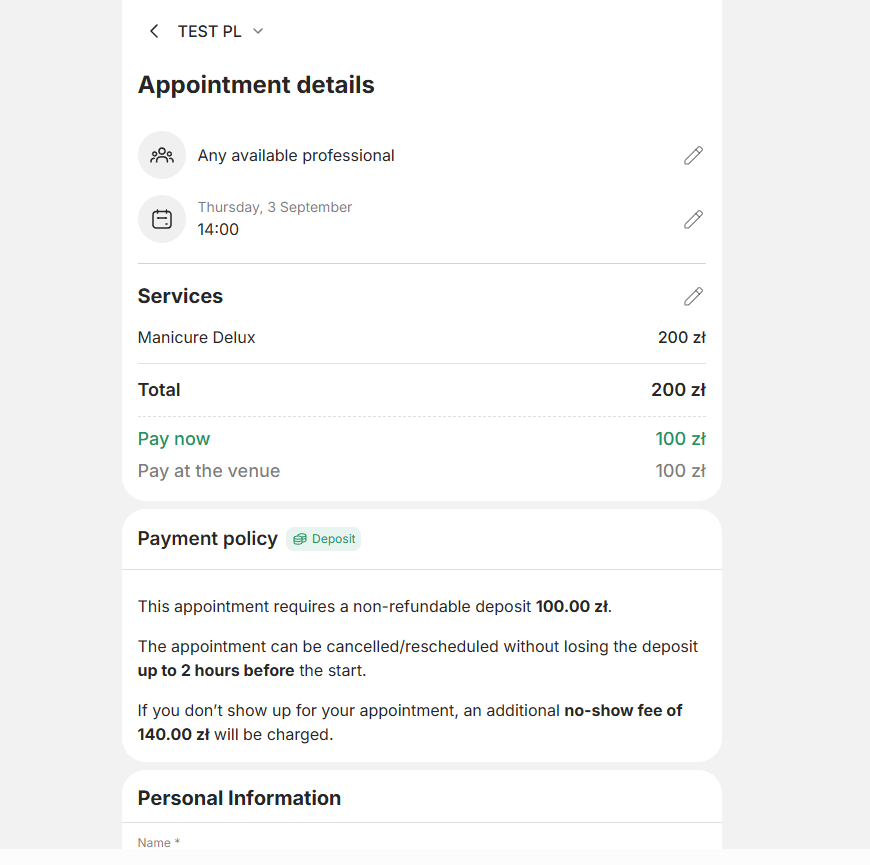
The client picks a service, master, and time in the online booking widget. After they confirm, the widget displays the deposit amount (as a concrete sum, never a percentage), the no-show fee, the free cancellation window, and the consent checkboxes with a link to the full cancellation policy text. They pay through the integrated payment form, and the booking becomes confirmed.
See How clients book, pay, and manage cards with payment policies for the full step-by-step from the client’s side.
In the visit window
Open a booking from the calendar in Digital Schedule mode — click the booking’s cell. (The same visit window also opens from Reports > Appointments by clicking the pencil icon in the row.)
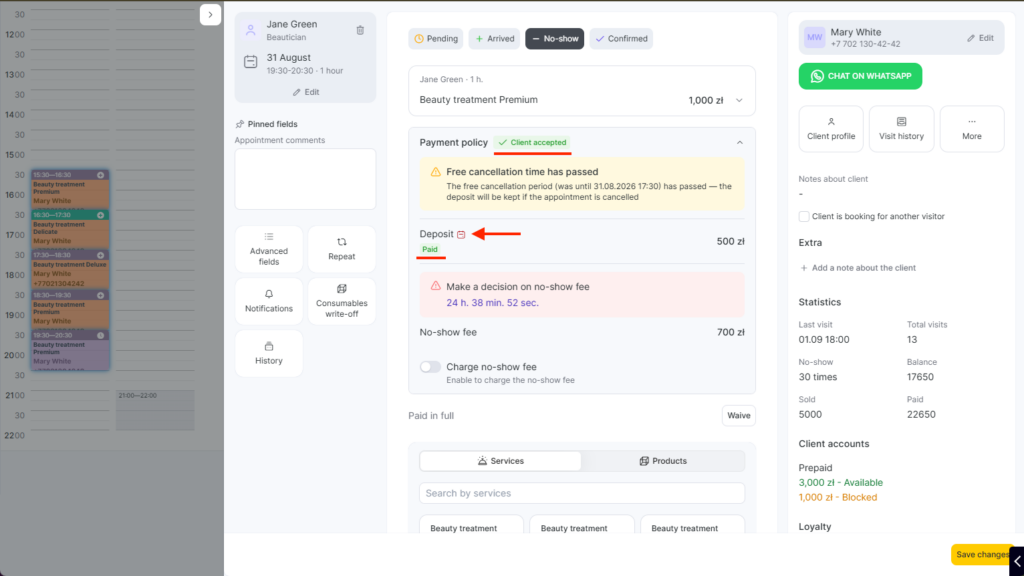
Once a booking with a deposit is open, the Payment Policy block is part of its visit window. The block shows:
- The applied policy snapshot — deposit amount, no-show fee, free cancellation window — as concrete numbers from the moment the booking was made.
- The booking’s status (Client Accepted, Charged, Waived) — for the full status reference.
- A calendar icon next to the free cancellation deadline: green if the deadline hasn’t passed, red if it has. Hover for the exact date and time.
The client’s account summary — Balance and Available, with negative balances shown in red — is displayed in the client’s info, not in the Payment Policy block (see The client’s Payment Policy account below).
If you edit the visit (add or remove a service, change the master) after the deposit is paid, a yellow banner appears: the policy snapshot does not change to match the new visit total. The deposit you collected stays the same; any change in visit price is settled at checkout. Phone number is the only field you cannot edit on a booking with an active policy.
The client’s Payment Policy account
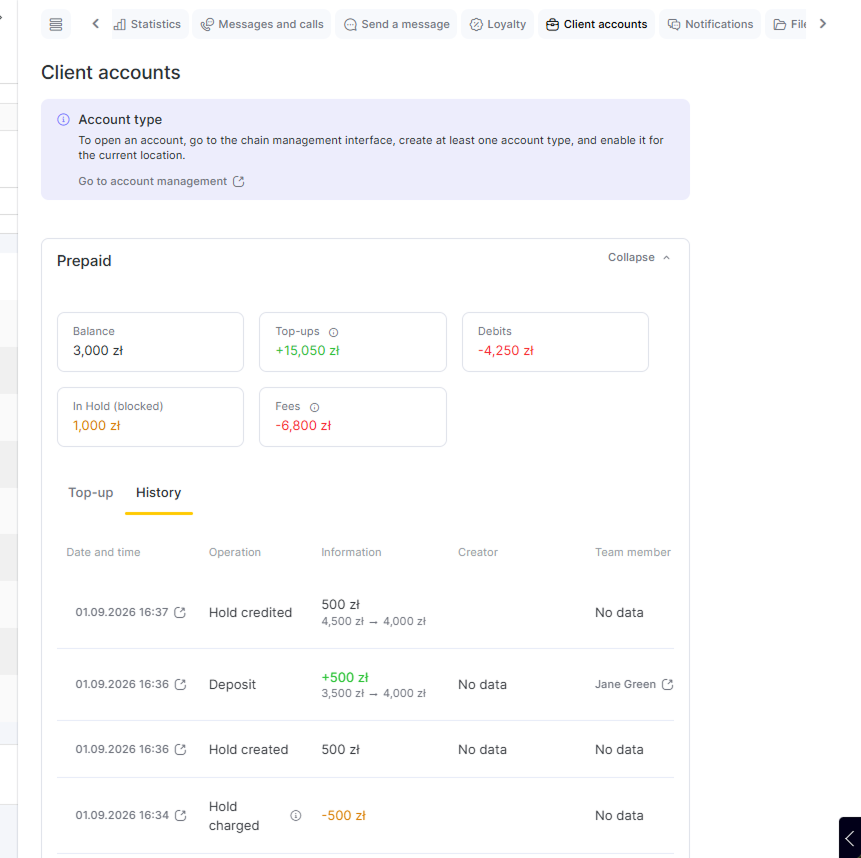
When you activate a payment policy, Altegio auto-creates a personal account named “Payment Policy” for every client in the location. This is a new, separate account from any existing client accounts (deposit accounts, gift card balances, on-credit accounts). You’ll see it in the client card alongside any other accounts.
Three things make the Payment Policy account different from a regular client account:
- Read-only configuration. You cannot rename, edit, or delete this account — the corresponding controls are disabled. The account exists solely to hold deposits and to record fees against the client.
- Negative balance has no limit. A regular client account caps how far negative the balance can go. The Payment Policy account doesn’t — if a fee is debited and the client has no funds, the account goes into the red without blocking the operation.
- Auto-created for every client. Even if a client already has other accounts in the location, the Payment Policy account is created once the policy is activated.
The transaction log on this account records each operation — deposit credit, hold release, hold confirm, fee debit. Every deposit-related movement also lands in Finance > Financial transactions (filter by Purpose or Source) for cross-client auditing. For general client-account mechanics, see Client accounts (deposit).
At checkout
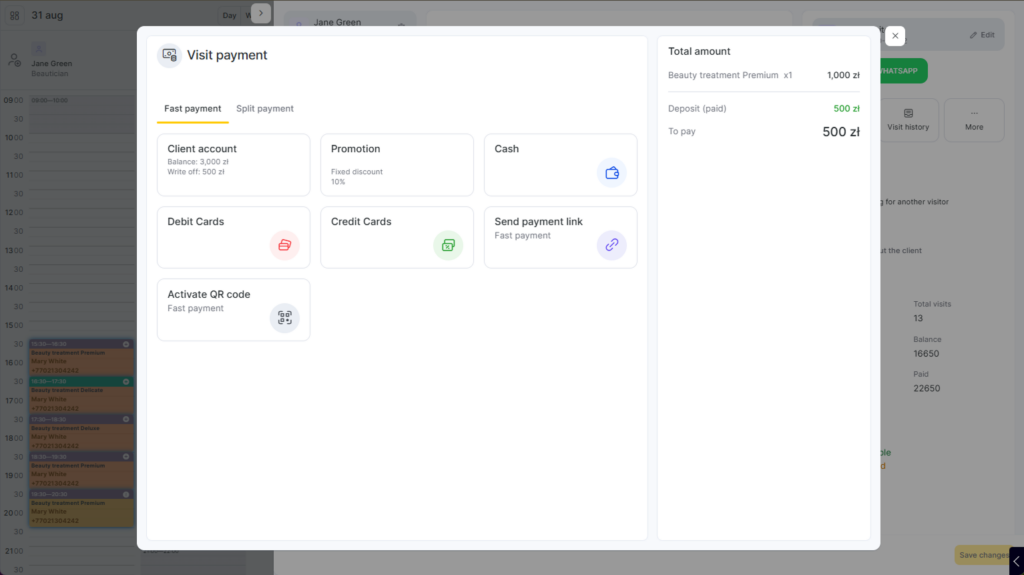
When you close the visit, the deposit is applied first, before any other payment method. The checkout screen shows:
- The portion of the visit total covered by the deposit.
- The remaining amount to pay.
- Standard payment options for the remainder (cash, card, gift card, loyalty points).
If a discount is applied at checkout, it is calculated on the full visit total. The deposit stays applied in full — the discount simply reduces the remaining amount to pay (the discounted total minus the deposit).
If the visit total turned out to be less than the deposit (services removed, cheaper master, discount applied), the excess on the hold is released back to the client’s available balance. The client doesn’t pay anything at checkout; they leave with a small positive balance for their next booking.
If the visit total equals the deposit, the checkout screen still opens — the deposit is applied as the only payment line, and the remaining amount to pay is zero.
Important
If a client booked with a deposit, you cannot close that visit using a membership. The membership and the policy are mutually exclusive at the booking level — the client paid a deposit, so the visit must close through the standard payment flow.
Unusual cases
A few situations need special handling. None is configurable; they’re built into the deposit logic.
- The visit total drops below the deposit. Altegio releases the excess hold; the surplus lands on the client’s available balance. The client owes nothing at checkout.
- One booking, multiple appointments (visit split). The policy stays attached to the original appointment. If its share of the visit is smaller than the deposit, the difference is released to the client’s available balance. The other appointments don’t carry the policy.
- Multiple bookings merged into one visit. If more than one of the merged appointments had a policy applied, the merge is blocked with an error. If only one had a policy, the merge goes through and the single deposit is deducted from the full merged visit total.
- Duplicating a booking with a deposit. The new appointment is created without the policy; the deposit doesn’t carry over. The same applies to recurring-series occurrences created from a policy-bound original.
- A different deposit for a specific service. Open the Services scope, click the pencil icon on the service row, and change the Amount in the drawer. The override is saved to that service only.
Managing fees after a no-show or late cancellation
When the client doesn’t show up or cancels after the free window, an administrator decides what happens to the deposit — keep it on the client’s balance, forfeit it to the business, or (if granted permission) waive the forfeit entirely.
See Charging fees and rescheduling visits with a payment policy for the modal-by-modal walkthrough and the reschedule rules.
Limitations
- Deposits don’t enter the Sales report. They appear only in Financial Transactions and on the client’s Payment Policy account.
- No partial deposits at the policy level. A deposit applies in full to the booking — there’s no half-now-half-later split.
- Membership cancels out the deposit. A booking covered by an active membership is not subject to the payment policy; no deposit is requested at booking.
- Refunds use the existing refund flow. A full refund of a completed visit goes through the standard Client Refunds procedure — see Client Refunds.
FAQ
On the client’s Payment Policy personal account, as a hold against the specific booking — counted in Balance but excluded from Available.
No. The Available balance excludes active holds. The deposit is committed to the booking it was paid for.
Fully released back to the client’s available balance for a future booking.
Yes — the deposit applies first; the client pays the difference at checkout through the regular payment methods.
No. The policy snapshot is locked at booking time; setting changes only affect new bookings. The only override is at the no-show or late-cancellation moment — see Charging fees and rescheduling visits with a payment policy.