
Card guarantee mode links the client’s card at booking time and authorises the business to charge a configured fee off-session if the client cancels late or doesn’t show up. This article explains what gets stored, when the card is charged, what happens if the charge fails, and what the client can do with the saved card afterwards.
This is the detailed guide for Card guarantee. For an overview of all three payment policy modes (No policy, Deposit, Card guarantee), see Payment policies.
When to use
- You want to reduce no-show and late-cancellation rates without raising the barrier to booking — clients don’t pay anything upfront.
- You want to charge a penalty only when the client actually breaks the rules, not every booking.
- You accept the payment-provider transaction fee on each off-session charge (it applies to actual charges, not to authorisations).
If you’d rather collect a non-refundable upfront amount, see Deposit mode in payment policies.
Important
Card guarantee mode is available only with Adyen connected. With any other payment provider (Stripe, VivaWallet, LiqPay, Qton, or similar), only Deposit mode is available, and the no-show fee always equals the deposit amount. To connect Adyen, see Adyen Integration: Setup and verification guide.
How to set up Card guarantee mode
Step 1. Connect Adyen
Card guarantee can’t be activated without Adyen — it’s the only provider that supports the off-session card charges this mode relies on. In the Administration mode open Digital Payments > Payment policy, find the Adyen card in the Payment system block, and click the green Connect button. Your everyday provider (Stripe, VivaWallet, LiqPay, Qton, and so on) stays connected for normal payments, but it can’t run Card guarantee.
Connecting Adyen is a separate onboarding — business verification (KYC/KYB), a payout bank account, and signed legal disclosures. Until it’s finished, the Card guarantee option stays greyed out. For the full flow, see Adyen Integration: Setup and verification guide.
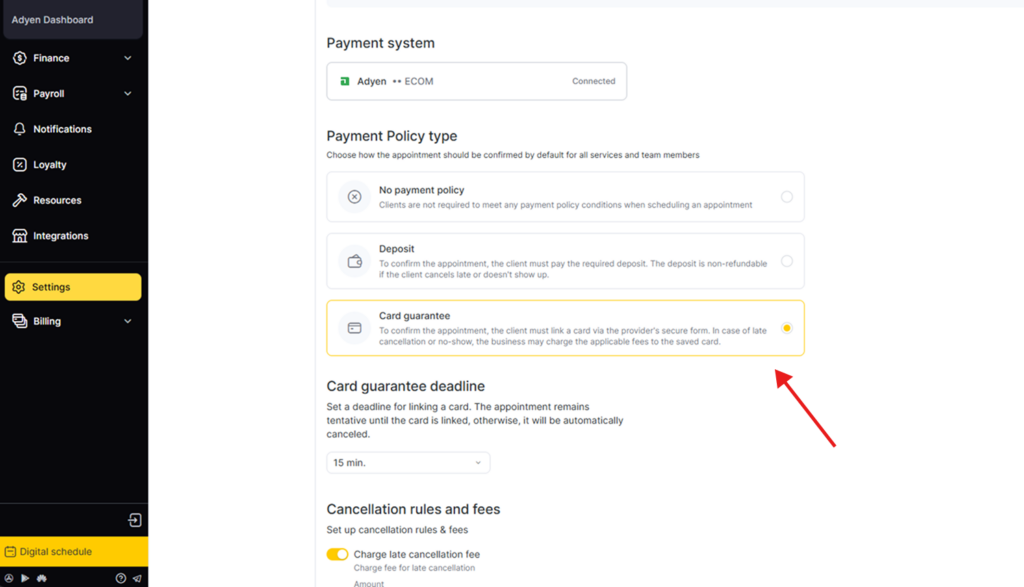
Step 2. Choose Card guarantee
In Payment policy type, select Card guarantee. Until Adyen is connected, this option is visible but greyed out and can’t be selected — once Adyen is connected it becomes selectable and the fields below appear.
Step 3. Set the card guarantee deadline
Card guarantee deadline — how long the booking is held while the client links a card in the online booking widget: “Set a deadline for linking a card. The appointment remains tentative until the card is linked, otherwise, it will be automatically canceled.” Pick a value from the dropdown; 15 min. by default.
In Deposit mode the same setting is called Payment deadline and counts down to the deposit payment instead.
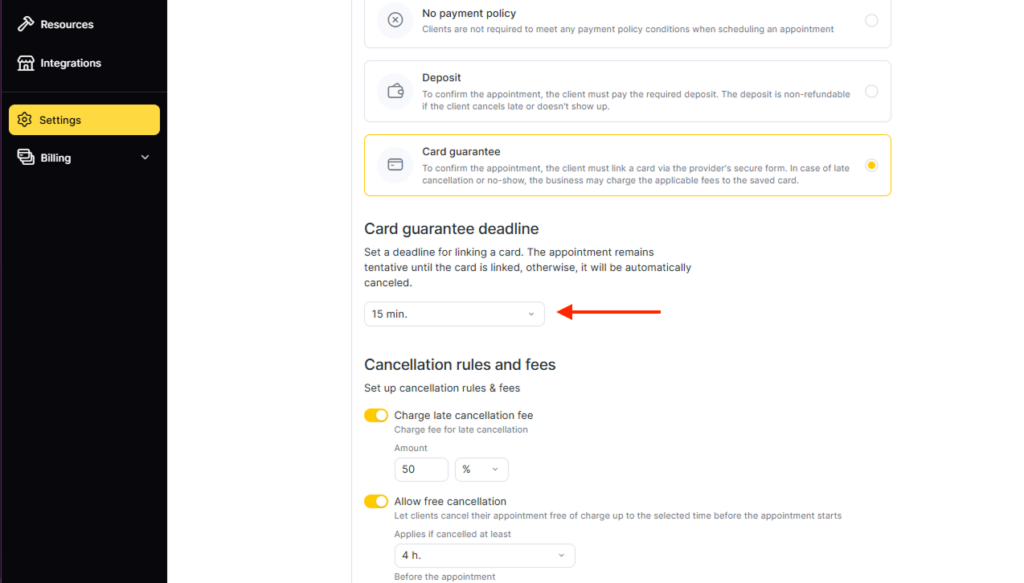
Step 4. Set the cancellation rules and fees
Both fees live in the Cancellation rules and fees block, and each one has its own toggle. Switch a toggle on and its Amount field appears — set the value as a percentage of the visit cost (%) or as a fixed currency amount.
- Charge late cancellation fee. The amount charged off-session from the linked card when the client cancels after the free cancellation window closes. This fee exists only in Card guarantee mode — in Deposit mode a late cancellation simply forfeits the deposit, with no separate fee.
- Allow free cancellation. With it on, a dropdown labelled Applies if cancelled at least … Before the appointment sets how far ahead of the visit a cancellation is still free. A cancellation later than that is a late cancellation.
- Charge no-show fee. The amount charged off-session from the linked card when the client doesn’t arrive.
- Allow receptionist not to charge. With it on, a team member with the charge permission can waive a fee at the moment it would be applied, and nothing is charged. You can set this as the default here and override it per service in the drawer (Step 5).
Below the fees, a Memberships block explains one exception you cannot configure: an appointment booked with an active membership is never subject to the payment policy.
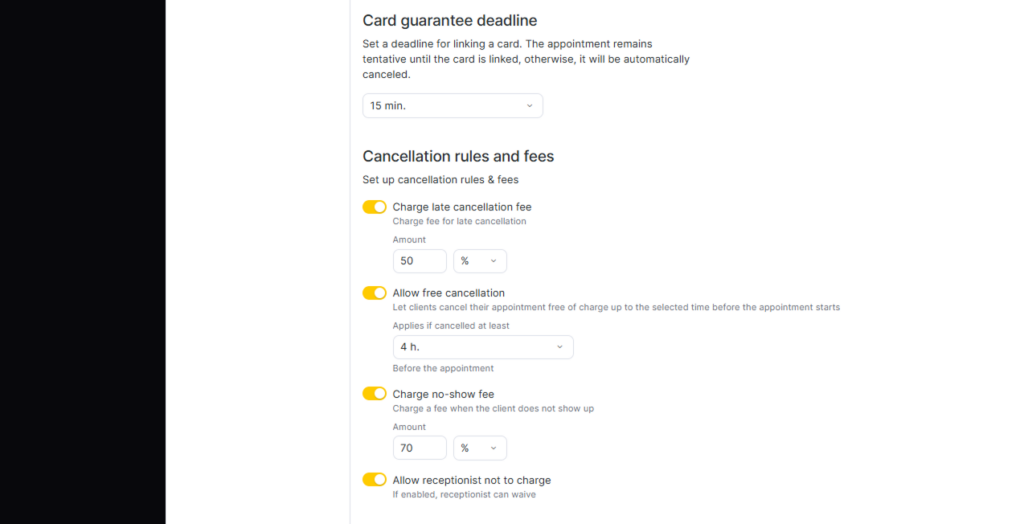
Step 5. Set the scope
Scroll to Specifications and limitations. The scope decides which bookings the policy applies to. The policy applies to bookings that match the selected services and team members; client type and visit amount are checked afterwards.
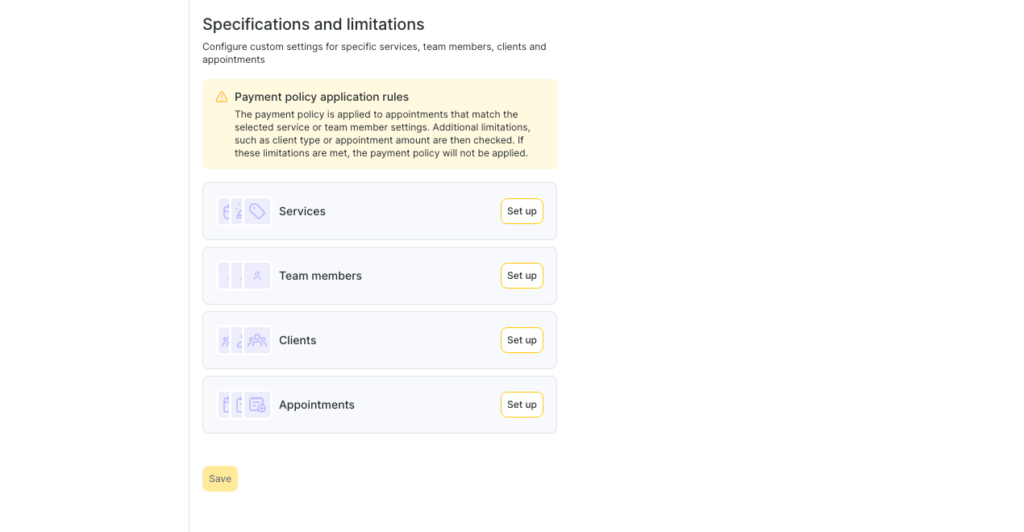
Open each card with Set up (or the tabs on the left):
Services
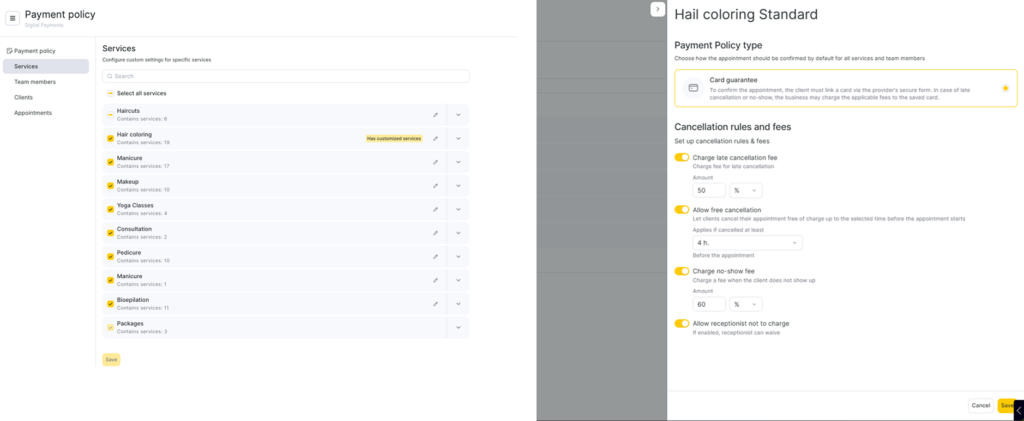
Choose which services the policy covers. All are included by default; zero-price services are excluded automatically. You can include whole categories, individual services, or override a specific service — click the pencil on a service row to set that service’s own policy type, fee amount, and cancellation rules in a side drawer.
Team members
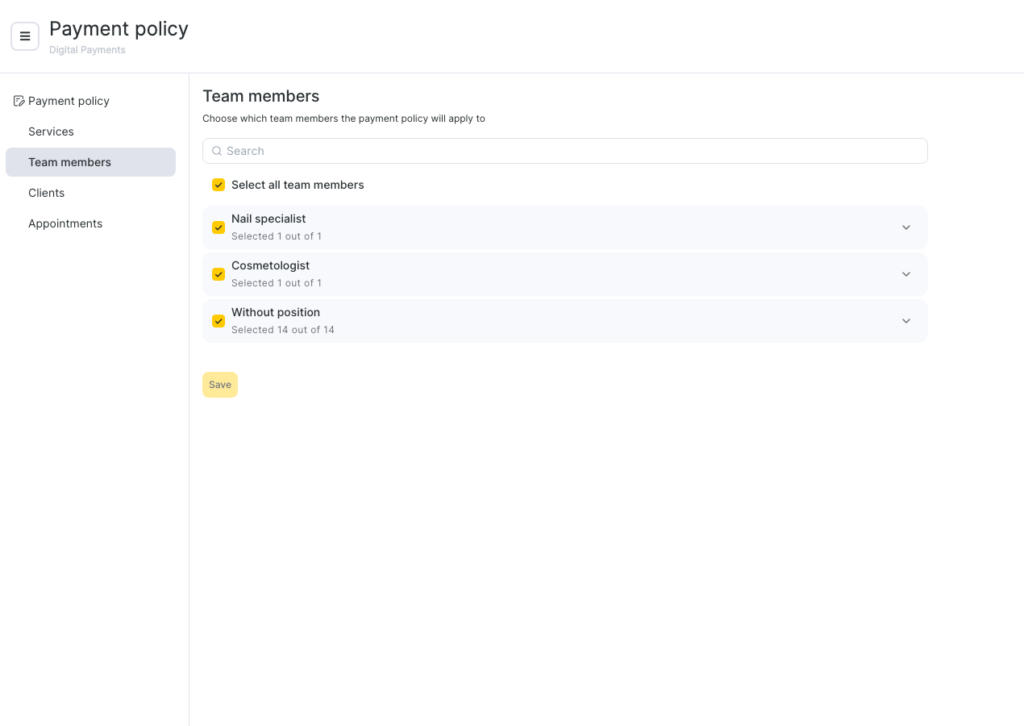
Choose which team members the policy covers. Only active members are listed; all are included by default. Use Select all staff members to include or exclude everyone, or expand a position to toggle individuals.
Clients
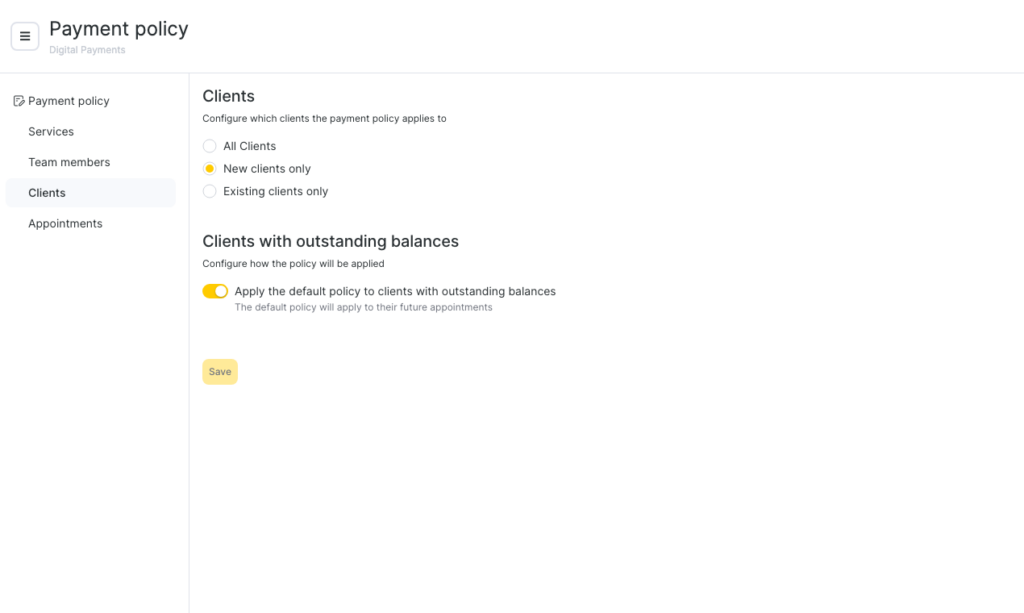
Choose the client types the policy applies to:
- All clients — default.
- New clients only — clients who are not yet in your client base.
- Existing clients only — clients who are already in your client base.
Below, the Apply the default policy to clients with outstanding balances toggle decides whether debtors (clients whose location balance is negative) get the default policy regardless of the type chosen above.
Appointments
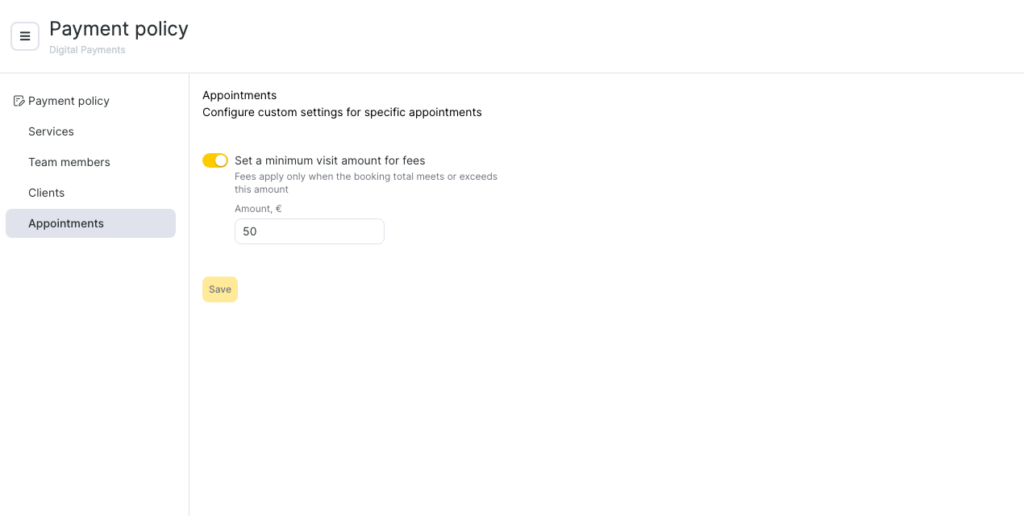
Set a minimum visit amount below which the policy doesn’t apply: turn on Set a minimum visit amount for fees and enter the Amount. Bookings cheaper than this threshold skip the payment policy.
Step 6. Save
Click the yellow Save button at the bottom of Conditions and limitations (or inside each tab). The policy becomes active for new bookings only — existing bookings keep their pre-policy rules. A green Activated card then appears at the top of the page summarising the no-show fee, the late cancellation fee, the free cancellation window, the card guarantee deadline, and which clients the policy covers.
What changes elsewhere after you activate a policy
This matters mainly if your business used the old online prepayment settings before payment policies. Activating a policy moves or hides several of those older controls. If you’re setting up for the first time and never used online prepayment, you can skip this section.
- Service-card prepayment toggle is hidden. The old “Online prepayment” field in each service card no longer appears — configure coverage through the Services scope instead.
- Team-member-card prepayment toggle is hidden. The “Online prepayment” checkbox in each team member’s Online Booking tab is hidden too — use the Team members scope.
- Online-widget reschedule and cancel toggles are hidden. The settings Allow clients to reschedule prepaid bookings online and Allow clients to cancel prepaid bookings online (in Online booking > Settings > Rules for cancelling and rescheduling) are hidden while a policy is active. With a policy on, clients can always reschedule and cancel online — the policy governs the financial consequences via the free cancellation window.
- Each client gets a new personal account. Altegio creates a read-only “Payment Policy” personal account for every client when you save the policy — it holds deposits (Deposit mode) and records fees that fall back from a failed card charge (Card guarantee mode).
How card guarantee works end-to-end
Card guarantee has four touch points across a booking’s life:
- Card linked at booking — the client books online through the widget, ticks two consent checkboxes (consent to off-session charges per the cancellation policy, consent to storing personal data for processing those charges), and is sent to the secure payment form. No money is charged. The card details are stored securely on the payment provider’s side — Altegio never sees or stores the full card number.
- No fee while the client behaves — between booking and visit, nothing happens to the linked card. The client pays at the business for the visit through any normal payment method; the linked card is not used for the visit total.
- A charge event — a charge is triggered only by a no-show or by a late cancellation after the free cancellation window closes. The amount comes from the policy snapshot saved at booking time (the configured no-show fee or late cancellation fee), not the current settings.
- Retry or fallback — if the off-session charge fails, the system retries; after the retries are exhausted, the fee is debited from the client’s Payment Policy account on Altegio’s side — see “When a card charge fails” below.
The linked card is not used for paying the visit total at checkout — the visit is paid through the standard payment methods (cash, card-present, gift card, loyalty points). The card’s only purpose is fee charging when the policy is triggered.
What the client sees during booking
In the online booking widget, the client first picks a service, master, and time. After confirming, they see:
- The conditions of the policy — the late cancellation fee and the no-show fee as concrete amounts (not percentages), and the free cancellation window.
- Two consent checkboxes — agreement to fees per the policy + agreement to storing personal data for charging.
- A link to the full text of the Cancellation policy.
After ticking the consent checkboxes, the client is sent to the secure payment form to link the card. Once the card is linked, the booking is confirmed.
See How clients book, pay, and manage cards with payment policies for the full step-by-step from the client’s side, including the differences between policies that apply to all clients vs. specific client groups.
In the visit window
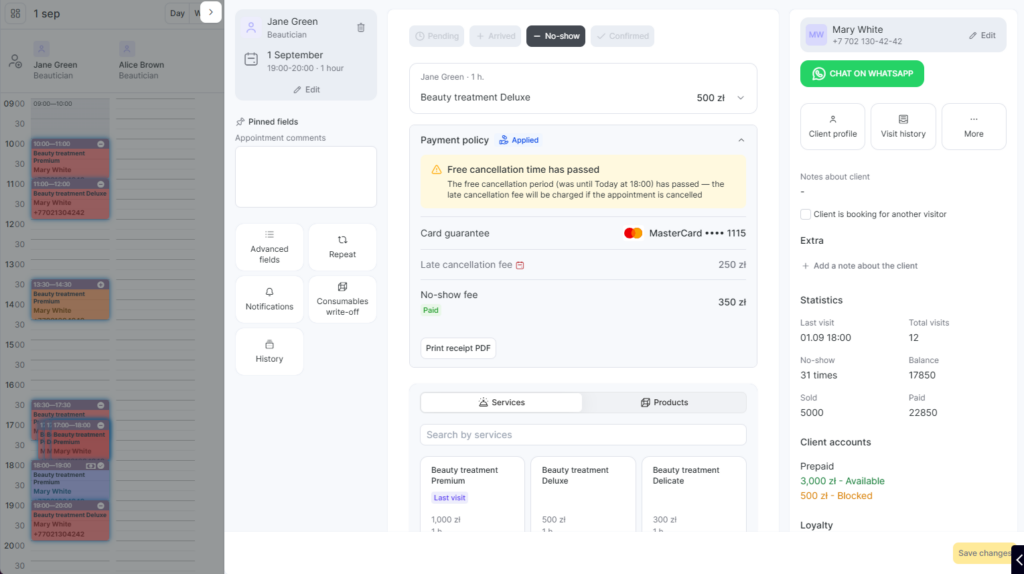
Once a booking with a card guarantee is open, the Payment Policy block inside the visit window shows:
- The applied policy snapshot — late cancellation fee, no-show fee, free cancellation window — as concrete amounts.
- The booking’s status (Client Accepted, Charged, Waived) — for the full status reference, see Charging fees and rescheduling visits with a payment policy.
- A calendar icon next to the free cancellation deadline: green if the deadline hasn’t passed, red if it has.
If you edit the visit (add or remove a service, change the master) after the card is linked, a yellow banner appears: the policy snapshot is locked at booking time, so the fee amounts don’t change. The only field you cannot edit on a booking with an active policy is the phone number.
When a card charge fails
When a fee is triggered, the system attempts to charge the linked card off-session. Each charge attempt can have one of two outcomes: success, or failure for any of the standard reasons (insufficient funds, card expired, card blocked, fraud rule, network error). On a failure, the system retries.
If the retries are exhausted without a successful charge, Altegio falls back to debiting the client’s Payment Policy account inside Altegio. The account allows an unlimited negative balance, so the fee is recorded regardless of whether the client has funds. If the resulting Balance across all the client’s personal accounts is negative, the client is marked as a debtor. The flag is set and cleared automatically based on total balance — see Charging fees and rescheduling visits with a payment policy for the full debtor mechanics.
The debtor status affects the client’s future bookings only if the business’s Apply default policy for clients with outstanding balances toggle is on (configured in the Clients scope of Payment Policy settings). With that toggle off, debtor clients can keep booking as usual; with it on, the business’s default policy applies to their bookings even if they would otherwise be exempt.
Handling no-shows and late cancellations
This article describes the moving parts of Card guarantee mode. The specific administrator decisions — what modal appears, which toggle is on by default, how to charge vs. waive in each case — are documented in Charging fees and rescheduling visits with a payment policy with the modal-by-modal walkthrough.
A quick orientation:
- Late cancellation — the modal in the visit window has a toggle Charge late cancellation fee, on by default. With the toggle on, the off-session charge starts immediately; with it off (and only if Allow receptionist not to charge is on and the team member has the charge permission), no charge happens. Either way the booking is cancelled and removed from the Appointment Calendar; a charged fee is shown in the client’s visit history, a waived one is not.
- No-show — the visit window shows a countdown until end-of-day (in the business’s timezone). If the administrator decides before midnight, they explicitly trigger the charge or waive. If end-of-day passes without a decision, the fee is auto-charged.
- Late reschedule by the client online — the late cancellation fee is charged from the linked card. The booking moves to the new date without a payment policy attached — the client is not asked to link a card again.
Important
The fee charged for a no-show or a late cancellation goes to the business’s revenue. It is not counted toward team member payroll calculations.
How the linked card is stored
The card is attached to the specific booking only — it’s not stored in a separate Payment methods section in the client’s personal cabinet, and there is no client-side action to unlink it mid-booking. The business can charge the card only for the fees the client agreed to at booking time: the late cancellation fee or the no-show fee. No other charges are possible.
For the full client-facing flow, see How clients book, pay, and manage cards with payment policies.
Limitations
- Adyen is mandatory. Card guarantee cannot be activated without Adyen connected.
- Late cancellation fee is exclusive to Card guarantee. In Deposit mode, a late cancellation results in the deposit being confirmed to the business — there is no separate fee charge.
- The linked card is not used for visit payment. It exists only for off-session policy charges. The visit is paid through standard payment methods.
- No-show fee can be charged only from the linked card. Other payment methods are not offered at no-show resolution — the charge attempts off-session, then falls back to the personal account on failure.
- Membership cancels out the policy. A booking covered by an active membership is not subject to Card guarantee — the membership pays the visit, no card is requested at booking.
FAQ
Deposit takes money upfront and holds it against the booking; the amount applies to the visit total at checkout. Card guarantee takes nothing upfront — it securely links the client’s card and only charges it if the policy is triggered (no-show or late cancellation). Choose Deposit if you want money committed at booking; choose Card guarantee if you want no friction at booking but the ability to penalise breaches.
The off-session charge fails. The system retries; if retries are exhausted, the fee is debited from the client’s Payment Policy account, which can go negative without limit. The client receives the Debtor flag if their total balance becomes negative.
You can switch the mode in the settings. Cards linked under the previous mode stay attached to their bookings; new bookings under the new mode follow the new rules. The client’s Payment Policy personal account is not re-created — it stays the same across mode changes.
No. The linked card can be charged only for the cancellation-policy events described above. Other charges (visit total, ad-hoc fees, products) go through the regular payment flow.
No. In this release there is no in-widget action to unlink the card from a booking. The card stays attached to the booking until the visit closes, the booking is cancelled, or the no-show is resolved. The business can only charge the agreed fees (late cancellation or no-show); no other charges are possible against the card.