
A payment policy protects your revenue from late cancellations and no-shows by requiring a deposit or a saved card for online bookings. You configure the policy once at the location level, and Altegio automatically applies it to every new booking that matches the scope you defined.
This is the overview article: it explains the difference between the two modes and points you to the right guide. The step-by-step configuration, the field reference, and the money flow for each mode live in the dedicated mode guides linked below.
When to use
- Your business loses revenue when clients book and don’t show up, and you want to require a deposit upfront.
- You want to keep online booking friction-free, but still discourage last-minute cancellations by saving a card for later charging.
- You want different rules for different services, team members, or client types — for example, a deposit for premium services and no policy for cheap ones.
Before you start
You need:
- The Owner or Manager role, or a custom role with the right Finance permissions:
Both live under the Finance block in Team > Team members list > Access tab. See Finance access rights for the full setup procedure.- View payment policies — required to even see the Payment Policy page.
- Manage payment policies — required to edit and save the policy.
- A connected payment provider. The set of available policy options depends on which one — see the Important block below.
Important
Which mode you can use depends on your payment system:
- Deposit is available with any payment system supported in your region — Stripe, VivaWallet, LiqPay, Qton, and others. The client’s payment for the service lands in that system.
- Card guarantee is supported only by the Adyen payment system, because it relies on Adyen’s off-session card charging. With any other provider, only Deposit is available.
To start using Card guarantee, connect Adyen first — see Adyen Integration: Setup and verification guide.
Other roles can apply or waive fees in the visit window if granted the corresponding Booking window permissions — see Booking window access rights.
How it works
A payment policy has three possible modes — No payment policy (the default, no requirement), Deposit, and Card guarantee. The two active modes differ in what the client does and when money actually moves:
| Deposit | Card guarantee | |
|---|---|---|
| What the client does at booking | Pays a deposit upfront | Links a card — pays nothing now |
| When money moves | At booking (held), applied to the bill at checkout | Only if the client cancels late or doesn’t show up |
| Penalty for late cancel / no-show | The deposit is kept | A configurable fee is charged from the linked card |
| Payment provider | Any connected provider | Adyen only |
| Best for | A guaranteed upfront commitment | Low-friction booking, penalty only when rules are broken |
Whichever mode you choose, the policy applies to a booking based on the scope you configure — which services, team members, client types, and minimum visit amount it covers. When a client opens the online booking widget for a covered booking, Altegio captures a snapshot of the current policy and attaches it to that specific booking. Changing the policy settings later does not affect bookings that already have a snapshot.
How to set up
You’ll find payment policies in Administration mode under Digital Payments > Payment Policy in the sidebar — that’s where every policy is configured.
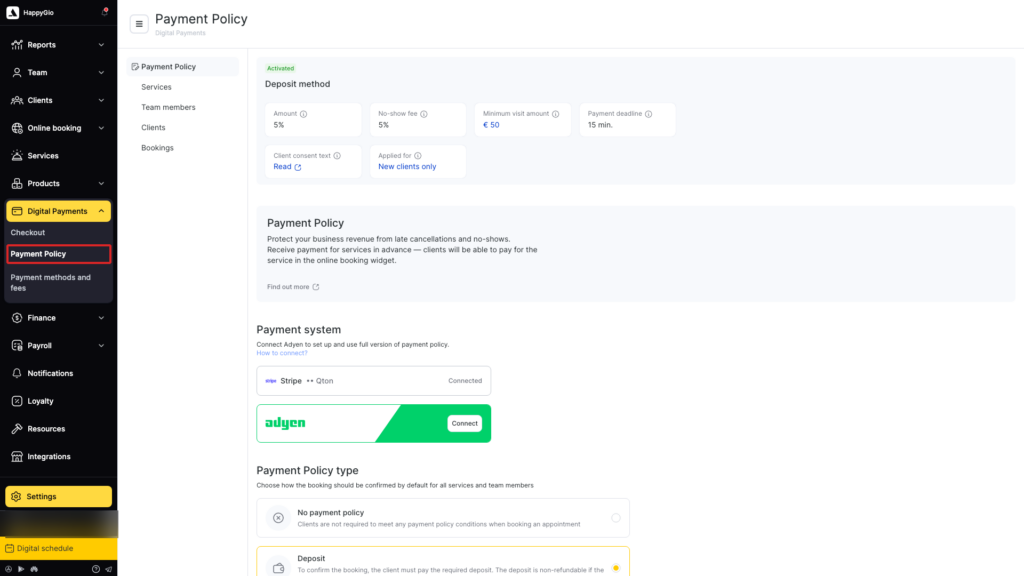
Setting up a policy is three moves: pick a mode, set the scope under Conditions and limitations, and click Save. The mode-specific fields (deposit amount, payment deadline, no-show and late-cancellation fees), the full per-scope walkthrough with screenshots, and everything that changes elsewhere once a policy is active are documented in the dedicated mode guides — open the one that fits your business:
- Deposit → Deposit mode in payment policies
- Card guarantee → Card guarantee mode in payment policies
Note
Switching the mode to No payment policy turns the policy off without deleting anything — your scope and amount settings stay saved and become active again when you switch back to Deposit or Card guarantee.
What changes elsewhere after you activate a policy
This matters mainly if your business used the old online prepayment settings before payment policies. Activating a policy moves or hides several of those older controls. If you’re setting up for the first time and never used online prepayment, you can skip this section.
- Service-card prepayment toggle is hidden. The old “Online prepayment” field in each service card no longer appears — configure coverage through the Services scope instead.
- Team-member-card prepayment toggle is hidden. The “Online prepayment” checkbox in each team member’s Online Booking tab is hidden too — use the Team members scope.
- Online-widget reschedule and cancel toggles are hidden. The settings Allow clients to reschedule prepaid bookings online and Allow clients to cancel prepaid bookings online (in Online booking > Settings > Rules for cancelling and rescheduling) are hidden while a policy is active. With a policy on, clients can always reschedule and cancel online — the policy governs the financial consequences via the free cancellation window.
- Each client gets a new personal account. Altegio creates a read-only “Payment Policy” personal account for every client when you save the policy — it holds deposits and records fees.
Limitations
- Free services are excluded. Services with a price of 0 cannot be included in any policy. They show up greyed out in the Services scope.
- Memberships override. If a client books a service while an active membership covers it, the payment policy does not apply to that booking — the membership takes priority.
Managing fees after a no-show or late cancellation
When a client doesn’t show up or cancels after the free cancellation window, an administrator decides in the visit window whether to charge the fee, waive it, or keep the deposit on the client’s balance. The decision depends on the mode (Deposit or Card guarantee) and on whether the no-show fee is higher than the deposit.
See Charging fees and rescheduling visits with a payment policy for the full visit-window walkthrough and the reschedule rules.
FAQ
Use Deposit if you want money committed upfront and you’re on any payment provider. Use Card guarantee if you want booking to stay friction-free and only charge a penalty when a client breaks the rules — it requires Adyen. See the comparison in How it works.
You haven’t connected Adyen yet. Card guarantee mode requires Adyen specifically. Once Adyen is connected, the option becomes selectable.
They keep their old rules. The policy applies only to bookings created after you save it.
No — there is no broadcast notification to existing clients announcing that the policy is now active. Clients see the policy the next time they open the online booking widget for a covered booking. There are no separate policy-specific notifications either: Altegio adds a payment-policy information block to the notifications the client already receives — in the email notifications and on the visit information page that the client opens via the link in SMS or WhatsApp messages.