
A payment policy is applied automatically only to online bookings. For an appointment that an administrator creates in the Appointment Calendar, the administrator adds the policy manually: Altegio calculates the deposit or the card guarantee terms for this appointment and creates a payment link with a deadline. The client follows the link to pay the deposit or link a card, and from then on the appointment is protected by the policy in the same way as an online booking.
When to use
- A client books by phone or in a messenger, and you want them to pay the same deposit as clients who book online.
- A client who has missed visits before books with the administrator, and you want a card guarantee for this visit.
- An appointment was saved without a payment policy, and you want to secure it before the visit.
Before you start
You need:
- An activated payment policy in the location. It is configured in Administration mode under Digital Payments > Payment policy. See Payment policies.
- The Process the payment permission. This is the same booking window permission that lets you charge and waive payment policy fees. There is no separate permission for payment policies. See Booking window access rights.
- For Card guarantee mode, a connected Adyen account. See Adyen Integration: Setup and verification guide.
How to add a payment policy to an appointment
- In Digital Schedule mode, open the appointment in the Appointment Calendar: click the appointment’s cell. To create a new appointment, click an empty slot and select Appointment.
- Add the client and at least one service with a price above 0. The appointment status must be Pending or Confirmed.
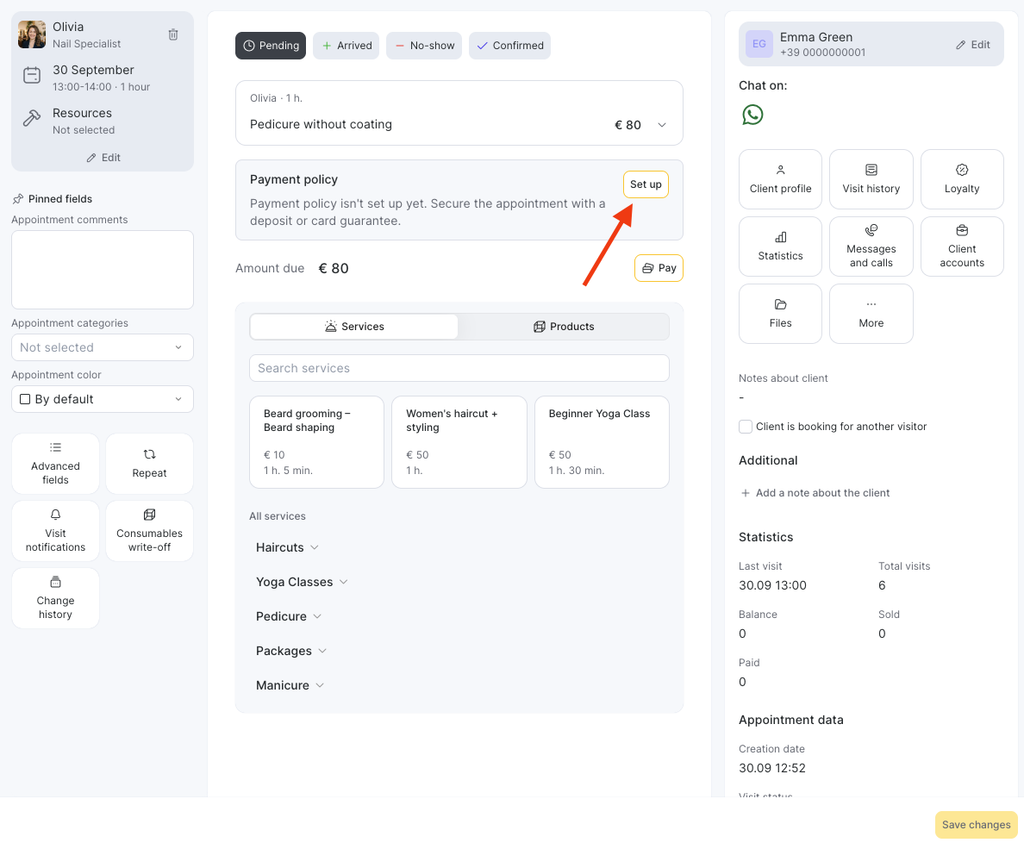
- In the Payment policy block, click Set up. Altegio calculates the policy for this appointment and shows Required upfront payment with the deposit amount (Deposit mode) or Required card guarantee with the fees (Card guarantee mode). No link is created at this step, and nothing is sent to the client.
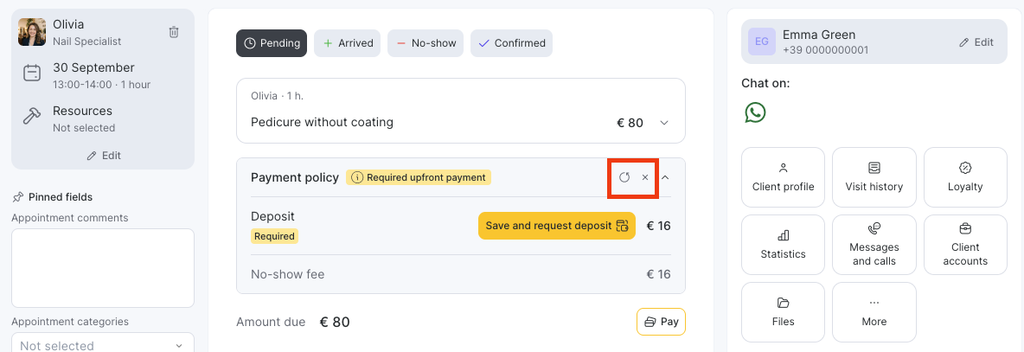
- Check the amounts. If you change the client, the services, or the prices after the calculation, the amounts don’t update on their own, and the block shows “The appointment changed after this calculation. Refresh to update the amounts.” Click Refresh to recalculate. If the new amount is 0, the calculation is reset. To discard the calculation, click the cross icon.
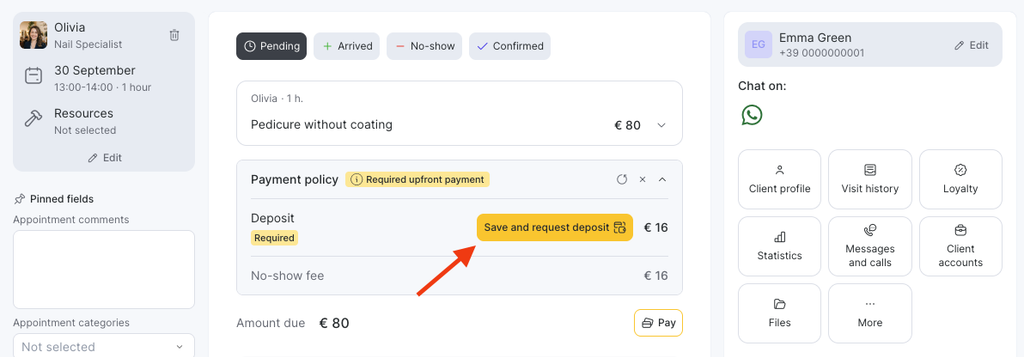
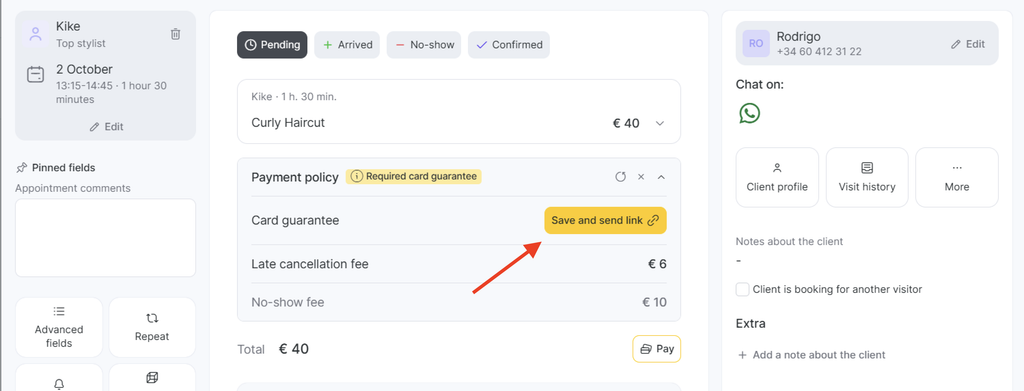
- Click Save and request deposit (Deposit mode) or Save and send link (Card guarantee mode). Altegio saves the appointment, creates the payment link, and starts the countdown.
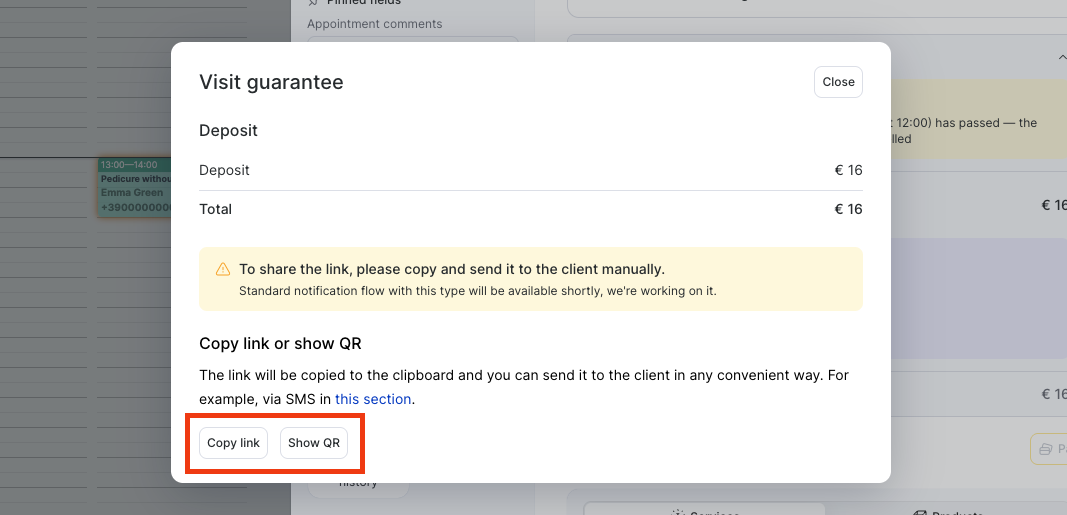
- In the window that opens, send the link to the client or copy it and share it in any convenient way.
Note
Closing the sending window doesn’t cancel the request: the link stays valid and the countdown continues. You can send the same link again from the Payment policy block. Sending or copying the link again doesn’t create a new link and doesn’t restart the countdown.
Note
If you save the appointment without clicking Save and request deposit or Save and send card setup link, no payment link is created, nothing is sent to the client, and the appointment isn’t locked.
What happens after you request the payment
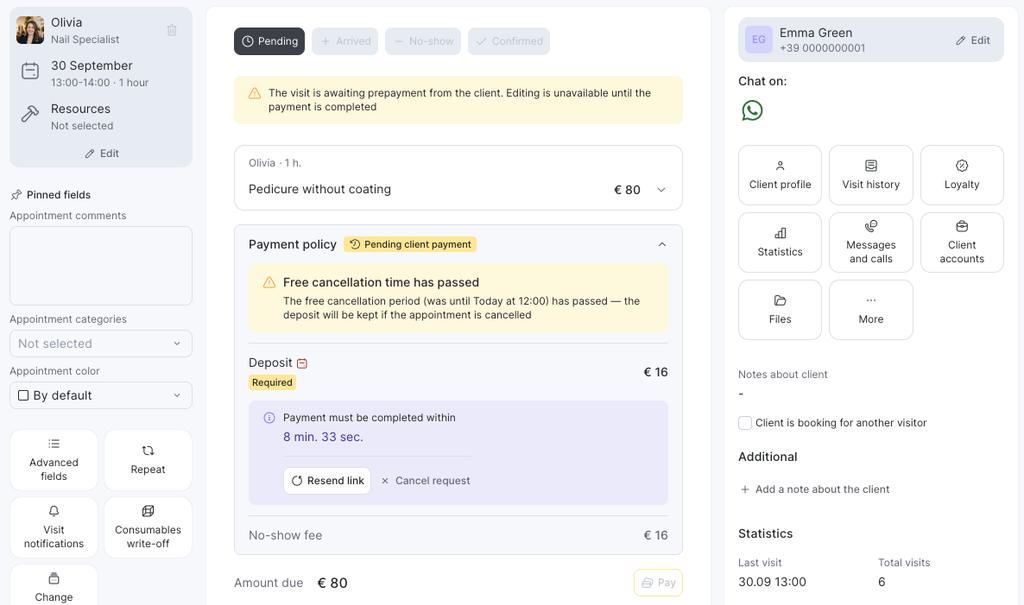
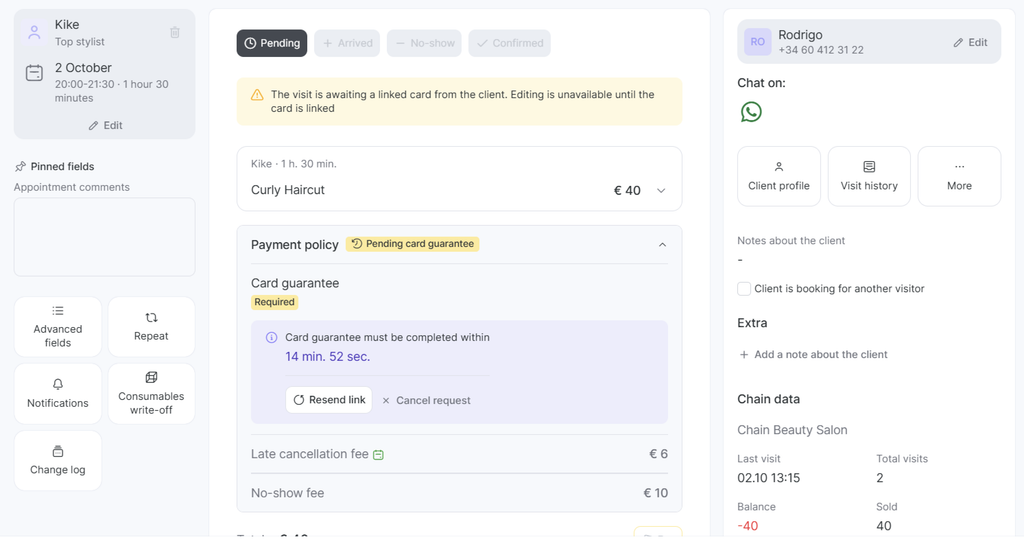
The payment link is valid until the deadline set in the payment policy: Payment deadline in Deposit mode or Deadline for linking a card in Card guarantee mode (15 minutes by default). The countdown starts when the link is created, not when you send it.
While the client hasn’t paid
The Payment policy block shows Pending client payment (Deposit mode) or Pending card guarantee (Card guarantee mode). The appointment is locked: you can’t edit it, change its status, or delete it. To do any of this, cancel the payment request first.
When the client pays the deposit or links the card
The status changes to Client accepted. From this moment the appointment follows the same rules as an online booking with a payment policy: the deposit is applied at checkout, and no-shows, late cancellations, and reschedules are handled in the visit window. See Charging fees and rescheduling visits with a payment policy.
When the deadline passes without payment
Important
If the client doesn’t pay the deposit or link the card before the deadline, Altegio deletes the appointment from the Appointment Calendar. This also applies to an appointment that existed before you requested the payment.
How to cancel a payment request
You can cancel the payment request until the client starts paying. Cancelling deactivates the link, unlocks the appointment, and returns the Payment policy block to the state with Set up available. A client who opens a cancelled link sees: “The location cancelled this payment request, so the link is no longer valid.”
The client starts paying when they tick the consent checkboxes on the link page and click Pay. After that, the request can’t be cancelled, and Altegio shows: “Payment for this appointment has already started, so the request can no longer be cancelled.” The request then ends in one of two ways: the client pays or links the card, or the deadline passes. Until then, the appointment’s status can’t be changed.
How Altegio calculates the amounts
- Only services count. Products in the appointment aren’t included.
- Altegio uses the final cost of the services, including a manually changed price, discounts, and client discounts already applied.
- If the appointment is partly paid, the calculation uses the unpaid remainder. The deposit can’t be higher than the unpaid amount for services.
- A fully paid appointment can’t get a payment policy. After you add another paid service, Set up can become available again.
- A deposit already applied to this appointment counts as a payment and reduces the remainder. You can request a new payment policy for the remaining amount. Only one payment policy request can be active for an appointment at a time.
- For each service, Altegio uses the service’s own settings from the Services scope of the payment policy. Services without their own settings get the default policy settings.
- The scope limits of the policy aren’t checked: the client type, the minimum visit amount, and the selected services and team members are ignored.
Why the Set up button is unavailable
When Set up can’t be used, the Payment policy block shows the reason:
| Situation | Message |
|---|---|
| The location has no payment policy | “The location has no payment policy set up yet. Configure it in the location settings.” |
| The appointment has no client or no services | “Appointment has no client or services — add them to set up a payment policy.” |
| The status is Arrived or No-show | “The appointment is already marked as arrived or no-show, so a payment policy can’t be set up.” |
| The appointment total is 0 | “The appointment total is 0, so there’s nothing to secure with a payment policy.” |
If you return an appointment from Arrived or No-show to Pending or Confirmed, Set up becomes available again. A calculation that you haven’t requested yet is reset when you mark the appointment as Arrived or No-show.
Special cases
A service is covered by a membership with auto-charge
You can add the payment policy even if the client’s membership with auto-charge covers a service in the appointment. The visit window then warns: “The membership won’t be charged if the payment policy is set up”. While the payment policy of the appointment is active or applied, the membership isn’t charged for this appointment. This also applies if the client gets the membership after you requested the payment.
The appointment is booked for another visitor
If Client is booking for another visitor is selected in the appointment, the payment link goes to the client of the appointment.
Recurring appointments
The payment policy isn’t copied to repeated appointments. Set it up for each appointment separately.
Regular payment links
The payment policy link is a separate link. The regular payment link for the visit (see Sending payment links from the visit window / via QR code) doesn’t change and can exist for the same appointment at the same time.
Limitations
- You can’t change the policy type or the amounts in the visit window. They come from the payment policy settings.
- The visit window doesn’t show the history of payment policy requests.
- In Altegio.me and in the online booking widget, the appointment isn’t marked as awaiting payment. The client pays only by the link.
- Not yet available in the Altegio Business Management mobile app.
FAQ
Open the appointment in the Appointment Calendar, click Set up in the Payment policy block, check the amount, and click Save and request deposit. Then send the link to the client. The client pays the deposit by the link before the deadline set in the payment policy.
Until the deadline set in the payment policy: Payment deadline in Deposit mode or Deadline for linking a card in Card guarantee mode, 15 minutes by default. The countdown starts when the link is created. If the client doesn’t pay in time, Altegio deletes the appointment.
The client didn’t pay the deposit or link the card before the deadline. In this case Altegio deletes the appointment from the Appointment Calendar, even if it existed before the request.
While a payment request is active, the appointment is locked. Cancel the request in the Payment policy block first. After the client has started paying, the request can’t be cancelled: wait until the client pays or the deadline passes.
Yes. When you add the policy to an appointment yourself, the client type, the minimum visit amount, and the selected services and team members aren’t checked.