
This article explains what your clients see and do when a payment policy is active in your business — how they book online, how they pay the deposit or link their card, and what happens if they need to cancel or reschedule. Read it before you go live with a payment policy so you can answer client questions confidently, and keep it handy for your reception team.
When to use
- A client calls or messages with a question about the deposit, the linked card, or a charge they noticed.
- You’re preparing to launch a payment policy and want to see exactly what clients will experience.
- Your reception team needs a script for what to say when a client wants to cancel or reschedule late, or is confused about a fee.
Before you start
To follow what the client sees, you need:
- A payment policy already configured and saved on your location. See Payment policies for the full settings walkthrough.
- A working online booking widget where clients can place bookings. See Online booking settings for the widget configuration.
How a client books with Deposit mode
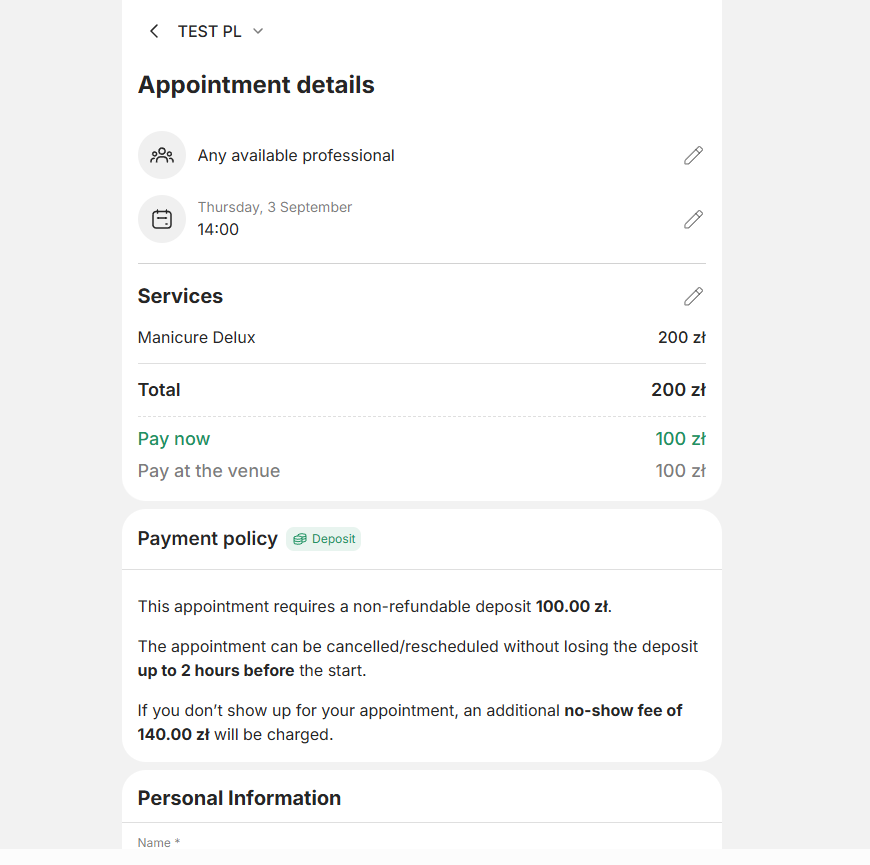
These are the steps the client goes through in your online booking widget when your policy is Deposit mode.
- Client opens your booking widget, picks a service, then a master, then a time.
- If your policy applies to a specific group of clients (for example, new clients only), the widget first asks for the client’s phone number so it can check whether the policy applies to them.
- The widget shows the client the deposit amount as a concrete sum, the no-show fee, the free cancellation window, and a link to the full cancellation policy text.
- The client ticks two consent checkboxes: agreement to the charges under the cancellation policy rules, and agreement to their personal data being stored so the charges can be processed.
- The client clicks Pay and is sent to the secure payment form.
- The client pays the deposit. The money is placed on the client’s personal balance in your business, ready to be applied to the visit total when they show up.
- The widget shows a booking confirmation.
How a client books with Card guarantee mode
Card guarantee mode is available only with Adyen — see Adyen Integration: Setup and verification guide. These are the steps the client goes through:
- Client opens your booking widget, picks a service, master, and time.
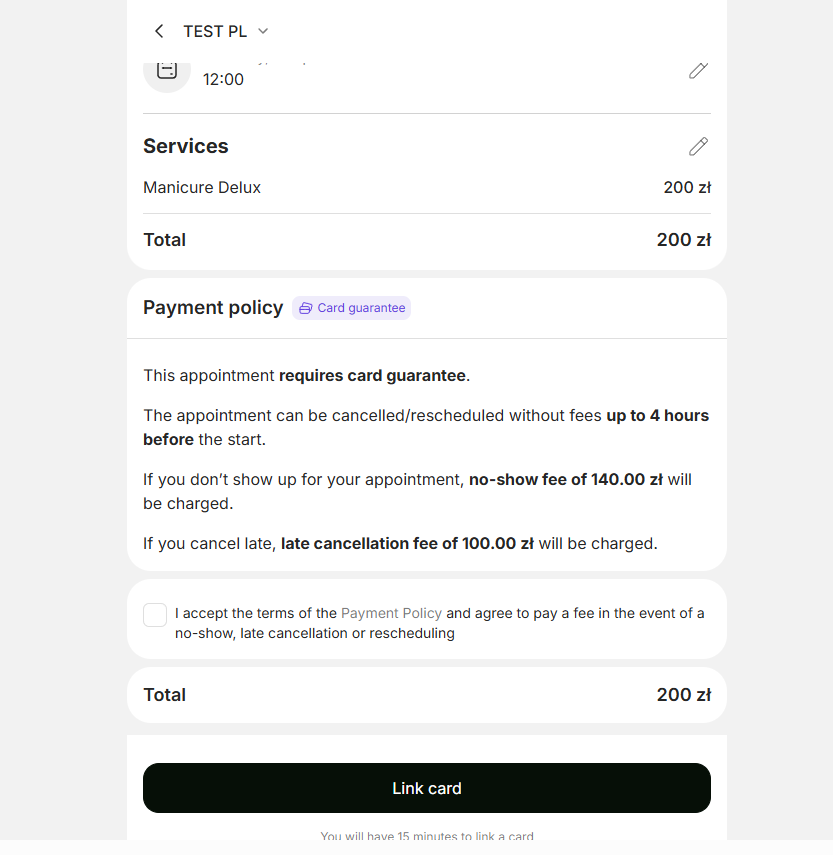
- The widget shows the conditions of your policy: the late cancellation fee, the no-show fee, the free cancellation window, plus a link to the full cancellation policy text.
- Two checkboxes appear that the client must tick:
- Agreement to be charged the fees if they cancel late or don’t show up.
- Agreement to let your business store their card details safely so the fees can be charged later.
- After ticking both checkboxes, the client is sent to the secure payment form. The form asks for card details — but no money is charged at this point. The business only stores the card safely so it can charge the fee later if needed.
- The widget shows a booking confirmation.
When the policy doesn’t apply to a booking
Not every booking is subject to the policy, even when the policy is active on your business. The client doesn’t see any payment step in these cases:
- The client has an active membership that covers the service — the membership pays for the visit, and the policy is skipped.
- The booking total is below the minimum visit amount you set in the policy’s Bookings scope.
- The client falls outside the policy’s scope by client type (for example, your policy applies only to new clients but this client is already in your client base — see Setting up payment policies for how scopes work).
What can go wrong during booking
Four situations can interrupt or change the booking flow:
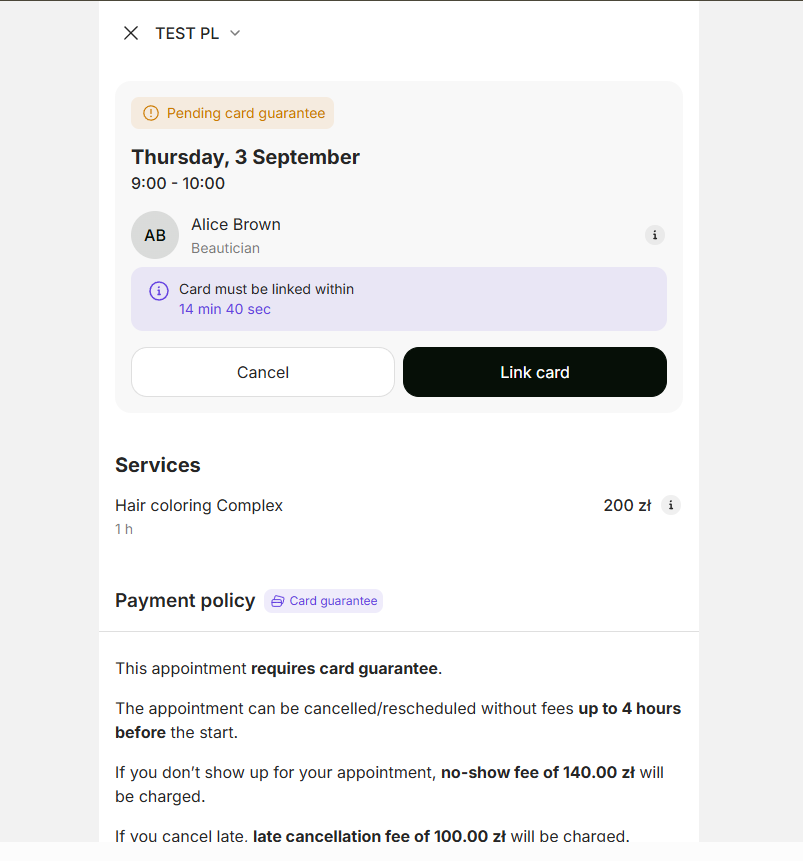
- The client takes too long to pay or link the card. Your policy sets a deadline for finishing that step — Payment deadline in Deposit mode, Card guarantee deadline in Card guarantee mode (15 minutes by default). If the client doesn’t finish payment or card linking before the deadline, Altegio automatically deletes the unconfirmed booking. The client has to start over.
- The payment provider returns an error. Insufficient funds, network problem, fraud rule, or any other reason. The booking is not created and the client sees an error message asking them to try again.
- You changed the policy while the client was booking. If the client opened the booking widget, saw the conditions, and you saved different policy settings before they confirmed, the client may need to review the updated conditions and agree again before continuing. The policy snapshot is captured at the moment the booking is created, so the booking always reflects the conditions in force when it was confirmed.
- Two people act on the same booking at the same time. For example, you cancel a booking from the visit window at the same moment the client clicks Cancel in their widget. Altegio’s standard error message appears for whoever was second; the first action wins.
How card storage works during a booking
When a client links a card under Card guarantee mode, the card is attached to that specific booking for the business to charge the agreed fees if needed. It is not saved as a reusable card in a separate “Payment methods” section that the client can manage between visits — there is no personal-cabinet card list, and no in-widget action to unlink the card mid-booking.
What this means in practice:
- The business can charge the linked card only for the fees the client agreed to at booking time: the late cancellation fee (if the client cancels after the free cancellation window) or the no-show fee (if the client doesn’t arrive). No other charges are possible against that link.
- If the client books again at the same business for a service covered by Card guarantee, they go through the card-link step again on the new booking — there is no “use my previous card” shortcut.
- If the client’s card expires or stops working before the visit, the business’s charge attempts will fail. The system retries up to three times; after all three fail, the fee falls to the client’s Payment Policy account inside the business — see Charging fees and rescheduling visits with a payment policy for the full retry-then-debt flow.
What notifications a client receives about the policy
The client does not receive any separate policy-specific notifications. Instead, the payment-policy information is added to the existing notifications the client already receives:
- In email notifications — the booking emails include the policy information for the booking.
- On the visit information page — the page the client opens via the link in SMS or WhatsApp messages shows the policy information.
There is no proactive “you saved the deposit on your balance” or “your fee was waived” notification today.
How a client cancels a booking
While a payment policy is active, clients can always cancel their booking online themselves — the old widget setting that allowed or forbade it is hidden. What happens to the money depends on whether they cancel before or after the free cancellation window closes.
Cancelling inside the free cancellation window
- The client opens the booking (from the confirmation email link or from their personal account) and cancels it.
- Nothing is charged. In Deposit mode the hold is released and the deposit becomes available on the client’s balance at your business, ready for their next booking. In Card guarantee mode the linked card is not touched at all.
Cancelling after the free cancellation window, Deposit mode
- The client opens the booking and cancels it.
- The deposit they already paid is confirmed in your business’s favour. Nothing extra is charged: Deposit mode has no separate late cancellation fee, and no new charge is made to any card.
- The client is not offered a choice. When the cancellation comes in online after the free window, the policy conditions apply automatically — unlike an administrator cancelling on the client’s behalf, who decides whether to keep or return the deposit (see Charging fees and rescheduling visits with a payment policy).
- The booking is cancelled and disappears from your Appointment Calendar. The amount kept stays visible in the client’s visit history.
Cancelling after the free cancellation window, Card guarantee mode
- The client opens the booking and cancels it by clicking Cancel appointment.
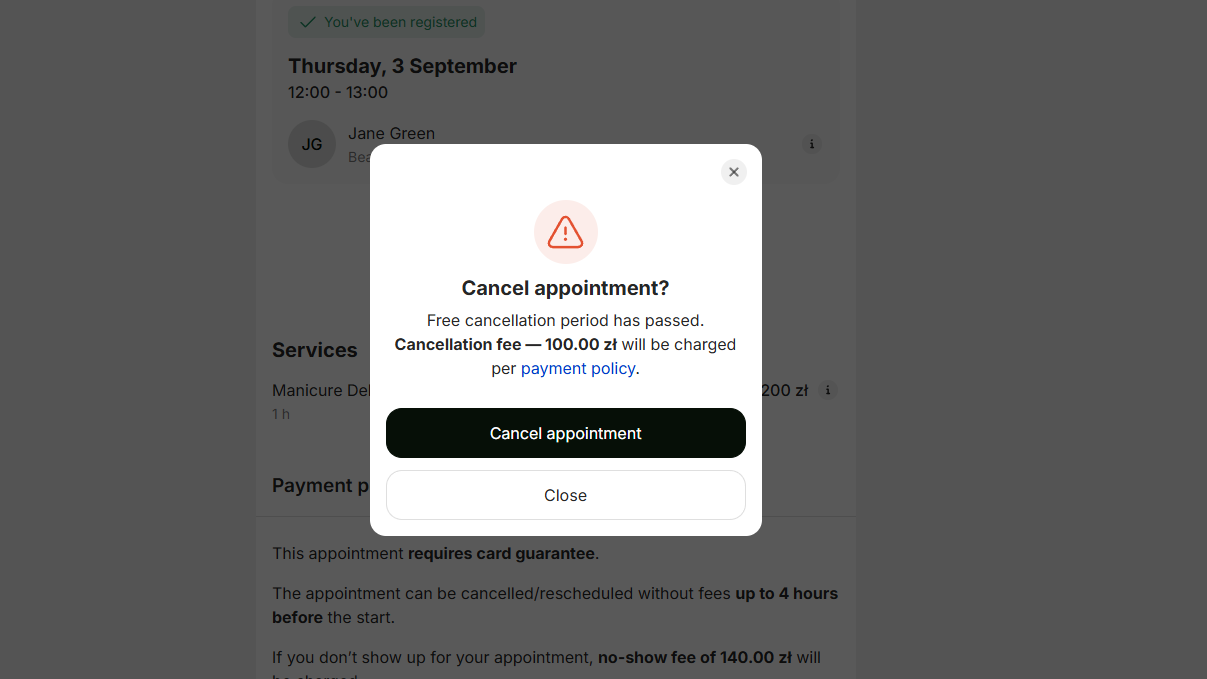
- The late cancellation fee from the policy is charged automatically from the card the client linked at booking, off-session. No choice is offered to the client online.
- If that charge fails, Altegio retries it; once the retries are exhausted, the fee is recorded as a debt on the client’s Payment Policy account at your business.
- The booking is cancelled and disappears from your Appointment Calendar. A charged fee stays visible in the client’s visit history.
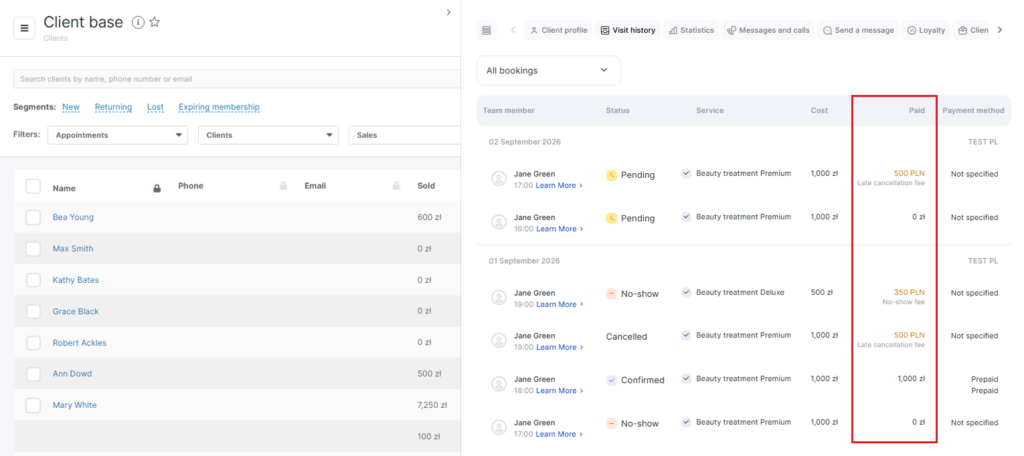
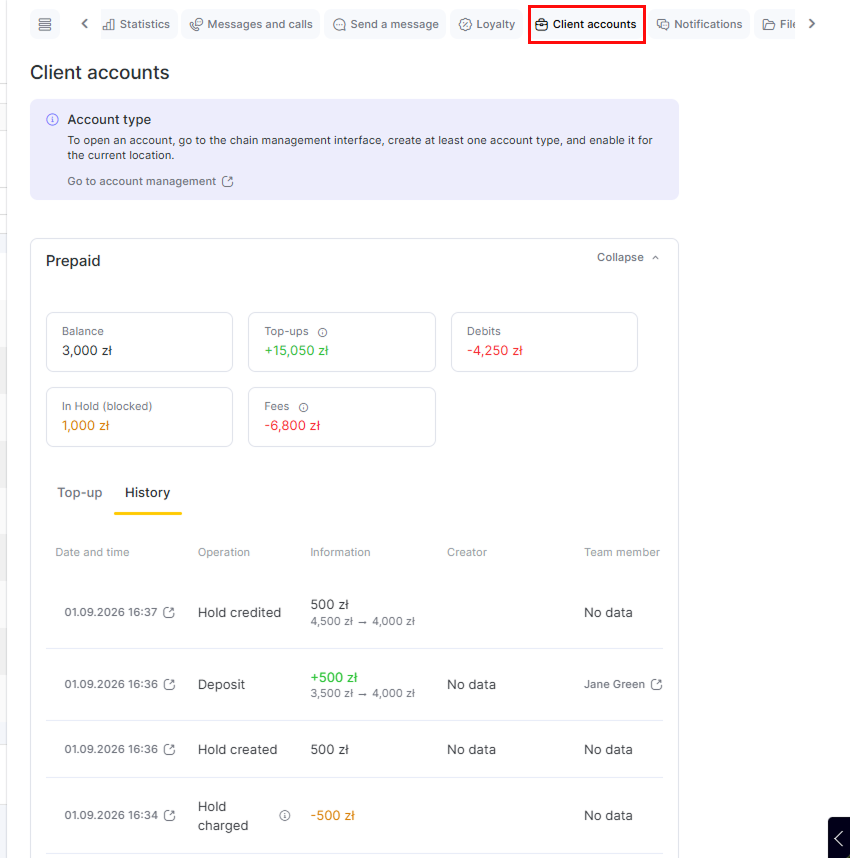
- Where to check the money. Open the client’s card and switch to the Client accounts tab. The account card shows the running totals — Balance, Top-ups, Debits, In Hold (blocked) and Fees — and the History tab lists every operation with its date and time, the amount, the resulting balance, and who performed it. If the off-session charge failed and the fee was recorded against the account instead, this is where you see it — and the balance can go below zero.
How a client reschedules a booking
The client can reschedule a booking themselves from your widget. What they go through depends on whether the reschedule is before or after the free cancellation window closes.
Scenario A — Reschedule inside the free cancellation window
The client is rescheduling well before the visit, with time to spare in the free cancellation window.
- Client opens the booking they want to move (either from a confirmation email link or from their personal cabinet).
- Picks a new date and time.
- Saves.
- No charge. The deposit stays in place (Deposit mode) or the saved card stays linked (Card guarantee mode). The free cancellation deadline shifts automatically to match the new visit time.
Scenario B — Reschedule after the free cancellation window, Deposit mode
The client is moving the booking too close to the visit, after the free cancellation window has already closed.
- Client opens the booking and picks a new date and time.
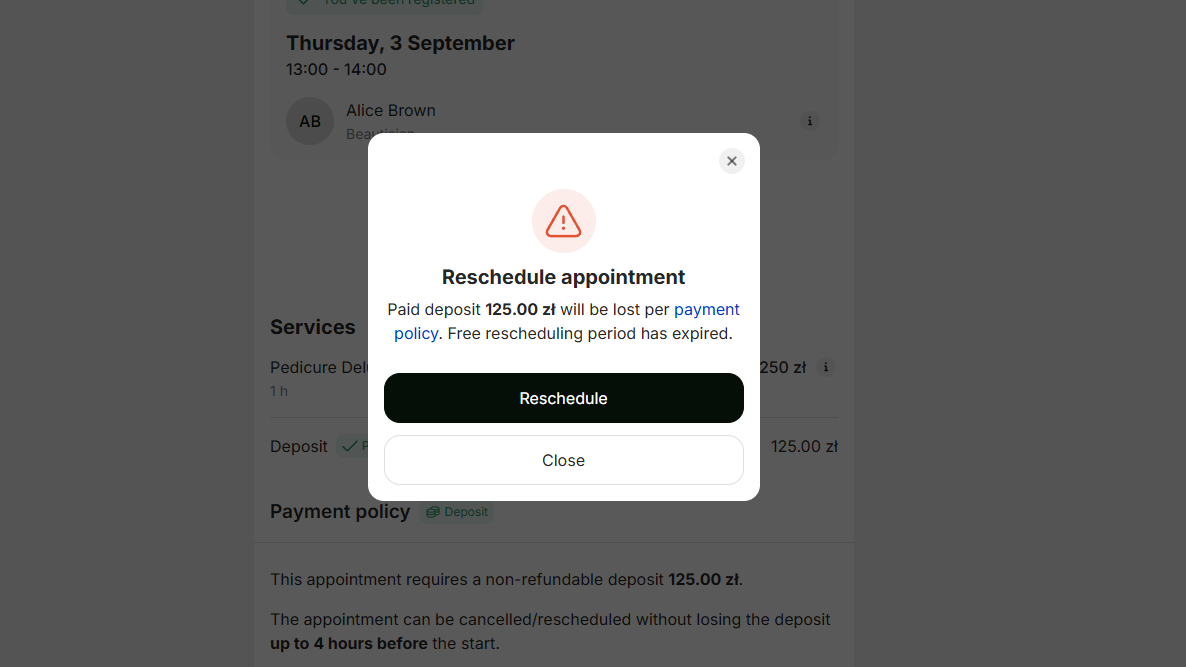
- Altegio shows a message: the late cancellation rule applies to the existing booking, and the deposit they already paid will be confirmed in the business’s favour.
- The original deposit is transferred to the business’s revenue.
- The booking moves to the new date without a payment policy attached — no new deposit is requested, and there is no free cancellation window on the new date.
Scenario C — Reschedule after the free cancellation window, Card guarantee mode
Adyen required. See Adyen Integration: Setup and verification guide.
- Client opens the booking and picks a new date and time.
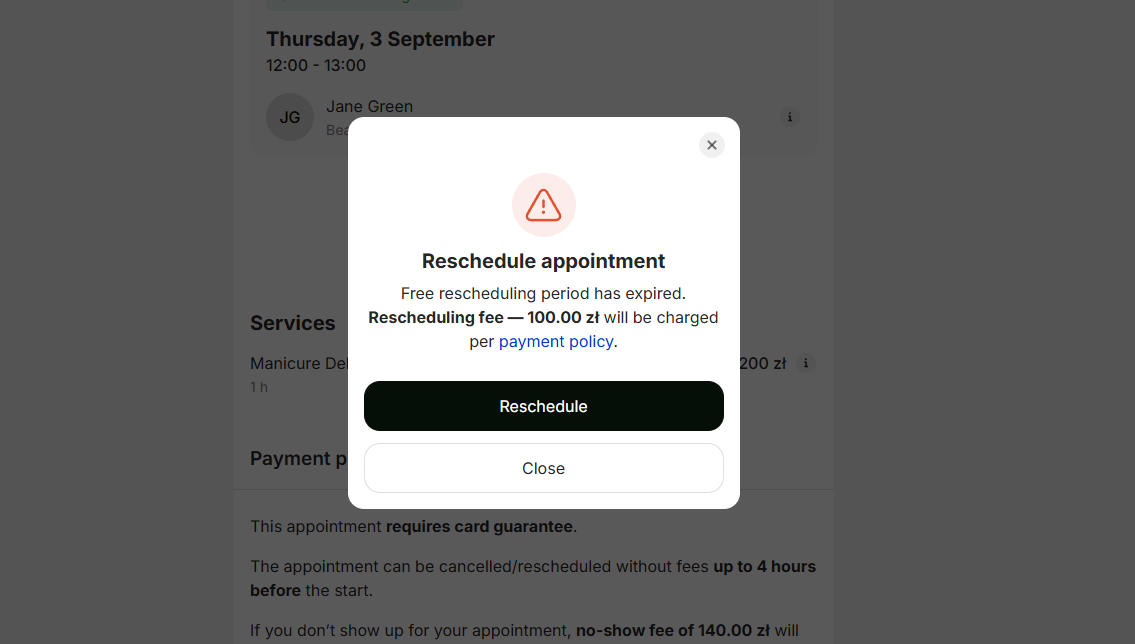
- Altegio shows a message: the late cancellation rule applies, and the late cancellation fee will be charged from the saved card.
- The fee is charged from the saved card. (If that charge fails three times, the fee is deducted from the client’s Payment Policy account in your business — see Charging fees and rescheduling visits with a payment policy for the retry-then-debt flow.)
- The booking moves to the new date without a payment policy attached — the client is not asked to link a card again, and there is no free cancellation window on the new date.
FAQ
No. The card is linked to a specific booking, not stored in a personal-cabinet payment methods list. There’s no in-widget action to unlink the card on its own. The business can only charge the card for the fees the client agreed to at booking time (late cancellation fee or no-show fee).
If you cancel inside the business’s free cancellation window, your deposit is returned to your balance at the business. You can use it on a future booking with the same business.
Open your booking and move it to a new date before the free cancellation window of the visit closes. After that window, the fee applies.
The business will retry the charge a few times. If it still doesn’t go through, the fee is recorded as a debt on your account at the business. You’ll need to settle it with the business directly the next time you visit or by other means agreed with them.
The business won’t be able to charge the card. The same retry-then-debt flow applies — three retry attempts; if all fail, the fee falls to your Payment Policy account at the business. To avoid this, contact the business before the visit to discuss options.