
When a booking that has a payment policy attached ends in a no-show, a late cancellation, or a reschedule, an administrator decides what happens in the visit window — charge the fee, waive it, or keep the deposit on the client’s balance. This article walks through every such situation step by step, with the exact toggles to flip and the buttons to press, for each combination of payment policy mode and connected payment provider.
This is the administrator-side companion to Setting up payment policies, Deposit mode in payment policies, and Card guarantee mode in payment policies, which cover the policy configuration and the financial mechanics. Here we focus on the day-to-day visit-window actions.
When to use
- A booking with a payment policy is approaching its visit date and you need to know what your options are at the no-show / late-cancellation moment.
- A client cancelled or didn’t show up, and the modal that just appeared in the visit window is asking for a decision — but you’re not sure which toggle does what.
- A client wants to reschedule a booking that has a paid deposit or linked card, and you need to know whether they’ll be charged.
- You’re investigating a specific charge or a negative balance on a client’s Payment Policy account.
Before you start
You need:
- An Owner, Manager, or Receptionist role on the location. Owners and Managers configure the policy. To charge or waive a fee in the visit window, your role needs the Process the payment permission — this existing booking-window permission also gates payment-policy decisions. See Booking window access rights for the full setup.
- The business-level toggle Allow receptionist not to charge must be on in the Payment Policy settings if you want non-Owner roles to be able to waive fees. With the toggle off, only the system itself decides — other roles can charge but not waive.
- The booking you’re acting on must have an applied payment policy. Bookings created before the policy was activated keep their pre-policy rules and are unaffected by anything in this article.
Important
The available options for fee charging depend on which payment provider is connected.
- Without Adyen (Stripe, MonoBank, LiqPay, Qton, or any other supported provider): Deposit mode only. The no-show fee always equals the deposit amount — they cannot be set to different values, so the deposit alone is what gets charged at no-show.
- With Adyen: full options. You can set the no-show fee higher than the deposit, and you have access to Card guarantee mode for off-session card charges. To connect Adyen, see Adyen Integration: Setup and verification guide.
How the visit window shows a payment policy
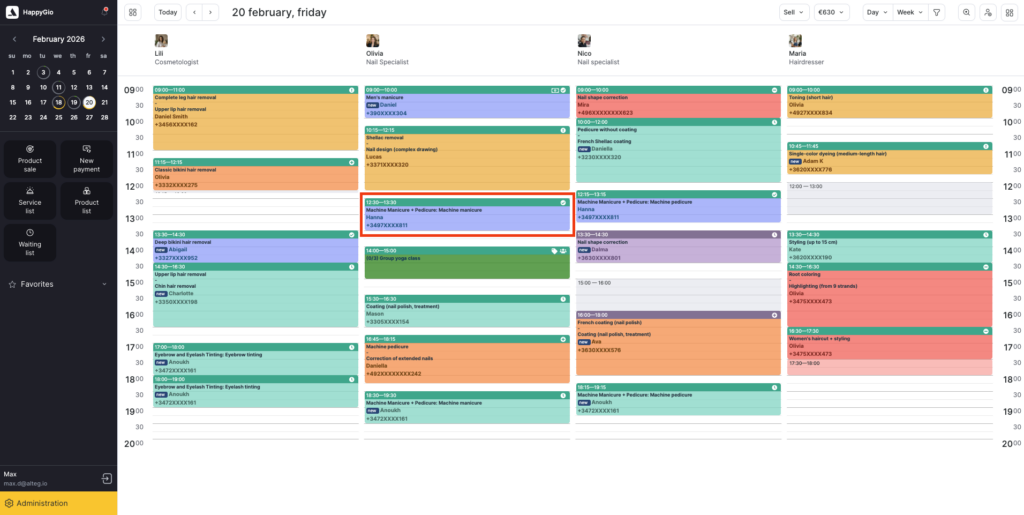
A booking with a payment policy applied gets a dedicated Payment Policy block inside its visit window. To open it, click the booking’s cell in the Appointment Calendar in Digital Schedule mode.
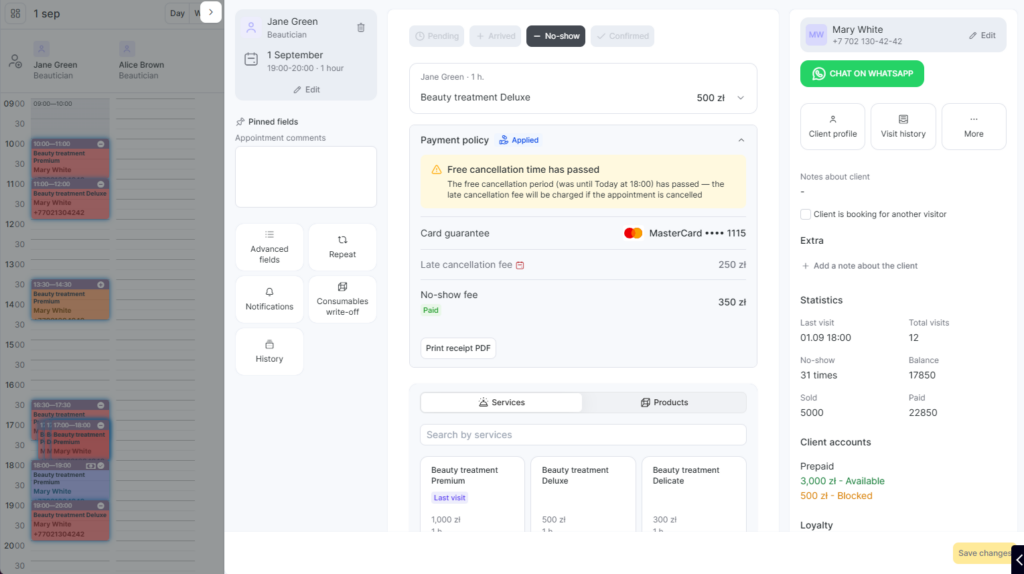
The Payment Policy block inside the opened visit window shows:
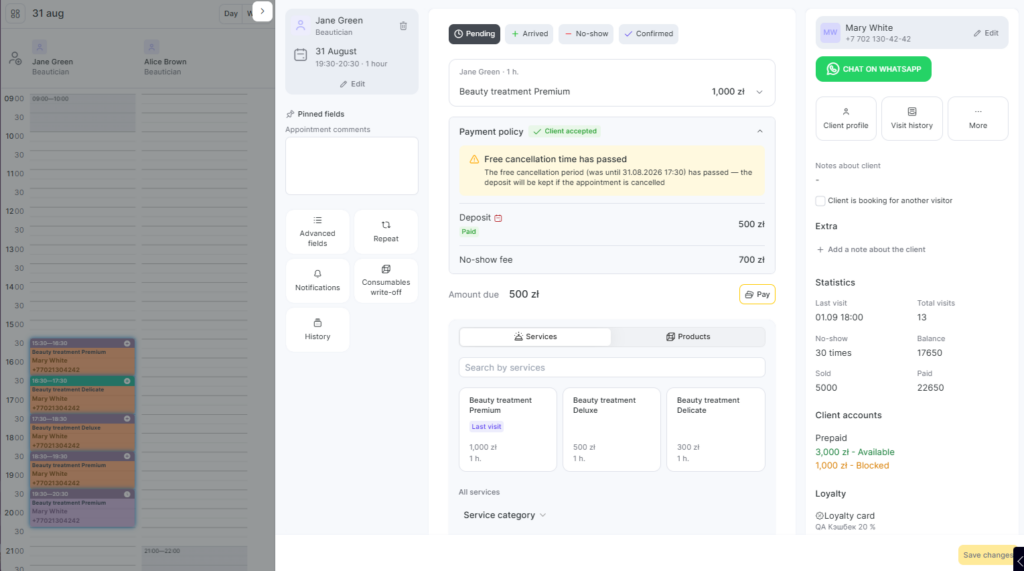
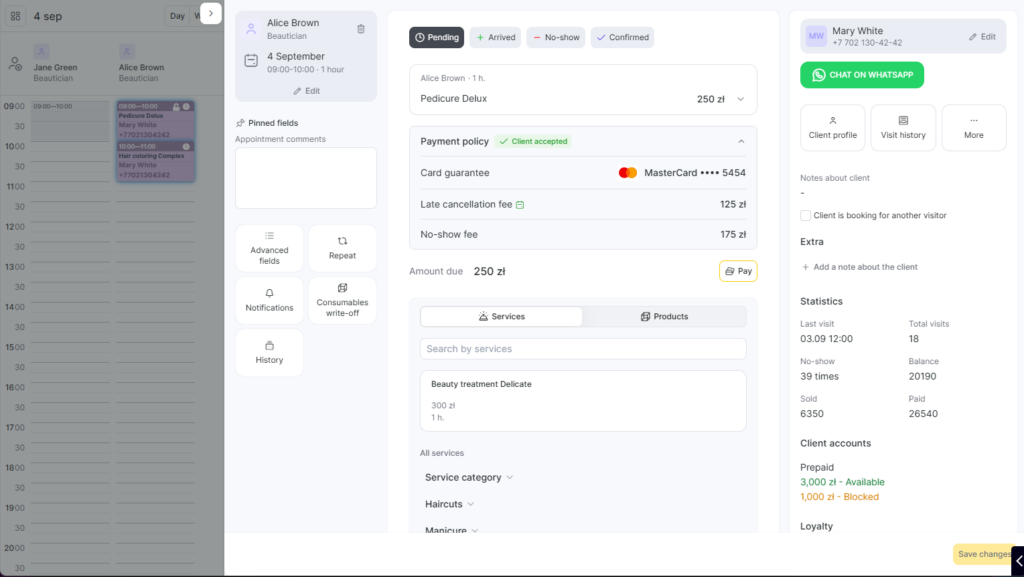
- The snapshot of the policy as it was at booking time — deposit amount, no-show fee, late cancellation fee (Card guarantee only), and the free cancellation window — as concrete amounts, never as percentages.
- The booking’s policy status: Client Accepted (set when the client successfully paid the deposit or linked the card), Applied (set after a fee was charged or the deposit confirmed to the business).
- A calendar icon next to the free cancellation deadline: green while the deadline is still in the future, red after it has passed. Hover the icon to see the exact date and time of the deadline.
The client’s account summary — Balance and Available, with negative balances shown in red — is displayed in the client’s info, not in the Payment Policy block (see The client’s Payment Policy account below).
If you edit the booking after the policy was applied (add a service, remove one, change the master), a yellow banner appears at the top of the visit window: the snapshot is locked at booking time, so the amounts in the policy block don’t change to match the new visit total. The only field you cannot edit on a booking with an active policy is the client’s phone number.
About the free cancellation window
The free cancellation window is a grace period before the visit during which the client can cancel or reschedule without losing the deposit or being charged the late cancellation fee. You configure its length in the policy settings (for example, “1 hour” or “24 hours”). The deadline is computed automatically as
visit start time − free cancellation window length. After the deadline, the late-cancellation rules kick in.
What to do when a client arrives and the visit completes
This is the “happy path” — the client showed up, the visit went normally, and you’re closing the booking with a payment.
Scenario 1 — Closing a visit with a deposit applied
The booking had a deposit (Deposit mode) and the client arrived on time. You’re processing the visit checkout.
- Open the visit window by clicking the booking’s cell in Digital Schedule mode.
- Change the booking status to Arrived (or Confirmed).
- Click Pay on the visit window.
- The checkout screen shows the deposit as the first applied payment line. The remaining amount to pay (visit total minus deposit) is shown below.
- Pick a payment method for the remaining amount (cash, card, gift card, loyalty points). The deposit cannot be split or partially applied — it’s always applied in full as the first line.
- If the visit total equals the deposit, the checkout screen still opens — the deposit is applied as the only payment line, and the remaining amount to pay is zero.
- If the visit total turned out to be less than the deposit (a service was removed at checkout, a discount applied), the excess is released to the client’s available balance automatically — the client doesn’t pay anything at checkout and leaves with a small positive balance for their next booking.
- Click Save. The booking is closed; the deposit is confirmed in the business’s revenue and recorded in the client’s Payment Policy account transaction log.
Important
You cannot close a booking that has a payment policy applied using a membership. Membership and payment policy are mutually exclusive at the booking level — the client paid a deposit, so the visit must close through the standard payment flow.
A discount applied at checkout is calculated on the full visit total. The deposit stays applied in full — after the discount, the remaining amount to pay is simply smaller (the discounted total minus the deposit).
Scenario 2 — Closing a visit with a card guarantee booking
Card guarantee bookings don’t have a deposit, so checkout works the same as for a regular booking without a payment policy: the client pays the visit total using standard payment methods. The card the client linked at booking is not used for paying the visit — its only role is to be charged if a no-show or late cancellation fee is triggered later (see Scenarios 4 and 6 below).
What to do when a client cancels late
A “late cancellation” is a cancellation that happens after the free cancellation window has closed. The steps below cover both payment-policy modes.
Scenario 3 — Late cancellation, Deposit mode (any payment provider)
The client called to cancel, or you’re cancelling the booking on their behalf, after the free cancellation window has passed.
- Open the visit window by clicking the booking’s cell in Digital Schedule mode.
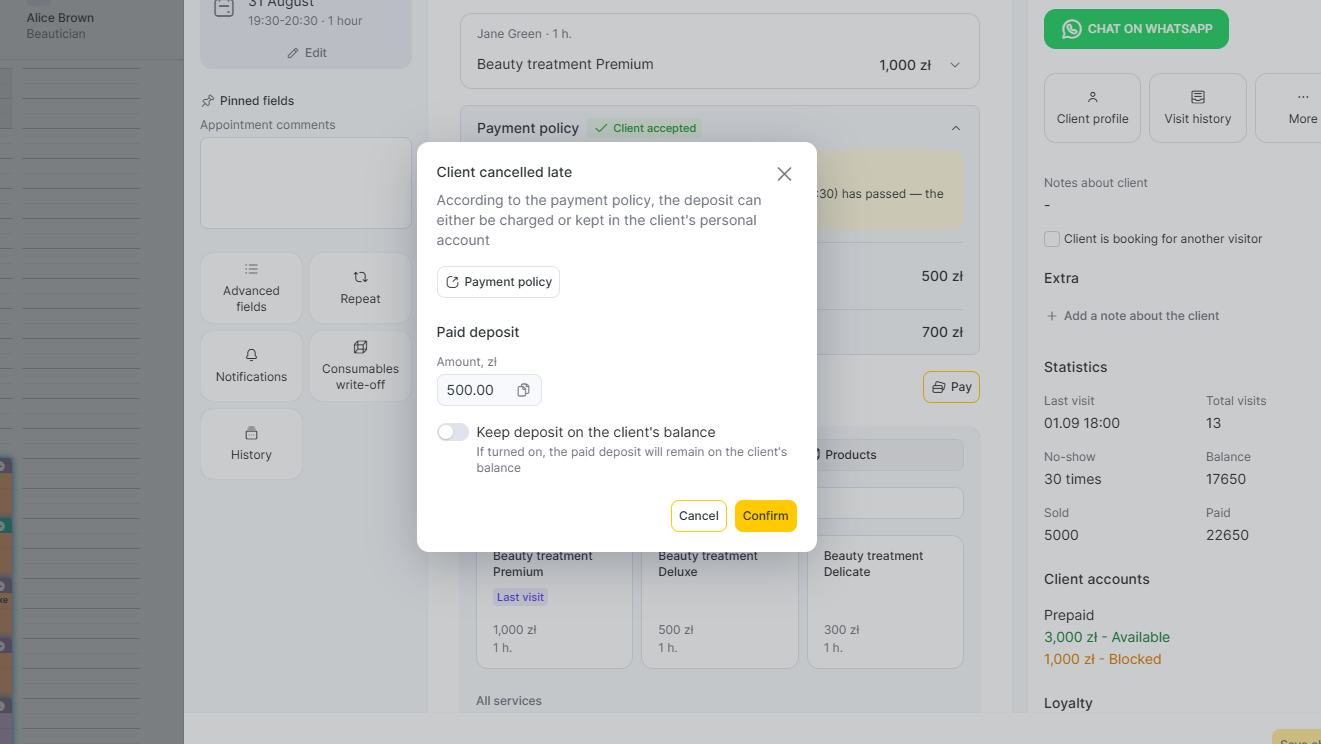
- Change the status to No-show. A modal appears showing the deposit amount with one toggle: Keep deposit on the client’s balance (off by default).
- Decide:
- To take the deposit as business revenue → leave the toggle off.
- To keep the deposit available for the client’s next booking → switch the toggle on. (Requires the business-level Allow receptionist not to charge to be on and your role to have permission to waive fees.)
- Click Confirm.
After these steps, the booking is cancelled and disappears from the Appointment Calendar. If the deposit went to the business, the charged late-cancellation fee is shown in the client’s visit history; a waived one is not shown there.
Scenario 4 — Late cancellation, Card guarantee mode
Adyen required. Card guarantee is only available with Adyen — see Adyen Integration: Setup and verification guide. If you don’t have Adyen connected, your business is on Deposit mode and Scenario 3 above applies.
- Open the visit window.
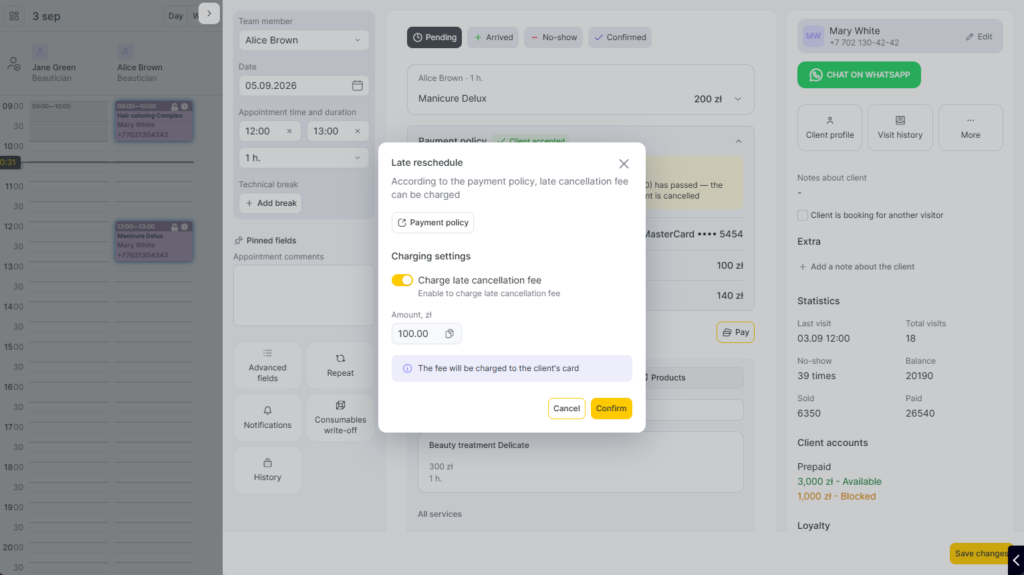
- Cancel the booking by changing the status to No-show. A modal appears showing the late cancellation fee amount with the toggle Charge late cancellation fee, on by default.
- By default the fee is charged automatically from the card the client linked at booking time (off-session — no extra action from you). To waive it instead, switch the toggle off before you save (needs the waive permission). When a client cancels online after the free window, the fee is charged automatically and no toggle is shown.
- Click Confirm.
After these steps, the booking is cancelled and disappears from the Appointment Calendar. A charged late-cancellation fee is shown in the client’s visit history; a waived one is not shown there.
If the charge attempt fails on the linked card, the fee falls back to the client’s Payment Policy account — see “When a card charge fails” below.
What to do when a client doesn’t show up
A “no-show” is a visit that didn’t happen because the client never arrived. The procedure differs based on the policy mode and the payment provider connected.
Important — the midnight rule
When you mark a booking as No-show, a countdown timer starts in the visit window. The timer runs until 23:59 of that same day, in the business’s timezone. You must make the no-show decision before that midnight.
Example: if the visit was today at 2 pm, you have until 11:59 pm tonight to decide. If you act earlier, you click the buttons described in the scenarios below. If midnight passes without a decision, Altegio applies the no-show fee automatically according to the saved policy — the deposit is confirmed (Deposit mode) and/or the off-session card charge is attempted (Card guarantee mode, or Deposit mode with fee greater than deposit).
Scenario 5 — No-show, Deposit mode, no Adyen connected
This is the case for every business on Stripe, VivaWallet, MonoBank, LiqPay, Qton, or any provider other than Adyen. The no-show fee always equals the deposit amount in this configuration — there is no separate fee value.
- Open the visit window of the booking the client didn’t arrive for.
- Change the booking status to No-show.
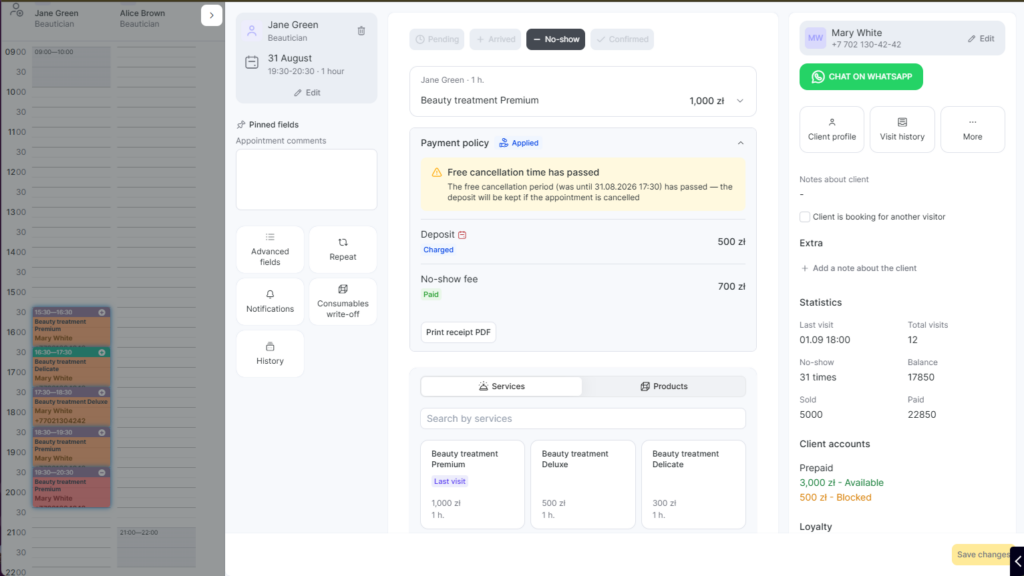
- The no-show block appears with the line Covered by deposit: <amount> and a countdown timer until 23:59 tonight (the location’s timezone). There’s no toggle here — the deposit already equals the no-show fee, so there’s nothing extra to decide.
- Click Confirm. The deposit is charged to the business; booking status becomes Applied (charged).
- If you don’t confirm before 23:59, Altegio confirms the deposit to the business automatically at end of day — the outcome is identical, you just didn’t act manually. The deadline is the visit day’s midnight in the location’s timezone and does not reset if you switch the status back and forth.
Scenario 6 — No-show, Deposit mode, Adyen connected, no-show fee greater than deposit
This is available only when both conditions are met: Adyen is connected, and you’ve configured a no-show fee larger than the deposit amount (which is also only possible with Adyen — see Adyen Integration: Setup and verification guide).
- Open the visit window.
- Change the booking status to No-show.
- The no-show block appears. The deposit is auto-confirmed (the booking now has the deposit going to the business). On top of that, you see a toggle Charge additional No Show Fee: <delta> where the delta is the no-show fee minus the deposit. Countdown timer until 23:59 tonight.
- Decide:
- To charge only the deposit (no extra charge) → leave the toggle off. Click Confirm.
- To charge the deposit plus the delta from the client’s card → switch the toggle on. Click Proceed to Checkout. The delta is charged from the card the client linked at booking time (this card is saved automatically in the Deposit flow when the no-show fee is configured higher than the deposit — see Deposit mode in payment policies for the details).
- Booking is locked: Applied (charged) in either case.
If midnight passes without you deciding, Altegio treats it as “toggle on” and charges the delta automatically.
Scenario 7 — No-show, Card guarantee mode
Adyen required.
- Open the visit window.
- Change the booking status to No-show.
- The no-show block shows the no-show fee amount and a countdown timer until 23:59 tonight.
- Decide:
- To charge → confirm the charge. Altegio attempts the off-session charge against the linked card.
- To waive → use the waive option (subject to permissions).
- Booking is locked.
If midnight passes without a decision, the charge attempts automatically.
Important
The fee charged for a no-show goes to the business’s revenue. It is not counted toward team member payroll calculations.
What to do when a client wants to reschedule
Scenario 8 — Reschedule inside the free cancellation window (any mode)
- Open the visit window.
- Change the date/time of the booking.
- Save.
- No fee is charged. The deposit (Deposit mode) or the client’s linked card (Card guarantee) stays in place — no new payment or linking is needed. The free cancellation deadline shifts automatically to match the new visit time.
Scenario 9 — Reschedule after the free cancellation window (admin-initiated)
The free cancellation window has closed. You’re rescheduling the booking from your side at the client’s request.
- Open the visit window.
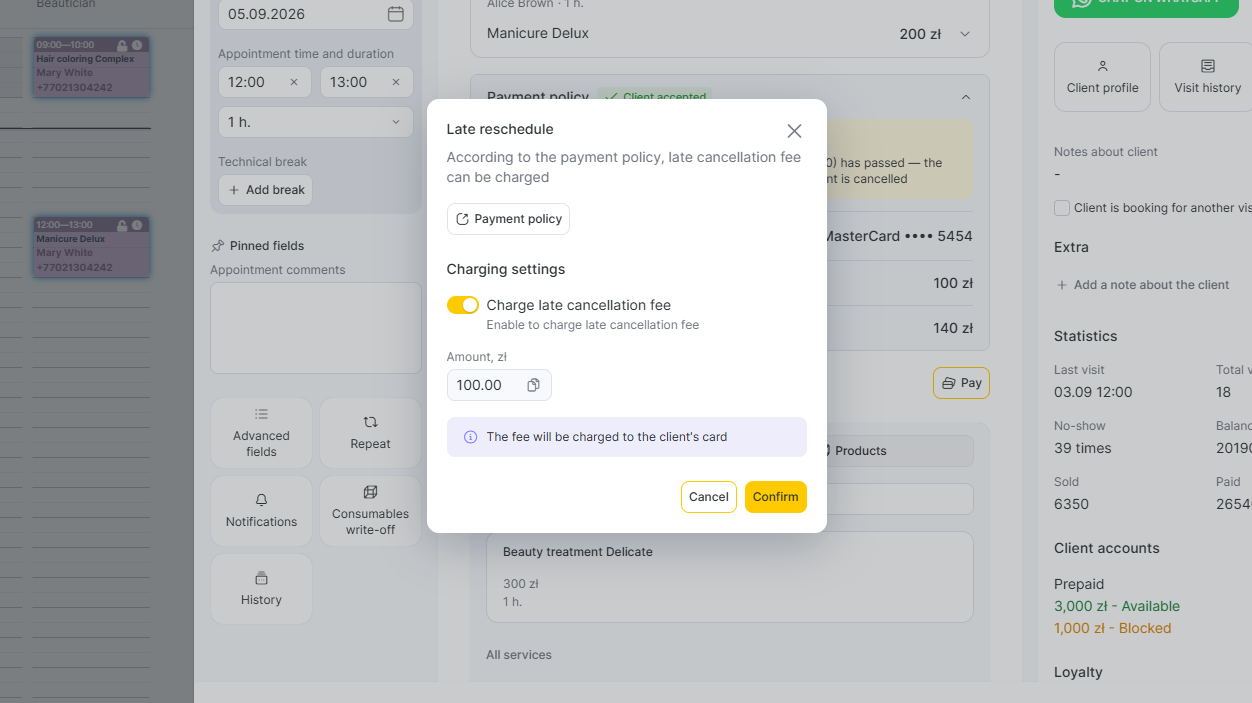
- Initiate a reschedule (change the date/time or use the Reschedule action). A modal appears asking what to do with the late cancellation fee. You can either charge late cancellation fee or waive it. Toggle on if you would like to charge it, or leave it if you would like to waive the fee.
- Charge the fee → the deposit is confirmed to the business (Deposit mode) or the fee is charged from the linked card (Card guarantee mode).
- Waive the fee → nothing is charged. (Requires the business-level Allow receptionist not to charge toggle and the corresponding permission.)
- Pick an option, click Confirm.
Whichever option you pick, the booking moves to the new date without a payment policy attached — no deposit, no linked card, no free cancellation window on the new date. If you want the new date covered by a policy, ask the client to cancel and book again through the widget.
Scenario 10 — Client reschedules online
If the client reschedules through the online booking widget themselves, you don’t do anything from your side — the system handles it. But the client experience differs based on whether they’re inside or outside the free cancellation window. See How clients book, pay, and manage cards with payment policies for the full client-facing flow.
Waiving a fee
Waiving a fee means the event ends without a charge — for a no-show the booking gets the Applied (waived) status instead of Applied (charged). A charged fee is shown in the client’s visit history; a waived fee is not shown there.
Waiving is only possible when:
- The waiver toggle is on in the Payment Policy settings. In Card guarantee mode it sits in the global Cancellation rules and fees block as Allow receptionist not to charge; in Deposit mode it lives in the per-service drawer as Allow admin not to charge and credit deposit to client balance in case of no-show or late cancellation.
- The administrator doing the action has the Process the payment permission in their access rights — see Booking window access rights. The same permission gates both charging and waiving in the visit window.
Effect on the client’s Payment Policy account when you waive:
- In Deposit mode — the hold is released. The deposit becomes available on the client’s balance for a future booking.
- In Card guarantee mode — no charge attempted. The linked card is untouched.
Once you’ve made the decision (charged or waived), it is final — it cannot be changed to the other option.
When a card charge fails
This applies to Card guarantee mode (any charge) and to Deposit mode with the additional No Show Fee in Scenario 6 above. The system attempts to charge the linked card; if the charge fails (insufficient funds, expired card, blocked card, fraud rule, or network error), it tries again — up to three retries in total. After all three retries fail, Altegio falls back to deducting the fee from the client’s Payment Policy account inside Altegio.
The Payment Policy account is special — it can go into negative balance with no limit, so the fee is recorded regardless of whether the client has any funds in the account. If after the deduction the client’s total balance across all their accounts in the location is below zero, Altegio marks the client as a debtor — see “What ‘debtor’ means and how it works” below for what that means in practice.
If the Payment Policy account has some funds but not enough (because some of the money is held against other future bookings), Altegio takes what’s available and looks for the rest in the client’s other accounts. Money held for other bookings is never touched.
The client’s Payment Policy account
When you activated the payment policy, Altegio auto-created a personal account named “Payment Policy” for every client in the location. This account is a separate ledger from existing client accounts (deposit accounts, gift card accounts, on-credit accounts).
Three things make the Payment Policy account different from a regular client account:
- Read-only configuration. You cannot rename, edit, or delete it from the client card — the corresponding controls are disabled.
- Negative balance has no limit. A regular client account caps how far negative the balance can go. The Payment Policy account doesn’t — the business can accumulate debt against the client without blocking operations.
- Auto-created. Even if the client already had other accounts in the location, this one is added when the policy is activated for the first time.
Two values are tracked on the account: Balance (the sum of all transactions) and Available (Balance minus all active holds). A deposit in the “Held until decision” state shows up in Balance but is subtracted from Available — the client can’t spend it on another booking until the hold is released or confirmed.
The account transaction log records each operation with its source (online booking, admin checkout, fee modal). Operations you’ll see include deposit credits, hold releases, hold confirmations, and fee debits.
Where to look in reports
Payment-policy events show up in three existing reports — there’s no new “Payment Policy report” to learn.
Client visit history. Open the client card and look at the visits list. A visit where a fee was charged shows the charged amount. A waived fee is not shown in the visit history.
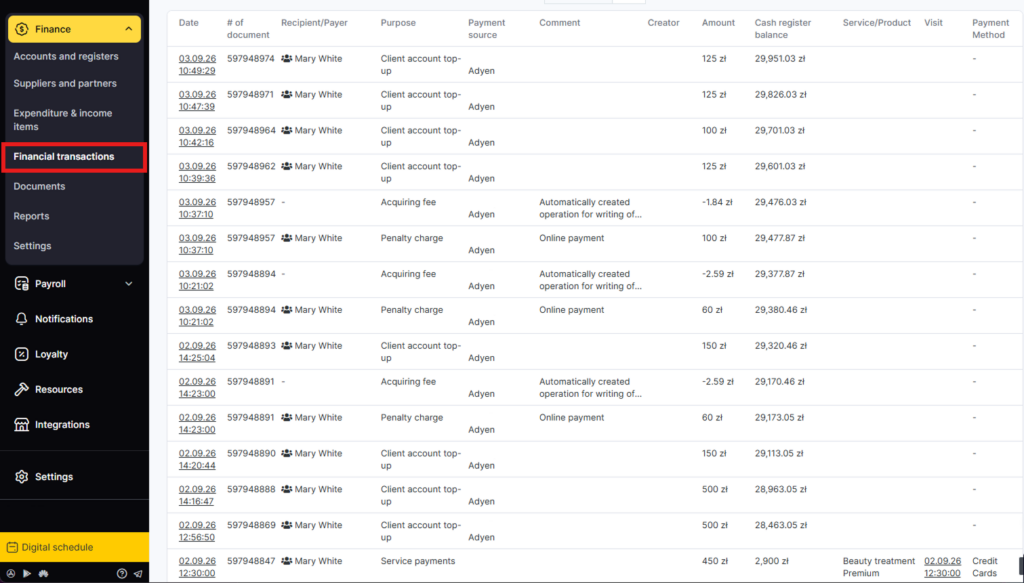
Finance > Financial transactions. Every money movement created by the payment policy lands here as a line item: the deposit credit when the client paid online, the release back to the client’s balance if the visit was cancelled in the free window, the transfer to the business when the visit closes successfully, and the fee deduction if a card charge failed. Filter by Purpose or Source to find policy-related transactions.
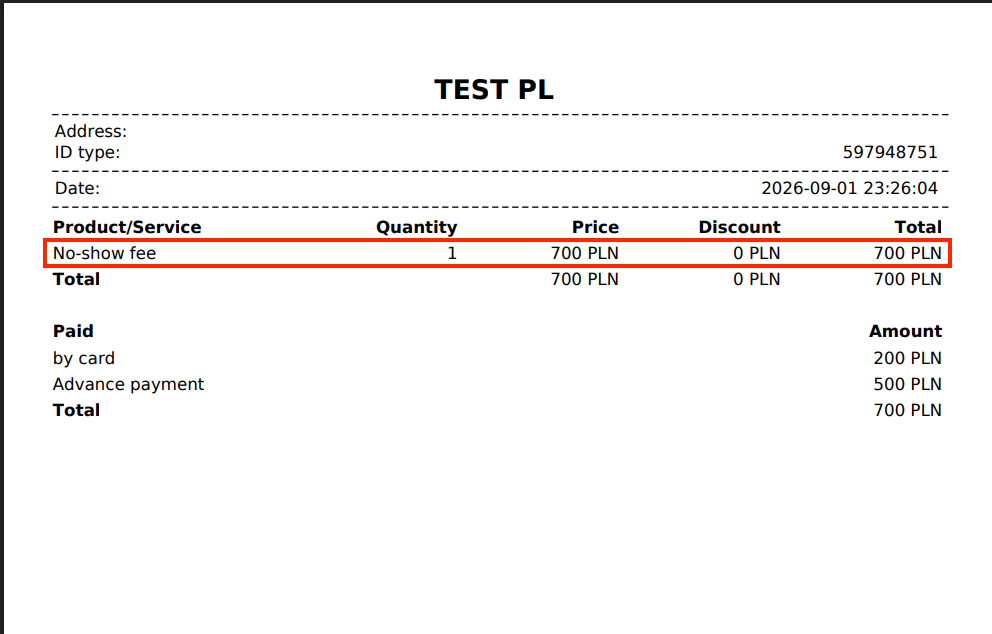
Receipt printout. When a visit is closed, the printed receipt shows the deposit amount and any applied fees as separate lines.
What notifications the client receives
The client does not receive any separate payment-policy notifications. Instead, Altegio adds a payment-policy information block to the existing notifications the client already receives:
- In email notifications — the booking emails include the policy information for the booking.
- On the visit information page — the page the client opens via the link in SMS or WhatsApp messages shows the policy information.
To edit the notification texts, channels, and conditions, go to Notifications > Notification types in Administration mode — see Types of notifications and configuring their templates.
The business and team members are not part of these client-facing notifications. There is no “fee charged” notification sent to the business today — keep track via the visit window status and the reports listed above.
What “debtor” means and how it works
Sometimes a client ends up owing the business money — most often when a card charge for a no-show or late cancellation fee failed and the fee was deducted from their Payment Policy account, pushing the account into negative balance. Altegio calls such a client a debtor.
The debtor status is set and cleared automatically by Altegio, based on the client’s total balance across all accounts in your location:
- Total balance is negative → the client is a debtor.
- Total balance is zero or positive → the client is not a debtor.
You don’t see a “debtor” badge on the client card or anywhere else in the business’s normal workflow — there’s no list of debtors, no notification, no visual marker. The debtor status only matters because of one specific setting:
- If you’ve switched on Apply default policy for clients with outstanding balances in the Payment Policy settings (under the Clients scope), then debtors get the business’s default policy applied to all their new bookings — even bookings that would otherwise be exempt because of your other policy rules. This is the business’s way of saying “if a client owes us money, we want a deposit from them every time, no exceptions.”
- If that setting is off, the debtor status does nothing — debtor clients book under the same rules as everyone else.
To stop a client from being a debtor, the negative balance has to be cleared — usually by the client paying the business directly (with cash or another payment method) and the business recording that payment as a top-up on the client’s Payment Policy account. Once the balance is back to zero or positive, Altegio removes the debtor status automatically.
Chain and mode-change considerations
- Chains — if the location later separates from a chain, the Payment Policy account that was created for a client during the chain period continues to exist. Past holds and balances are preserved.
- Switching modes (Deposit ↔ Card guarantee) — the Payment Policy account is not re-created when you change the policy mode. The same account stays with the client across mode changes, keeping its transaction history intact.
- Per-service overrides — if you’ve set a custom deposit amount or no-show fee for a specific service, the snapshot of that override is what’s captured at booking time, not the global value. The per-service drawer in the Services scope is where these overrides live.
Limitations
- Phone number cannot be changed on a booking with an active policy.
- Consumables are returned automatically if you mark a visit as no-show after they had been written off — the consumables write-off is reversed.
- How the no-show fee is charged depends on the mode. In Deposit mode the no-show fee equals the deposit, so it comes out of the deposit you already hold — no card needed. Only the part above the deposit (Deposit mode with Adyen) or the full fee (Card guarantee mode) is charged off-session from the linked card, and for that portion no other payment method is offered.
- The decision is final. Once you’ve saved a charge or waive, it can no longer be changed.
- Concurrent operations — if two administrators (or an administrator and the client online) act on the same visit at the same time, the first action wins; the second sees a validation error.
- Charges go to revenue, not payroll. Late cancellation and no-show fees count toward the business’s revenue but are excluded from team member payroll calculation.
FAQ
Charged means the money moves to the business’s revenue — for Deposit mode, the held deposit is confirmed to the business; for Card guarantee mode, the fee is charged from the client’s card. A charged fee is shown in the client’s visit history. Waived means the fee or deposit is forgiven — the money goes back to the client’s available balance (or the card stays untouched). A waived fee is not shown in the visit history.
The system applies the default charge — the deposit (Deposit mode) is confirmed, the additional fee (if any) is charged off-session, the off-session charge (Card guarantee mode) is attempted. This cannot be undone — the decision is final.
No — the decision is final and cannot be undone.
Either the business-level Allow receptionist not to charge toggle is off, or your role doesn’t have the corresponding permission. Check with the Owner or Manager — see Booking window access rights.
Open the client card and look for the Payment Policy account in the Client accounts section. Balance and Available are shown on the account row; expand it to see the transaction log.
Automatically, when the total balance across all the client’s personal accounts in the location is no longer negative. There is no manual action to clear it.
Only when the business-level Apply default policy for clients with outstanding balances toggle (in the Clients scope of Payment Policy settings) is on. With it off, debtor status has no effect on new bookings.