
Adyen is available as a payment system inside Altegio, so eligible companies can accept online payments and receive payouts to a business bank account.
Adyen supports a broad set of payment methods including credit/debit cards, Apple Pay, Google Pay, PayPal, and regional payment systems.
With a connected Adyen integration in Altegio companies are able to:
- Accept online credit/debit card payments (including American Express and UnionPay, where available).
- Accept digital wallets like Apple Pay and Google Pay (where supported).
- Use local payment methods in some countries (if available at location).
- Receive payouts to your bank account on a schedule (typically once every week).
Availability depends on your country and business category. If you don’t see Adyen in Integrations, it likely isn’t available for your location yet—contact Support.
Important
Only the Location Owner can connect Adyen and complete verification.
What you should prepare
You’ll go through business verification (KYC/KYB). Have these ready:
- Legal business details (legal name, registration country, business address, phone, etc.).
- Ownership / decision-maker info (owners and people who control the business).
- A business bank account (IBAN or bank details depending on country).
- Verification documents (business registration docs, ID documents for relevant persons, and any other documents requested during onboarding).
- A device/camera for identity checks (if prompted).
Open the integration in Altegio
- Go to Administration mode, Integrations > Payment systems.
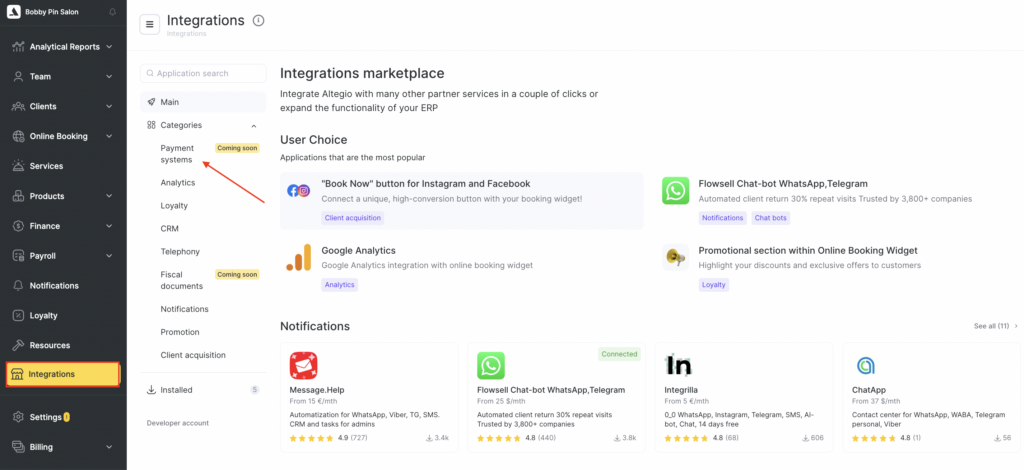
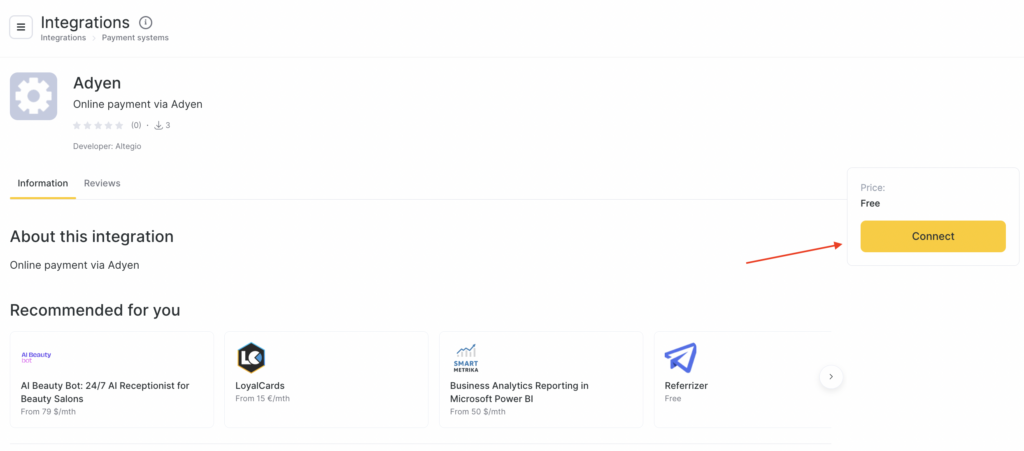
- Find Adyen and open it.
- Click Connect.
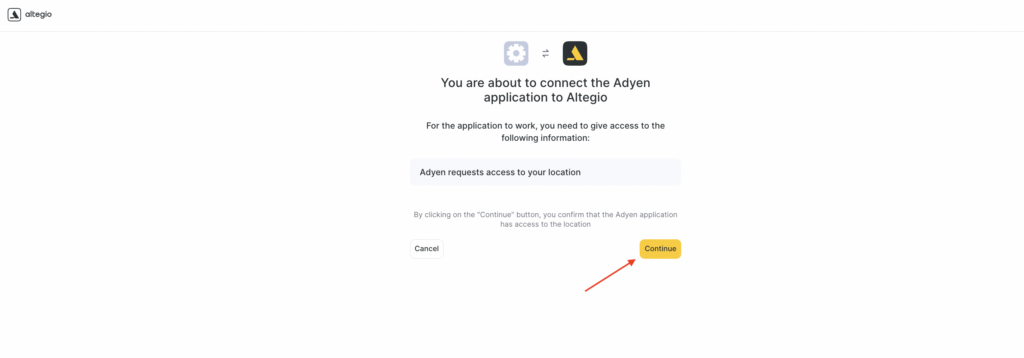
- You will see a confirmation screen saying you’re about to connect the Adyen application to Altegio and that it requests access to your location.
- Click Continue.
Fill in registration details in Altegio
After you confirm access, you’ll complete a Registration form in Altegio. This information is required for verification and is not shown to your clients.
Typical fields include:
- Legal entity (legal name, country of registration)
- Store/business details (business country, description, address/city/zip, phone)
- Shopper statement (what customers will see on their bank statement)
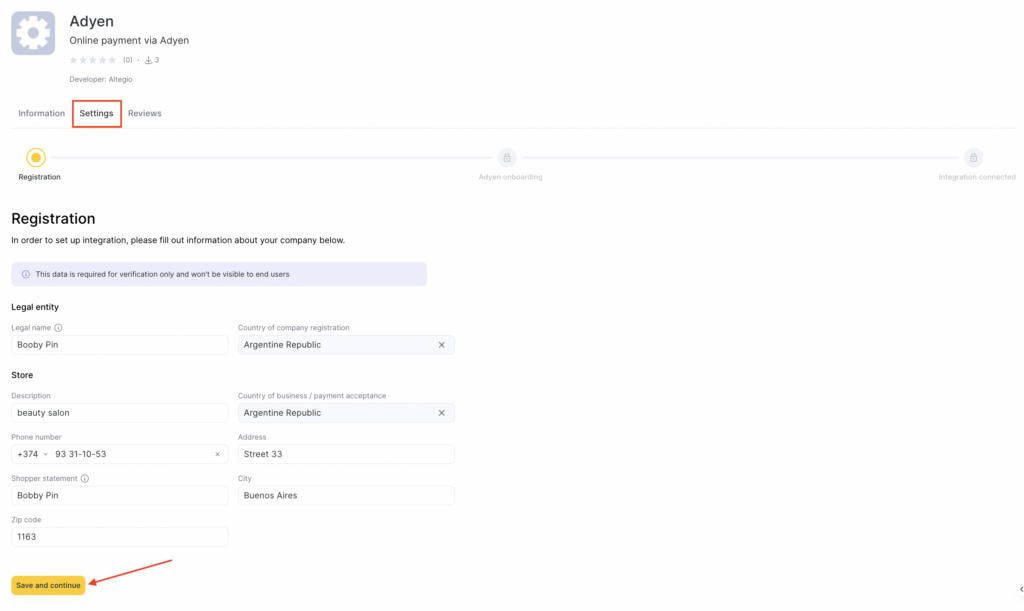
Click Save and continue.
Complete Adyen onboarding
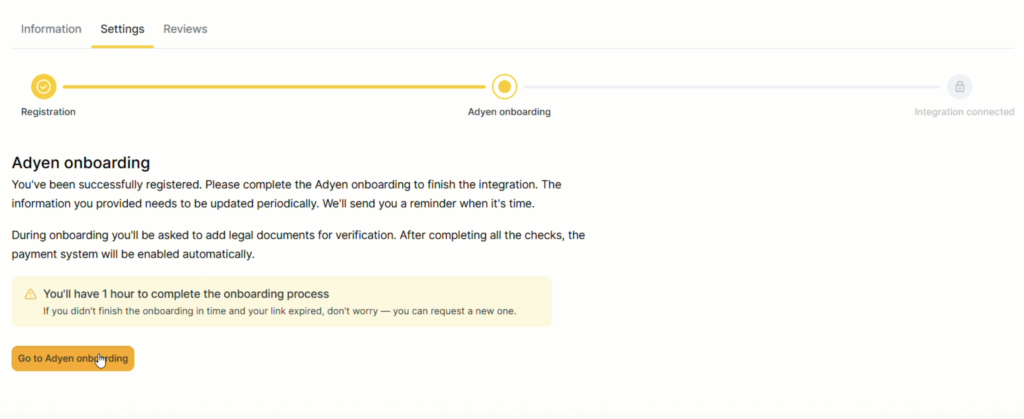
After registration, you’ll be taken to Adyen onboarding.
Note
In Altegio, you may see a note that you have 1 hour to complete the onboarding.
If the link expires, you can request/generate a new link from the same integration screen (Altegio will provide a way to return to onboarding).Click Go to Adyen onboarding to open the hosted onboarding flow.
Adyen onboarding
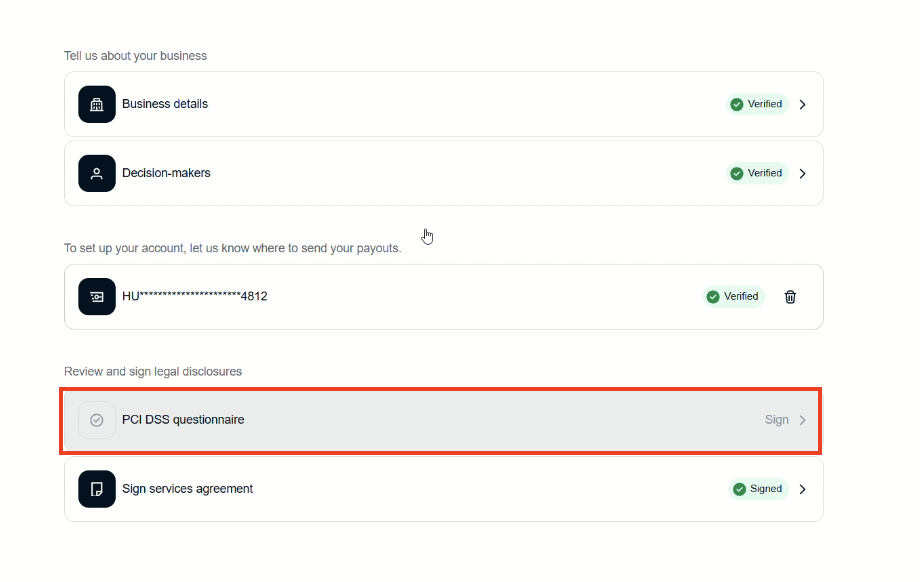
You will typically see a checklist like this to be filled out:
- Business details
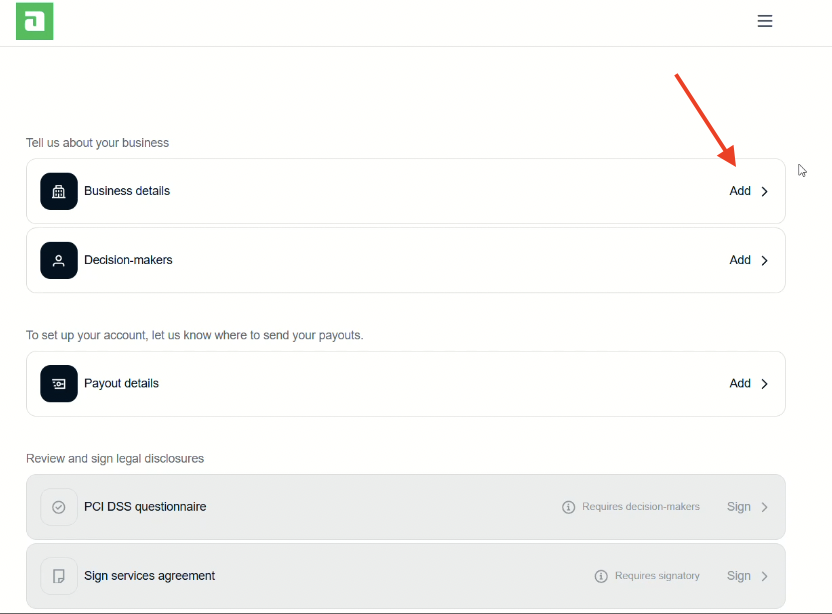
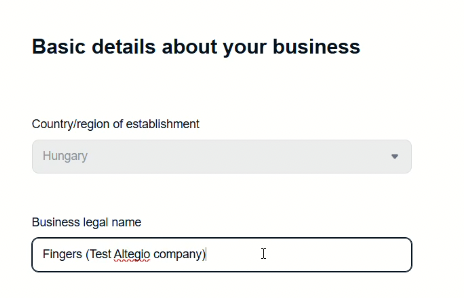
- Country/region of establishment
- Business legal name
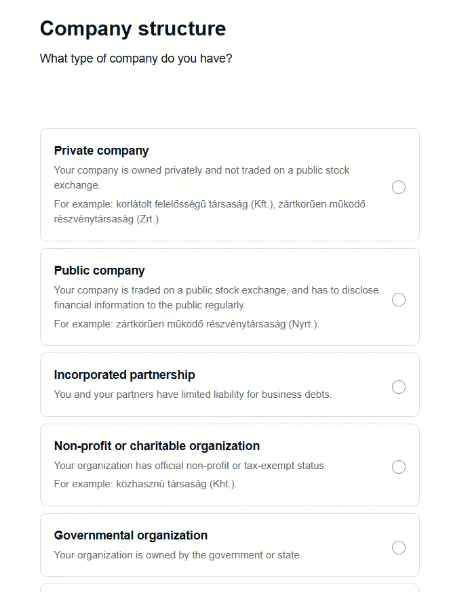
- Company structure (e.g., private company / public company / non-profit, etc.)
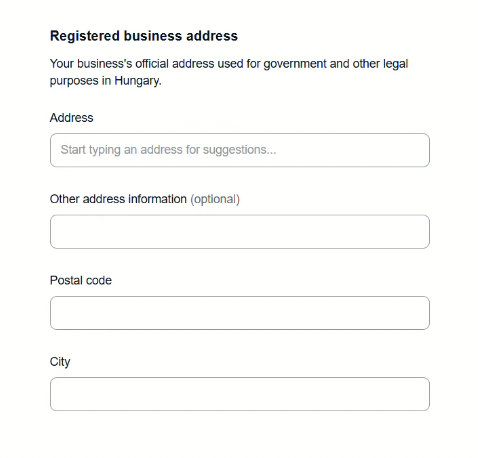
- Decision-makers (owners and people responsible for the business)
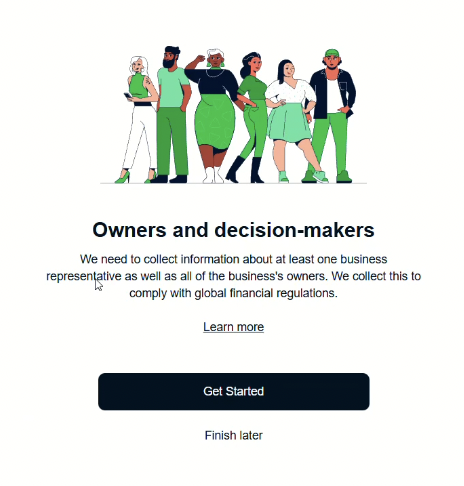
You’ll be asked for details about:
- At least one business representative
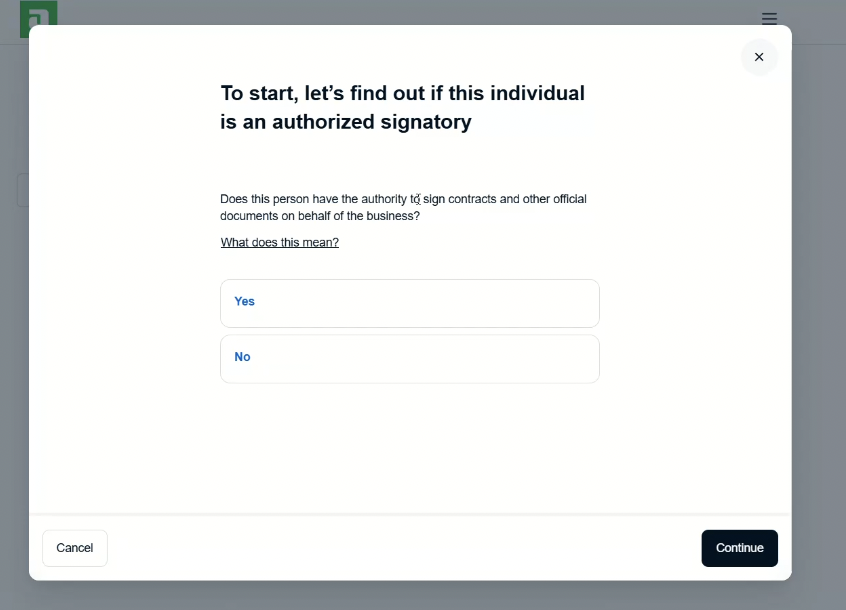
- Information about business owners
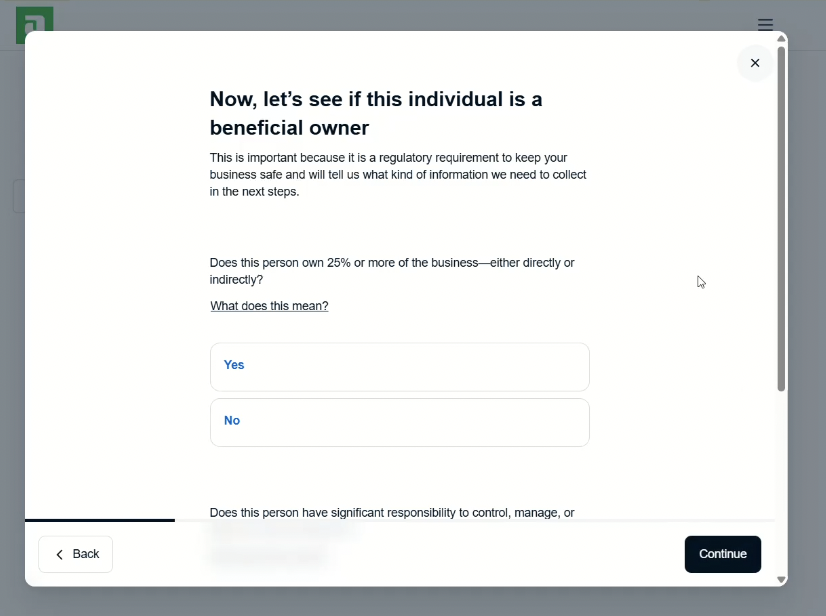
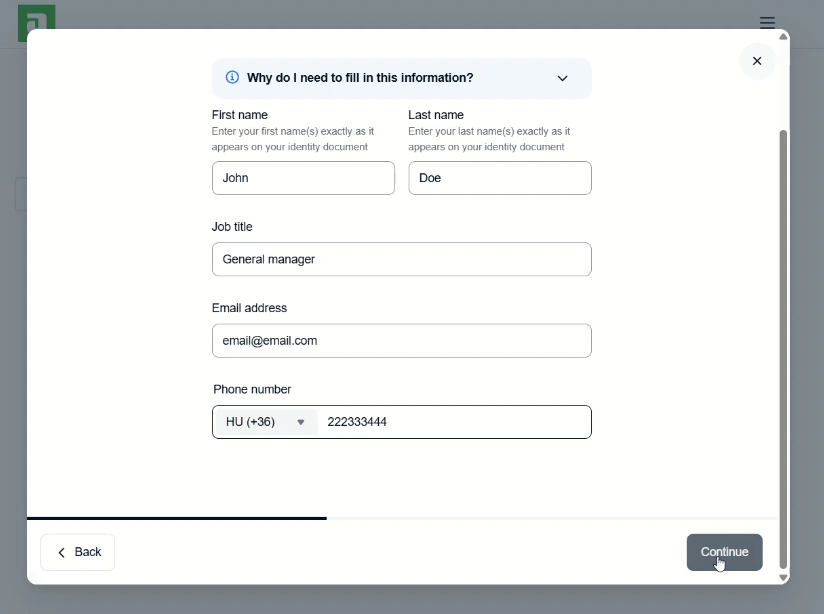
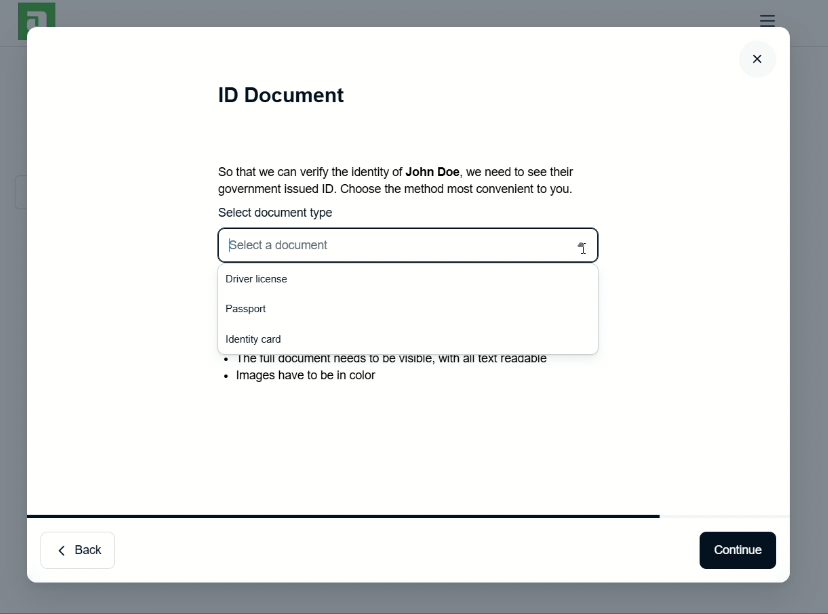
You may also be prompted to complete identity verification:
- You can usually scan an ID or add details manually
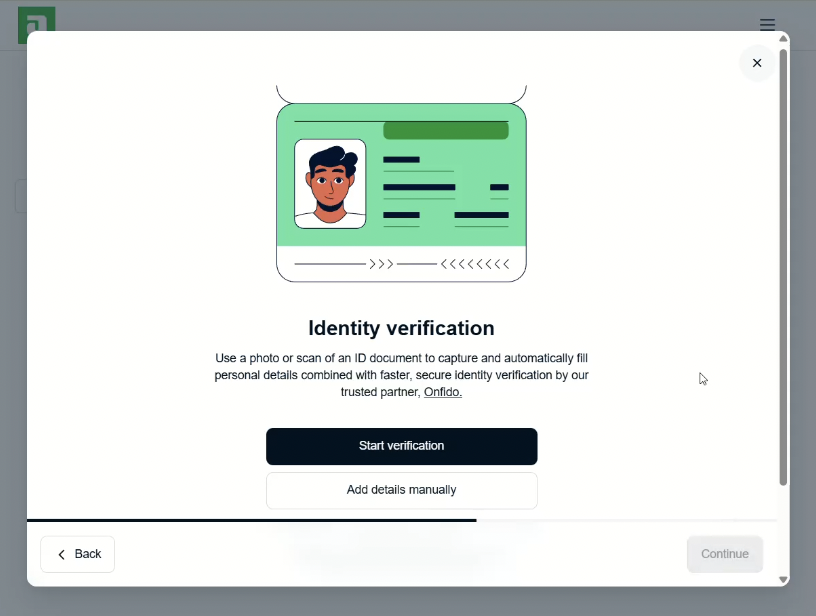
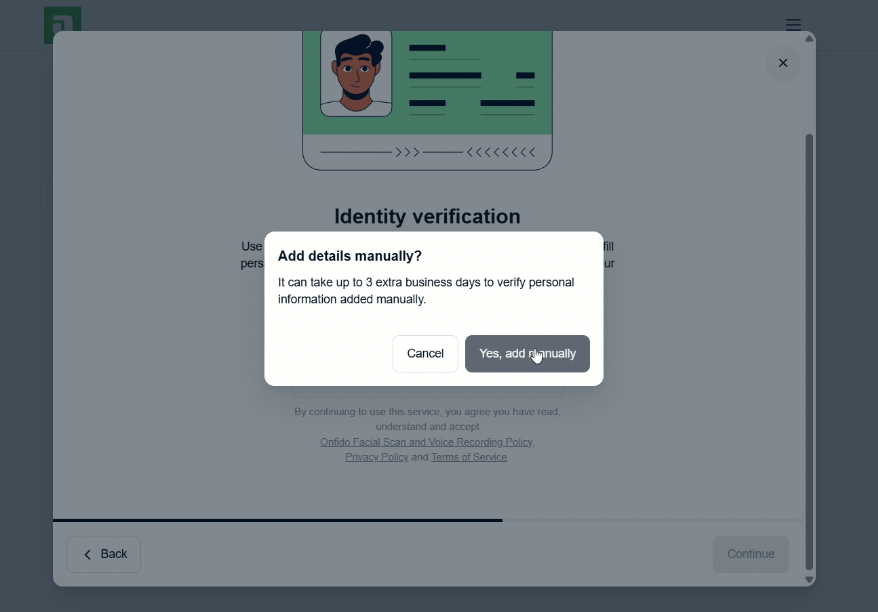
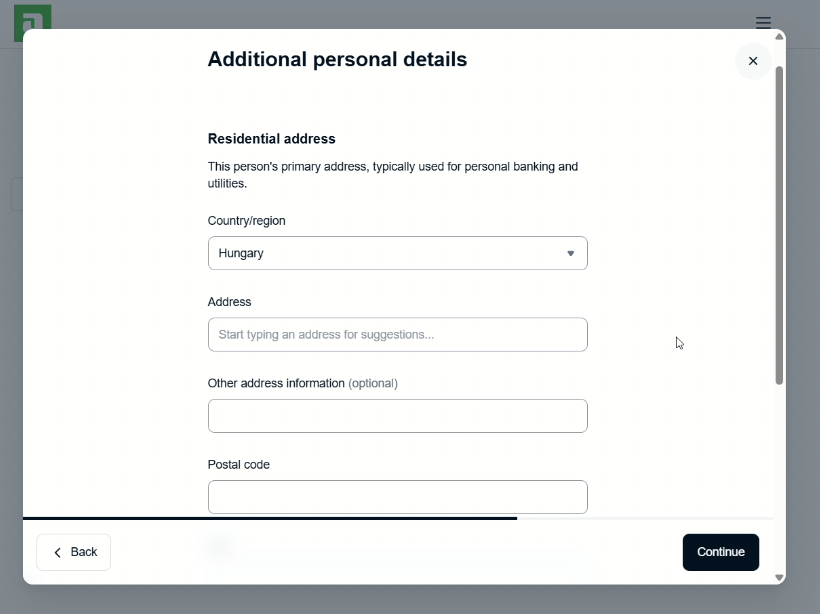
- Follow the on-screen instructions and provide a clear photo with no glare and in good lighting.
- Payout details (where Adyen will send your payouts)
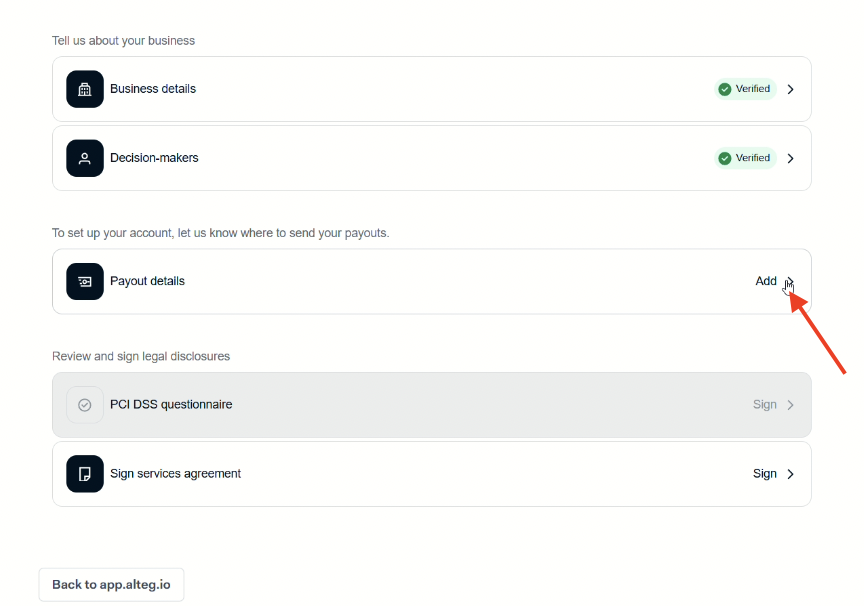
You will be asked to add a bank account for payouts.
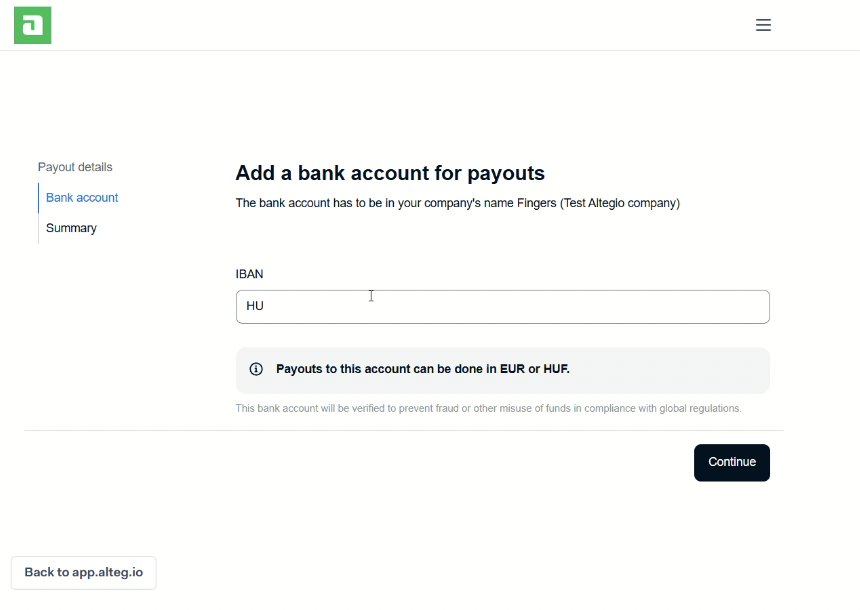
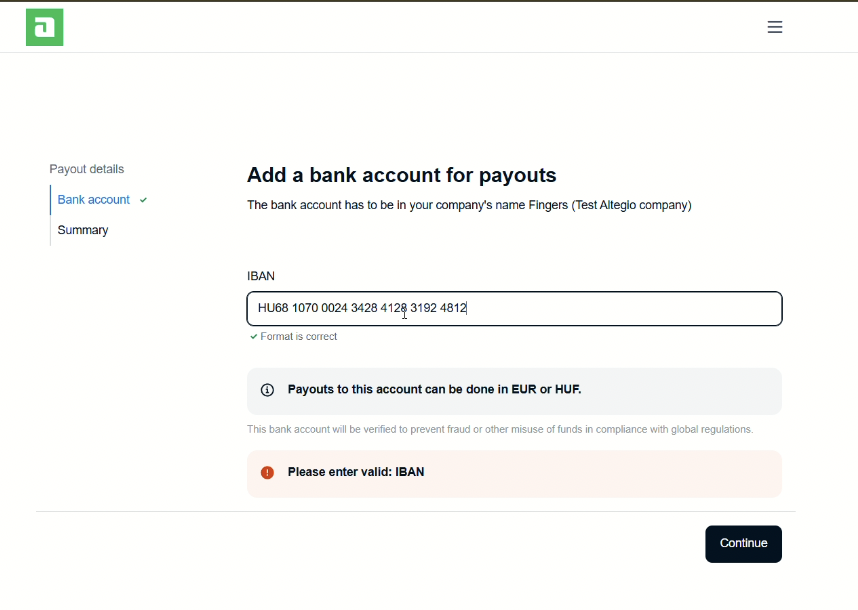
Additionally, you may be prompted to fill in an IBAN field and a note about supported payout currencies.
- Services agreement
- Legal disclosures
Complete the PCI questionnaire and sign the services agreement
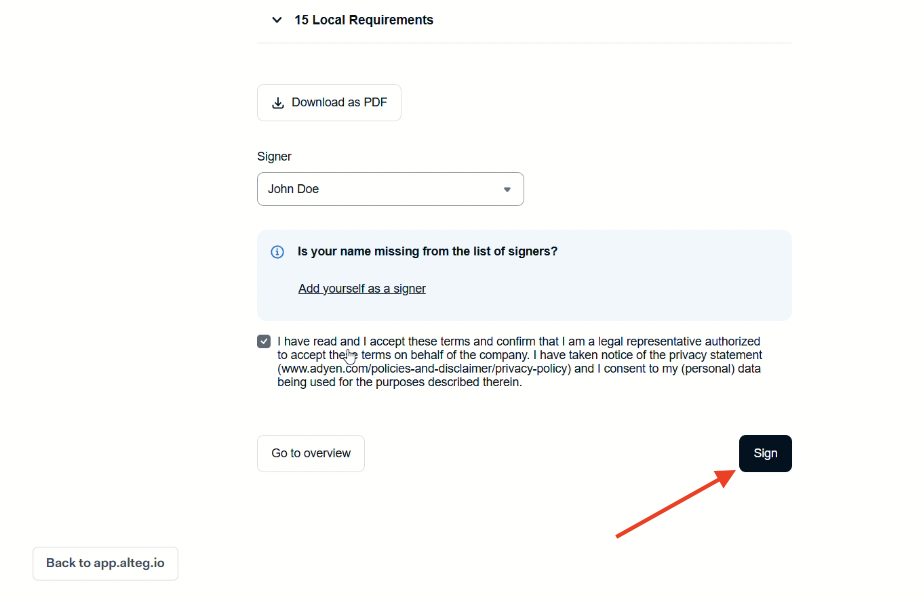
- PCI DSS questionnaire (required for card payments)
Note
These usually remain “pending” until you finish the required steps.
Confirm “Integration connected” in Altegio
When everything is completed and accepted, you’ll see Integration connected on the Adyen integration page in Altegio.
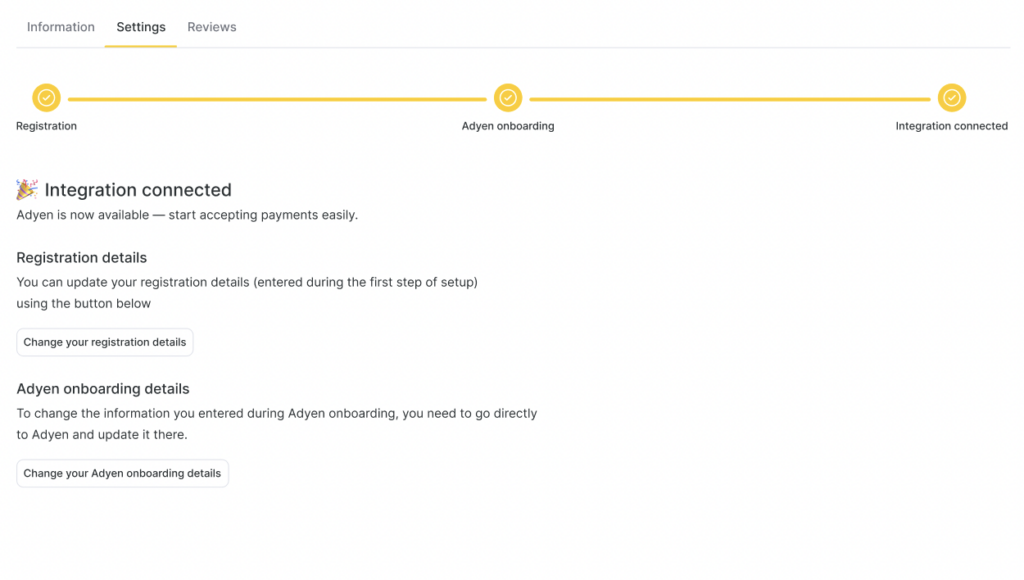
From that screen, you’ll also typically have these options:
- Change your registration details (the initial form you filled in Altegio)
- Change your Adyen onboarding details (this sends you back to Adyen to update verified info)
What happens if something blocks you
You’re the owner, but onboarding isn’t finished
You will see a yellow warning banner in Altegio interface saying:
- “To connect Adyen, you need to complete onboarding and upload the required documents”
And: - A button Go to Adyen onboarding
- The Connect button may be disabled until onboarding is completed
Click Go to Adyen onboarding and finish the steps (including document upload if requested).
You’re not the owner (insufficient permissions)
You will see a red warning like:
- “Only the location owner can connect Adyen and complete onboarding and verification”
And the Connect button will be disabled.
Ask the Location Owner to connect and complete onboarding.
Adyen is already connected in another location
You will see a message like:
- “Adyen is already connected”
- And which location it’s connected to
You’ll be offered options such as:
- Use the same account (for a single legal entity)
- Create a new account (for a chain/other legal entity)
Notes
If you’re not the owner, “Use the same account” will be disabled and you’ll be prompted to contact the owner or Support.
Which option should you choose?
Same legal entity across locations > choose Use the same account
Different legal entity (chain / separate company) > choose Create a new account
Re-onboarding and updates (when Adyen asks for changes)
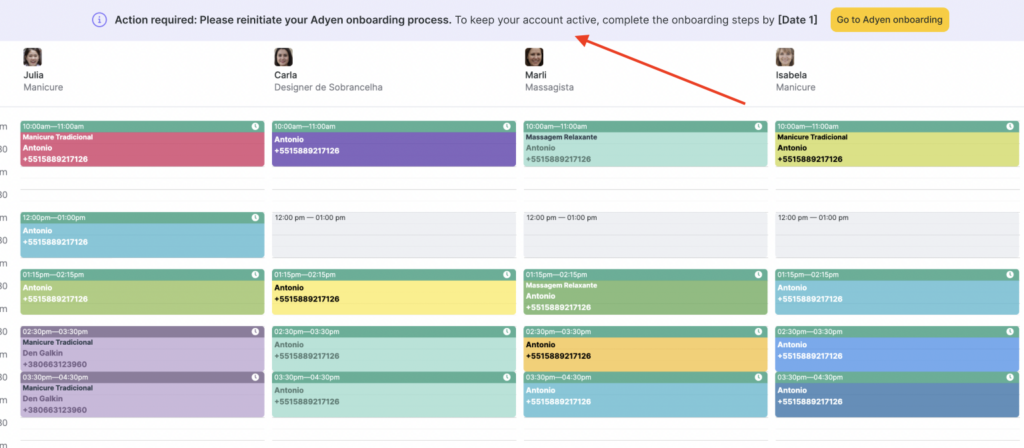
Sometimes Adyen may require you to re-confirm or update information (for example, if key business details change or documents expire). When that happens:
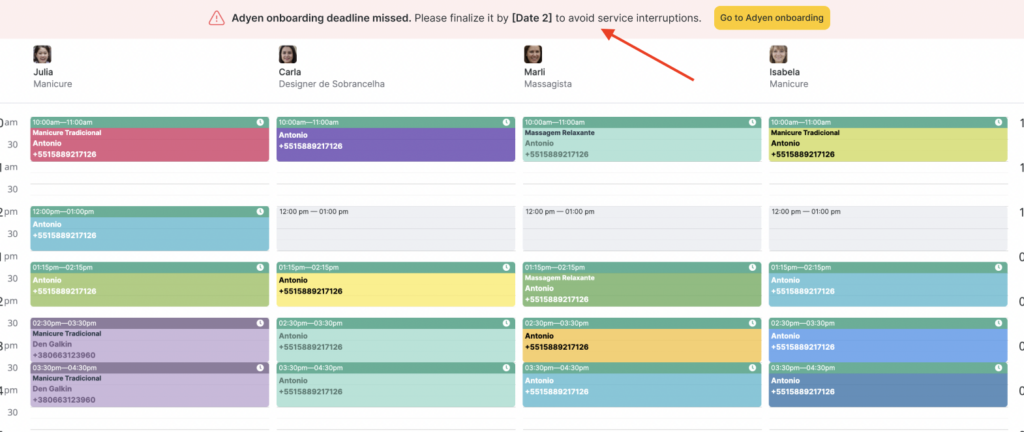
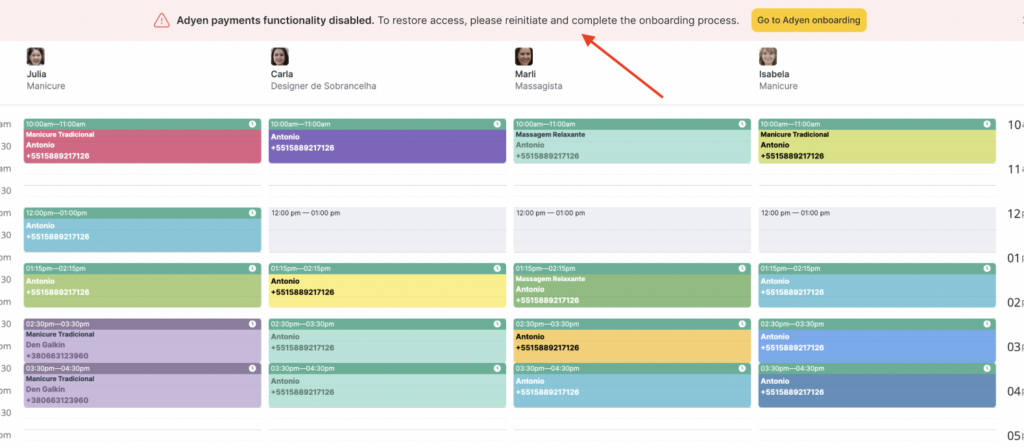
- Altegio will show notification banners with a deadline.
- You’ll be directed back to Adyen onboarding to complete the required updates.
Improtant
Don’t ignore these banners—if the deadline passes, payouts or payment acceptance may be affected until the onboarding is updated.
Notes
Verification time depends on the documents requested and how quickly they can be reviewed. If Adyen needs more info, you’ll see it in the onboarding checklist.
You can change business or payout details later. To do so, use Change your registration details (Altegio-side form) or Change your Adyen onboarding details (Adyen-side verified info).
If you don’t see Adyen in Integration section, most commonly: your country or business type isn’t eligible yet. Contact Support to confirm availability (and possible alternatives like Stripe where applicable).
Adyen Dashboard
The Adyen Dashboard in Altegio shows every payment processed through the Adyen integration, the current account balance, and the payouts sent to your bank account. Use it to check incoming payments, track payouts, filter transactions, and issue refunds to clients.
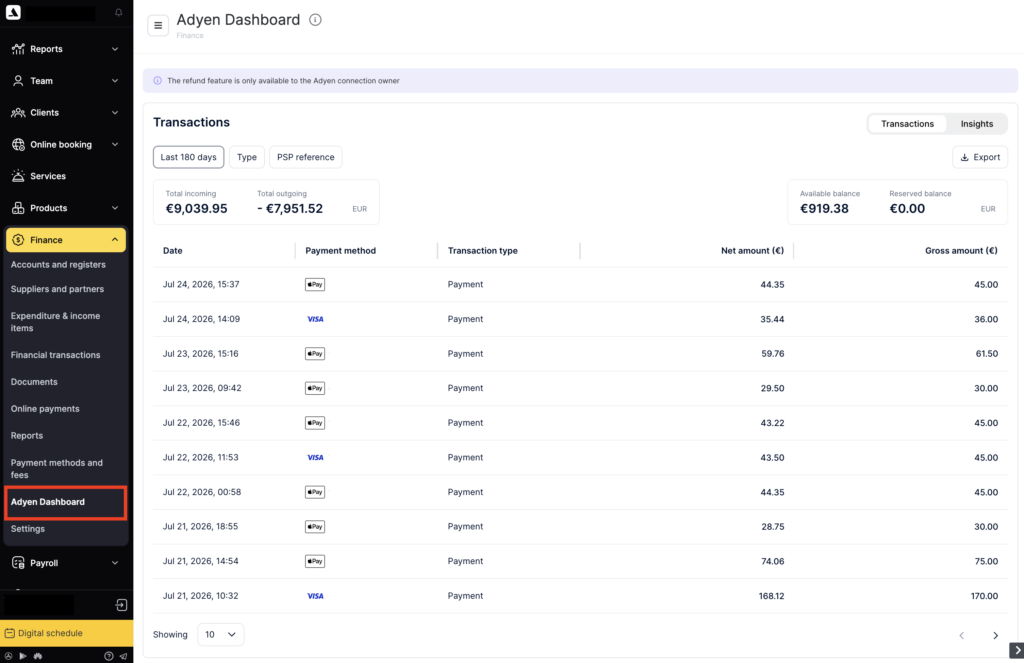
To open Adyen Dashboard go to the Administration mode, open Finance > Adyen Dashboard in the left menu. The page opens on the Transactions view.
Transactions
The Transactions view lists every operation processed through Adyen. Two summary blocks sit above the table:
- Total incoming and Total outgoing for the selected period, in your payout currency (for example, EUR).
- Available balance (the amount currently available) and Reserved balance (the amount currently reserved and not yet available).
Each row in the table shows:
- Date: the date and time of the operation.
- Payment method: the method used (for example, Apple Pay or Visa) with the last digits of the card, or a bank icon for a payout.
- Transaction type: for example, Payment or Transfer.
- Net amount (€): the amount credited after Adyen’s processing fee.
- Gross amount (€): the full amount charged to the client.
Click Export in the top-right corner to download the transaction list. At the bottom of the table, the Showing selector sets how many rows appear per page, and the arrows move between pages.
Filtering transactions
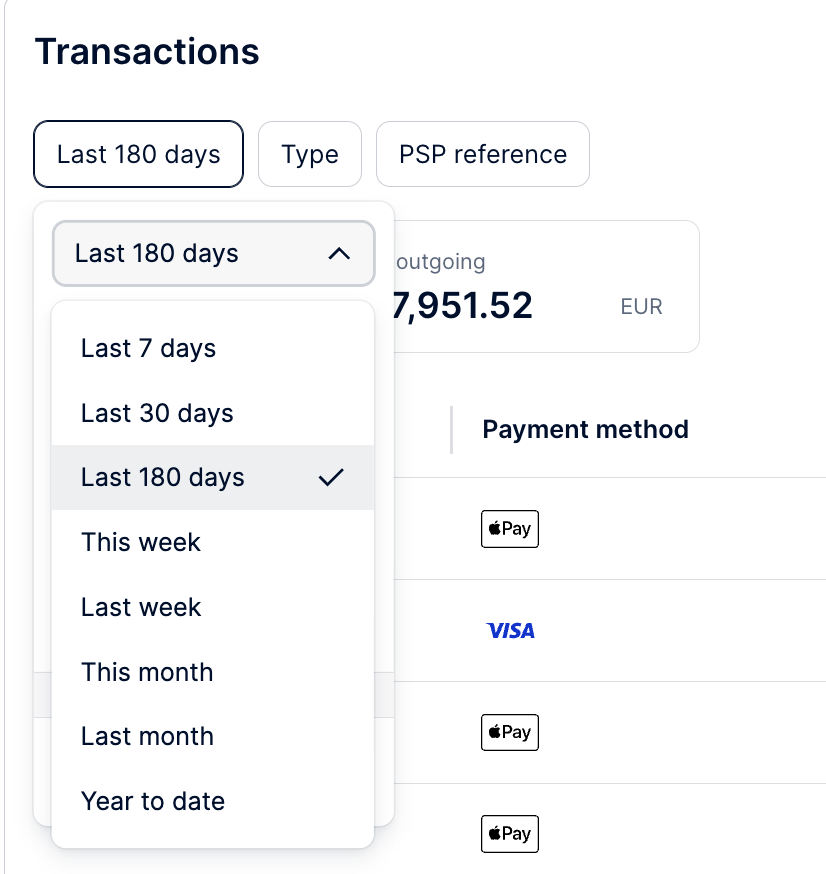
- Date range
The first filter (Last 180 days by default) sets the period covered by the table and by the Total incoming and Total outgoing totals.
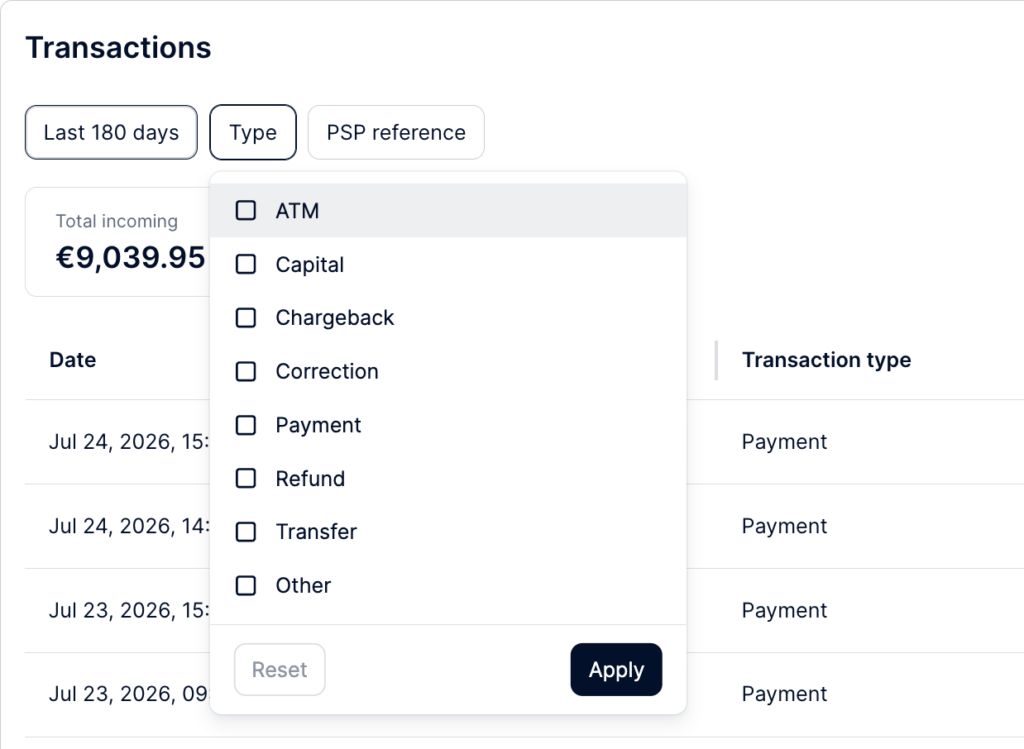
- Type
Click Type to filter by transaction type. Select one or more types and click Apply. The available types are ATM, Capital, Chargeback, Correction, Payment, Refund, Transfer, and Other. Click Reset to clear the selection.
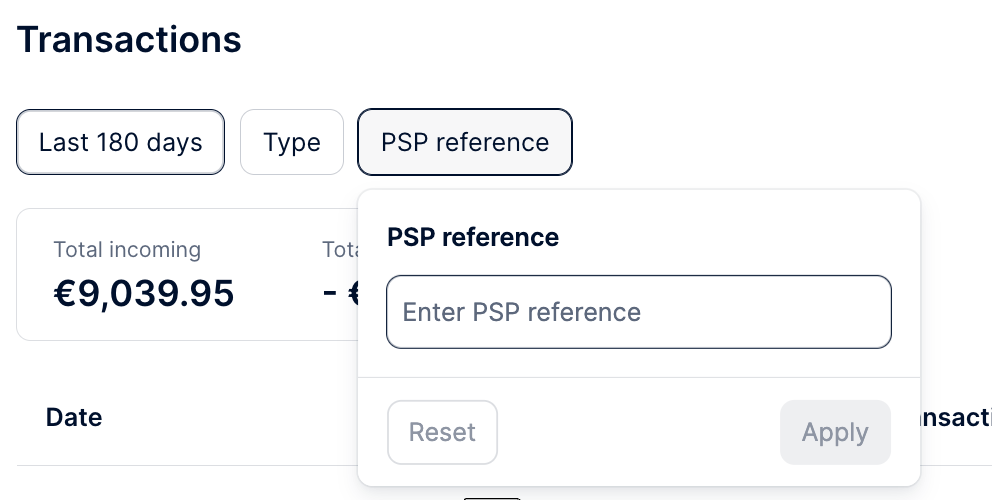
- PSP reference
Click PSP reference to find one specific transaction by its Adyen PSP reference. Enter the reference in the field and click Apply. Click Reset to clear it.
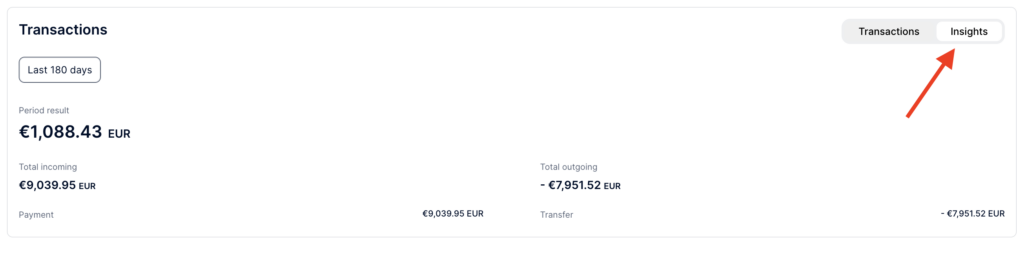
Insights
Switch to the Insights tab using the toggle in the top-right corner to see a summary for the selected period instead of the transaction list:
- Period result: the net result for the period (Total incoming minus Total outgoing).
- Total incoming: broken down by transaction type (for example, Payment).
- Total outgoing: broken down by transaction type (for example, Transfer, which represents payouts sent to your bank account).
Refunds to clients
If a client needs a refund, it can be processed from the Adyen dashboard.
To issue a refund:
- Open the transaction in the dashboard.
- Click the transaction details.
- Click Refund.
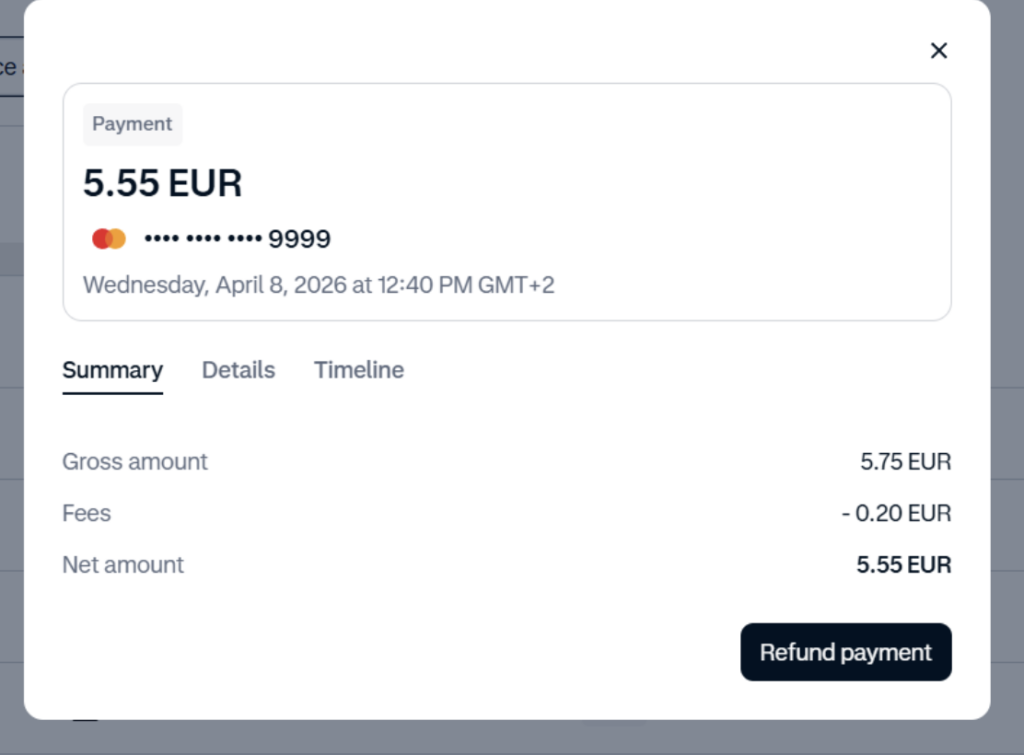
- Only the Location Owner can issue refunds.
- A fee is charged for processing a refund. The exact fee is specified in the merchant agreement on the Adyen page in the Altegio Marketplace.
- When a full refund is issued, the full refunded amount is debited from the business balance. Previously charged payment processing fees are not returned.
- An additional fee for the refund operation itself may also be charged to the business.
Payouts to your business bank account
Funds collected through Adyen are paid out to the business bank account automatically.
- payouts are scheduled once a week
- available funds are transferred on Monday morning
- Refund availability depends on user permissions. If you do not see the Refund button, check whether you are signed in as the Location Owner.
- Payouts are processed automatically based on the configured schedule, so no manual withdrawal request is required in the standard setup.
Adyen is not available for individual entrepreneurs.