Developer Hub is the Altegio workspace for developers and partners. In Developer Hub, you create Apps for your own or your clients’ locations, publish them in Integration Shop, see payments for paid Apps and connect an AI assistant via MCP. Integration Shop is the Altegio marketplace of Apps: in the Altegio location switcher, it is called Apps & Agents.
Note. Developer Hub replaces the previous developer account (also called the developer’s personal account or the Marketplace developer portal). If you used it before, your Apps are in Apps, the Partner Token from Account settings is in Developer profile, and payments are in Integration Shop > Payments. Links to the previous developer portal open the corresponding pages of Developer Hub.
When to use
- You build an integration, a bot or a report that works with Altegio data and need an App or API access.
- You want to offer your App to other companies in Integration Shop and earn from it.
Before you start
- Apps: Developer Hub works with Apps on API v1.
- Without developer registration: Dashboard is open. Apps, Integration Shop and Personal API keys are locked until you register as a developer.
- Who has access: a developer account belongs to the Altegio user who registered it. You can’t add colleagues to a developer account in Developer Hub.
- Developer accounts: you can register a developer account yourself once. To add another developer account, contact Altegio support.
How to open Developer Hub
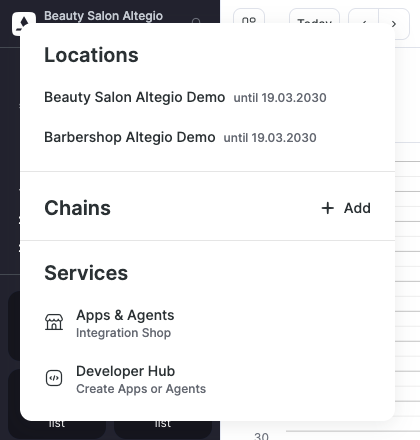
- In Altegio, click the location switcher in the upper-left corner.
- In the Services block, click Developer Hub.
You can also open Developer Hub from the location settings: open Settings > Integrations and access > Keys and click Register in Developer Hub. This button always opens the Developer Hub Dashboard: your developer account if you already have one, or the Dashboard for guests if you don’t. For details, see Integrations and access: API keys, webhooks, and AI assistants.
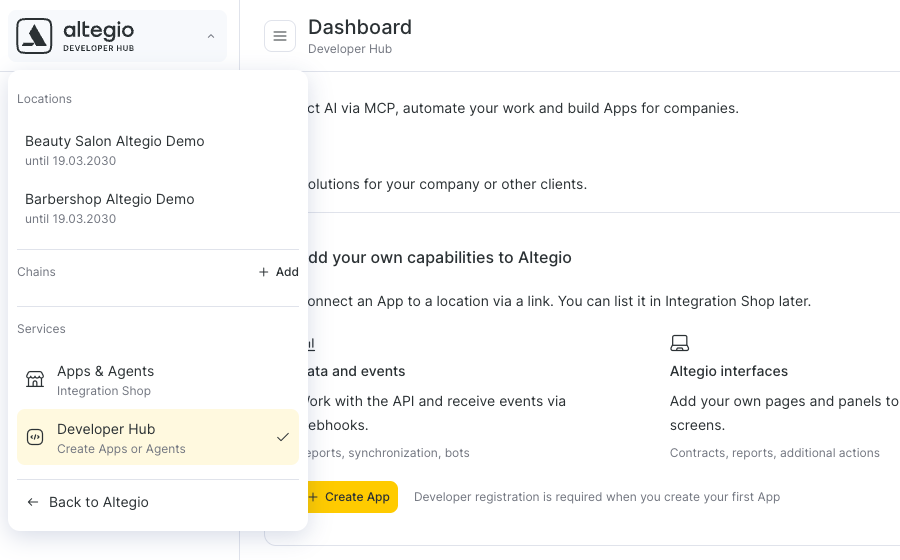
To return to Altegio from Developer Hub, click the altegio Developer Hub logo in the upper-left corner and click Back to Altegio. In the same list, you can open one of your locations or chains, or switch to Apps & Agents (Integration Shop).
Registering as a developer
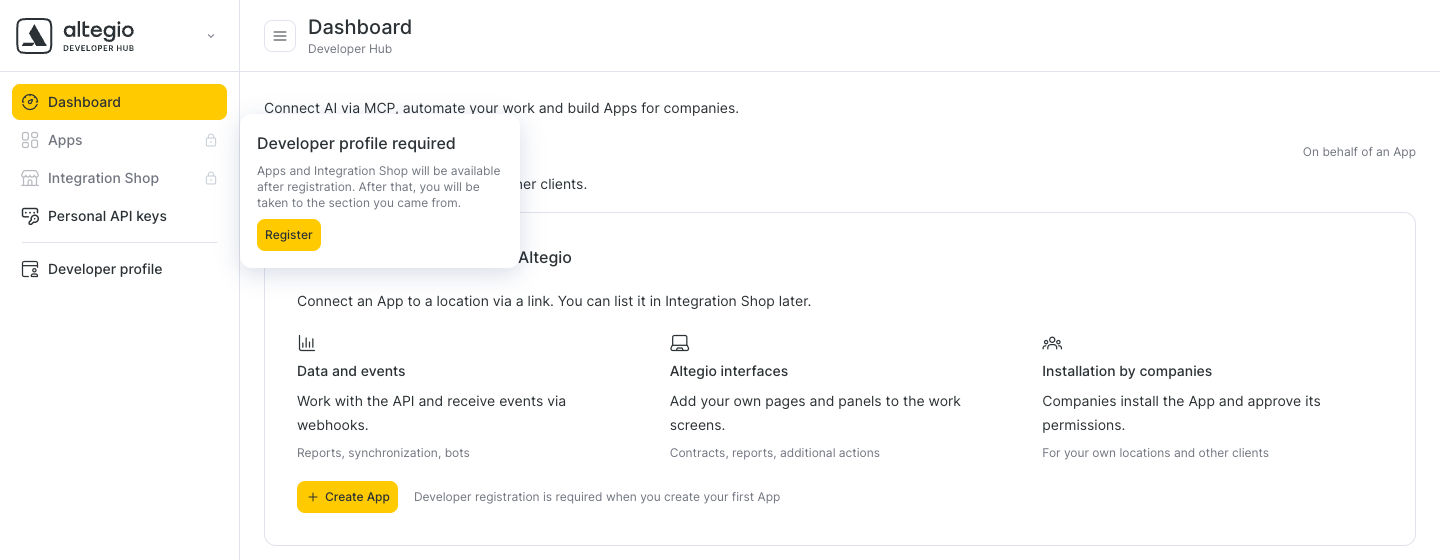
Developer registration is needed to create Apps and publish them in Integration Shop. Developer Hub asks you to register when you click Create App for the first time, open Apps, Integration Shop or Personal API keys, or open Developer profile. When you click a locked section, the Developer profile required hint appears with the Register button.
To register:
- In Developer account name, enter the name of your company or your own name. Users will see this name when your App is published in Integration Shop.
- In Who do you plan to build the integration for, select For my own or a client’s locations or For other companies via Integration Shop. Integrations for other companies are reviewed before they are published in Integration Shop.
- In What will the developer account be used for?, describe your integration (for example, a chatbot that sends notifications).
- Check the Contact person block. Name, Phone and Email are filled in from your Altegio profile. You can change them.
- Optionally, in Website (optional), enter the website of your company.
- Click Register and continue. If you opened Developer profile directly, the button is called Register.
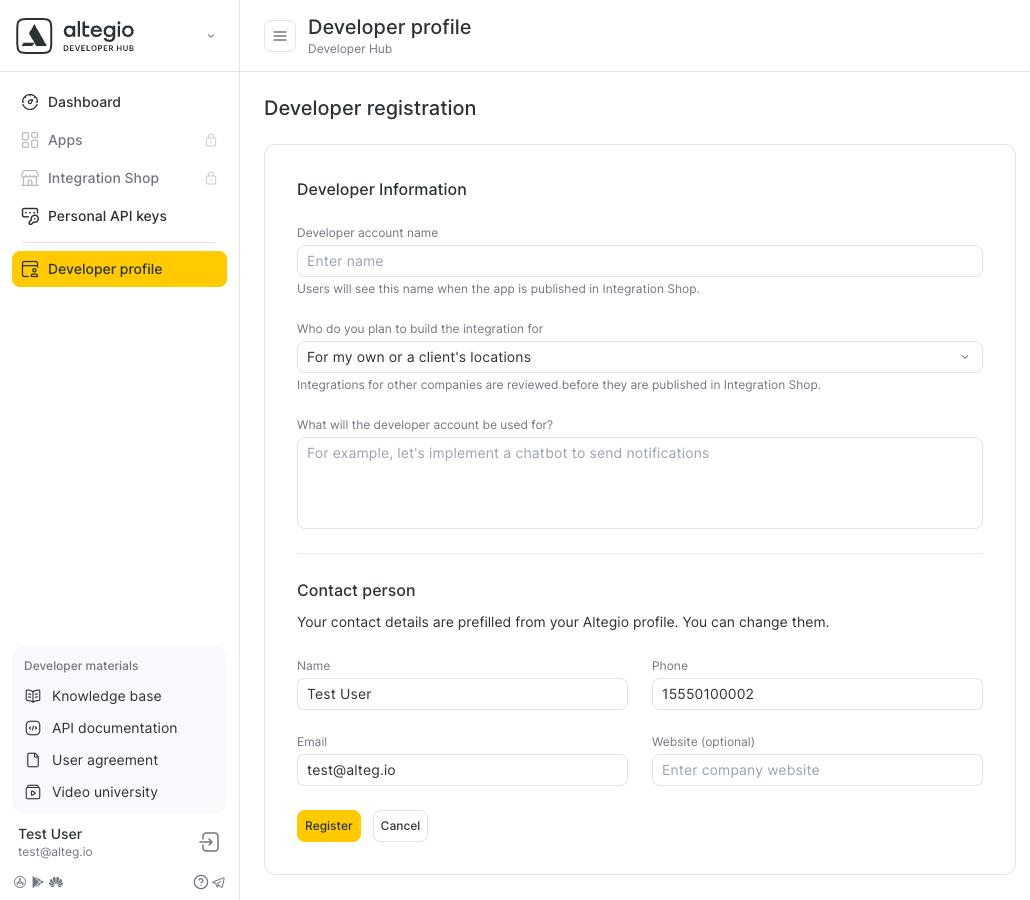
After registration, Apps, Integration Shop and Personal API keys become available, and Developer Hub takes you back to the section you came from. If you started from Create App, the App creation form opens right away. If you came from Integration Shop > Payments, Apps opens. The Partner Token for API v1 is generated automatically at registration and is shown in Developer profile.
You can change the developer account name, the account purpose and the contact details later in Developer profile without registering again. The Who do you plan to build the integration for field is available only at registration.
Developer Hub menu
Dashboard
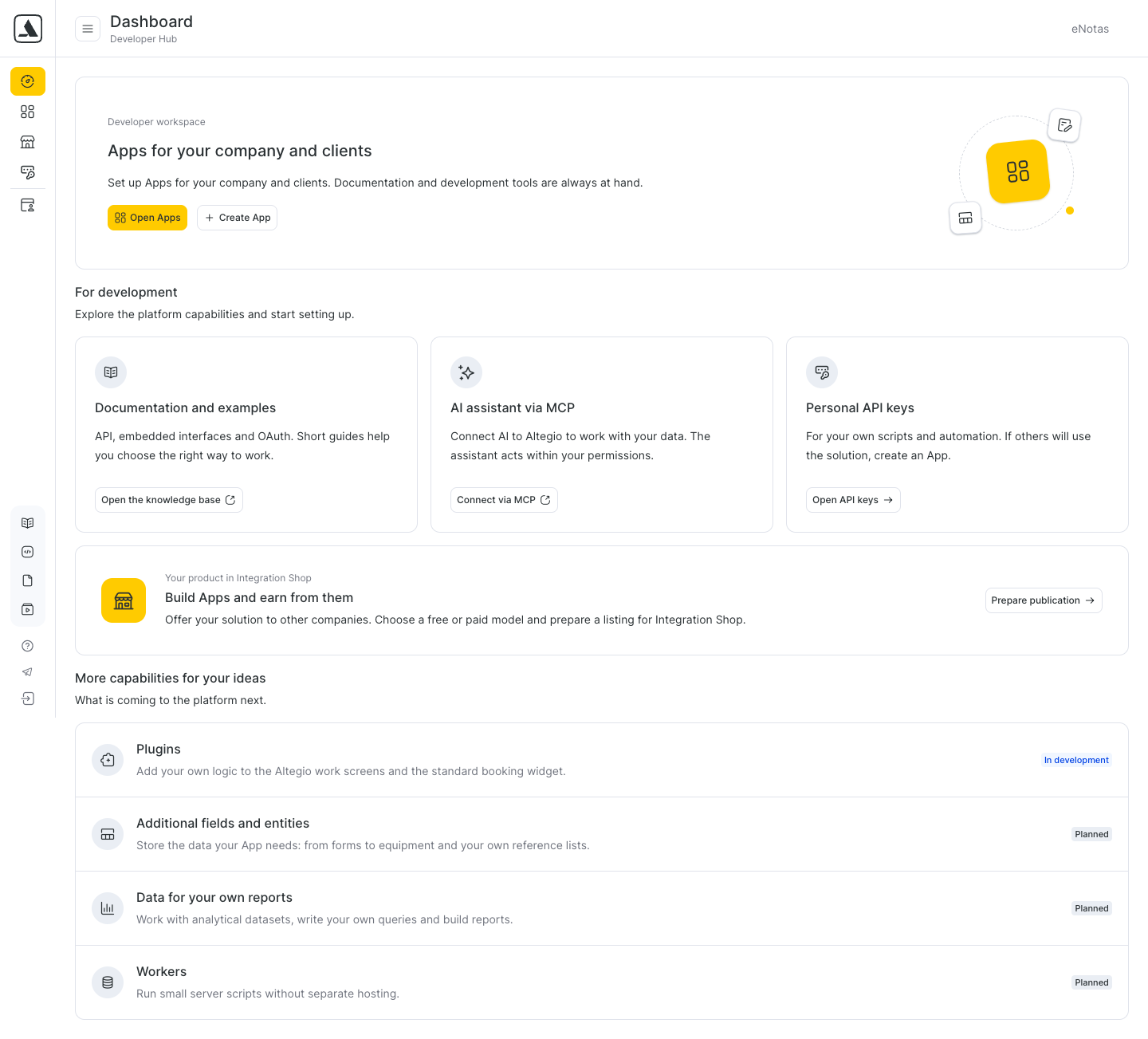
Dashboard is the start page of Developer Hub. For a registered developer, it has these blocks:
- Apps for your company and clients: the Open Apps button opens the list of your Apps, the Create App button starts a new App.
- For development: Documentation and examples (the Open the knowledge base button), AI assistant via MCP (the Connect via MCP button) and Personal API keys (the Open API keys button).
- Build Apps and earn from them: the Prepare publication button opens Integration Shop > Publications, where you prepare a listing of your App for other companies.
- More capabilities for your ideas: platform capabilities that are in development or planned, with the In development or Planned label.
Before developer registration, Dashboard shows what an App can do (Data and events, Altegio interfaces, Installation by companies), the Create App button and the AI and personal API keys block with the AI assistant via MCP and Personal API keys cards.
AI assistant via MCP connects an AI assistant, such as Claude or ChatGPT, to your Altegio data. The assistant acts within your permissions. The Connect via MCP button opens the Altegio Pro MCP page in the Integration Shop of your location in a new tab. If you have access to several locations, select the location first. If you don’t have access to any location, the button is inactive. For the list of Altegio MCP servers and their addresses, see Altegio MCP servers for AI assistants.
Apps
Apps lists the Apps you build for your company and clients. To create an App, click Create App in the upper-right corner.
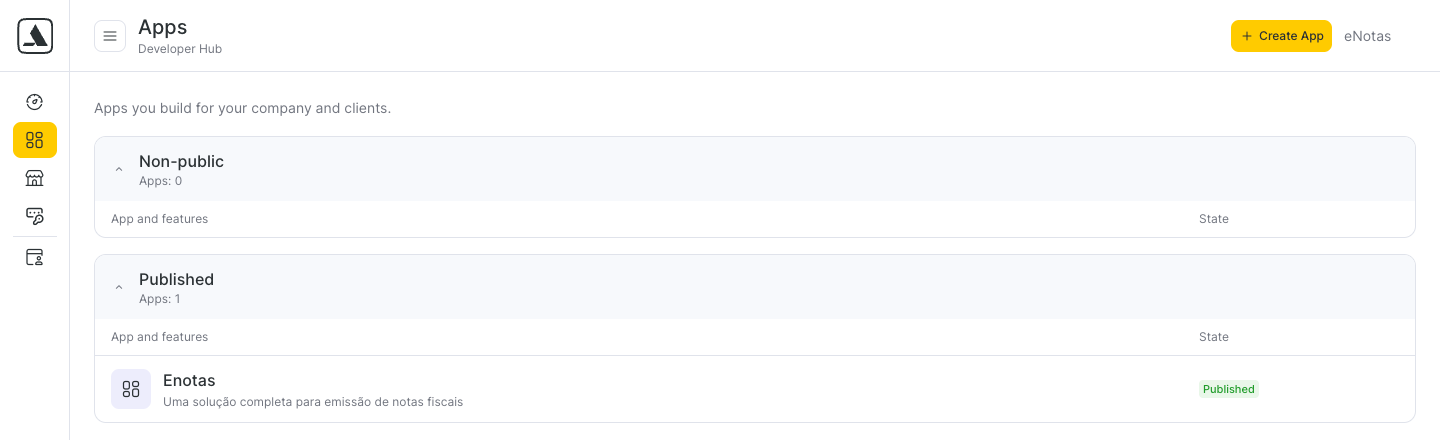
Apps are grouped by whether they are listed in Integration Shop:
- Non-public: all Apps that are not published in Integration Shop yet, including drafts and Apps on moderation.
- Published: Apps that are published in Integration Shop.
Note. The Non-public group in Developer Hub means “not published in Integration Shop yet”. It is not the same as the Non-public App type that you select when you create an App.
To open the settings of an App, click it in the list. The App settings page opens with the General information, Monetization, Application page, Connection settings, API Access and Adding iframe tabs. Depending on the App, the page also has the Publication and Statistics tabs. To go back to Developer Hub, click To the list of applications. The header of the App settings page also leads back to Developer Hub: My Integrations opens the Dashboard, Account settings opens Developer profile, and Payments opens Integration Shop > Payments.
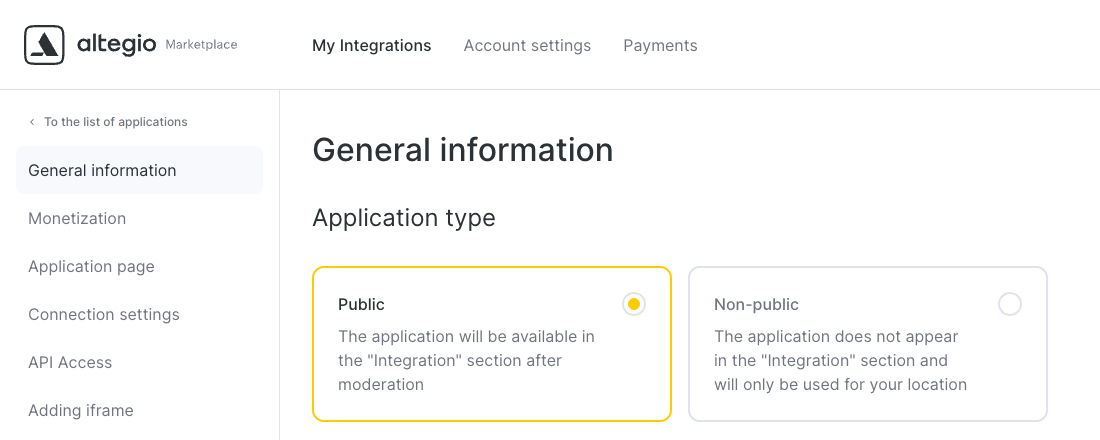
For the App settings, see Filling in information about the application, Monetization and Access to the API.
Integration Shop > Publications
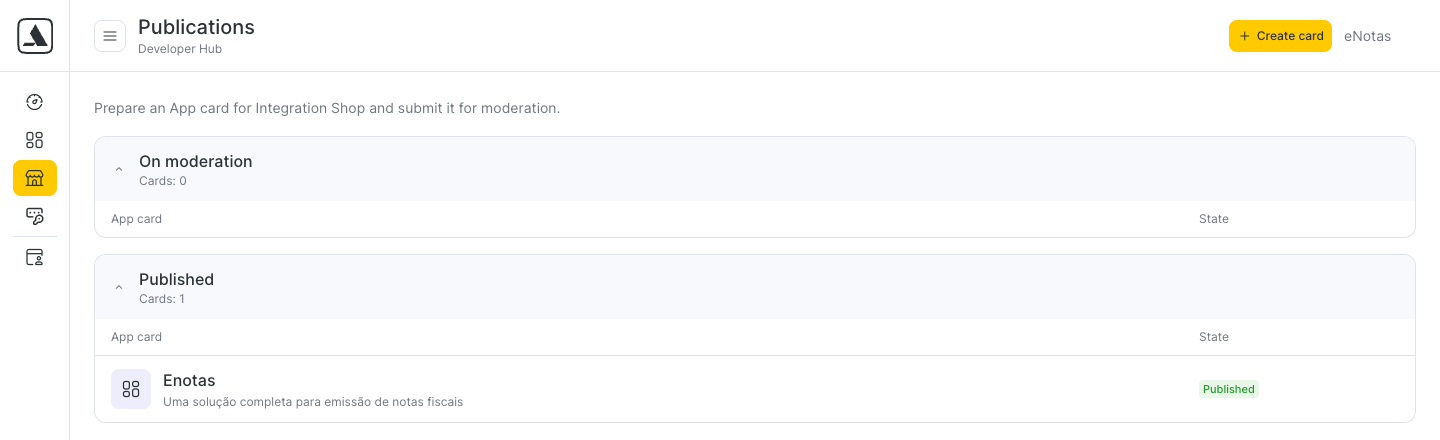
Integration Shop > Publications lists the cards of your Apps in Integration Shop. A card is the App listing that companies see in Integration Shop. Cards are grouped into On moderation and Published.
To prepare a new card:
- Click Create card.
- Select the App the card is for. The list shows non-public Apps and drafts of public Apps.
What opens next depends on the App type:
- Public App: the App settings page opens on the Publication tab. The tab has the moderation checklist and the Send for moderation button.
- Non-public App: the App settings page opens on the General information tab. To publish the App, change Application type to Public. Non-public Apps have no Publication tab.
For the moderation steps, see Application moderation.
Integration Shop > Payments
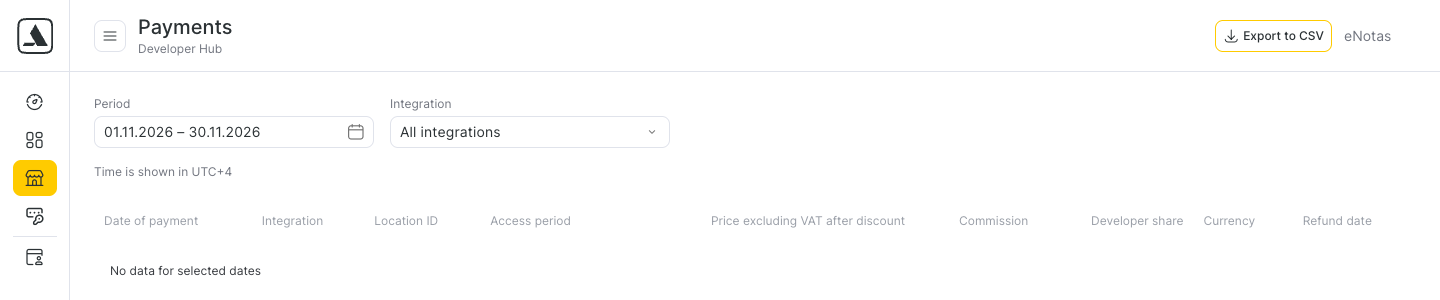
Integration Shop > Payments shows payments from locations for your paid Apps. To find payments:
- In Period, select the dates.
- In Integration, select an App or leave All integrations.
The table shows Date of payment, Integration, Location ID, Access period, Price excluding VAT after discount, Commission, Developer share, Currency and Refund date. Payment times are shown in the fixed Altegio server time, which is named under the filters (for example, UTC+4). This time doesn’t depend on your developer account or browser settings. To download the table, click Export to CSV. If there are no payments in the selected period, the table shows No data for selected dates.
Personal API keys
Personal API keys opens after developer registration. For now, the page shows the Access key block with the Partner Token of your developer account: click Show to see it or Copy to copy it. This is the same Partner Token as in Developer profile > API v1 credentials. The list of personal API keys on the page is empty, and the button for creating keys is inactive: creating personal API keys will be available later.
Developer profile
Developer profile holds the details of your developer account in 3 blocks. The Registration and contacts and Company details for publication blocks have their own Save and Reset changes buttons. The API v1 credentials block is read-only.
- Registration and contacts: Developer account name (shown to users when your App is published in Integration Shop), Account purpose and the Contact person details (Name, Phone, Email, Website (optional)).
- Company details for publication: Company name, Company registration country, Company registration number and Privacy Policy. These details are common to the listings of all your Apps in Integration Shop. When you change them, the change applies to all related publications.
- API v1 credentials: Partner ID and Partner Token for Apps on API v1. To see the Partner Token, click Show. To copy a value, click Copy.
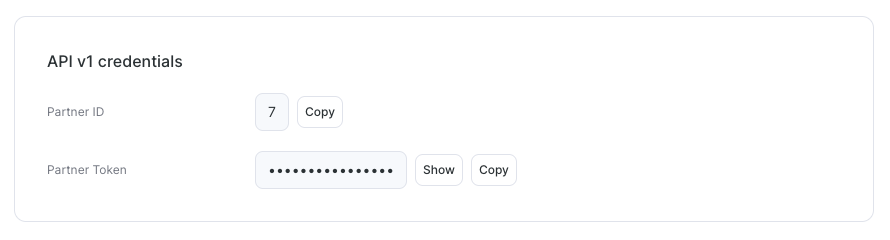
The Partner Token is generated automatically when you register as a developer. Partner ID and Partner Token are not the Client ID or the App secret of API v3. For how to use the Partner Token in API requests, see How to Get API Keys.
Developer materials
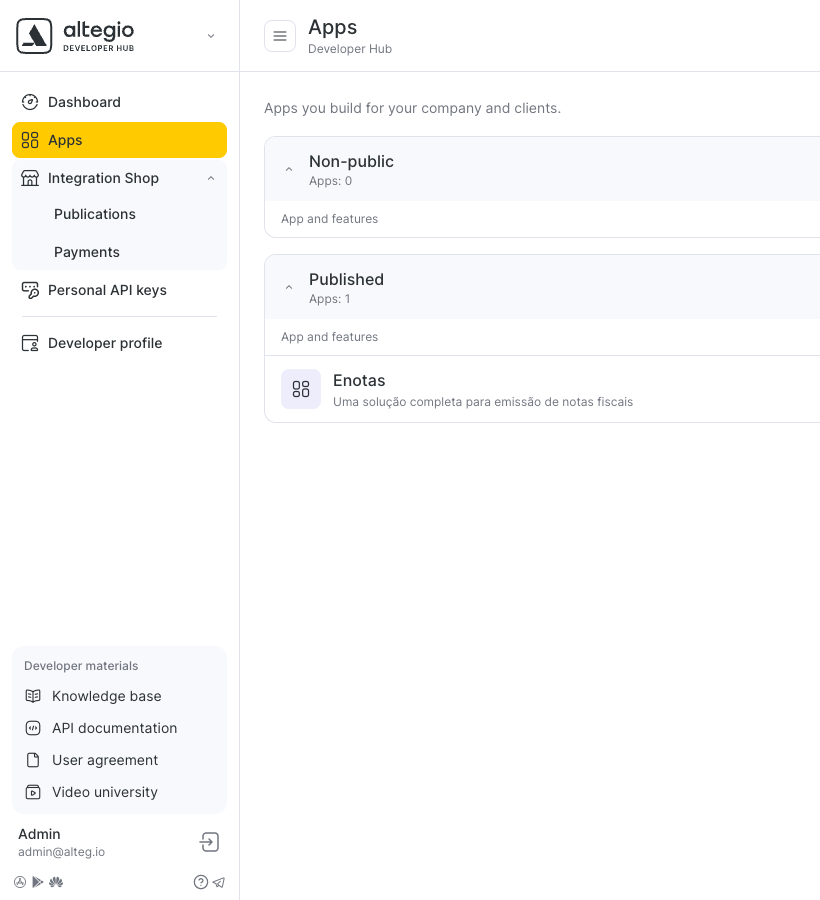
The Developer materials block at the bottom of the Developer Hub menu has links to the Knowledge base, the API documentation, the User agreement and Video university.
FAQ
The developer account is now Developer Hub. In Altegio, click the location switcher in the upper-left corner and click Services > Developer Hub.
The Partner ID and the Partner Token are in Developer Hub > Developer profile, in the API v1 credentials block. Click Show to see the Partner Token and Copy to copy it. The Partner Token is also shown in Developer Hub > Personal API keys, in the Access key block.
The list of your Apps is in Developer Hub > Apps. Apps are grouped into Non-public (not published in Integration Shop yet) and Published.
Apps, Integration Shop and Personal API keys are available only after developer registration. Click the locked section and click Register in the Developer profile required hint, or click Create App on the Dashboard.
The Non-public group in Developer Hub > Apps holds all Apps that are not published in Integration Shop yet, including Apps on moderation. The moderation status of the card is shown in Integration Shop > Publications, in the On moderation group.
No. App settings open on the App settings page with the General information, Monetization, Application page, Connection settings, API Access and Adding iframe tabs. To go back to Developer Hub, click To the list of applications.
Yes. Links to the previous developer portal open the corresponding pages of Developer Hub.
No. A developer account belongs to the Altegio user who registered it, and you can’t add colleagues to it in Developer Hub.
You can register a developer account yourself once. To add another developer account, contact Altegio support.
Integration Shop > Payments shows payment times in the fixed Altegio server time. The time zone is named under the filters. It doesn’t depend on your developer account or browser settings.