
Altegio MCP servers connect Altegio to an AI assistant such as Claude, ChatGPT or Cursor. Business users can ask about their location data, make changes on request, search the Altegio help center or build developer applications. Altegio.me MCP is for clients who want to manage their own appointments through an assistant. The sign-in method depends on the server. No API key is needed for browser sign-in.
Key terms
- MCP (Model Context Protocol): an open standard for connecting AI apps to external services.
- MCP server: a service that gives an AI app a set of tools for working with a system. In some AI apps, an MCP server is called a connector or a custom app.
- AI app (MCP client): the app where you talk to the assistant, for example Claude, ChatGPT, Cursor, VS Code with GitHub Copilot, Claude Code, Codex or Gemini CLI.
Which MCP servers Altegio offers
| MCP server | Address | What the assistant can do | Changes data |
|---|---|---|---|
| Altegio Pro MCP | https://mcp.alteg.io/pro | Work with appointments, team members, services, work schedules, clients and location settings; visits and payments; finance, payroll payouts and inventory; analytics; guided setup of a new location | Yes |
| Altegio Pro MCP (read-only) | https://mcp.alteg.io/pro/readonly | Read the same data, including finance, inventory and analytics | No |
| Altegio Knowledge MCP | https://mcp.alteg.io/knowledge | Search the Altegio help center and answer with links to articles | No |
| Altegio Integrations Hub MCP | https://mcp.alteg.io/integrations-hub | Create, configure, test and submit your own Marketplace applications | Only your developer applications |
| Altegio.me MCP | https://mcp.alteg.io/me | Find businesses, services, team and available times; view and manage the signed-in client’s own appointments | Only the signed-in client’s appointments |
You can connect several MCP servers to one AI app. For example, Altegio Pro MCP works with your data, and Altegio Knowledge MCP answers product questions from the help center.
When to use
- Ask about your business in plain language, for example “How did revenue change last month compared with the month before?”, and get an answer based on your Altegio data.
- Make many changes in one request, for example raise the prices of every service in a category or set work schedules for the whole team for next month.
- Record money and stock operations from a chat, for example take a payment for a visit, record an expense or a payout to a team member, or record a product receipt or a write-off.
- Set up a new location from ready lists of team members, services and clients.
- Give an analyst, a consultant or an automated agent access to your data without the ability to change it.
- Get answers to questions about Altegio features with links to help center articles.
- Help a client find an available time and book, reschedule or cancel their own appointment through an AI assistant.
What you need
- Altegio account: business-side servers use the email and password you use to sign in to Altegio. For Altegio.me MCP, use the phone number linked to your bookings.
- AI app: an app that supports remote MCP servers, for example Claude (Claude.ai, Claude Desktop and Cowork), ChatGPT, Cursor, VS Code (GitHub Copilot agent mode), Claude Code, Codex or Gemini CLI. In ChatGPT, MCP servers are added in Developer mode.
- Price: all 5 Altegio MCP servers are free.
How to connect
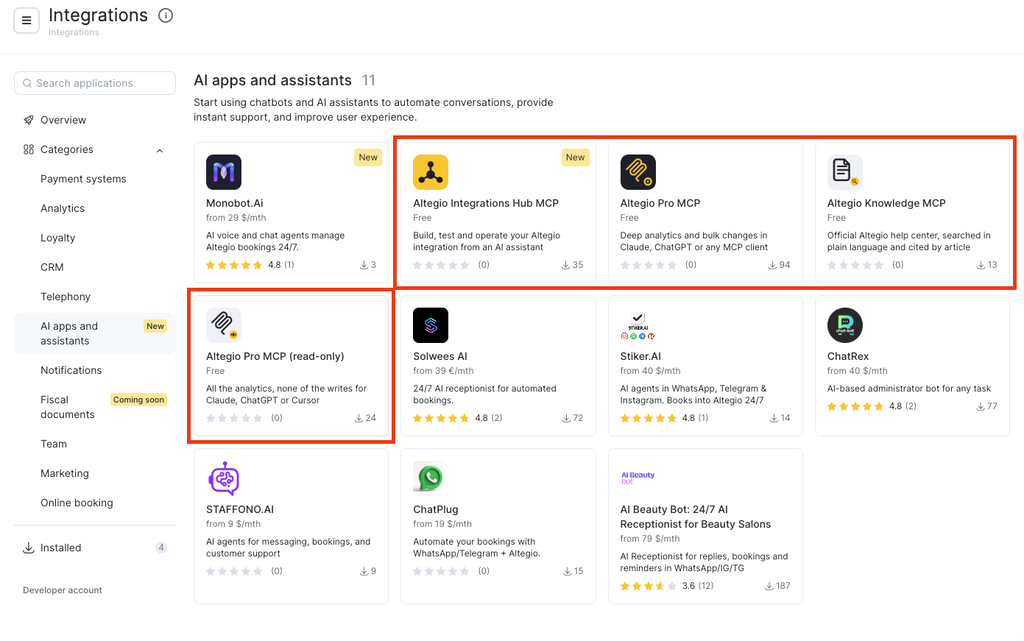
Altegio Pro MCP, Altegio Pro MCP (read-only) and Altegio Integrations Hub MCP are listed in Altegio in Settings > Integrations and access > AI assistants, in the Connecting Altegio to an AI assistant via MCP card. All 5 servers, including Altegio.me MCP and Altegio Knowledge MCP, are in the Marketplace, in Integrations > AI apps and assistants.
To connect an Altegio MCP server:
- Copy the address of the server you need from the table above. The address is also given on the server page in the Marketplace.
- Paste the address into Claude, ChatGPT, Cursor or another AI app.
- For Altegio Pro, read-only, Knowledge and Integrations Hub MCP, sign in with your Altegio email and password on the Sign in to Altegio page. For Altegio.me MCP, sign in with your booking phone number and enter the verification code on the Altegio.me sign-in page.
Altegio Pro MCP
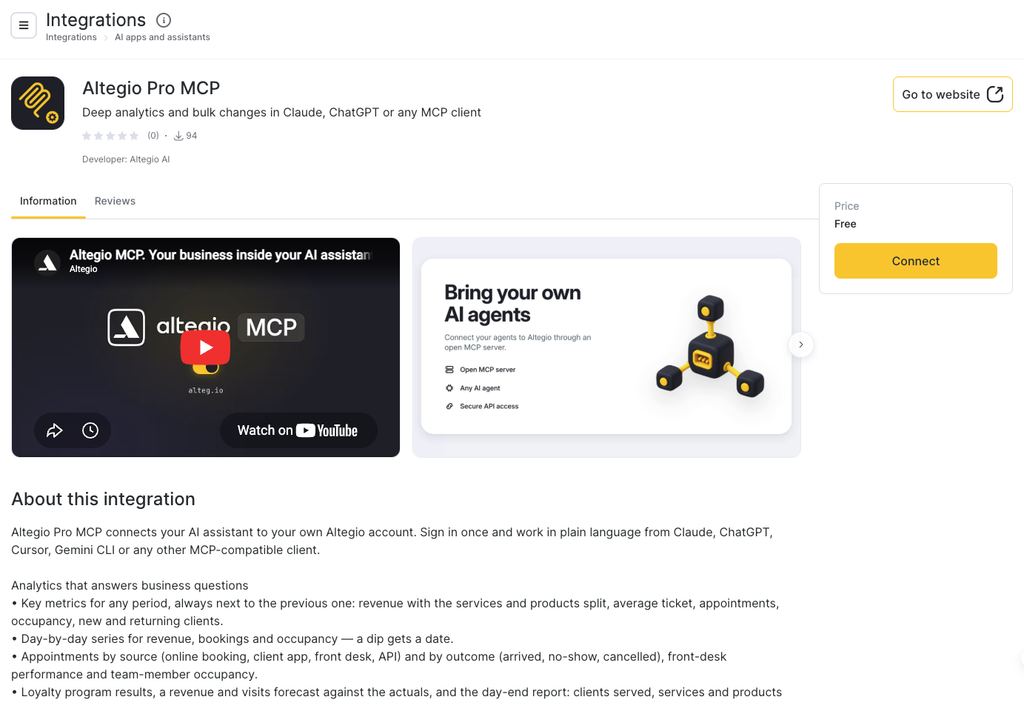
Altegio Pro MCP connects the assistant to the data of your Altegio locations. The assistant reads the data and changes it on request. It works within the same locations and access rights as your Altegio user.
In the AI app, Altegio Pro MCP lists its 37 most used tools. The assistant finds every other tool, for example for finance, inventory, memberships or detailed analytics, through the tool search and runs it by name. You don’t need to set anything up for that.
What Altegio Pro MCP can do
- Appointments: view, create, change and delete appointments.
- Team members and positions: view, add, change and delete team members; view and create positions.
- Work schedules: view, create, change and delete the work schedules of team members.
- Services and categories: view, create, change and delete services; view and delete service categories; link team members to services, unlink them and set a team member’s duration for a service. One request can link a team member to many services at once.
- Clients: find a client by name, build a segment of the client base and count it, open a client card and visit history, delete a client. A segment can be built by money spent, number of visits, date of the last visit, client categories, birthday, memberships, gift cards, client account balance and appointment history with a specific team member or service. Client phone numbers and emails are not included in the results unless the assistant requests them separately.
- Visits and payments: open a visit with its items, the paid amount and the amount due; take a payment for a visit or cancel a payment; deposit money to a client account and check the client account balance.
- Products in a visit: sell a product in a visit, lower its quantity or remove it, the same way as in the appointment window. This also works for a client’s place in a group event and for a visit that already contains a membership or a gift card.
- Finance: view accounts and cash registers, payment items, and suppliers and partners; find, create, change and delete financial transactions outside a visit: an expense, other income or a cash operation.
- Payroll: view the payroll calculation of a team member and record a payout to a team member. The payout counts in the settlements with that team member.
- Inventory: view inventories, stock and the history of operations; record a product receipt, a write-off or a product sale in one step, or delete an inventory document; view bills of materials; view and change the consumables of an appointment. A product sale recorded this way doesn’t record a payment.
- Memberships: view membership types and client memberships, create a membership type; freeze and unfreeze a membership, change its balance and validity.
- Location and online booking: change the location name, address, city, website, description and business type; change the default appointment type and the number of seats in a group event; change online booking settings: booking with any team member, phone number confirmation by SMS, time before the nearest available slot; view, create and delete booking forms; view resources.
- Key metrics: revenue from services and products, average check, occupancy, appointments by outcome, and new, returning, active and lost clients for a period, next to the previous period of the same length. The figures can be narrowed to one team member, one position or one receptionist.
- Detailed analytics: the same reports as in Altegio Pro MCP (read-only): trends and forecasts, appointments and front desk, team, clients, money, capacity, products and group events.
- Feedback to developers: when the assistant hits an error or a task that no tool covers, it sends a report to the Altegio developers itself and mentions it in the chat. You can also ask the assistant to “send feedback”. The report refers to records by their IDs and contains no names, phone numbers, emails or comments.
- Other data: a question that no dedicated Altegio Pro MCP tool covers can be answered from the documented Altegio API. Through the API, the assistant only reads data and does not change anything.
Guided setup of a new location
Altegio Pro MCP can set up a location step by step: positions, team members, service categories, services, work schedules, client import and test appointments. Team members, services and clients can be passed as a list in CSV or JSON format. A client list in CSV format needs the columns name, phone, email, surname and comment, and every client needs a phone number or an email.
Before import, the assistant shows a preview of the data: the first 5 rows, the total number of rows and the field names. If the setup stops on an error, it can be resumed from the same step, and any completed step can be rolled back.
To start, ask the assistant to set up your location. In AI apps that show the ready-made scenarios of an MCP server, choose Set up a location for the first time.
Deleting data needs a separate confirmation
Before Altegio Pro MCP deletes a team member, a service, a service category, a work schedule, an appointment, a booking form, a client, a financial transaction or an inventory document, cancels a payment, unlinks a team member from a service, or rolls back a setup step, the deletion must be confirmed for that exact object. In AI apps that support confirmation requests, Altegio shows a form that names the object, for example the team member’s name and position. The deletion runs only after you accept. If you decline or cancel the confirmation, nothing is deleted.
How payments and stock operations are protected
Payments, financial transactions, payroll payouts, inventory operations and changes to products in a visit run only after you confirm them. Altegio Pro MCP also checks every such operation:
- No duplicates: if an operation that was already confirmed is sent again, no second product receipt, write-off, sale or financial transaction is created.
- Fresh data: if the visit, the document or the transaction changed between your confirmation and the run, the operation doesn’t go through. The assistant reads the data again and asks you to confirm again.
- Currency: amounts are checked against the currency of the location. An amount with more decimal places than the currency allows is refused.
How to allow reads without approval and keep deletions on manual approval
Tools that the assistant finds through the tool search run through 3 tools, one for each level of risk:
tools_call_read: reads data only.tools_call_write: changes that delete nothing.tools_call_destructive: deletions, cancellations and changes that are hard to undo.
In the connector settings of your AI app, you can allow tools_call_read without confirmation and keep tools_call_destructive on manual approval. The 37 tools in the Altegio Pro MCP list have their own settings in the AI app, for example appointments_delete. The confirmation of a deletion in Altegio applies in every case.
Examples of requests
- “How did my location do last month compared with the month before?”
- “Raise the price of every service in the Hair colouring category by 10%.”
- “Set working hours from 10:00 to 19:00 for all team members from Monday to Friday next week.”
- “Book the client Anna Smith for a haircut with Maria tomorrow at 15:00.”
- “How many clients have not visited for more than 90 days?”
For bulk changes, ask the assistant to show the list of planned changes first and confirm it before the changes are applied.
Note. Altegio Pro MCP and Altegio Pro MCP (read-only) give the assistant the same analytics. Connect Altegio Pro MCP (read-only) when the assistant must not change data.
Altegio Pro MCP (read-only)
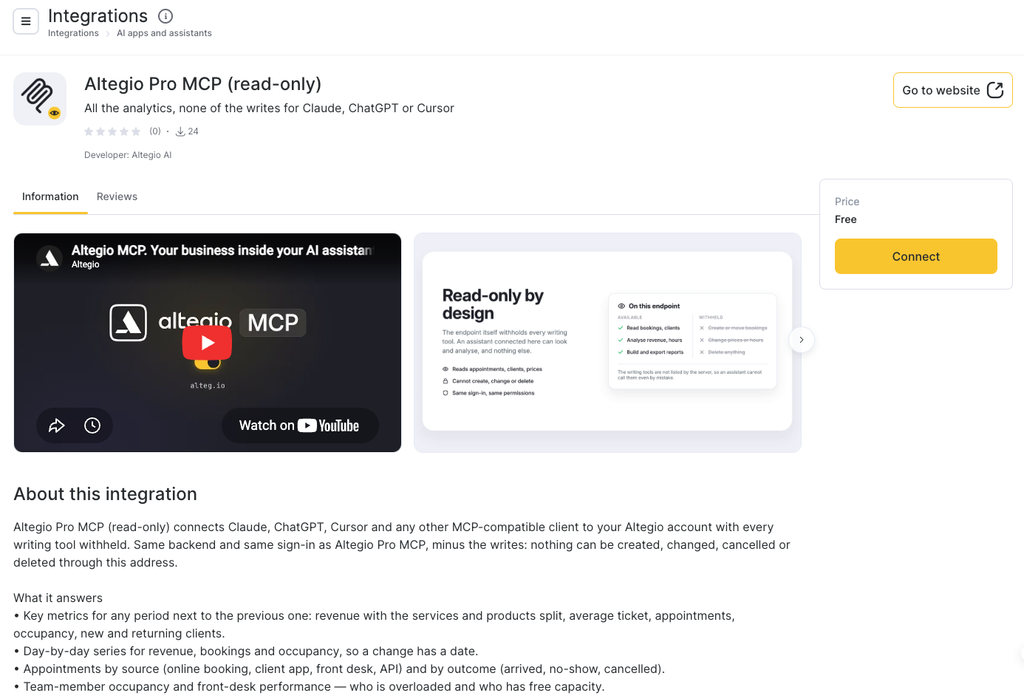
Altegio Pro MCP (read-only) uses the same sign-in and reads the same data as Altegio Pro MCP, but cannot change anything. Tools that create, change or delete data are not available on this server, and a request for such an action is refused. The connection made through this server gets read-only access.
Use Altegio Pro MCP (read-only) when the assistant only needs to read data:
- an analyst or a consultant who prepares reports;
- reports and analysis across the locations of a chain;
- an automated agent that runs on a schedule without your supervision;
- an assistant shared by several people in your team.
To let the assistant make changes, connect Altegio Pro MCP as a separate server.
What Altegio Pro MCP (read-only) can do
Altegio Pro MCP (read-only) reads appointments, team members, positions, work schedules, services and categories, clients (search, segments, client card, visit history), location settings, booking forms and resources; visits and their payments, client account balances and memberships; accounts and cash registers, financial transactions, payment items, suppliers and partners and the payroll calculation; inventories, stock, the history of operations, bills of materials and the consumables of an appointment; plus the documented Altegio API.
It also includes the full set of analytics. Every report is built for one location, for a period of up to 365 days: yesterday, last week, last month, this quarter or your own dates. The period is counted in the time zone of the location.
- Key metrics and trends: key metrics next to the previous period; revenue, appointments, occupancy and clients day by day; a revenue and visit forecast next to the actual figures.
- Appointments and front desk: appointments by booking source (online booking, client app, receptionist, API) and by visit status; receptionist results: booked clients, closed appointments, revenue and the share of clients who booked again.
- Team: occupancy by day for up to 10 team members; working, booked and idle hours; team member sales: services, products, revenue and future appointments; revenue by team member and service.
- Clients: sales by client; new, returning and returned clients by team member; visits, missed visits, spend and account balance of one client; a forecast of client visits; inactive clients to win back; loyalty program results.
- Money: service profitability (revenue, costs and team member pay by service or category); profit and loss by income and expense items; cash flow by payment item and account; the day-end report: clients, services and products sold, memberships and gift cards, money received by account (cash and card) and write-offs; lost revenue from no-shows, cancellations, discounts and unbooked time.
- Capacity: scheduled, booked, used and idle hours by hour of the day, day of the week or date, with peak and quiet hours.
- Products and group events: product sales by product or category with cost and markup; products that need reordering, based on sales speed and remaining stock; group event results: seats, booked, attended and paid participants.
In AI apps that show the ready-made scenarios of an MCP server, you can choose Location health check, Monthly business review, Team member review or Compare two periods.
The assistant reads only what your Altegio user can see. If a section or a report is closed to your user by access rights, the assistant cannot read it either. For example, analytics needs access to analytics, the day-end report needs access to financial reports, and occupancy needs access to the work schedule.
Altegio Knowledge MCP
Altegio Knowledge MCP gives the assistant the official Altegio help center. The assistant searches the published articles and answers with links to the sources.
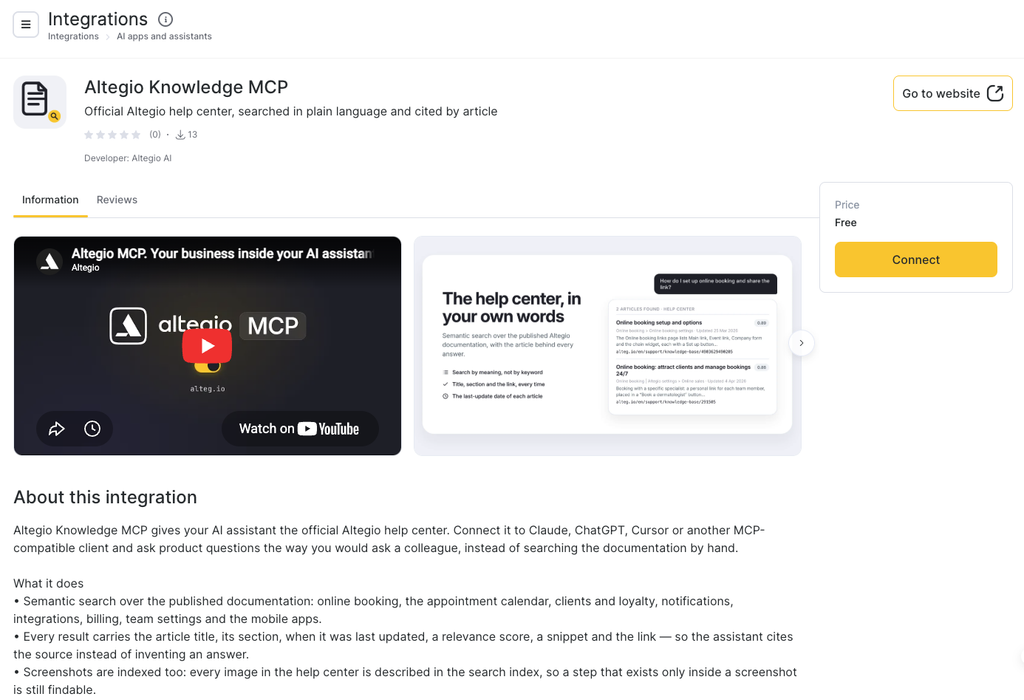
- What it searches: published help center articles about online booking, the appointment calendar, clients and loyalty, notifications, integrations, billing, team settings and the mobile apps. Screenshots in the articles are described in the search index, so a step shown only in a screenshot can be found too.
- What a result contains: the article title, the link, the help center section, the date of the last update, a relevance score and a short fragment of the text. One search returns from 1 to 10 articles, 5 by default.
- Languages: English, Russian, Ukrainian, Hungarian and Brazilian Portuguese, each with its own index. The assistant searches in the language of the person asking. For Spanish, the search uses English.
- How current it is: new and changed articles get into the index once a day.
- Privacy: Altegio Knowledge MCP searches public documentation only. It has no access to your account, locations, clients or revenue. You still sign in with your Altegio account to connect it.
Examples of requests: “How do I set up online booking? Give me links to the articles.” or “Why aren’t SMS notifications being sent?”
Connect Altegio Knowledge MCP together with Altegio Pro MCP or Altegio Pro MCP (read-only) when the assistant needs both the official instructions and your live data.
Altegio Integrations Hub MCP
Altegio Integrations Hub MCP is for developers and partners who build applications for the Altegio Marketplace (Integrations Hub). It works with your developer account and your own applications, not with the daily work of a location.
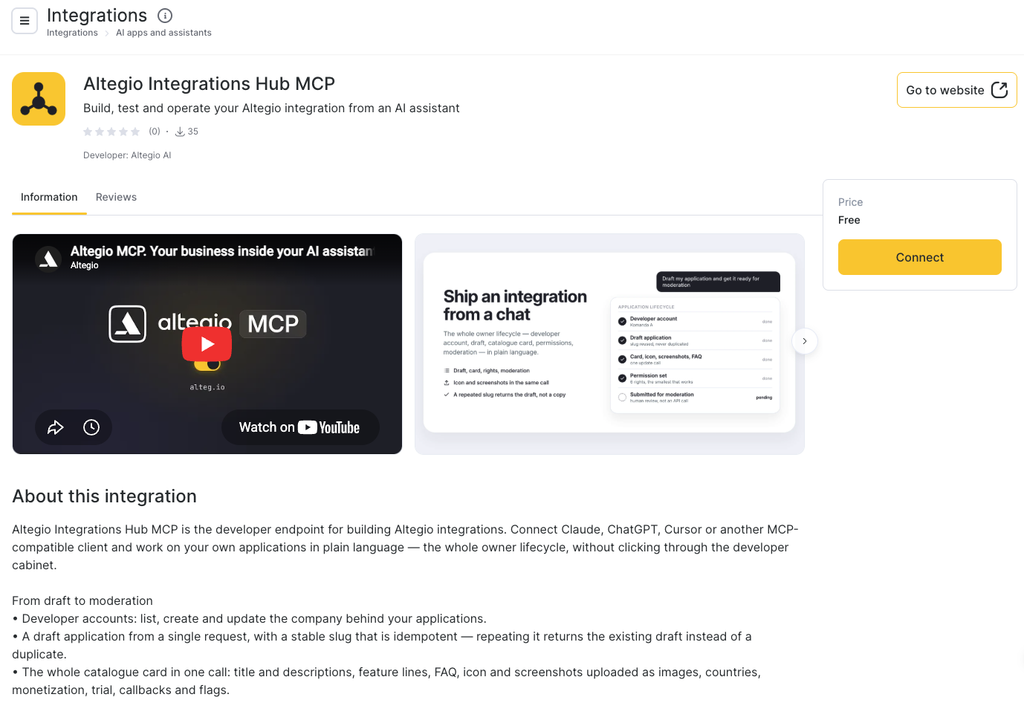
- Developer accounts: list, create, change and delete the developer accounts available to you.
- Applications: create a private application draft, fill in the application card (descriptions, features, FAQ, icon and screenshots, countries, pricing, callbacks) and request the smallest set of access rights the application needs.
- Moderation: save the connection and payment instructions and submit the application for moderation. The publication decision is made by Altegio moderators. Altegio Integrations Hub MCP has no publication or moderation tools. For details, see Application moderation.
- Testing on a location: connect the application to a test location, activate the installation, check its status, see the locations where it is installed, and uninstall it.
- Embedded screens: tabs in the team member, client and visit cards, and the sidebar panel with chat.
- Billing and notifications: tariffs, payment links, payments, refunds and discounts; notification channels and SMS sender names.
- Statistics: installation and conversion statistics and application reviews.
Every change is prepared as a plan first: the assistant shows the exact request without writing anything, and the change is applied only after your approval. Destructive and sensitive steps, such as uninstalling, refunds, deletion or a full replacement of the application card, also need an exact confirmation phrase. Before any action, Altegio Integrations Hub MCP checks that your Altegio user maintains the developer account, so it cannot change another developer’s application. The server does not create images: prepare the icon and screenshots separately and pass them to the assistant.
The full guide for developers is in the Integrations Hub MCP developer documentation. For the manual way to publish an application, see Step-by-step guide to placement in the marketplace.
Altegio.me MCP
Altegio.me MCP is for a business’s clients, not its staff. A client can find a business, its services, team and available times, view their own upcoming appointments, and ask an assistant to book, reschedule or cancel an appointment. The assistant previews the change and makes it only after the client confirms. It can see and manage only the signed-in client’s appointments.
To connect, add https://mcp.alteg.io/me to an MCP-compatible AI app. Sign in with the phone number used for your bookings. The verification code arrives by SMS or phone call. Enter it on the Altegio.me sign-in page, not in the chat with the assistant. The session lasts 30 days.
The business’s online booking rules apply, including cancellation limits and confirmation requirements. If a service requires prepayment or a membership, the assistant opens a prefilled online booking form. A business using Altegio.me needs no extra setup. To stop new AI bookings, remove Altegio.me in Integrations. Existing appointments remain, and clients can still cancel them.
Access and security
- Sign-in: for Altegio Pro, read-only, Knowledge and Integrations Hub MCP, enter your Altegio email and password on the Sign in to Altegio page. For Altegio.me MCP, use the phone number from your bookings and enter the verification code on the Altegio.me sign-in page. Never share the code in the AI chat.
- Access: the assistant works only with your own account, the locations it can access and, in Altegio Integrations Hub MCP, your developer applications.
- Read-only access: to give the assistant your data without the ability to change it, connect Altegio Pro MCP (read-only) instead of Altegio Pro MCP.
- Session: for Pro, read-only, Knowledge and Integrations Hub MCP, sign-in expires after 7 days without use. Altegio.me MCP client sessions last 30 days.
- Disconnecting: you can disconnect an Altegio MCP server at any time in the connector settings of your AI app.
- Agents without a browser: an automated agent that cannot open the sign-in page can connect with your Altegio user token in the
Authorization: Bearer <user token>header. Some apps send it in theX-Altegio-User-Tokenheader instead. How to get a user token: How to Get API Keys.
FAQ
Any AI app that supports remote MCP servers: Claude (Claude.ai, Claude Desktop and Cowork), ChatGPT, Cursor, VS Code with GitHub Copilot agent mode, Claude Code, Codex, Gemini CLI and others. In ChatGPT, MCP servers are added in Developer mode.
All 5 Altegio MCP servers are free.
No API key is needed for browser sign-in. Business-side servers use your Altegio email and password on the Sign in to Altegio page. Altegio.me MCP uses the phone number linked to your bookings and a verification code entered on the Altegio.me sign-in page. A user token is needed only for an automated agent that cannot open a browser.
Business-side servers can access the locations and sections your Altegio user has permission to see. Altegio.me MCP can access only the signed-in client’s own appointments and booking availability. Altegio Knowledge MCP searches public help center articles and cannot see account data.
Altegio Pro MCP can make the business-side changes described above on request, and each deletion needs a separate confirmation of that exact object. Altegio.me MCP can book, reschedule or cancel only the signed-in client’s own appointments. Altegio Pro MCP (read-only) and Altegio Knowledge MCP cannot change data.
No. Altegio Pro MCP refuses a financial transaction or an inventory operation identical to one recorded in the last 10 minutes. To record a real second operation with the same products and amounts, ask the assistant to add a different comment.
Connect Altegio Pro MCP (read-only) instead of Altegio Pro MCP. It has no tools that change data, and the connection gets read-only access.
Altegio Pro MCP lists its 37 most used tools. The assistant finds every other tool, including finance, inventory and detailed analytics, through the tool search and runs it by name.
Yes. The assistant works with every location your Altegio account can access. Every report and change is made for one location, so to compare locations, ask the assistant to go through them one by one.
English, Russian, Ukrainian, Hungarian and Brazilian Portuguese. For Spanish, the search uses English.
No. Altegio Integrations Hub MCP prepares the application card and submits the application for moderation. The publication decision is made by Altegio moderators.
For Pro, read-only, Knowledge and Integrations Hub MCP, sign-in expires after 7 days without use. Altegio.me MCP sessions last 30 days. Use the matching sign-in method when the AI app asks you to reconnect.