
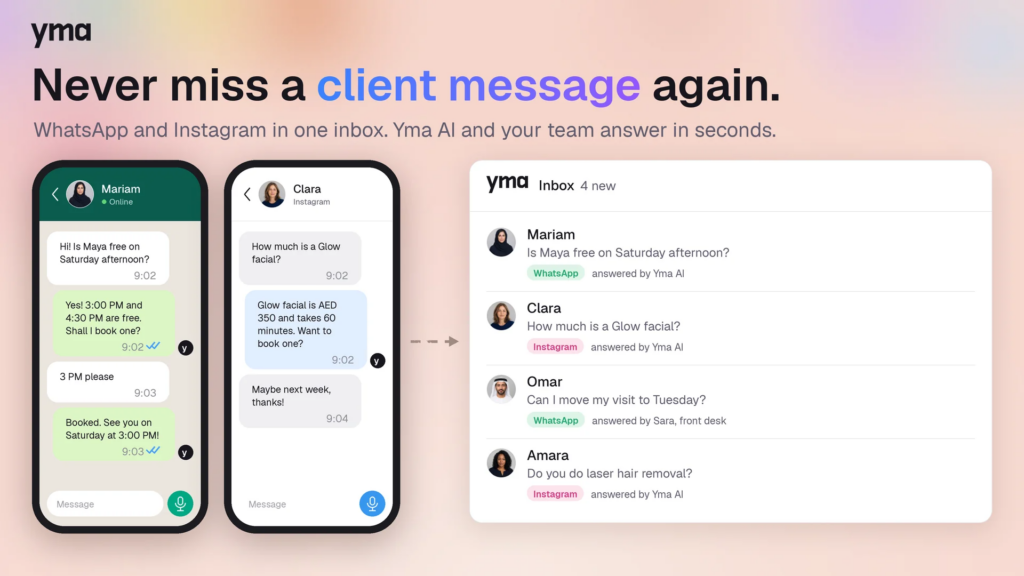
Yma Workspace brings customer conversations together in one workspace and connects them with the Altegio schedule. Its AI assistant answers questions about services and availability, and helps clients book appointments directly in chat. The team can see messages, contacts and bookings in Yma Workspace and Altegio.
Website: yma.health.
What the service can do
- Brings WhatsApp and Instagram conversations into a shared workspace for the team. In the AI assistant settings, you can choose a channel such as WhatsApp or Telegram.
- Answers questions about services, prices, specialists and preparation for procedures using information from Altegio and instructions configured in Yma.
- Checks specialists’ Altegio schedules, suggests available time slots and creates appointments in the calendar.
- Supports rescheduling and cancelling appointments in chat, with changes passed to Altegio.
- Syncs services, prices, service durations and specialists from Altegio. Changes made in Altegio appear in Yma after the next sync.
- Shows Altegio client contacts in the Yma workspace.
- Helps send appointment confirmations and reminders, follow-up messages after missed appointments and birthday greetings.
- Helps the team assign conversations, use tags and templates, and review communication analytics.
How the integration works
After connection, Yma gets access to the selected Altegio location and syncs its service catalogue, specialists and client contacts. The assistant uses this information to answer questions and book appointments.
In Yma, you can choose when the assistant responds. Night manager responds outside the business’s working hours, while 24/7 operator responds in every chat. A safe mode is also available, where a team member reviews a reply before it is sent. You can turn off the assistant during working hours so clients can speak directly with an administrator.
The calendar remains in Altegio. Appointments made through chat appear in the calendar, and the team can manage them as usual.
Before connecting
Make sure that:
- You have an Altegio account with access to the location you want to connect.
- Online booking is enabled for the services and specialists clients will book.
- The time zone of the Altegio location matches the business time zone in Yma.
- If you have several locations, you have a separate Yma business for each one. Yma can help you set up the connection if needed.
Connect Altegio
- In Altegio, open Administration → Integrations → AI bots.
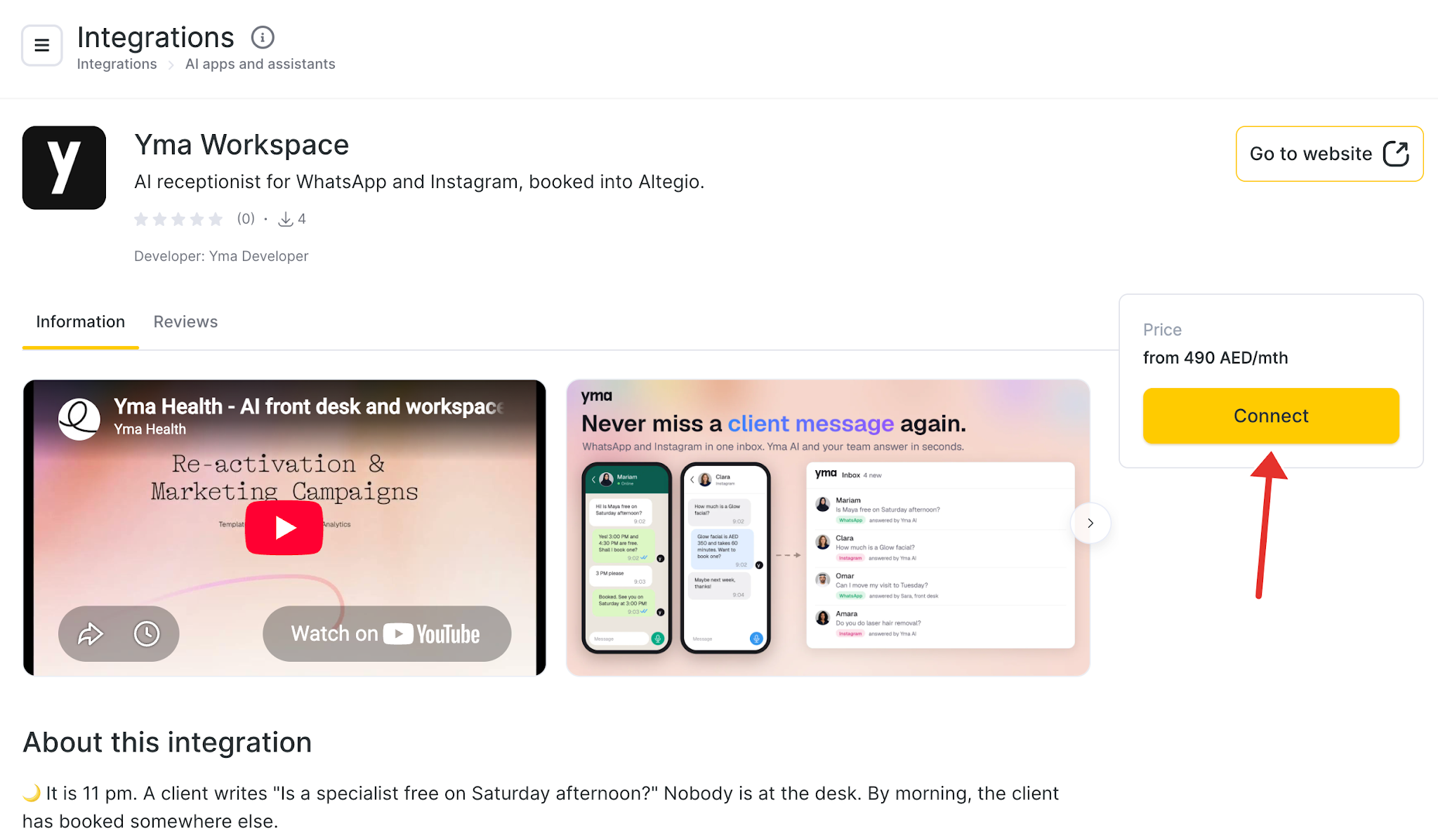
- Find Yma Workspace in the Integration Hub and click Connect.
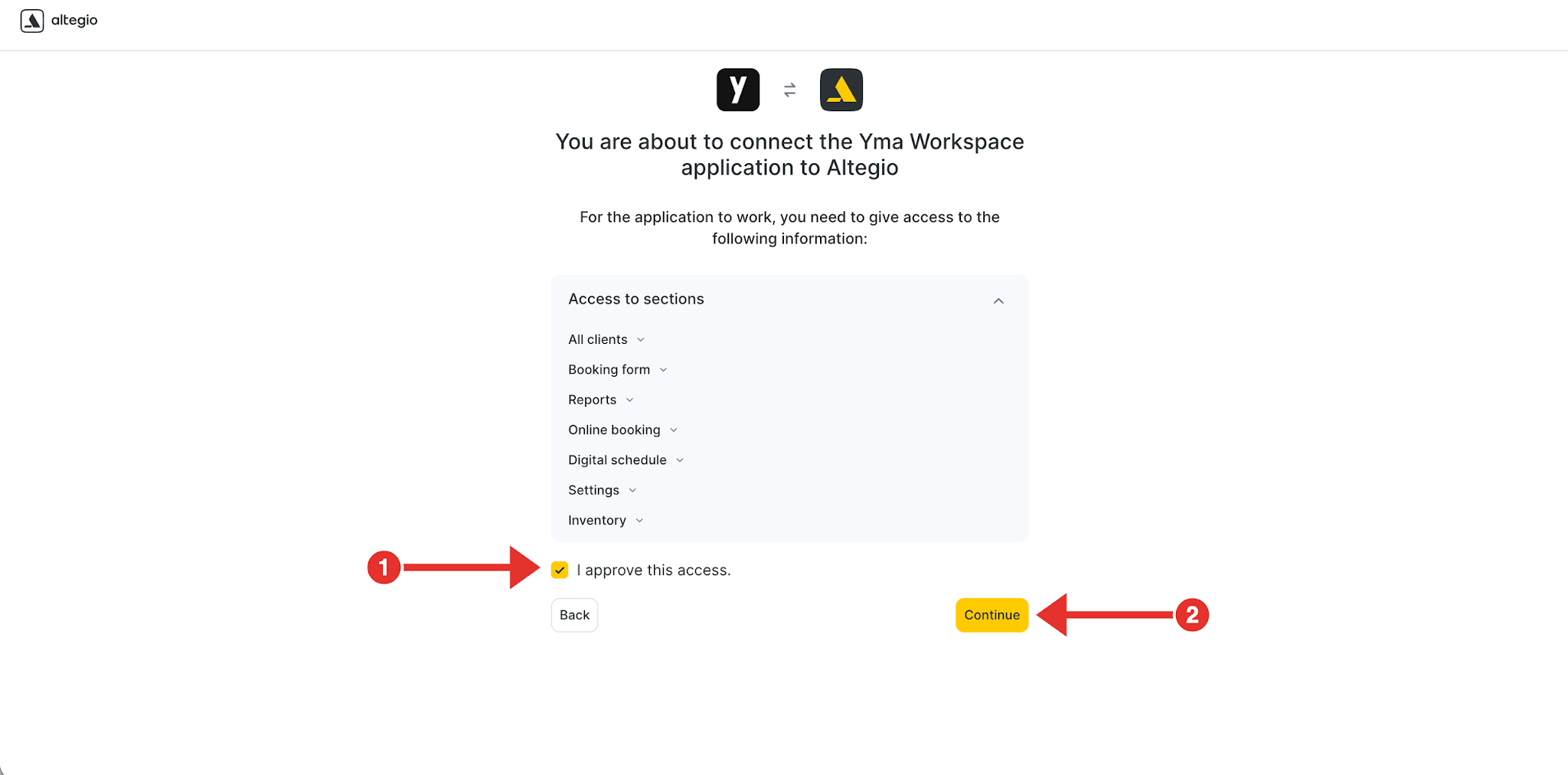
- Select one location and click Next. Review the data Yma Workspace will access, grant access and click Continue.
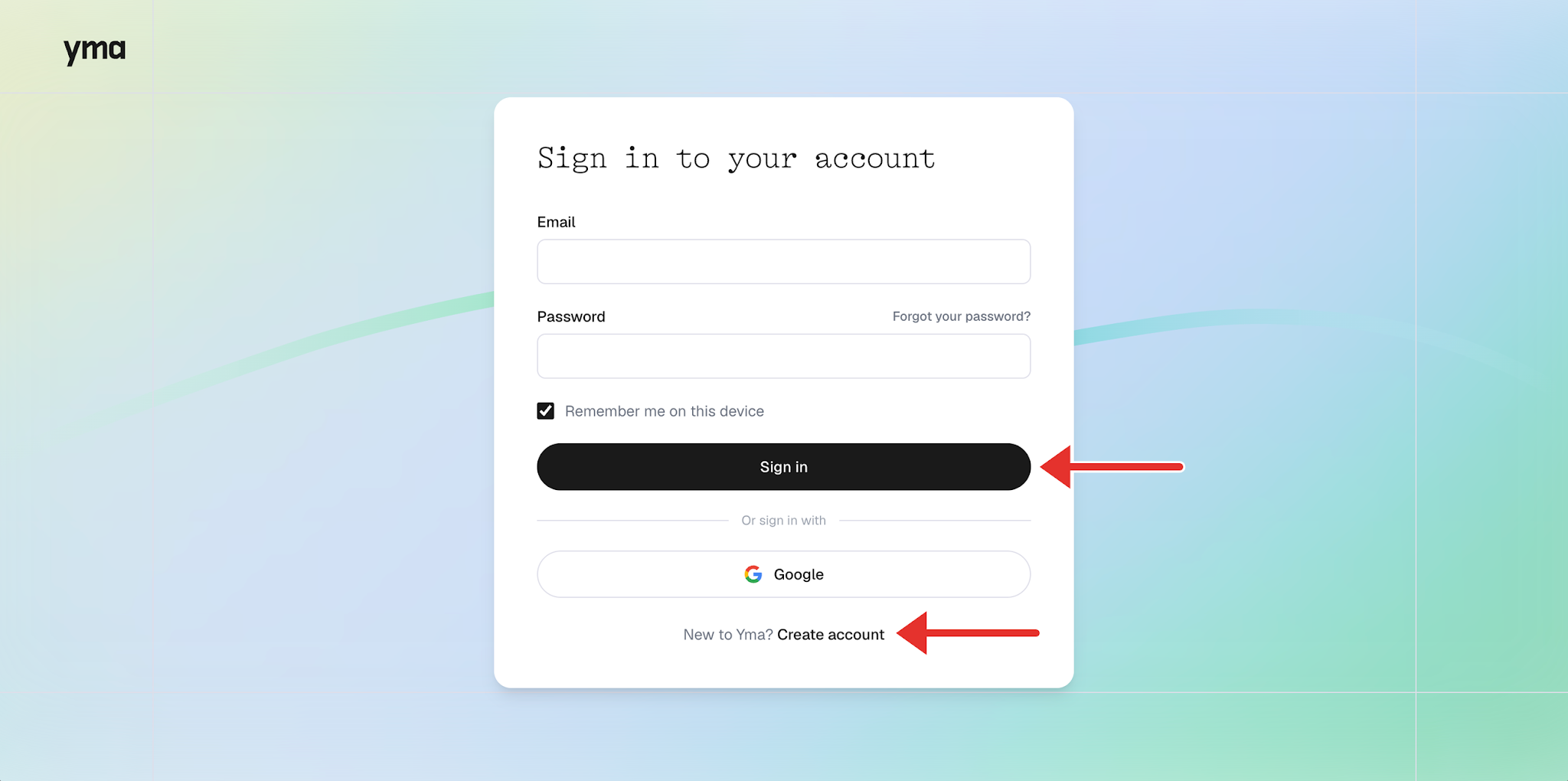
- Sign in to Yma or create an account.
- In Yma, open Connections. On the Altegio card, click Start next to the service and specialist sync.
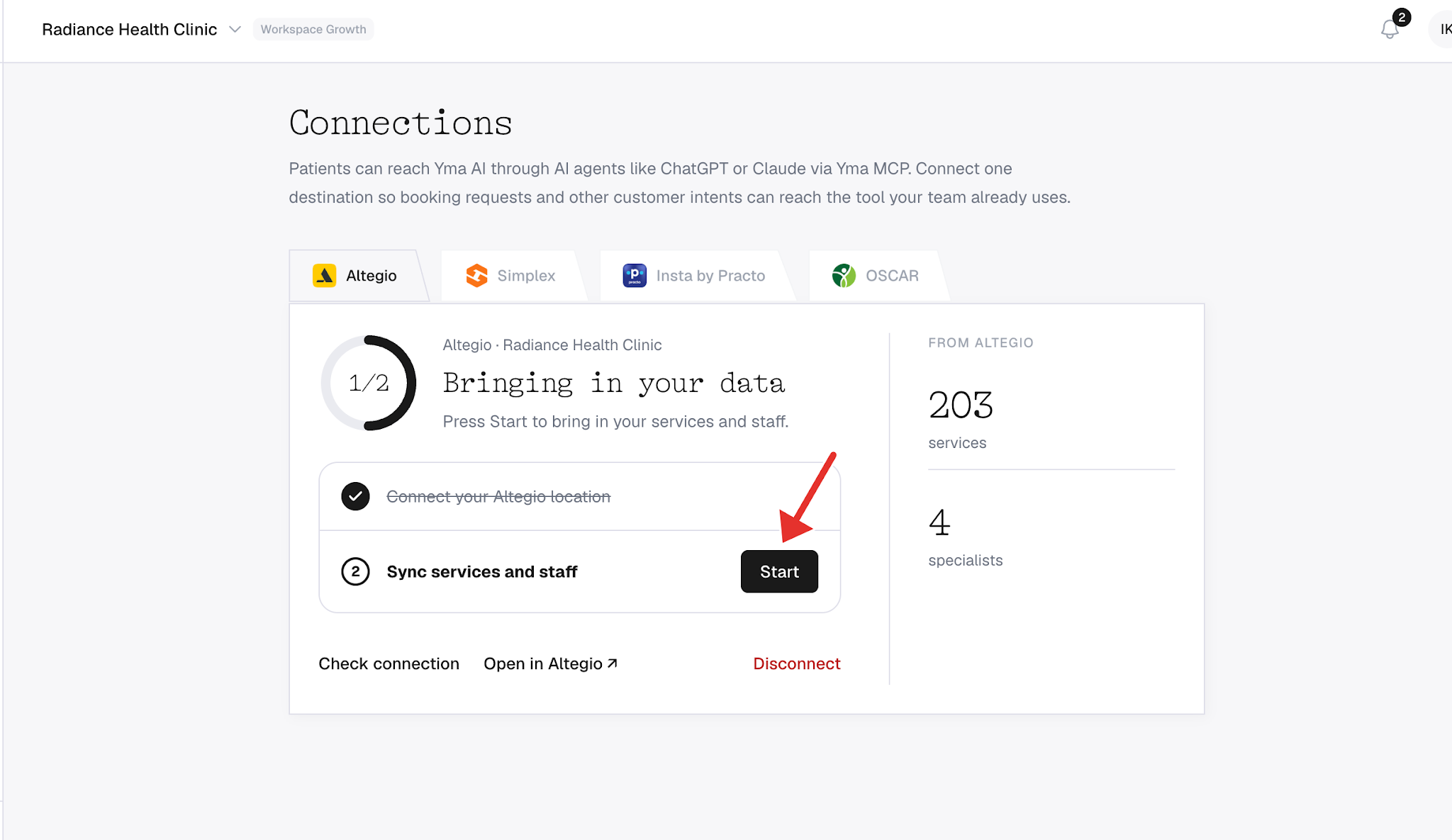
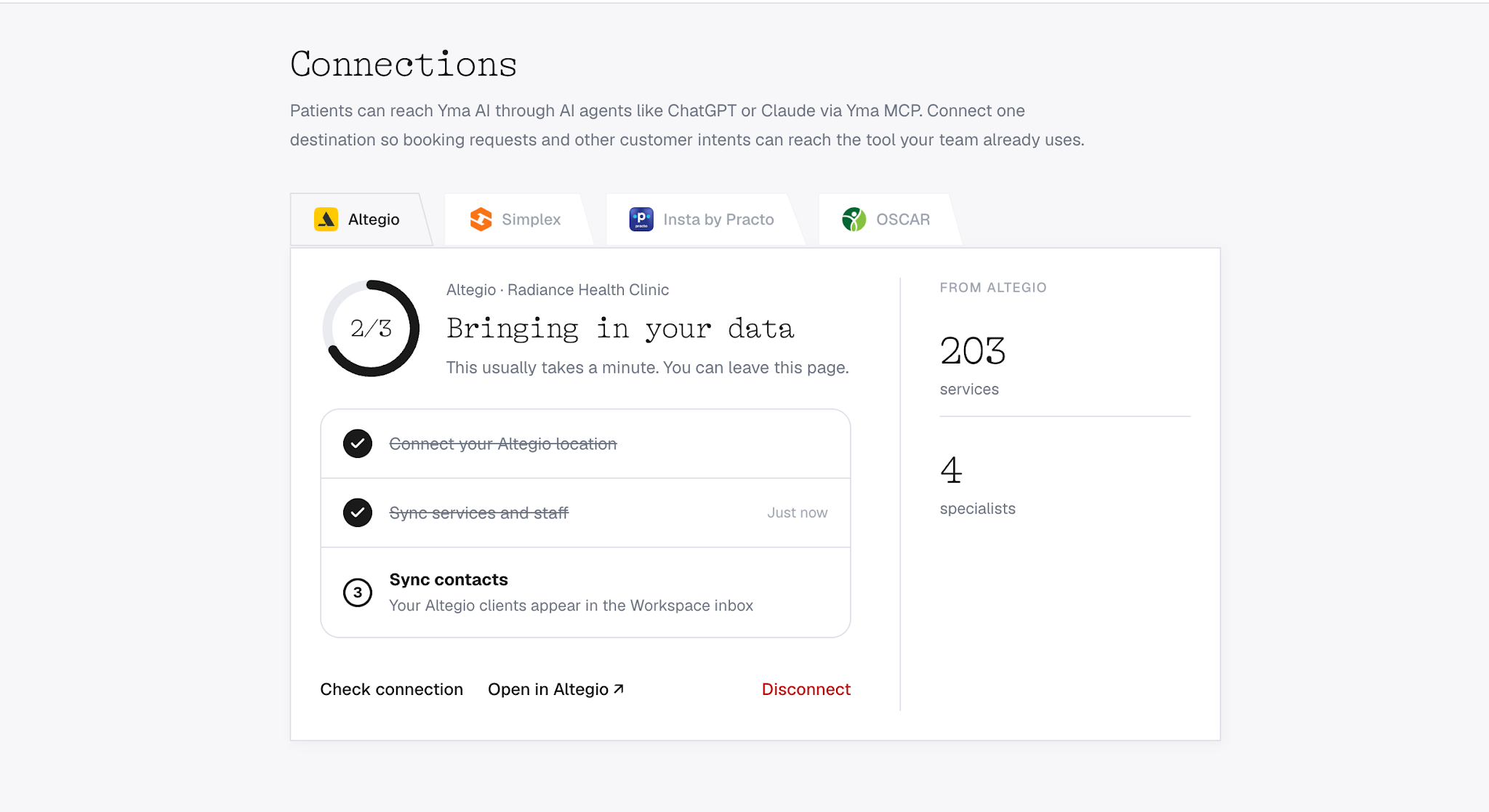
- Wait while services, specialists and clients load. The first sync usually takes about a minute. A large client list may take longer. You can close the page and return later.
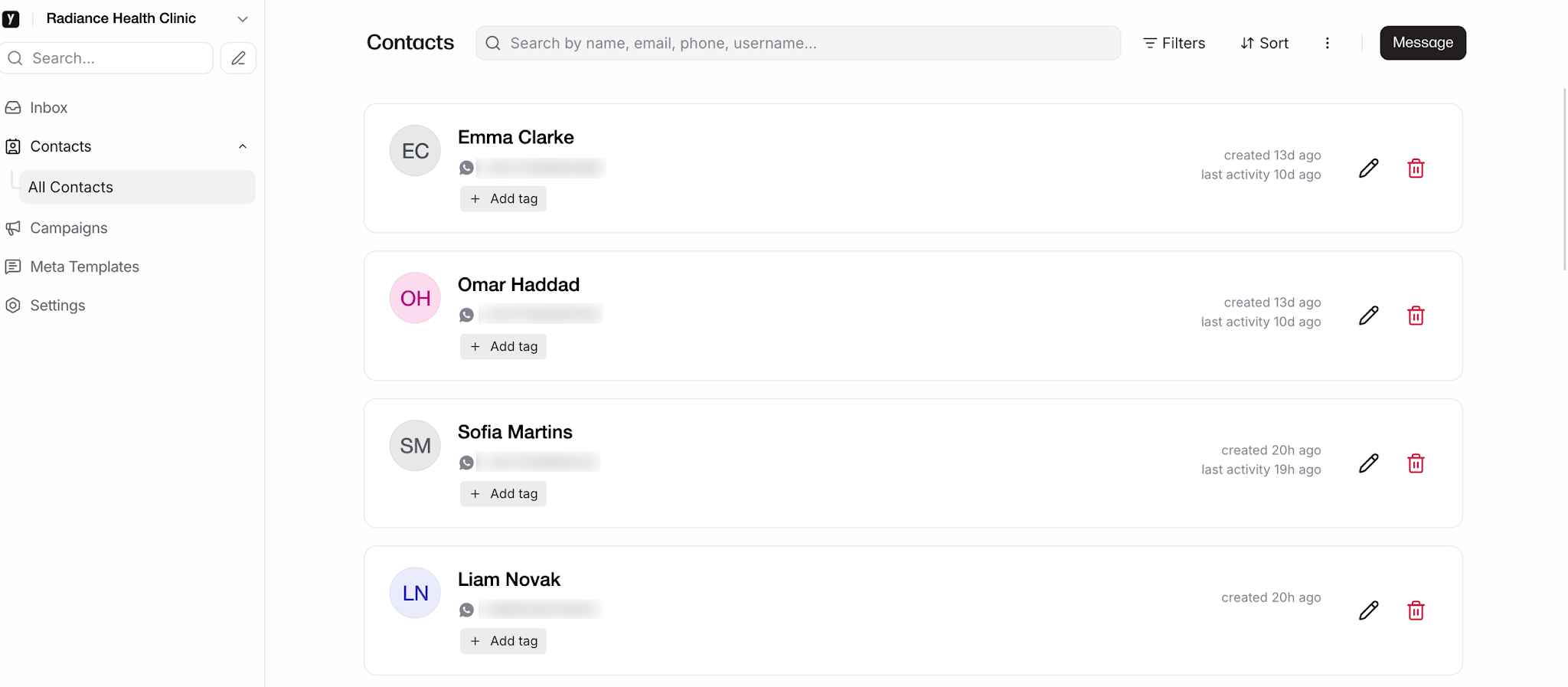
After the sync, Altegio clients appear in Contacts in Yma Workspace.
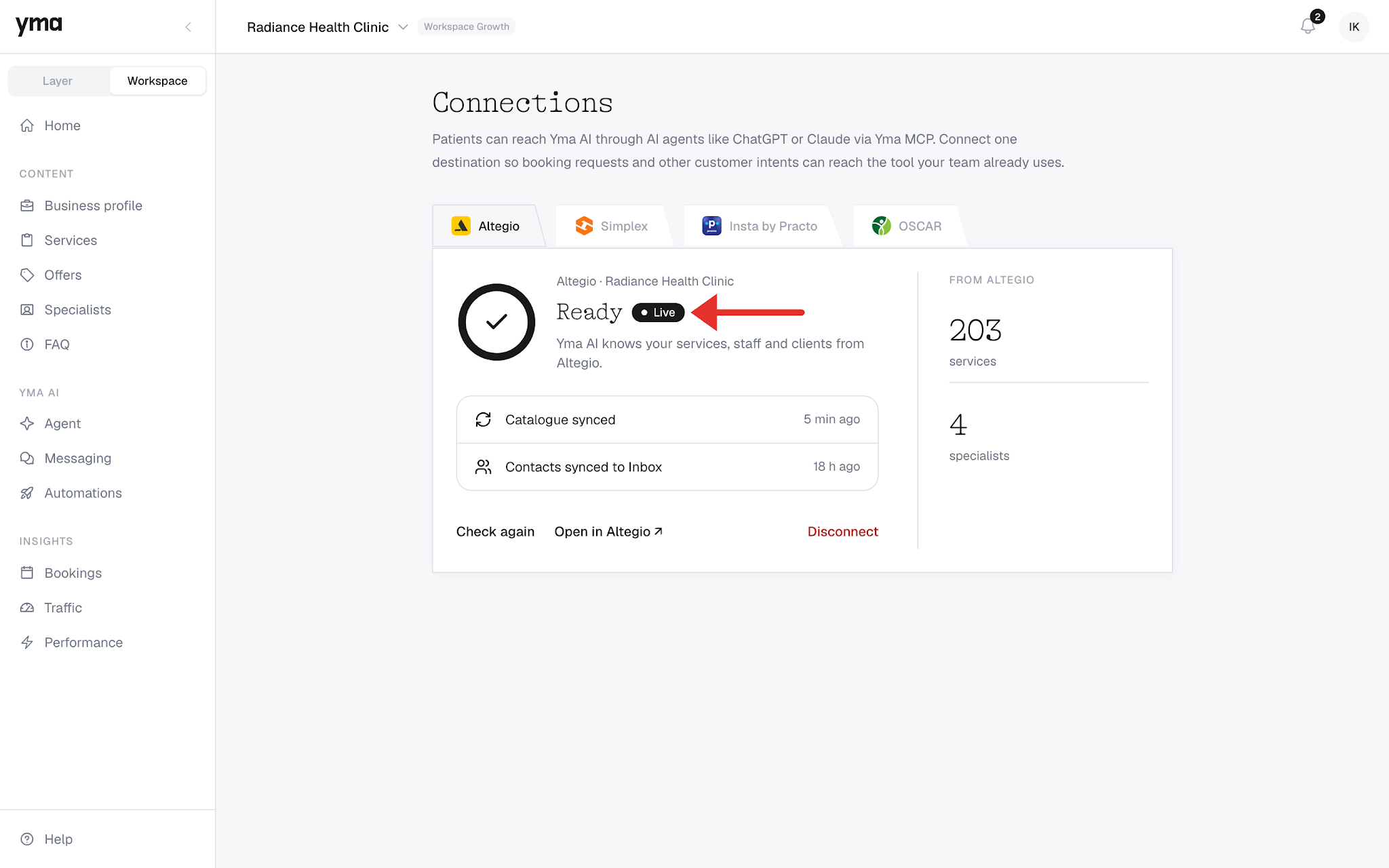
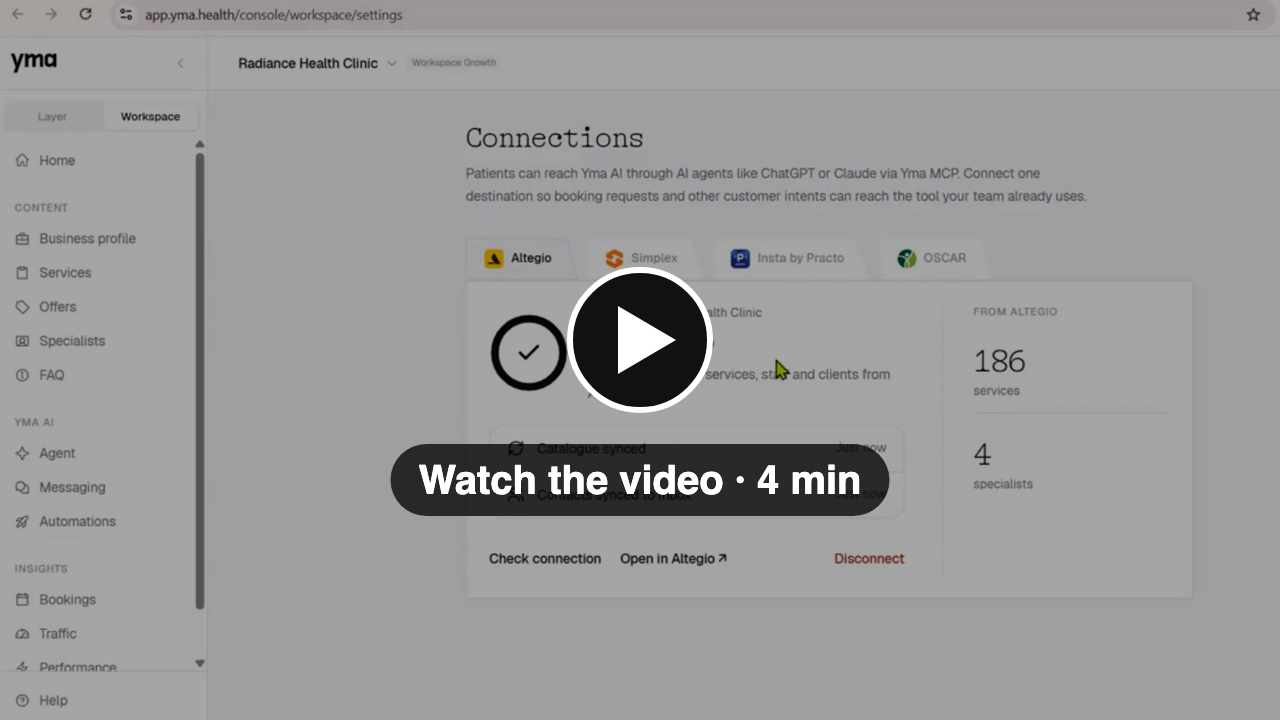
- Check that the Altegio card shows the Ready and Live statuses. The card also displays the time of the last sync and the number of synced services and specialists.
Watch the video walkthrough (about 4 minutes).
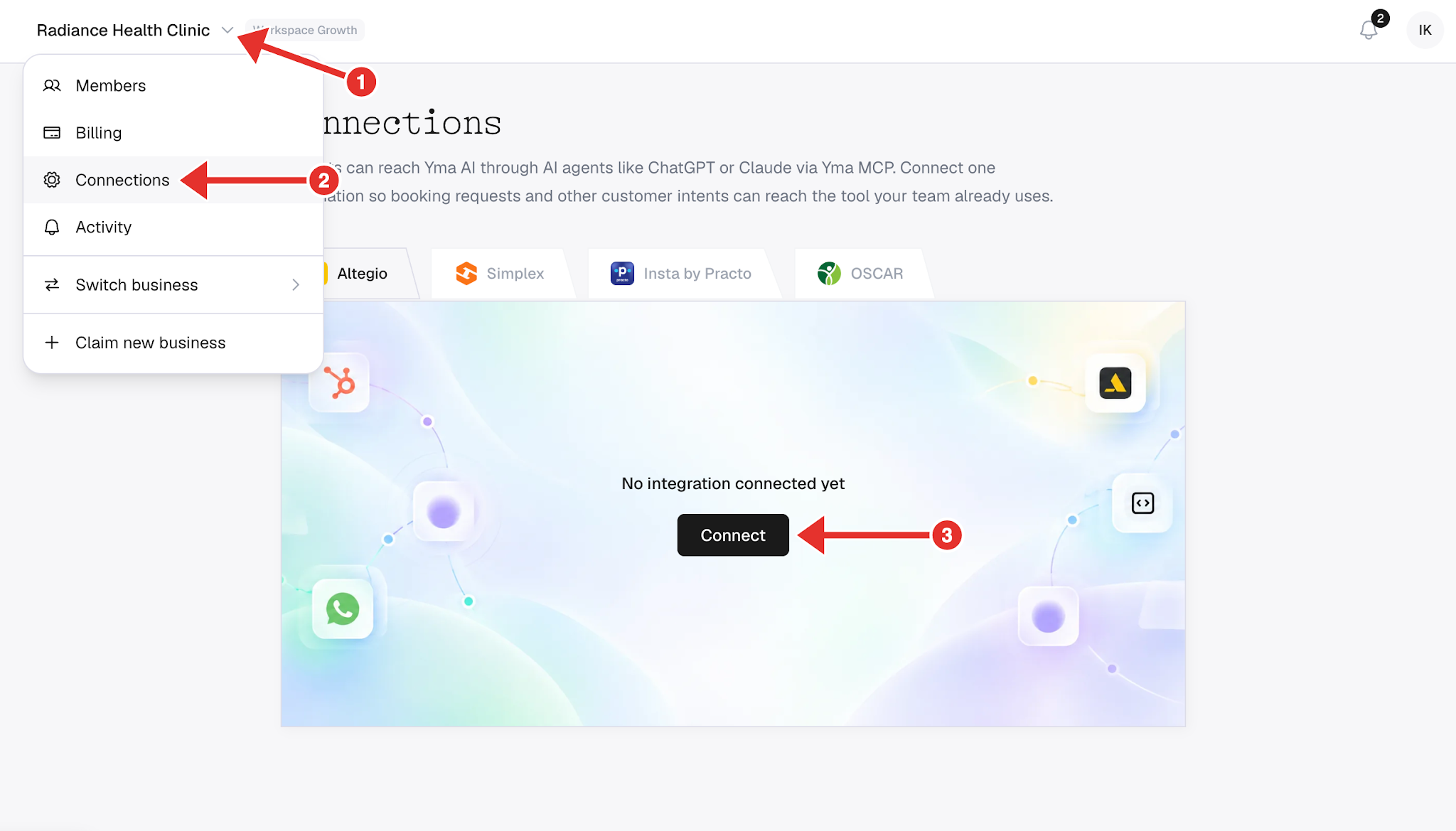
Connect from Yma
Click the clinic name at the top of the page, choose Connections, open the Altegio tab and click Connect.
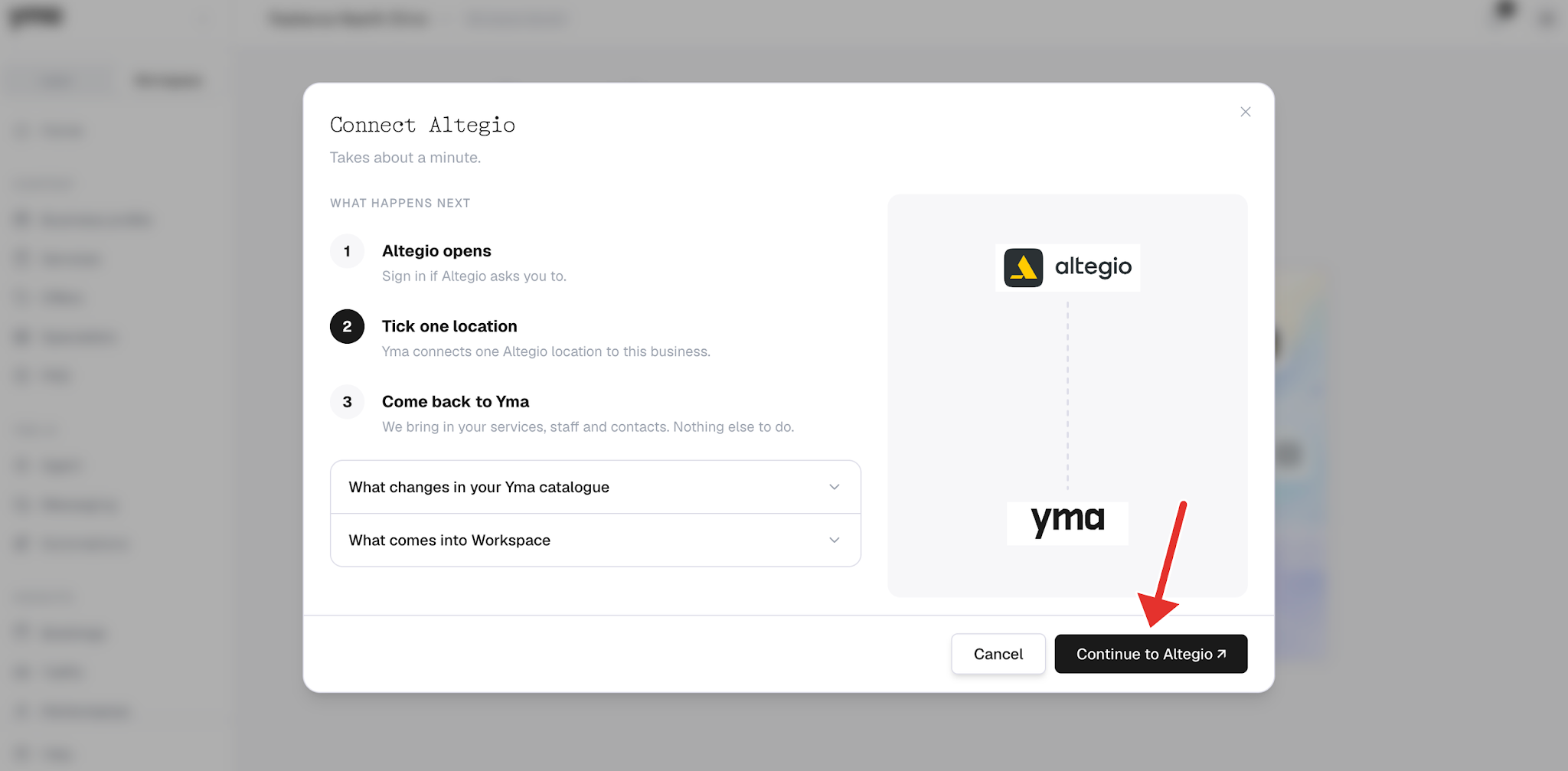
In the window that opens, click Continue to Altegio, then follow the steps above to select a location and grant access.
One Altegio location connects to one Yma business. To connect several locations, connect each one to a separate Yma business.
Sync services and specialists
While Altegio is connected, the service and specialist lists in Yma are updated from Altegio. The time of the last sync appears at the top of the relevant sections.
Add and edit services and prices in Altegio. Changes will appear in Yma after the next sync.
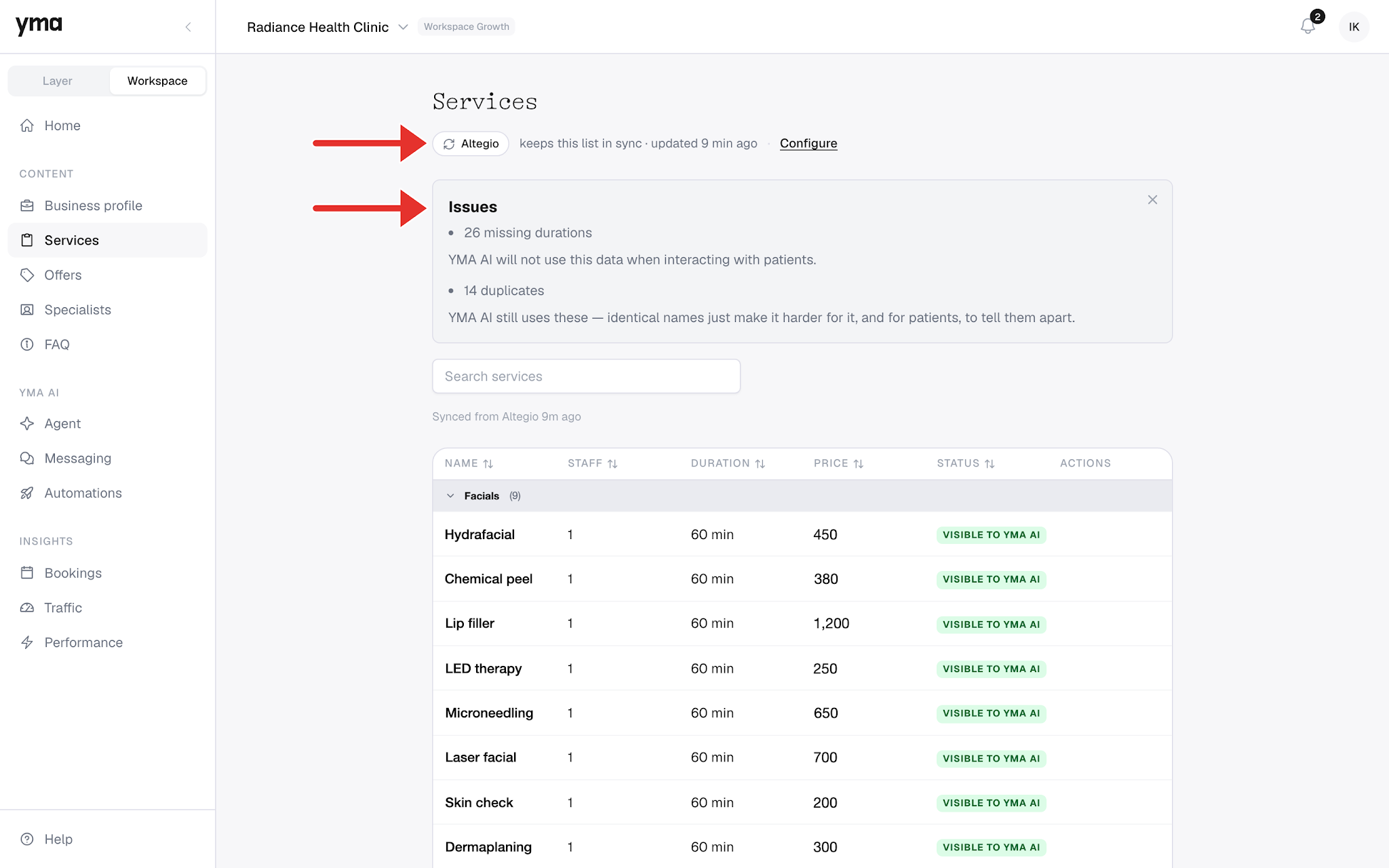
The specialist list is synced from Altegio as well.
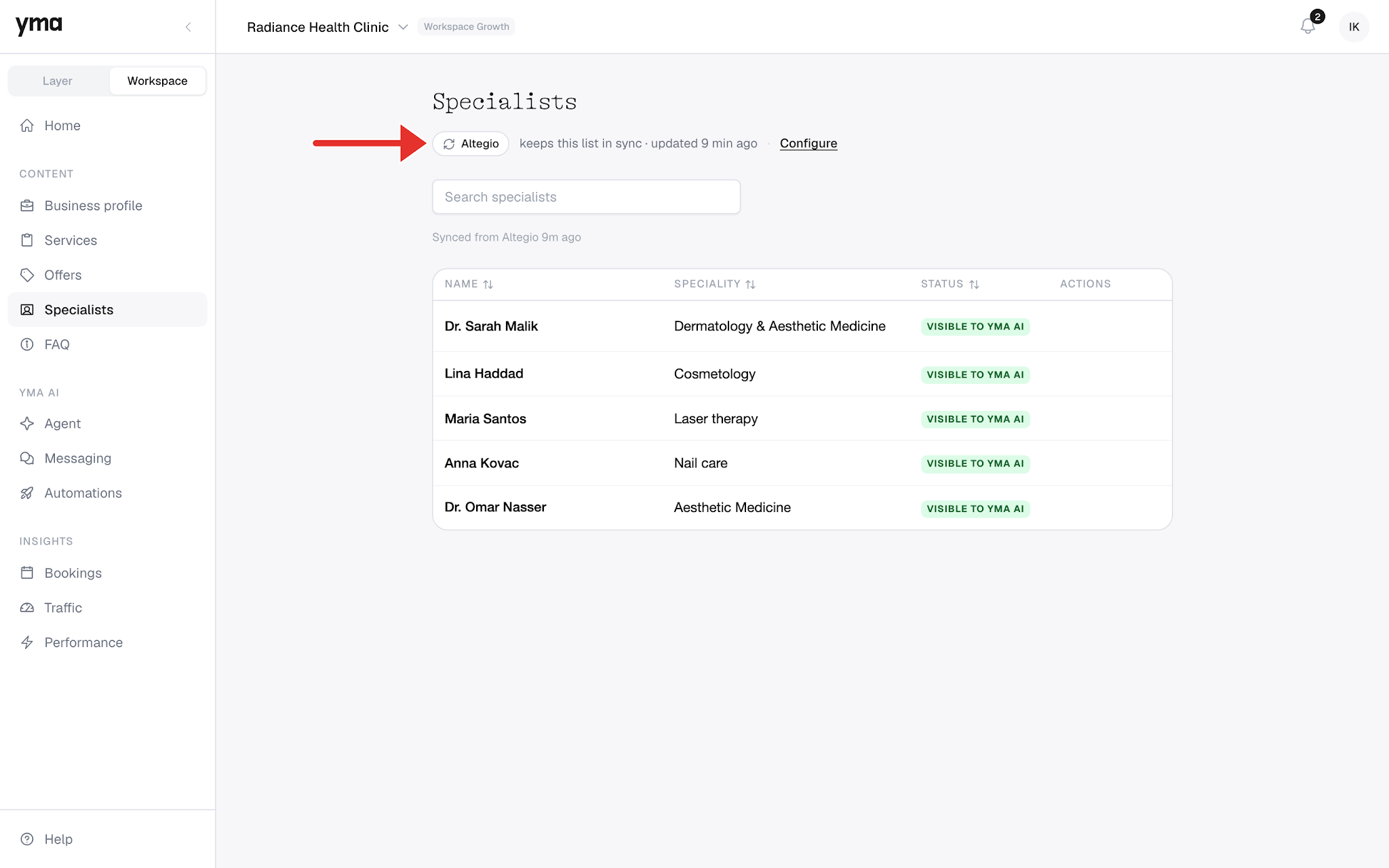
If a service or specialist does not appear, make sure it is active in Altegio and wait for the next sync. The Issues section in Yma shows items that need attention. For example, the AI cannot use a service without a duration. Add the duration in Altegio.
Enable AI booking
- In Yma, open Yma AI and select Agent.
- In the top right corner, select a channel, such as WhatsApp or Telegram.
- Under Yma’s role, choose a mode: Night manager responds outside working hours, while 24/7 operator responds in every chat.
- Under Patient journey, turn on Booking.
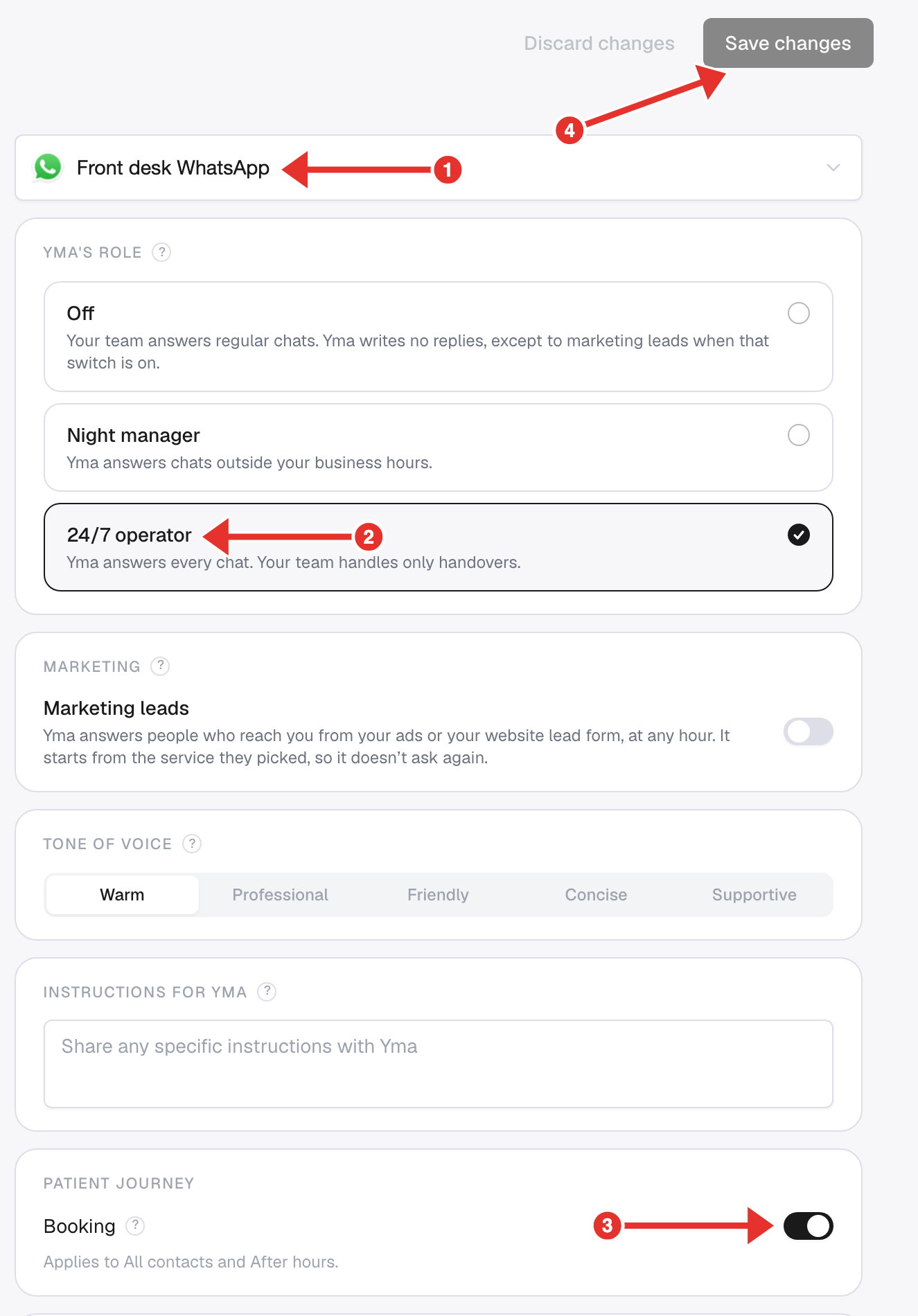
- Click Save changes.
Once configured, Yma suggests available times from the Altegio schedule and creates an appointment for the selected time. If Altegio cannot accept the requested time or the client needs extra help, Yma hands the conversation over to the team.
Channels
Yma Workspace brings WhatsApp and Instagram into a shared workspace. In the Yma AI settings, channel options may include WhatsApp or Telegram. Available channels depend on your Yma account settings.
Availability
Availability of Yma Workspace and individual channels depends on your Yma account settings.
Pricing
Yma Workspace starts at AED 490 per month per branch. Check the Yma website for current plans and terms.
Frequently asked questions
How long does the sync take?
The first sync usually takes about a minute. A large client list may take longer. You can close the page and return later.
What should I do if Altegio does not show any available locations?
Sign in to Altegio with an account that has access to the clinic location, then start the connection again.
What should I do if I see “Select only one location”?
Select only one Altegio location for this Yma business. Create a separate Yma business for each additional location.
What should I do if I see “Connection needs attention”?
Reinstall Yma Workspace from the Altegio Integration Hub.
What should I check if a service or specialist is missing in Yma?
Make sure the service or specialist is active in Altegio, then wait for the next sync. For a service, also check that its duration is set.
Why does the AI not suggest any available times?
Check that online booking is enabled for the service and specialist, and that the specialist has working hours on that day.
How do I disconnect Altegio?
In Yma, open Connections, go to the Altegio tab and click Disconnect. After disconnecting, Yma will stop creating new appointments in Altegio, syncing the catalogue and copying the client list. Services and specialists already loaded will remain in Yma and can be edited there. You can reconnect at any time.
Support
Click Help at the bottom of the Yma menu to open help materials or contact the service support team.