
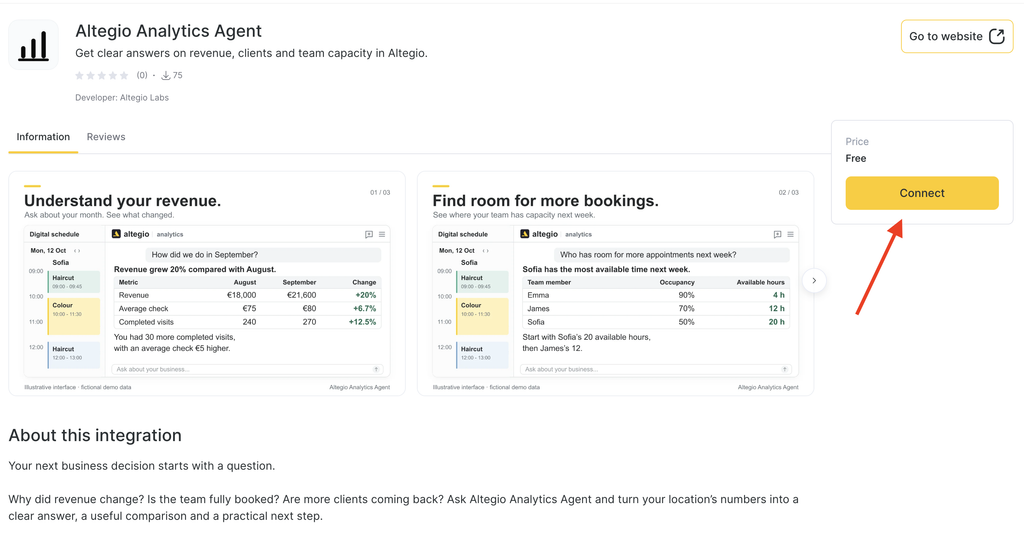
Altegio Analytics Agent is an AI business analyst for your location. Ask a question in plain words about revenue, average check, team occupancy or clients, and the agent answers from your Altegio data with a short summary, a comparison of periods or a table. In the same chat, the Analytics Agent explains how to use Altegio and links to help center articles.
The Analytics Agent only reads data. It does not create, change or delete appointments, client records, prices or settings, and it never sends anything to your clients.
What the Analytics Agent can do
- compares revenue and average check between periods and shows daily trends;
- shows team occupancy and which team members have capacity for more appointments;
- tracks new and returning clients;
- shows a summary of the client in the appointment window: visits, average check, no-shows, unpaid amounts, client account balance, memberships and tips for the visit;
- keeps the context of the conversation, so you can ask follow-up questions without starting again;
- answers questions about Altegio settings and features with links to help center articles.
The Analytics Agent does not build custom reports.
What data the Analytics Agent can read
The Analytics Agent reads Altegio data through read-only methods. The table lists every method the agent can call and the data each one returns. None of these methods creates, changes or deletes data.
| Area | Data the agent can read | Methods |
|---|---|---|
| Key metrics and daily results | Key metrics for a period next to the previous period of equal length: revenue from services and products, average check, occupancy, appointments by outcome, new, returning, active and lost clients. Day-by-day series of revenue, appointments, occupancy and clients. A summary of one day and the day-end report: services and products sold, money taken per account, discounts. | analytics_, analytics_, analytics_, analytics_ |
| Forecast | Forecast of revenue and visits next to the actual figures, where the forecast is switched on for the location. Per-client forecast: average check, predicted visits and revenue, expected return window. | analytics_, analytics_ |
| Appointments and visits | Appointments for a date range with status, team member, client and services. Appointments split by source (online booking, client app, receptionist, API) or by visit status. Appointment tags, consumables recorded on an appointment, visit items, payments and amount due. | appointments_, analytics_, appointments_, appointments_, visits_ |
| Team occupancy and performance | Working, booked and idle hours and occupancy by team member, day-by-day occupancy, booked share by working day, capacity by hour and weekday. Sales by team member, team member and service performance, front desk performance, a team member’s payroll calculation for a period. | analytics_, analytics_, analytics_, analytics_, analytics_, analytics_, analytics_, payroll_ |
| Client base | Client segments and counts by spend, visits, loyalty, tags, birthday and appointment history. Each client’s first and last visit, lifetime sales and visit count. Client retention by team member, revenue and visits by client, top paying clients, clients to win back, clients who used selected services, visit figures of one client. | clients_, clients_, clients_, analytics_, analytics_, analytics_, analytics_, analytics_, analytics_ |
| Records of one client | Client card, visit history, comments, full client profiles, client account balance and how the client’s memberships were sold. | clients_, clients_, clients_, clients_, client_, clients_ |
| Services | Contribution by service or service category: number of services, discounts, revenue, consumables cost, team member compensation. Monthly delivered service value by service, category, team member or resource. The services and service categories of the location. | analytics_, analytics_, services_, service_ |
| Finance | Financial transactions and payment items, accounts and cash registers, cash flow by payment item and account, monthly cash receipts, a profit and loss statement of the tracked operating result, revenue lost to no-shows, cancellations, unpaid visits and discounts. | financial_, financial_, accounts_, analytics_, analytics_, analytics_, analytics_ |
| Products and inventory | Product sales by product or category with cost and markup, products likely to run out or need reordering, products with prices and stock, inventories, inventory operations, bills of materials, product categories, suppliers and partners. | analytics_, analytics_, products_, inventory_, inventory_, inventory_, product_, suppliers_ |
| Group events | Group events with seats, booked and free places, the bookings of one event, upcoming event dates, services that run as group events, fill, attendance and payment of events. | events_, events_, events_, events_, analytics_ |
| Loyalty and memberships | Results of a loyalty program for a period. Membership types, sold memberships, the memberships of a client and the chains they belong to. | analytics_, memberships_, memberships_, memberships_, memberships_, memberships_ |
| Location setup | Locations, team members, positions, resources, team member schedules, Appointment Calendar settings, online booking settings and booking forms. | locations_, team_, positions_, resources_, schedules_, settings_, settings_, booking_ |
| Other Altegio API reads | A documented read from the Altegio API when no method in this table covers the question. | api_, api_, api_ |
| Help center | Altegio help center articles. | search_ |
Note. In the Chat tab of the Appointment Calendar and in the appointment window, the membership methods (
memberships_list_types,memberships_get_type,memberships_list,memberships_list_for_client,memberships_list_chains) and the Altegio API reads (api_search_operations,api_describe_operation,api_call_operation) are not available. To ask the Analytics Agent about memberships, use the website aaa.alteg.io. The client summary in the appointment window still shows the client’s memberships.
The Analytics Agent cannot read:
- reviews and ratings;
- payroll sheets for a whole period: the agent reads payroll for one team member at a time;
- the online booking funnel: the closest data is appointments by source;
- account balances: the agent shows money taken per account, cash flow and the profit and loss statement instead;
- a complete statutory profit, tax and cash flow statement: the profit and loss statement shows the tracked operating result and lists the costs it does not include;
- inventory valuation, reserved stock and last sale dates;
- one total across several locations in one request: the agent reads each location separately and does not add amounts in different currencies.
Where you can use the Analytics Agent
- Chat tab in the sidebar of the Appointment Calendar. The agent analyzes the location whose Appointment Calendar is open.
- Appointment window. The agent shows a summary of the appointment’s client and answers questions about this client.
- Website aaa.alteg.io. The agent works with the locations your Altegio account authorizes and can compare locations in one conversation.
Before you start
Availability:
- Price: free
- Who can connect the app: a user with the Manage user rights access right in the location. For details, see Settings access rights.
- Who can open the chat panel in the Appointment Calendar: a user with the Manage user rights access right in the location. Connecting the app does not give this right to other accounts.
- Who can see the client summary in the appointment window: a team member with access to clients and the View client visit history access right. The client account balance is shown only with the Accounts access right, memberships only with the Loyalty access right. The chat about the client is available only to a user with the Manage user rights access right. Other team members see the summary only.
Important
The Analytics Agent works with the rights granted when the app was connected, not with each person’s own access rights. Anyone at the location who can open the agent may read data they do not see elsewhere in Altegio. If this does not suit you, disconnect the app for the location.
How to connect the Analytics Agent
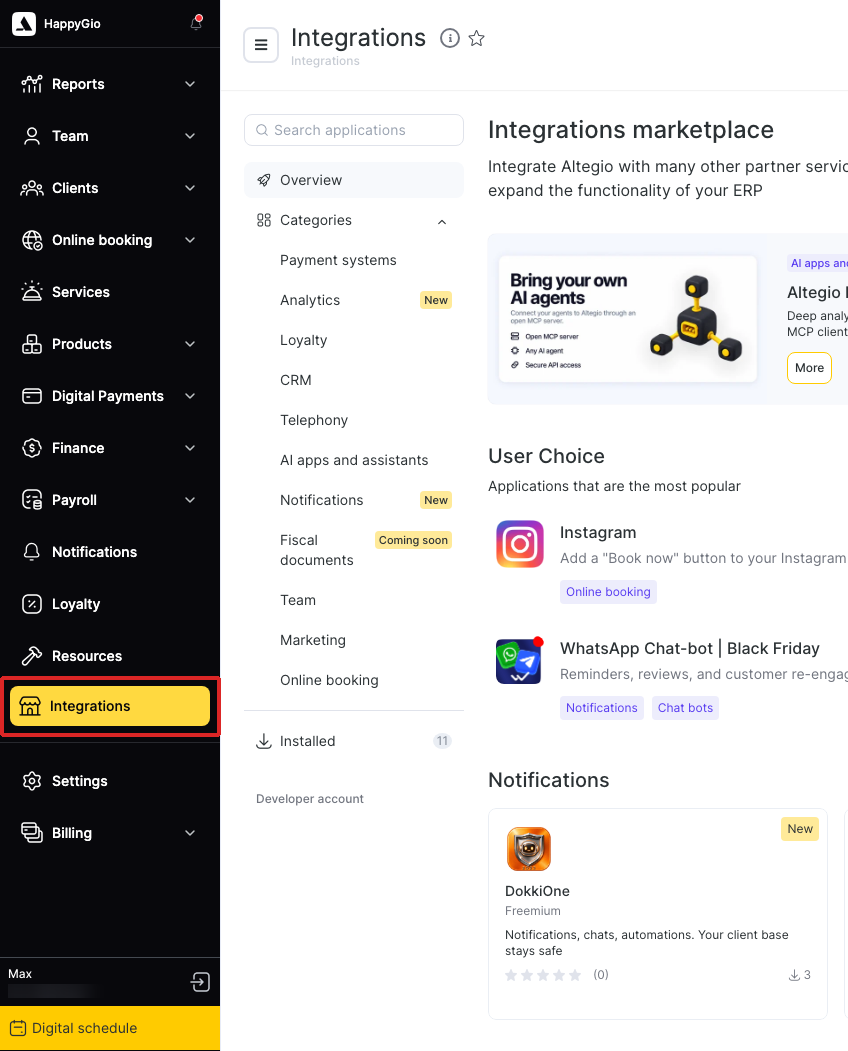
- In Administration mode, click Integrations in the left menu.
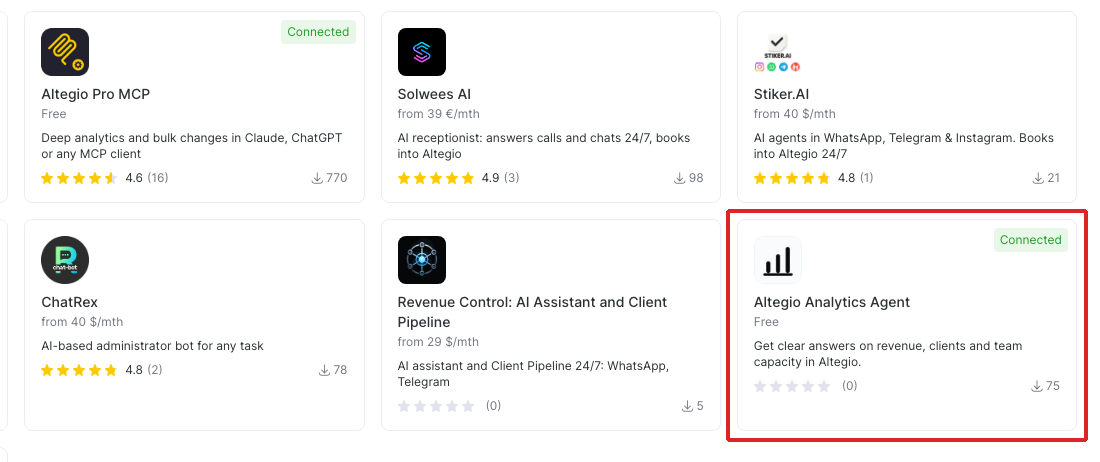
- Under Categories, click AI apps and assistants and open the Altegio Analytics Agent card. You can also type the app name in Search applications.
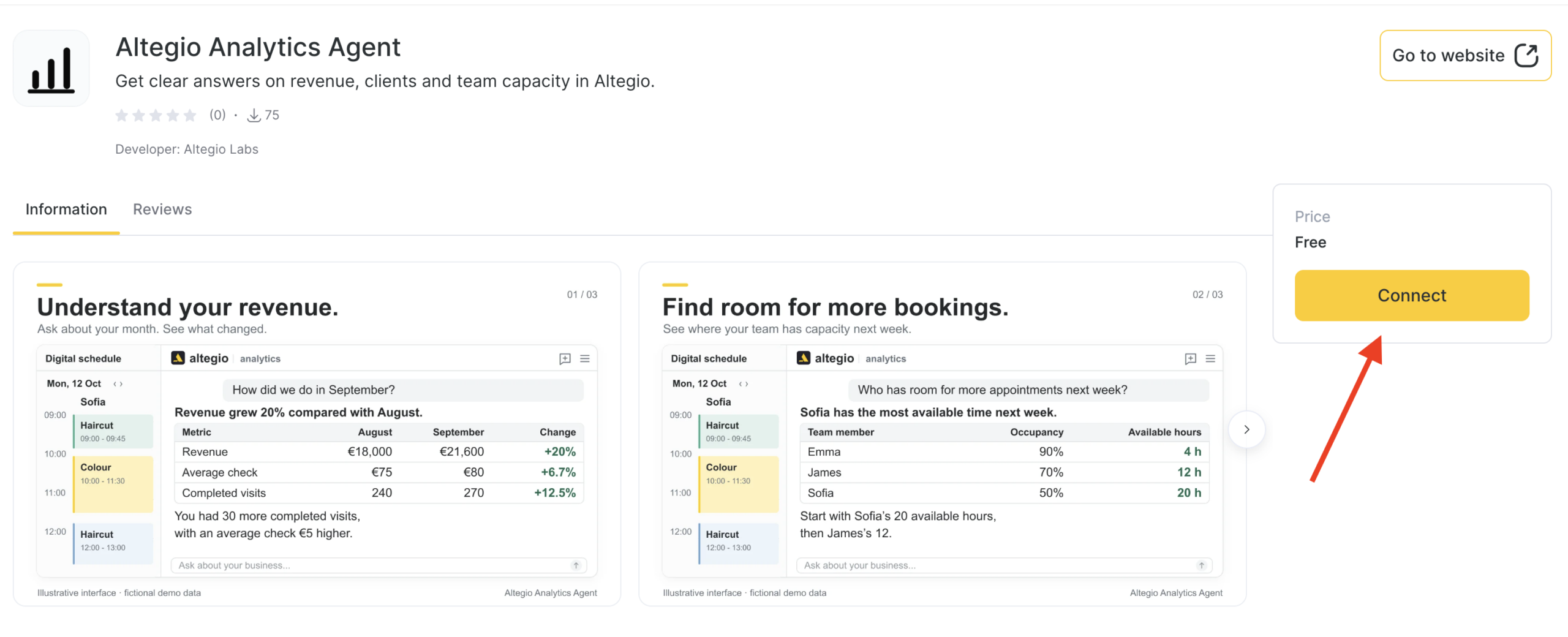
- On the app card, click Connect.
- In the window For which locations should the integration be activated?, select the locations. To select every location, check Select all locations. Locations where the Analytics Agent is already connected are checked and cannot be selected again.
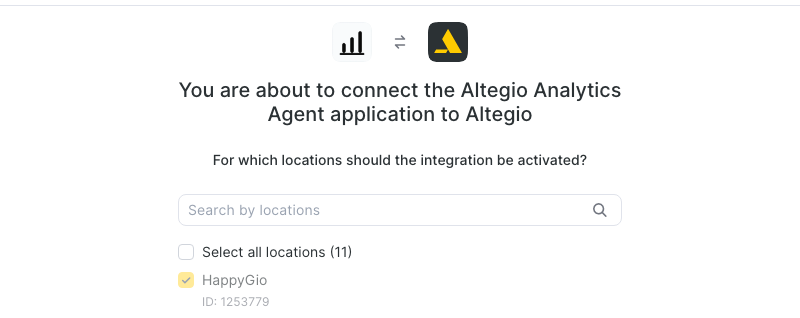
- Click Next, review the access rights the app requests and confirm.
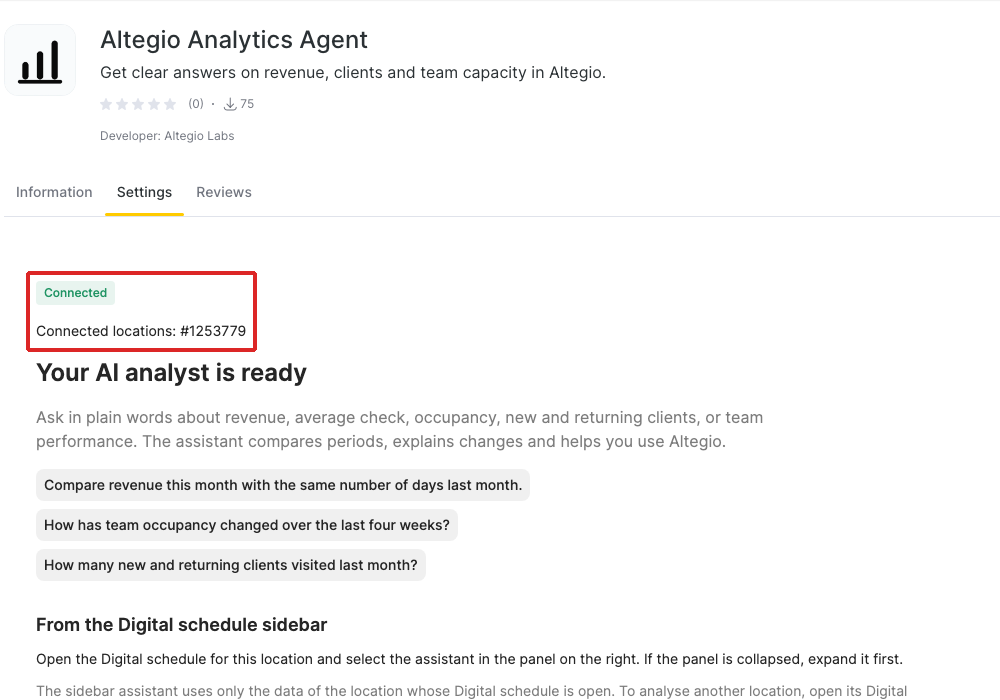
After you connect the app, the app card gets the Settings tab. It shows the Connected label and the IDs of the locations under Connected locations. The same tab lists example questions, where to open the agent, who can open the chat panel and the Open the website button.
How to ask the Analytics Agent a question in the Appointment Calendar
- Open the Appointment Calendar of the location.
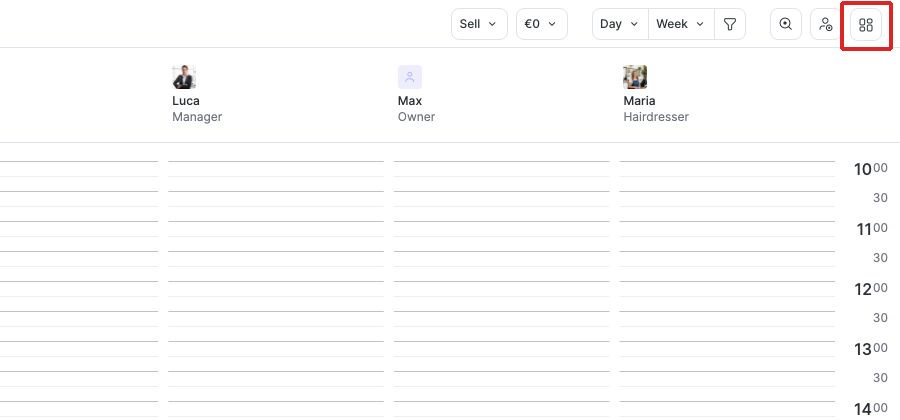
- Click the additional options button in the top right corner of the Appointment Calendar.
- In the sidebar, switch to the Chat tab. The Analytics Agent panel opens. The first time you open it, it shows suggested questions.
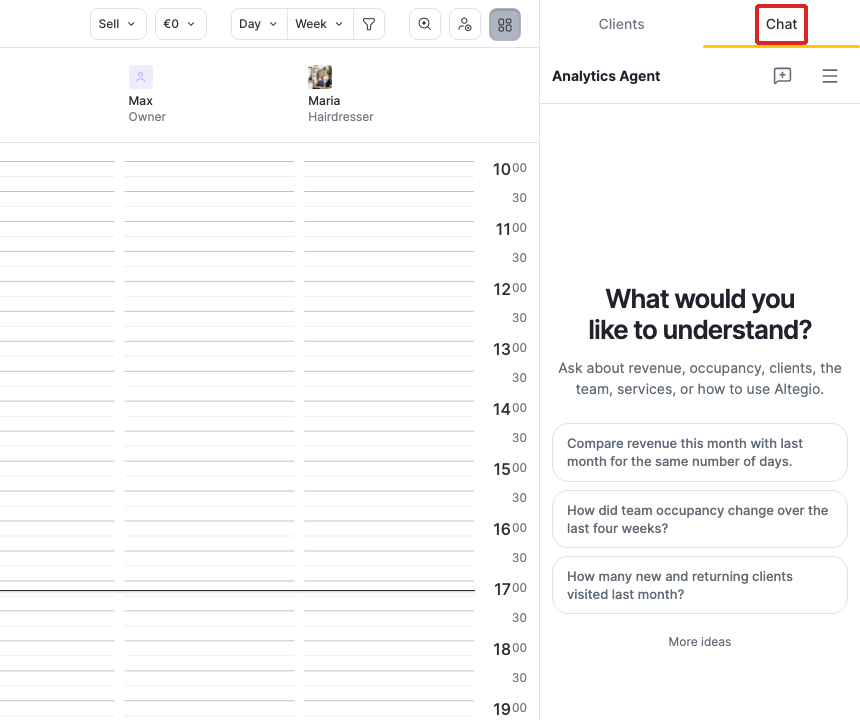
- Click a suggested question or type your own in the Ask about your business… field. A suggested question is only inserted into the field.
- Click the arrow button to the right of the field to send the question.
The answer appears in the chat. If the answer does not name the location and the period itself, its last line, Locations:, shows them. To copy an answer, click the copy icon under it. To go deeper, ask a follow-up question in the same chat.
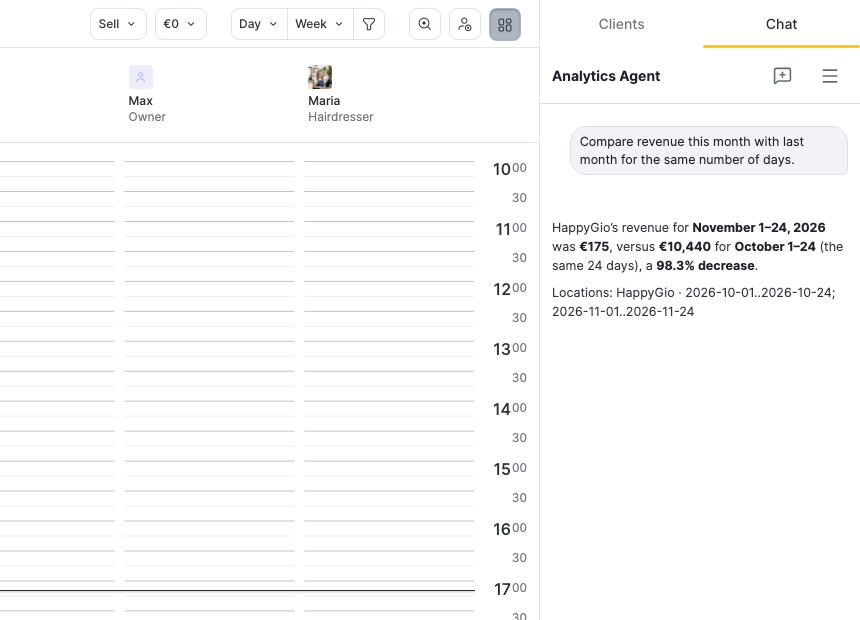
The chat in the Appointment Calendar works only with the data of the location whose Appointment Calendar is open. To analyze another location, open the Appointment Calendar of that location.
Examples of questions for the Analytics Agent
- How did revenue and average check change in September?
- Which team members have capacity for more appointments?
- How have new and returning client numbers changed?
- How did daily revenue change last week?
- What should I focus on next week?
- How do I set up online booking in Altegio?
If the analysis stops before an answer, the chat shows the message “The analysis stopped before an answer, so no unverified figures were shown”, the Unfinished answer label and the Continue button. Click Continue to resume the analysis or ask the question again.
How to start a new chat and find previous chats
The Analytics Agent panel in the Appointment Calendar keeps your conversations. When you open the Chat tab again, the last chat opens.
- To start a new chat, click the new chat icon in the panel header. The panel shows What would you like to understand? and suggested questions. Click More ideas to see more suggestions.
- To open a previous chat, click the menu icon in the panel header and select the chat under Recent chats. Each chat shows its first question and date.
- To archive a chat, click the three dots next to it and select Archive chat. Archived chats are under Archived chats. To return a chat to Recent chats, click the three dots next to it and select Restore chat.
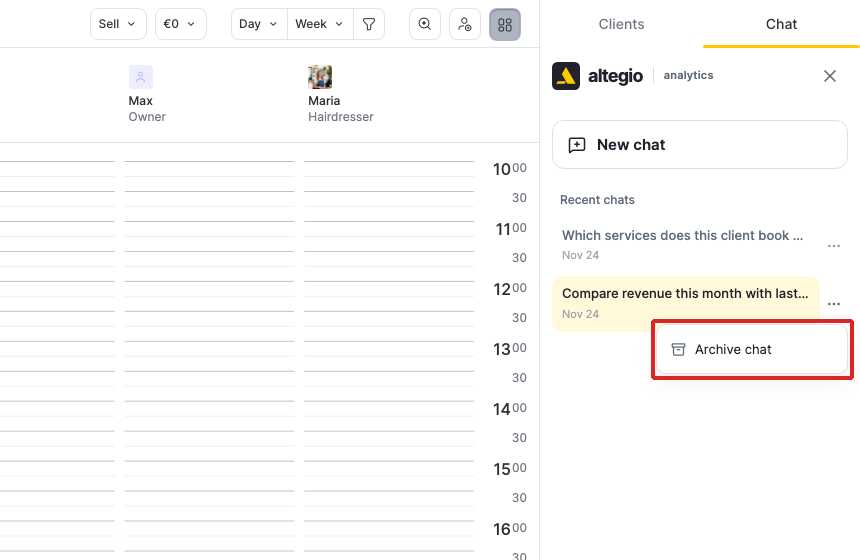
The menu of the Analytics Agent panel also shows your account. Click Account and access to see your email and the locations under Included locations. Click About this assistant to read the agent’s limits: it can be wrong, it is free while it is new, everyone who opens it sees the same data, and it only reads data.
Client summary in the appointment window
When the Analytics Agent is connected, the appointment window shows a summary of the appointment’s client. The summary appears only for appointments with a client.
To open the appointment window, click the appointment in the Appointment Calendar. In Administration mode, open Reports > Appointments and click the pencil icon next to the appointment. For more about the window, see New Visit Window.
- In the appointment window, click the Analytics Agent tile.
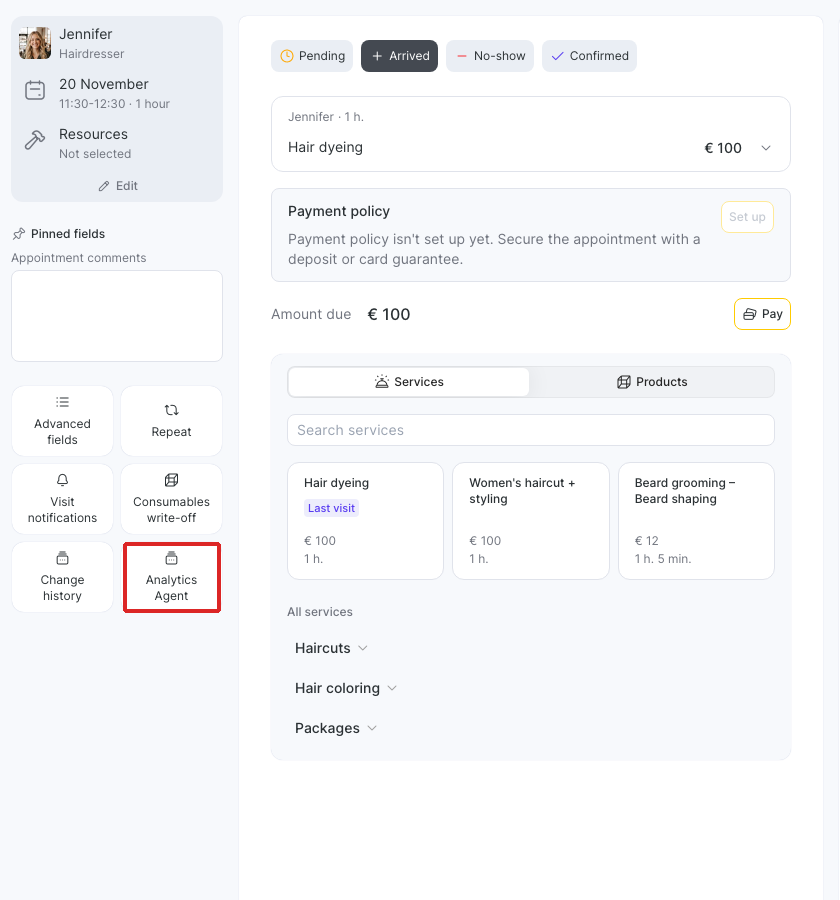
- The Analytics Agent panel opens with the client summary on the left and a chat about this client on the right.
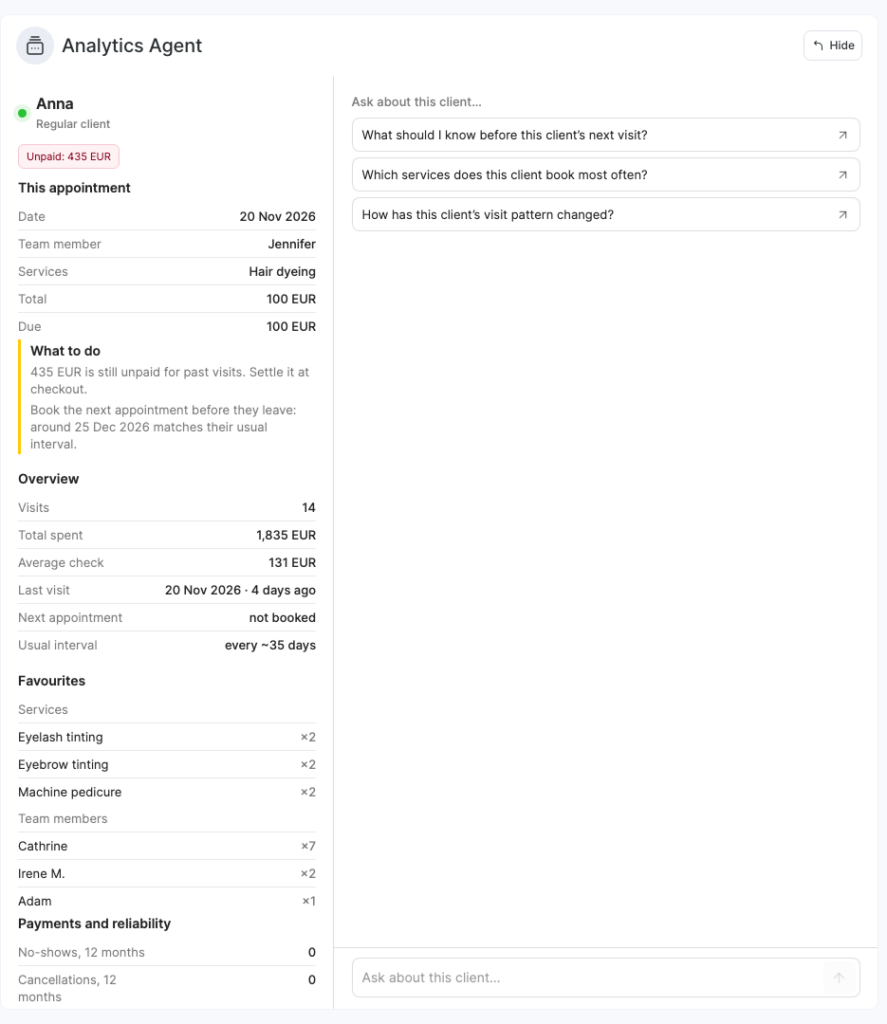
The client summary contains:
- the client status and labels, for example No-shows, Cancellations, Unpaid, On account and Membership;
- This appointment: date, team member, services, total, paid and due amounts;
- What to do: tips for this visit, for example to settle an unpaid amount at checkout or to book the next appointment;
- Overview: visits, total spent, average check, last visit, next appointment and the client’s usual interval between visits;
- Favourites: the services and team members the client books most often;
- Payments and reliability: no-shows and cancellations in the last 12 months, unpaid amounts, client account balance and memberships with their remaining balance.
Visits, average check and favourites cover the last 24 months. Total spent covers all time.
To ask about the client, click a suggested question or type your own in the Ask about this client… field, then click the arrow button. The chat about a client is saved: the next time you open the panel for the same client, the previous questions and answers are there. To return to the appointment, click Hide.
Chat tab in the appointment window
In the client panel of the appointment window, switch to the Chat tab. The tab shows a short client summary, More client details to expand the full summary, and the Ask about this client… chat.
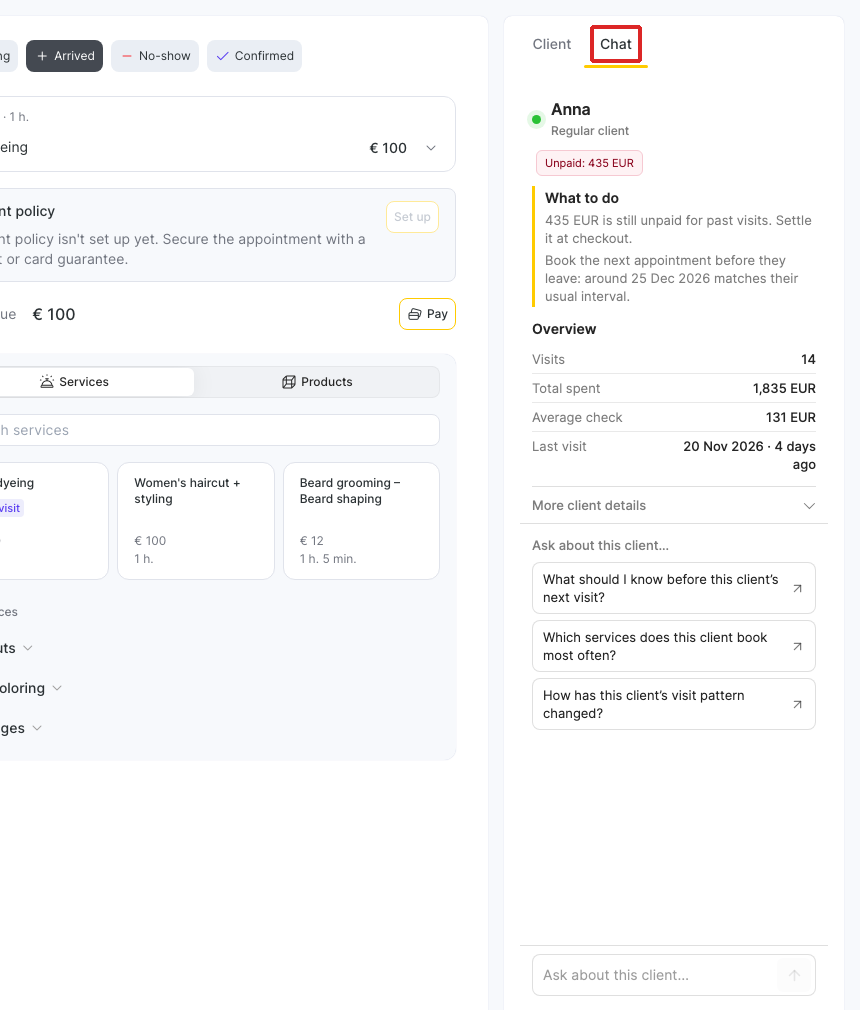
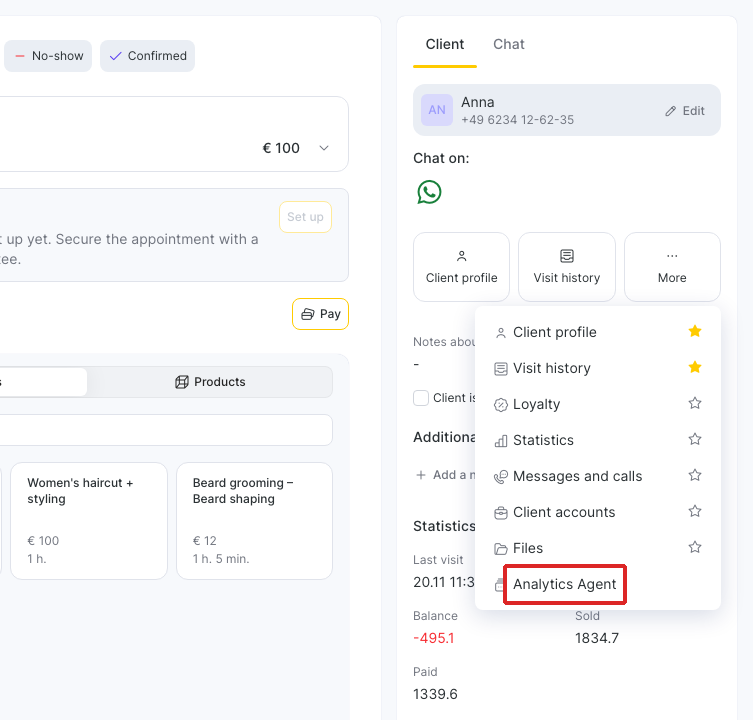
The Chat tab finds the client by phone number. If several clients in the location have the same phone number, the tab shows This phone does not identify one client. In this case, in the client panel of the appointment window, click More and select Analytics Agent. The Analytics Agent tile in the appointment window also shows the right client.
Analytics Agent in the client menu
In the client panel of the appointment window, click More and select Analytics Agent. The tab shows the client summary without a chat.
How to use the Analytics Agent on the website
The website aaa.alteg.io works without the Appointment Calendar. On the website, the Analytics Agent works with all locations your Altegio account authorizes and can compare locations in one conversation.
- Open aaa.alteg.io. You can also click Go to website on the app card or Open the website on the Settings tab of the card.
- Click Sign in with Altegio and sign in with your Altegio account.
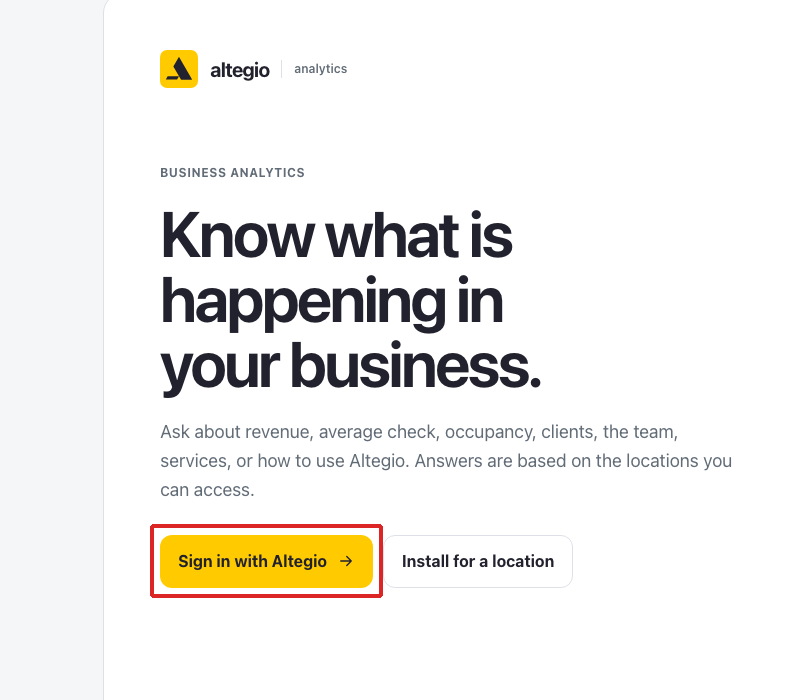
Connecting the app in Integrations does not sign you in to the website. Sign in on the website separately. To check which locations are included, open Account and access in the agent’s menu.
How to disconnect the Analytics Agent
- In Administration mode, open Integrations and find the Altegio Analytics Agent card.
- Click Disconnect.
To work with Altegio data from Claude, ChatGPT or another AI assistant, see Altegio MCP servers for AI assistants.
FAQ
Ask the Analytics Agent the way you would ask an analyst: how revenue changed last month, which team members have room for more appointments, whether more clients are returning. You can compare periods, look at daily trends and ask follow-up questions in the same chat. You can also ask how to use an Altegio feature or where to find a setting.
Connect the app in Integrations > AI apps and assistants > Altegio Analytics Agent. Then open the Appointment Calendar, click the additional options button in the top right corner and switch to the Chat tab. In the appointment window, click the Analytics Agent tile. You can also sign in at aaa.alteg.io with Sign in with Altegio.
In the Appointment Calendar, the Analytics Agent analyzes the location whose Appointment Calendar is open. On aaa.alteg.io, it works with the locations your Altegio account authorizes. If the answer does not name the location and the period itself, its last line, Locations:, shows them.
No. The Analytics Agent reads the available Altegio data of your location. Ask in everyday language, review the result and continue with a more specific question.
No. The Analytics Agent only reads data. It cannot create, change or delete appointments, clients, prices or settings, and it never sends anything to your clients.
Yes. The Analytics Agent works with the rights granted when the app was connected, not with each person’s own access rights. Anyone at the location who can open the agent may read data they do not see elsewhere in Altegio. If this does not suit you, disconnect the app for the location.
Several clients in the location have the same phone number, so the Chat tab cannot pick one. In the client panel of the appointment window, click More and select Analytics Agent. The Analytics Agent tile in the appointment window also shows the right client.
The appointment window tabs are added when the app is connected for the location. If you connected the Analytics Agent a while ago and the tabs are missing, disconnect it and connect it again in Integrations. A location can also have only one client tab and five appointment tabs from all connected apps. If other apps already use them, the Analytics Agent tab does not appear.
A location has one chat panel in the Appointment Calendar sidebar, shared by all connected apps. If you connect a messenger integration that uses this panel, it takes the panel’s place, and the Analytics Agent no longer appears there. To return the agent to the panel, open the Altegio Analytics Agent card in Integrations and switch to the Settings tab. The messenger integration then loses the panel. On aaa.alteg.io, the Analytics Agent works in both cases.
In the Analytics Agent panel, click the menu icon, click the three dots next to the chat and select Archive chat. The chat moves to Archived chats. To return it, select Restore chat in the same menu.
The Analytics Agent is free while it is new. If it becomes paid, the app card will say so before anything changes.
In the Appointment Calendar, the Analytics Agent works with one location: the one whose Appointment Calendar is open. To compare locations in one conversation, sign in at aaa.alteg.io with Sign in with Altegio. The website works with the locations your Altegio account authorizes.