
The main purpose of restricting access rights to this section is to protect Altegio from changes made without management approval that could harm the company’s image and internal business processes. This permission should be granted only to team members with extended authority (e.g., a manager or company owner).
For example, a receptionist may only need the right to edit team members’ work schedules.
Important
In this section, you can allow or prohibit team members from managing access rights. This setting assumes a team member can manage other members’ access permissions at their own discretion and without approval from management. To avoid such situations, access to this function should be granted only to team members with extended authority.
Setup
- Go to Settings > Team, select the required team member, and open the Access tab.
- Find the required permission and enable it using the toggle, then click the Settings section name and enable the specific permissions you want to grant the team member.
- To save changes, click Save in the bottom-right corner.
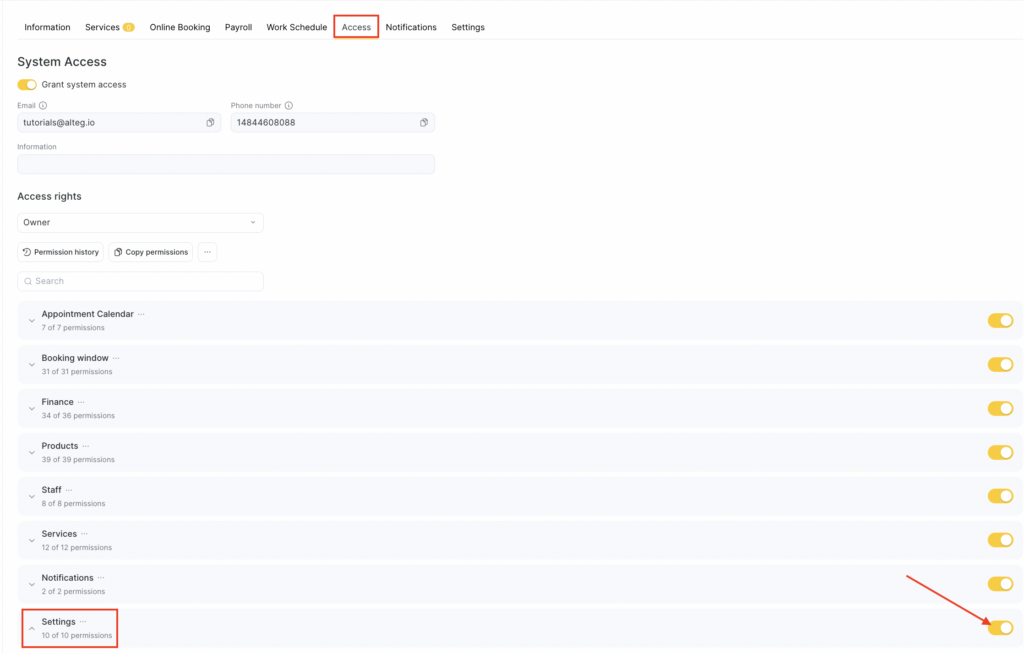
More details about each permission
- Access to system settings
This permission grants access to Settings > My location > Location Settings. If you don’t want a team member to change key location parameters, you should not grant this permission.
- Access to location settings
Grants access to Settings > My location > Business Information, where contact details, location description, photos, and legal/company details are configured.
- Manage team members rights with access
A root permission that allows configuring other team members’ permissions and managing their access.
- Remove team members with access — allows removing other team members’ access to the location.
Removing access does not delete a team member’s personal account in Altegio; it only removes their access to the location.
- Invite team members with access to location management — allows granting location access to new team members.
- Configure notifications for team members with access — allows managing other team members’ notifications on the Notifications tab in the team member settings.
- Manage team members rights with access — allows the team member to assign and change other team members’ access permissions.
Choose one of the options: - Manage all rights — the team member can grant and revoke any access permissions without restrictions.
- Manage rights within their own set of permissions — allows granting only the permissions that the team member has themselves.
For example, if they have the full set of permissions in the Products section, but only part of the permissions in the All Clients section, they will be able to grant all Inventory permissions and only part of the All Clients permissions — but not more than they have themselves.
- Change Webhook settings
Grants access to Settings > System settings > Webhook.
- Change payment document receiving settings
Allows a team member to change the parameters for receiving payment documents.
- Setting up a list of client categories
Allows creating, editing, and deleting client categories, booking categories, and event categories in Clients > Client Categories.