
In the Staff access rights section, you can control which actions a user is allowed to perform when working with team members, positions, and schedules.
Where to find these permissions
Go to Team > Team members list > team member name > Access.
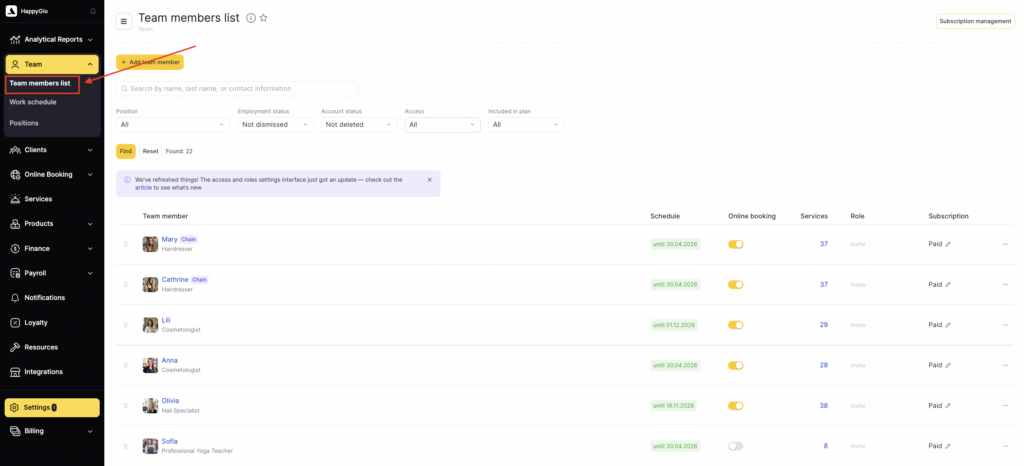
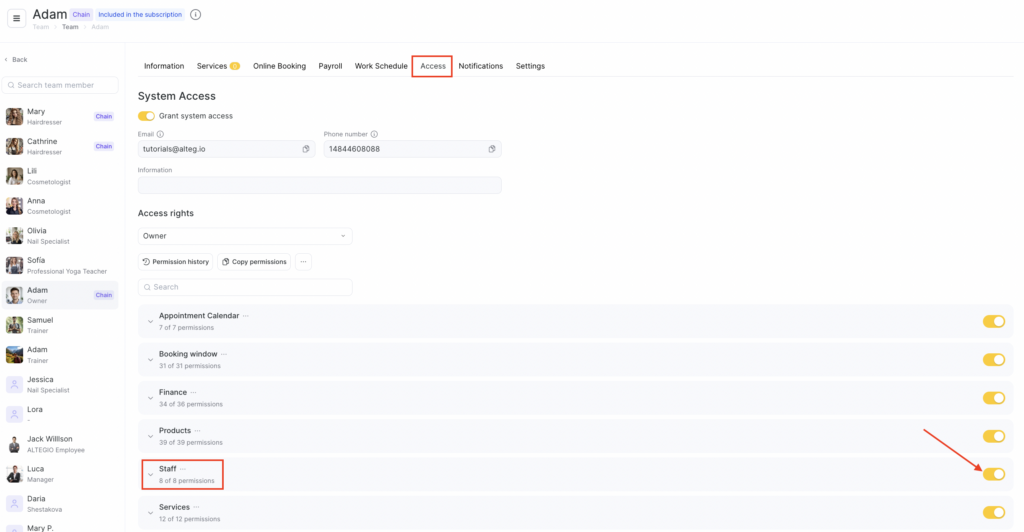
In this section, you can enable or disable access to team-related actions for a selected role.
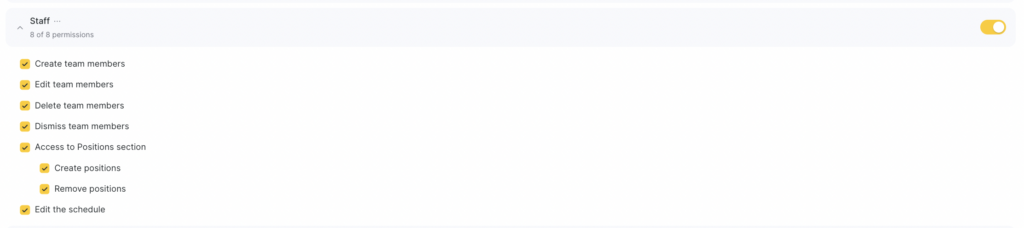
Available permissions
А root permission that grants access to Settings > Main settings > Team.
By itself, it does not allow full team member management — additional permissions are required.
With this permission, a team member can open the section, see the list of team members and part of their settings, but cannot make changes.
- Create team members — allows adding new team members by specifying their name and position. However, to fully set up a team member (assign services, enable online booking, etc.), additional permissions are required.
- Edit team members — allows changing almost all team member settings and expands capabilities during creation.
Does not include:- changing team member’s services — requires Services > Change team member services and their duration;
- managing access rights — requires Manage team member with access;
- managing payroll calculation schemes — requires a permission from Finance > Access to payroll calculation schemes.
- Delete team members — allows completely deleting a team member and all related data.
- Dismiss team members — allows dismissing a team member. Unlike deletion, it keeps all statistics about their work.
Access to the “Positions” section
A root permission that grants access to Settings > Main settings > Positions.
Only location positions can be edited. Chain-wide positions can be edited only at the chain level.
- Create positions — allows adding new positions via the Positions section or when creating/editing a team member.
- Delete positions — allows deleting positions from the location. Deletion is possible only if no team members are assigned to the position.
Edit work schedule
Allows configuring the schedule in Settings > Main settings > Work Schedule.
In the new interface, this permission is also required to edit schedules via: the Schedule tab in the team member profile card, and the Team section.
What to do if a team member cannot see their schedule
The Edit work schedule permission lets a team member edit work schedules. It does not, by itself, grant access to view a team member’s schedule in the web version. To view a schedule in the Appointment Calendar, the team member needs access to the Appointment Calendar section and the View schedule and appointments of team members permission with their own profile included. For details, see Appointment Calendar access rights.
If the Appointment Calendar item is missing only for one team member, ask them to confirm they are in the correct Location and then contact the account owner or manager. The account owner or manager should check that Appointment Calendar access is enabled for the team member and that their profile is selected under View schedule and appointments of team members.
If the Appointment Calendar item is missing for all team members, the access right for their role may have been disabled. Individual team members cannot restore this access themselves. Only the account owner or manager can re-enable the relevant access right and save the changes.