
Promtys is an AI website builder for service businesses. Choose a ready-made template, give your site a name, and Promtys generates a multi-page website in minutes. Change anything through the AI Assistant chat, with no coding or design skills. The site connects to your Altegio account so clients can see your services and book online directly from the website.
Developer: Promtys (ANV AD Ltd.). Website: promtys.com.
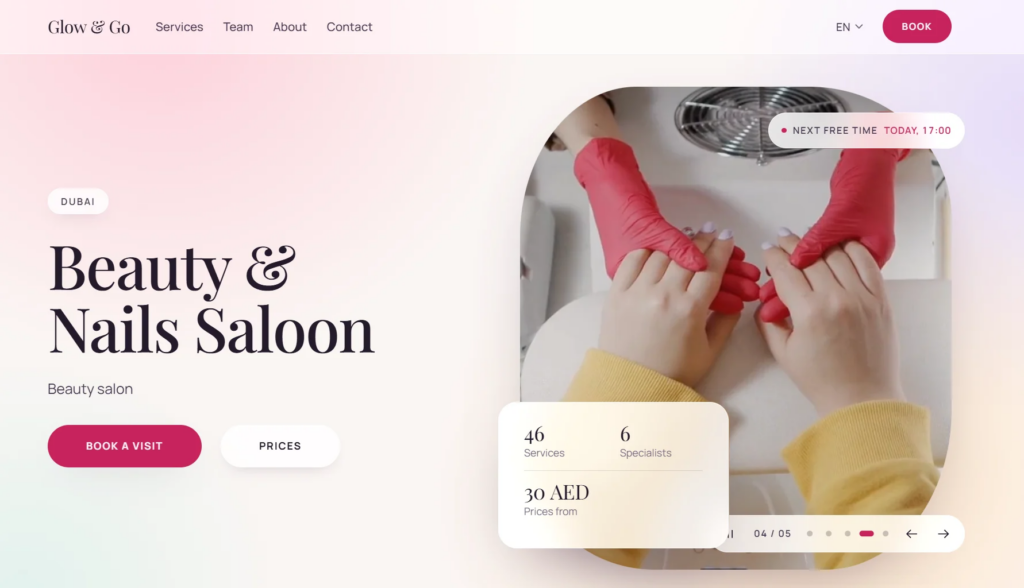
What Promtys can do
- automatically generates a multi-page website from the template you choose;
- offers ready-made niche templates you can adapt and extend;
- connects to Altegio and adds online booking to your site;
- edits texts, banners, images, colours, sections, and pages through the AI chat;
- personalises content for your brand in one click;
- publishes your site on a free subdomain at yourname.app.promtys.com;
- lets you connect your own custom domain;
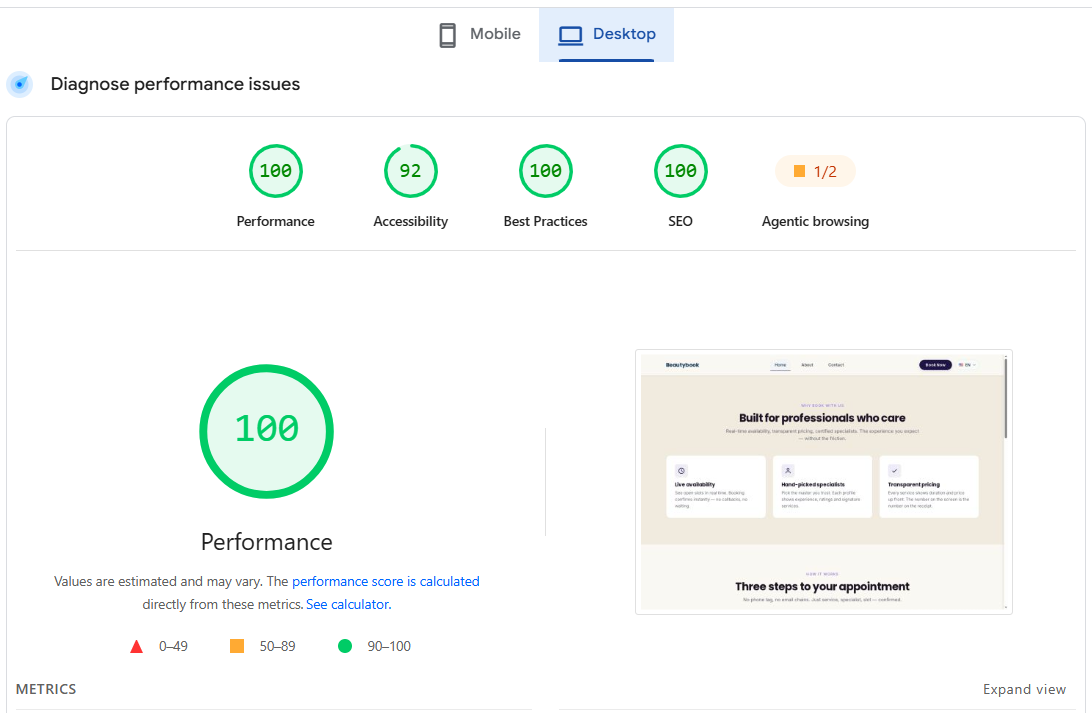
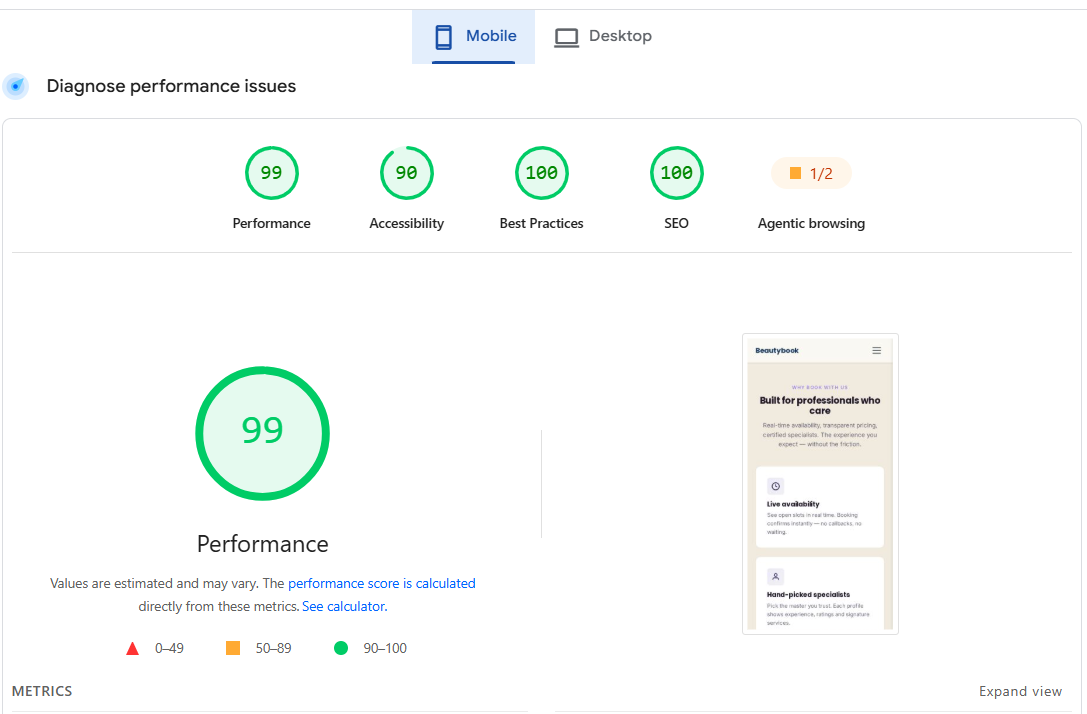
- builds fast, mobile-friendly websites with SEO in mind;
- supports multiple languages with automatic translation;
- gives advanced users one-click access to the WordPress dashboard.
How it works with Altegio
After you connect the app in Altegio, Promtys builds a website around your real business. Data from Altegio can be imported automatically: services, contacts, and the online booking flow. Visitors can choose a service and book without calling your front desk.
Who it is for
Promtys suits Altegio businesses of any size that need a professional website without hiring a developer:
- beauty and wellness: salons, barbershops, nail and brow studios, spas, massage;
- appointment-based services: clinics, education, fitness, repair, and other niches;
- any business that takes bookings and wants to turn website visitors into clients.
How to connect
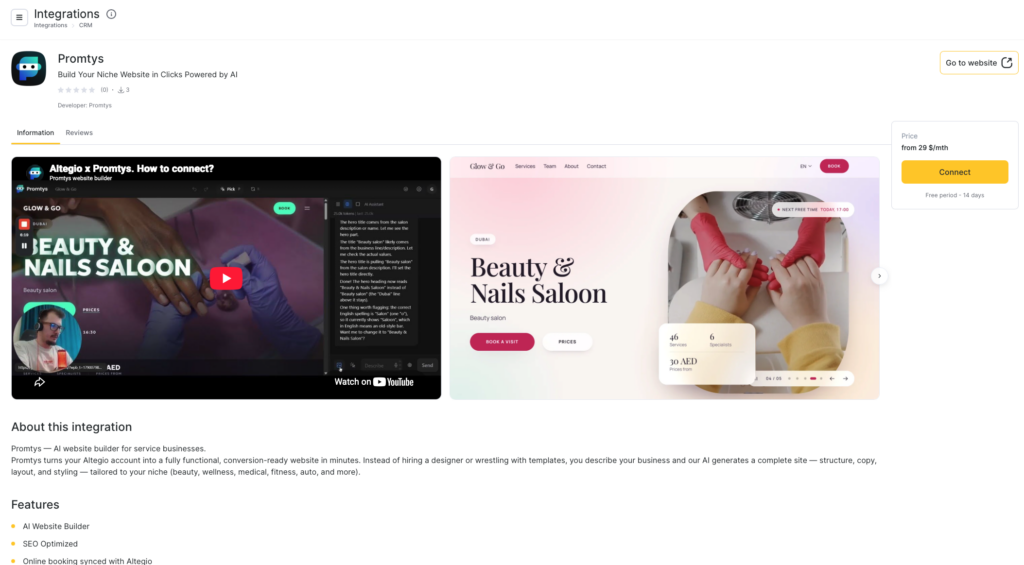
- Open Administration → Integrations.
- Find Promtys in the catalog or open the Integration Hub card.
- Click Connect and follow the steps in the Promtys interface.
- Choose a template, enter your site name, subdomain, and languages, then click Create Site.
- Wait for the site to generate and, if needed, start personalisation in the AI Assistant panel.
How to create your website: step by step
A detailed video instruction
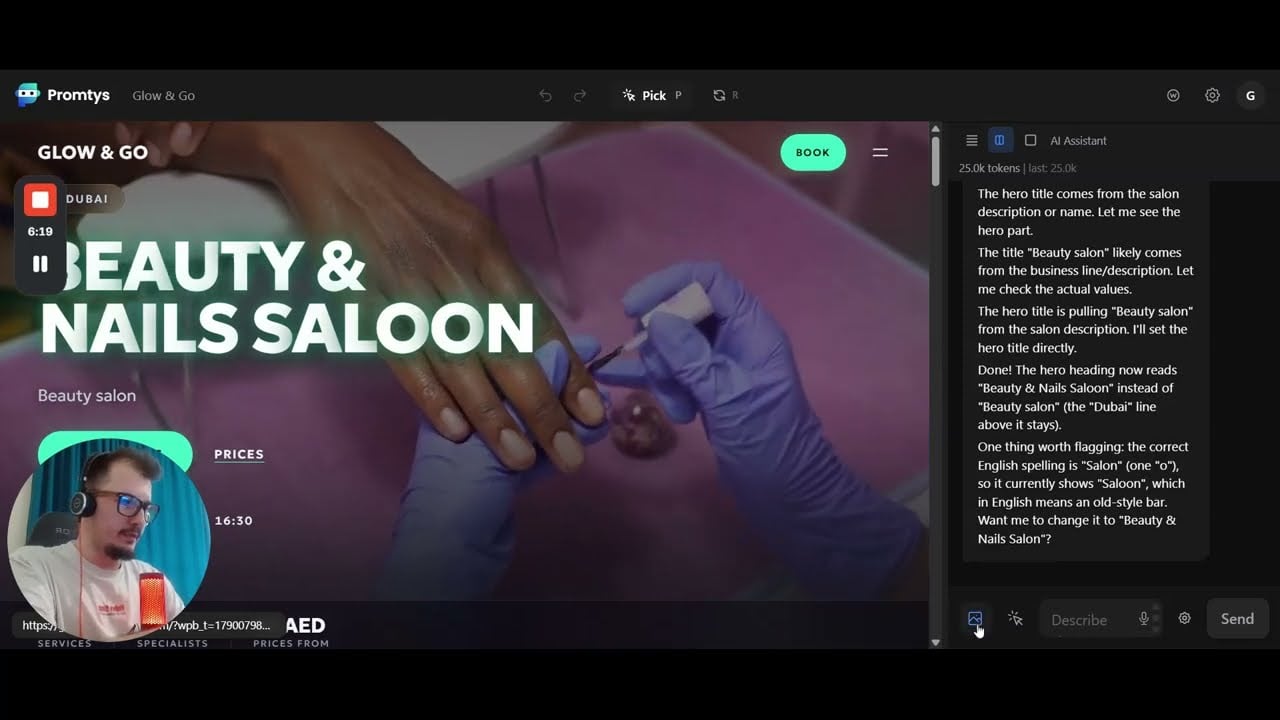
Step 1. Choose a template
Promtys shows a gallery of ready-made templates for your niche. Each card shows a preview, template name, and short description (colour palette, number of hero banners, pages included, and so on).
1. Scroll through the Choose Theme list and review the previews.
2. Click the template you like. The selection circle in the top-right corner of the card becomes active.
3. Scroll down to the site settings.
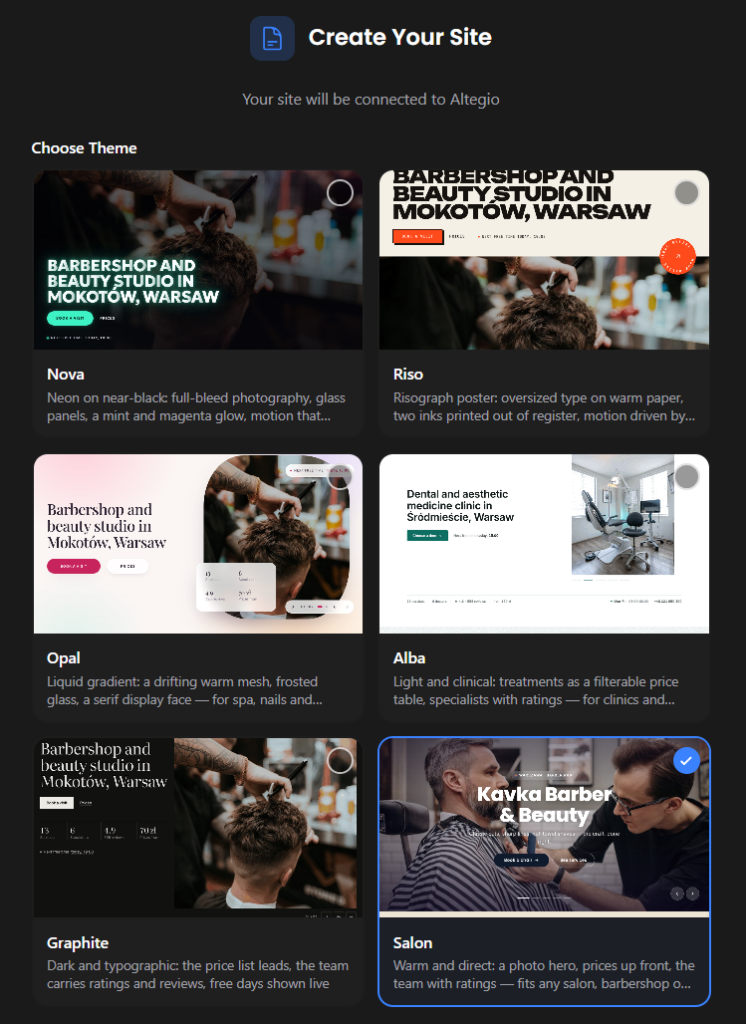
Screenshot 3. Choose a template
Tip: Do not worry about picking the perfect template. Texts, images, colours, sections, and pages can all be changed later through the AI chat.
Step 2. Name your site, choose a subdomain and languages
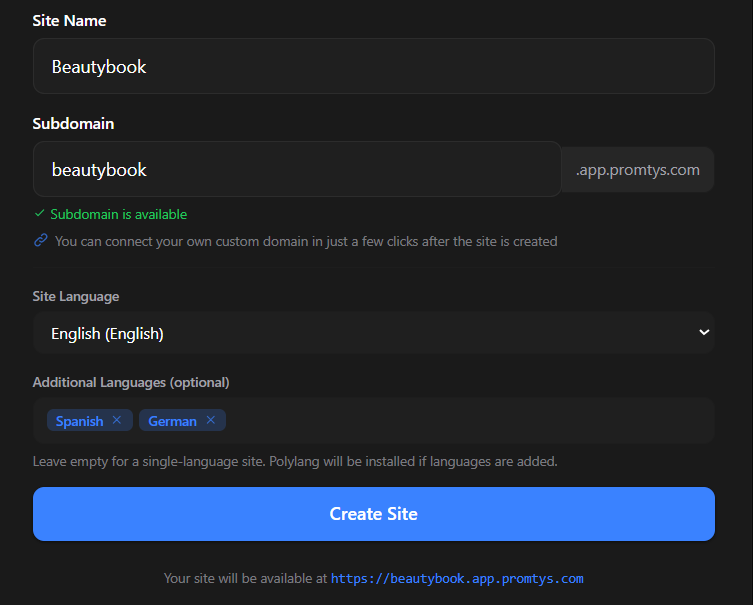
Fill in the basic site settings:
1. Site Name — the name of your business as it appears on the site (for example, in the header).
2. Subdomain — the free address of your site. It is filled in automatically from the site name, and you can change it. If you see “Subdomain is available”, the address is free. Your site will be available at https://your-subdomain.app.promtys.com.
3. Site Language — the main language of your website.
4. Additional Languages (optional) — add languages if your site should be multilingual. Promtys translates content automatically. Leave the field empty for a single-language site.
5. Click Create Site.
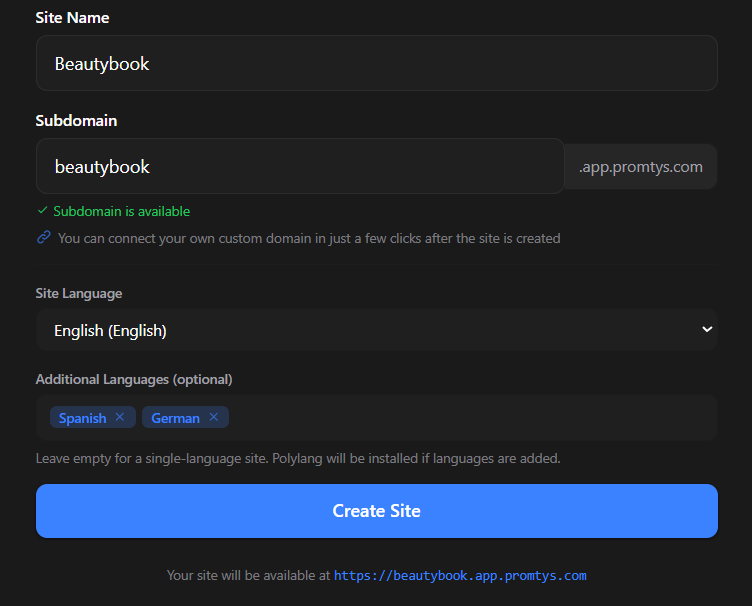
Screenshot 4. Site name, subdomain, and language settings
Custom domain: After the site is created, you can connect your own domain (for example, yourbusiness.com) in a few clicks. The free subdomain keeps working in the meantime.
Step 3. Wait while Promtys generates your site
Promtys builds your website automatically: installs the site engine, applies the template, sets up languages, and connects the site to your Altegio account. A progress bar shows the current stage.
The process usually takes a few minutes. Please keep the page open until it finishes. The address of your future site is shown at the bottom of the screen.
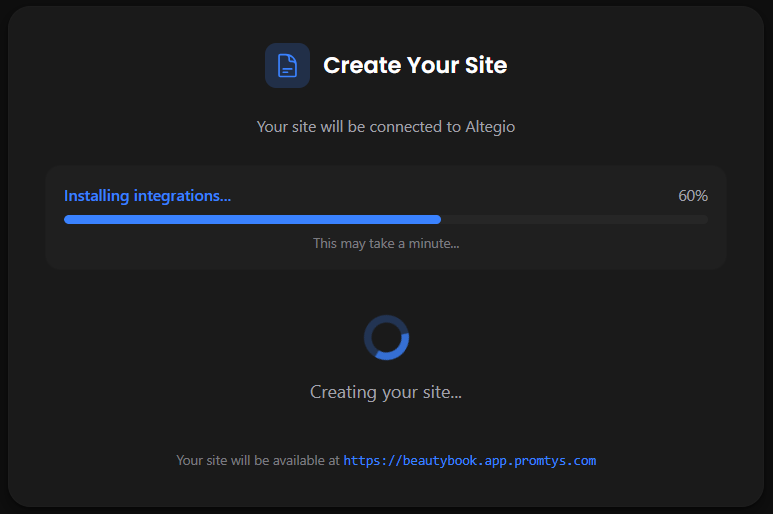
Screenshot 5. Site generation in progress
Step 4. Your site is ready — edit it with AI
When generation is complete, the Promtys editor opens. On the left is your site; on the right is the AI Assistant.
The assistant panel guides you through the first actions:
• Import from Altegio — your business data is pulled into the site automatically; a checklist shows what has been imported.
• Make this site yours — optionally describe your business (tone, slogan, specialities, target customers) and click Start personalization. The AI rewrites the site content to match your brand. Click Skip if you prefer to keep the template texts for now.
Screenshot 6. Start personalization
• WordPress dashboard — the W button in the top bar opens the dashboard for posts, pages, and settings, with no password needed.
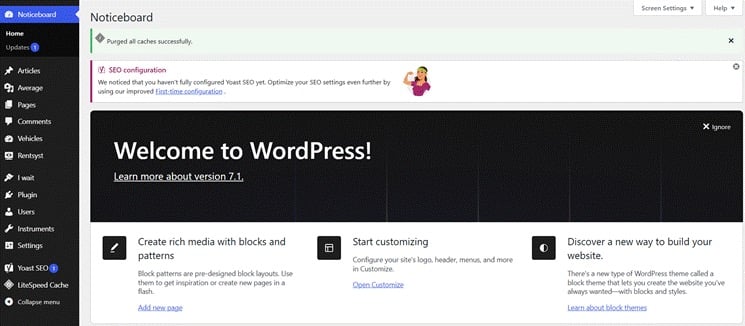
Screenshot 7. WordPress admin if you want to edit the site in the standard editor
2. How to edit the site through the chat
Everything you see on the site can be changed through the chat at the bottom of the AI Assistant panel:
1. Type what you want to change in the message field (or use voice input with the microphone icon).
2. To change a specific element, click Pick (hotkey P) in the top bar and select the element on the page — the AI will know exactly what you mean.
3. Attach an image with the image icon if you want to use your own photo or banner.
4. Click Send and check the result in the preview. Use the undo / redo arrows in the top bar to go back, and R to refresh the preview.
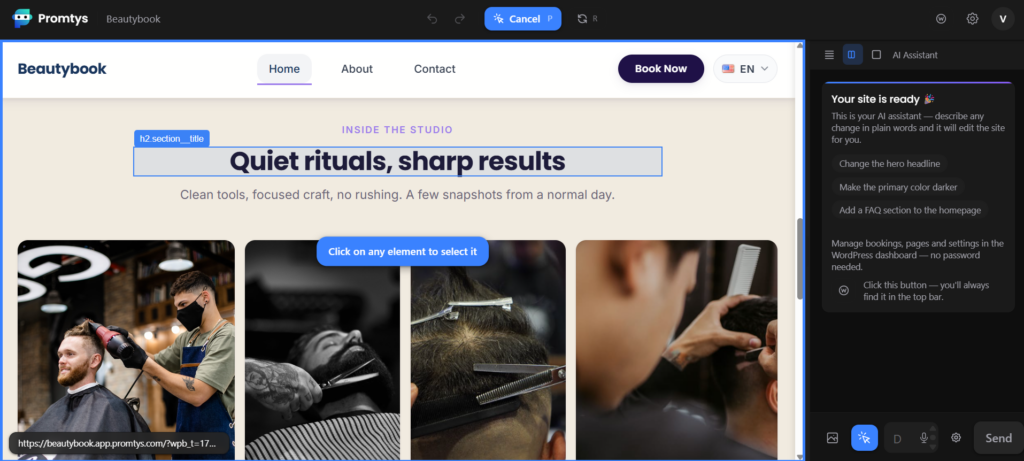
Screenshot 8. Editing mode with AI chat
Example prompts:
• “Replace the main banner with a photo of a modern beauty salon interior.” {Attach the banner}
• “Change the headline to ‘Your beauty, our care’ and make the button dark green.”
• “Add an FAQ section to the homepage with 5 questions about booking and cancellations.”
• “Add a page about our team with a short bio for each specialist.”
• “Make the tone of all texts friendlier and shorter.”
3. How to connect your own domain
Your site works on a free Promtys subdomain from the start. When you are ready, you can connect your own domain (for example, yourbusiness.com) in a few clicks.
What you need: a domain you own and access to DNS settings at your domain registrar (the company where you bought the domain).
Step 1. Open the domain settings
1. In the Promtys editor, click the Settings (gear) icon in the top-right corner.
2. Select Domains — custom domain settings.
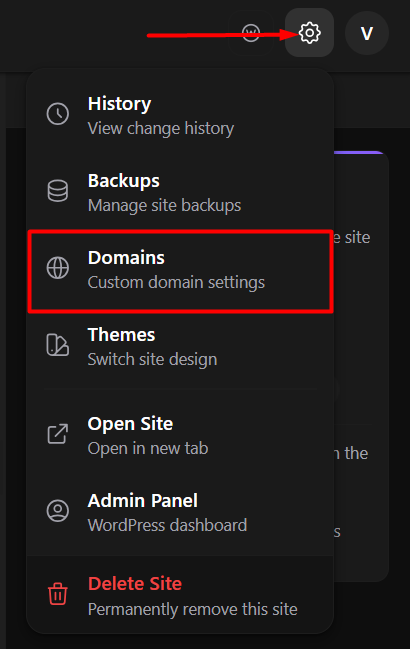
Screenshot 9. Settings menu → Domains
Step 2. Add DNS records at your domain registrar
The Custom Domains window shows the DNS records you need. Log in to your domain registrar, open DNS settings for your domain, and add these records:
| Host / Name | Type | Value / Points to |
| www | CNAME | sites.app.promtys.com |
| @ (root) | A | 129.212.221.160 |
| ALIAS / ANAME: If your DNS provider supports ALIAS or ANAME records for the root domain, point the root domain to sites.app.promtys.com instead of using the A record. |
If your domain already has A or CNAME records for the root domain or www, replace them with the values above. Otherwise the domain may keep pointing to the old site.
Step 3. Add the domain in Promtys
1. In the same window, click + Add Custom Domain.
2. Enter your domain (for example, yourbusiness.com), run domain verification, and confirm.
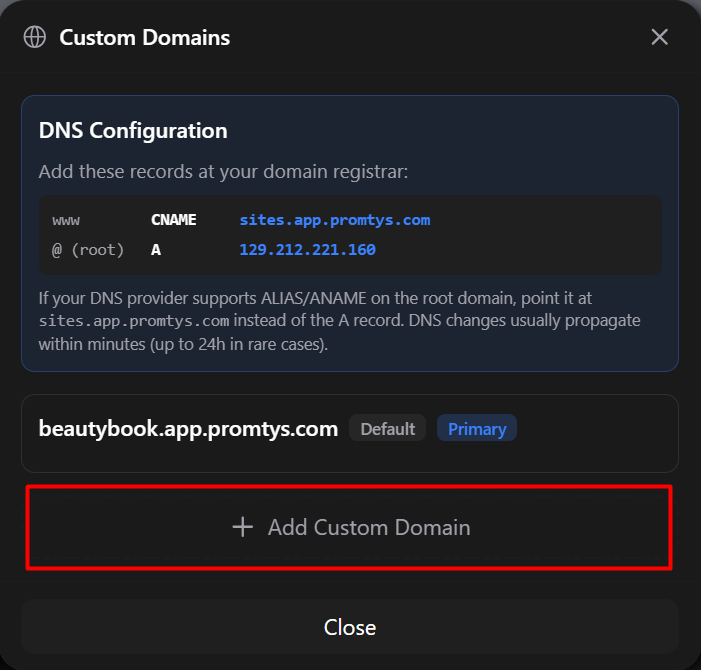
Screenshot 10. Custom Domains window with DNS records
Step 4. Wait for DNS changes to apply
DNS changes usually take effect within minutes, but in rare cases it can take up to 24 hours. After that, your website opens on your domain.
Your free subdomain (marked Default) stays in the list. The domain marked Primary is the main address of your site.
4. Free trial and AI tokens
Promtys includes a free trial so you can create your website and try the AI editor before paying anything.
What is included in the free trial
• A fully generated website based on the template you choose, connected to your Altegio account.
• Free AI tokens to test how the AI Assistant edits your site: texts, banners, images, sections, and pages.
• A free subdomain (yourname.app.promtys.com) so you can open and share your site right away.
Each request to the AI Assistant uses tokens depending on the size of the change: a small text edit uses fewer tokens, while larger changes such as rewriting the whole site or adding new pages use more.
How long the trial lasts
The free trial lasts 14 days or until your free AI tokens run out — whichever comes first.
| Tip: To get the most out of the trial, start with the changes that matter most for your business: your main banner, headlines, services, and contact details. |
What happens when the trial ends
When the 14 days are over or the free tokens are used up, you choose how to continue:
• You like Promtys → switch to a subscription. Choose a plan to keep your website live and continue editing it with AI. https://app.promtys.com/account/billing
• You need more time to decide → buy extra tokens. Top up your AI tokens and keep testing the AI editor before choosing a subscription. https://app.promtys.com/account/billing
Your website and all changes made during the trial are kept, so you can continue exactly where you left off.
Pricing
After the trial, choose monthly or annual billing. Both options include the same features — the only difference is how you pay.
Every plan includes: AI-generated website, custom domain and SSL, advanced SEO (Yoast), CRM integration, booking widgets, multilingual support, and priority support.
Prices exclude VAT. Additional VAT may be charged depending on your country of residence.
See all plans and details: https://promtys.com/pricing/
5. Support
If you have questions about Promtys, contact the Promtys team: [email protected]
Pricing
from $29 per month
Free trial: 14 days or until free AI tokens run out, whichever comes first. The trial includes a generated site, subdomain, and test AI tokens.
After the trial you can subscribe or buy more AI tokens in your Promtys account. See current plans and limits on promtys.com/pricing. Prices on the partner site exclude VAT; additional VAT may apply depending on your country.
FAQ
- Will my edits be saved after the trial? Yes. Your site and changes are kept; you need a subscription or more tokens to keep working.
- Do I need design skills? No. Most changes are made with text prompts in the AI chat.
- Can I use my own domain? Yes. After the site is created, use Domains in settings.
Support
Questions about Promtys: [email protected].