STEP 1 — Create your first App
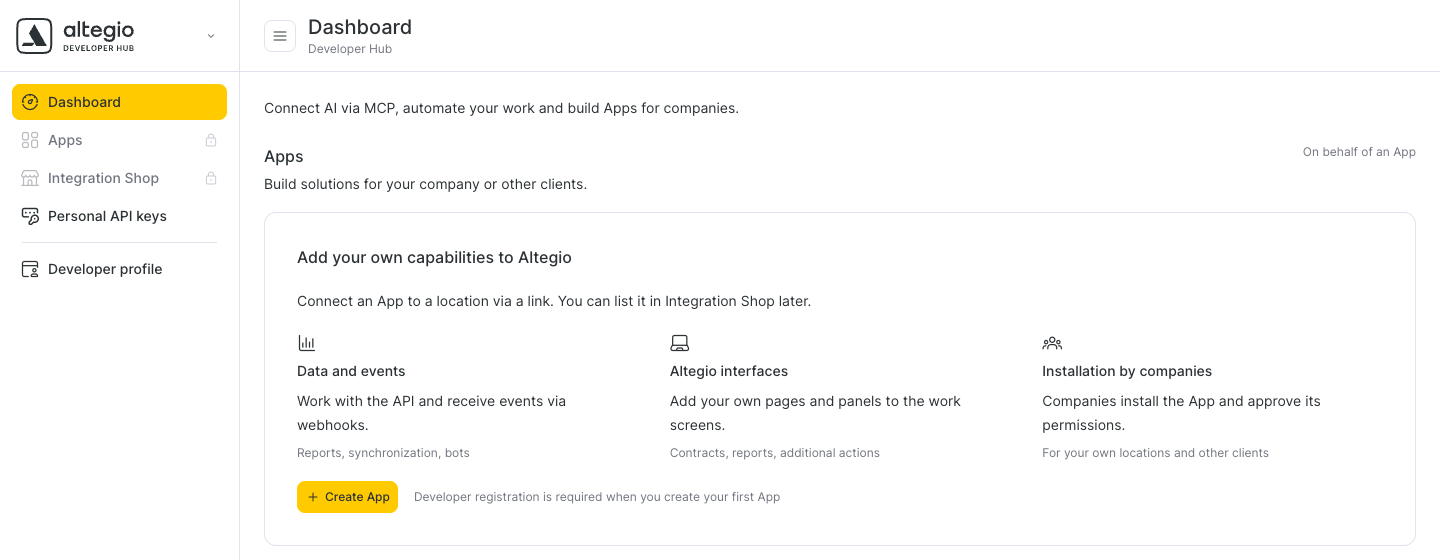
- Open Developer Hub: in Altegio, click the location switcher in the upper-left corner and click Services > Developer Hub.
- On the Dashboard, click Create App.
- If you don’t have a developer account yet, fill in the developer registration form and click Register and continue. After registration, the App creation form opens. For the registration fields, see Developer Hub overview.
Note
You will only be able to access developer tools through the account you registered for this.
STEP 2 — Integrate with the marketplace API
- Implement a request to connect your application to the user’s location account.
- Implement the transfer of payment data from your service.
- Implement webhook processing of integration disconnection on the Altegio side.
STEP 2.5 — Test on your own location before moderation
Before sending your app to moderation, install the draft on a location you manage and make real API calls. This is self-serve — no moderation required.
- In Developer Hub, open Apps and click your App. On the General information tab, copy Link to request a review (see Application link generation).
- Open that link while signed in as an administrator of your test location, then click Connect. The app is linked to your location with status pending.
- From your service, send the connection request within 1 hour to activate it — see Connecting integrations via the marketplace.
- Check that the app is active and start calling the location API with your system-user token.
For exact endpoints, tokens, hosts and copy-paste examples, follow the developer guide Install & test your app before moderation.
STEP 3 — Have your app go through moderation
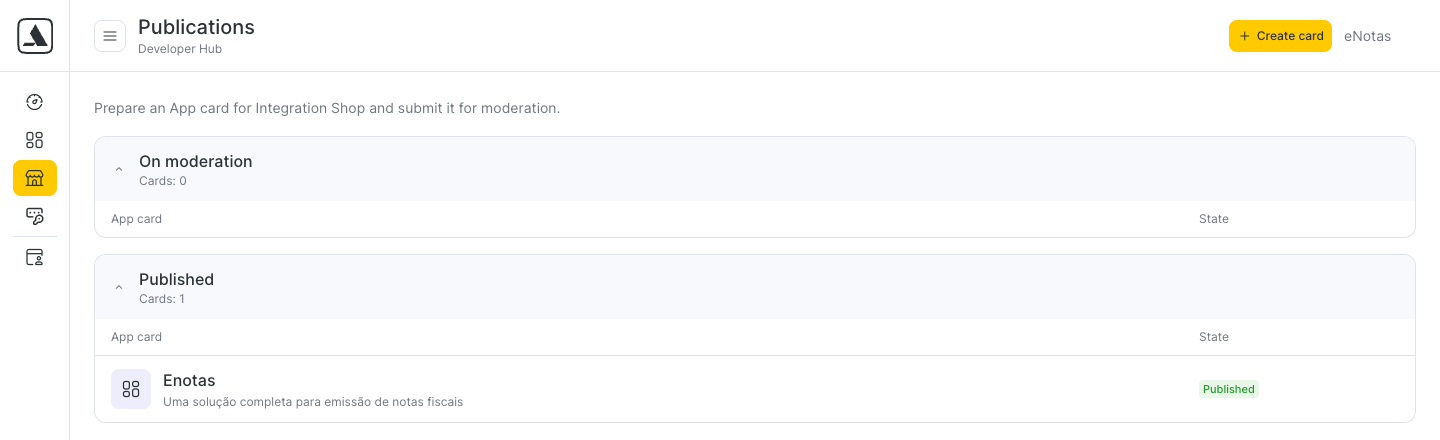
To publish your App in Integration Shop, the App goes through moderation. In Developer Hub, open Integration Shop > Publications, click Create card and select your App. For a public App, the App settings page opens on the Publication tab with a checklist that helps prepare the App for moderation. For a non-public App, the General information tab opens: change Application type to Public first, because non-public Apps have no Publication tab.
Altegio’s employees will check the following in the frame of the moderation:
- Correctly connects to the customer’s location.
- Transmits payment data.
- Transmits data on chargebacks.
- Correctly processes the disconnection and reconnection of integration.
- Correctly processes the integration connection when a user is already registered in your system.
When you complete the development of integration with the Marketplace API and test the functionality of the integration on your side, fill out the checklist fields. The checklist has mandatory and non-mandatory fields to fill in, the “Send to moderation” button will become available after the mandatory fields are filled in.
Here you will find the detailed instructions on how to pass the application moderation.
The moderation status of the card is shown in Developer Hub > Integration Shop > Publications: cards under review are in the On moderation group, published cards are in the Published group.
Once Altegio has completed the validation and all detected errors have been eliminated, your integration will become available to users in the marketplace in the category of your choice.