
In Altegio you can open a chat with a client in WhatsApp, Viber, or Telegram in one click. The messenger icons appear in the appointment window and in the client card, next to the client’s contact details, and use the phone number saved for the client, so you can confirm a visit, clarify details, or answer a question without copying the number into another app.
When to use
- A client does not pick up the phone, and you want to confirm or reschedule the visit in a messenger instead.
- The client asked a question at the front desk, and you want to send a follow-up (an address, a price list, care instructions) to their messenger.
Before you start
- The client must have a phone number saved in Altegio. If the phone number field is empty, the messenger icons are not displayed.
- The Chat on: block appears in saved appointments. When you are creating a new appointment, the block is not shown yet; save the appointment and open it again.
Availability by country:
- WhatsApp: available in all countries.
- Viber: Ukraine, Serbia, Armenia, Moldova, Hungary, Bulgaria.
- Telegram: Ukraine, Kazakhstan, Moldova, Uzbekistan, Kyrgyzstan, Georgia, Armenia, Azerbaijan, Tajikistan, Brazil, Israel, Latvia, Estonia, Cyprus, Serbia, Thailand.
How to open a chat from the Appointment Calendar
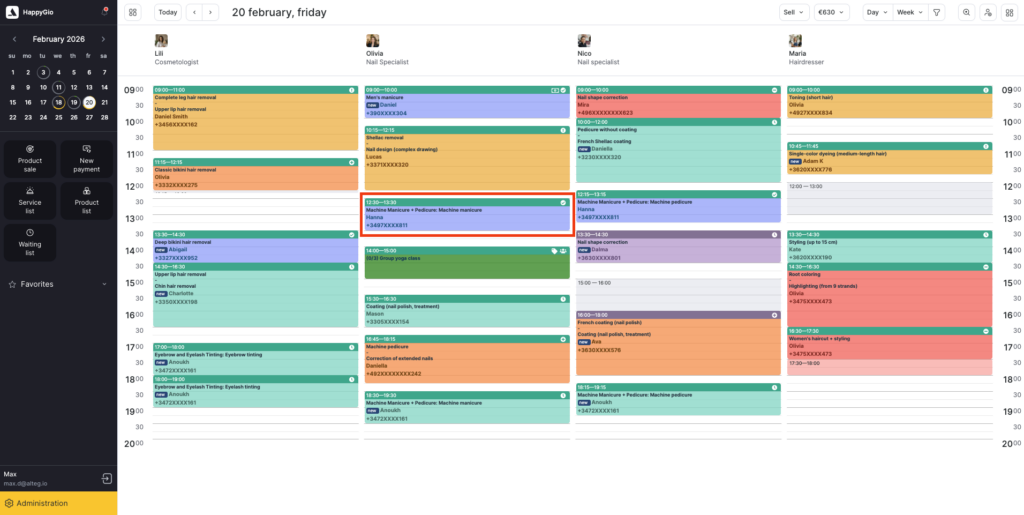
- In Digital schedule mode, open the Appointment Calendar and click the appointment.
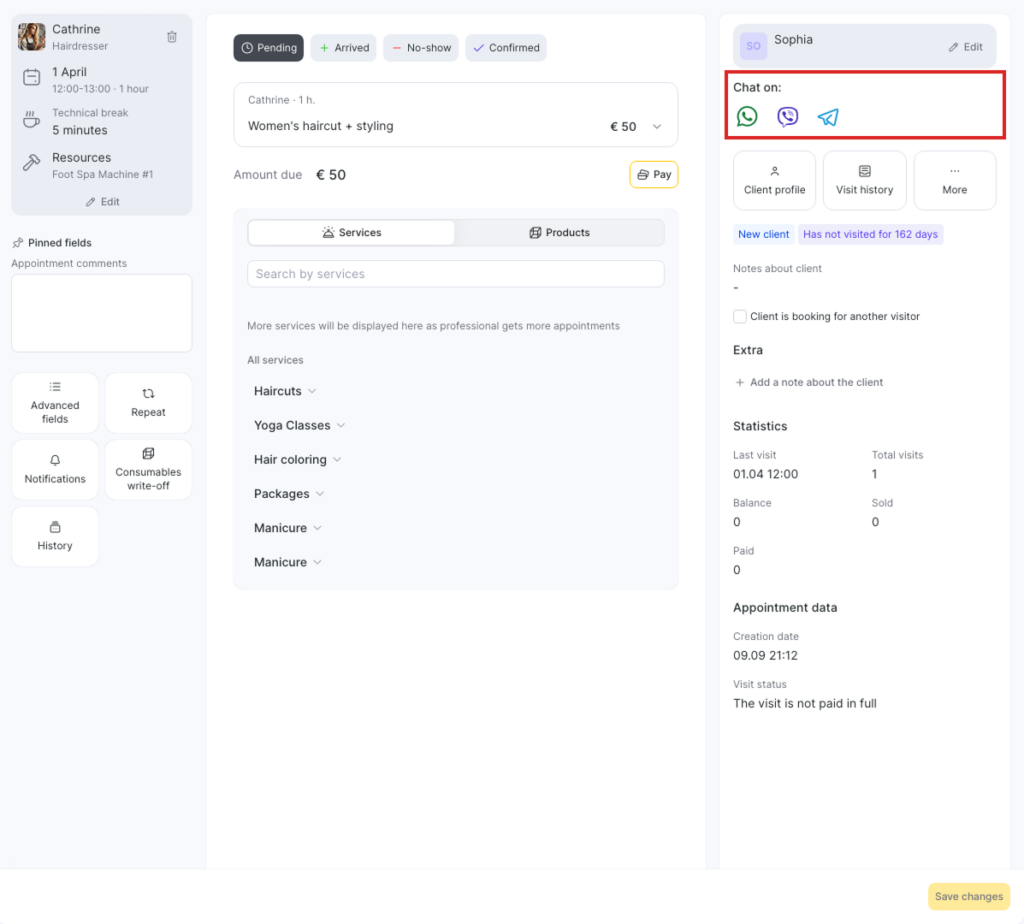
- In the appointment window that opens, find the Chat on: block in the upper-right part of the window, on the Client tab, and click the icon of the messenger you want to write to the client in.
Note. The window shows the icons of only those messengers that are available in your region.
Note. If the messenger app is not installed on your computer, Altegio offers to download it.
How to open a chat from the client card
- In Administration mode, open Clients > All clients and click the client’s name.
- In the client card, find the Chat on: block in the left column, under the client’s menu, and click the icon of the messenger you want to write to the client in.
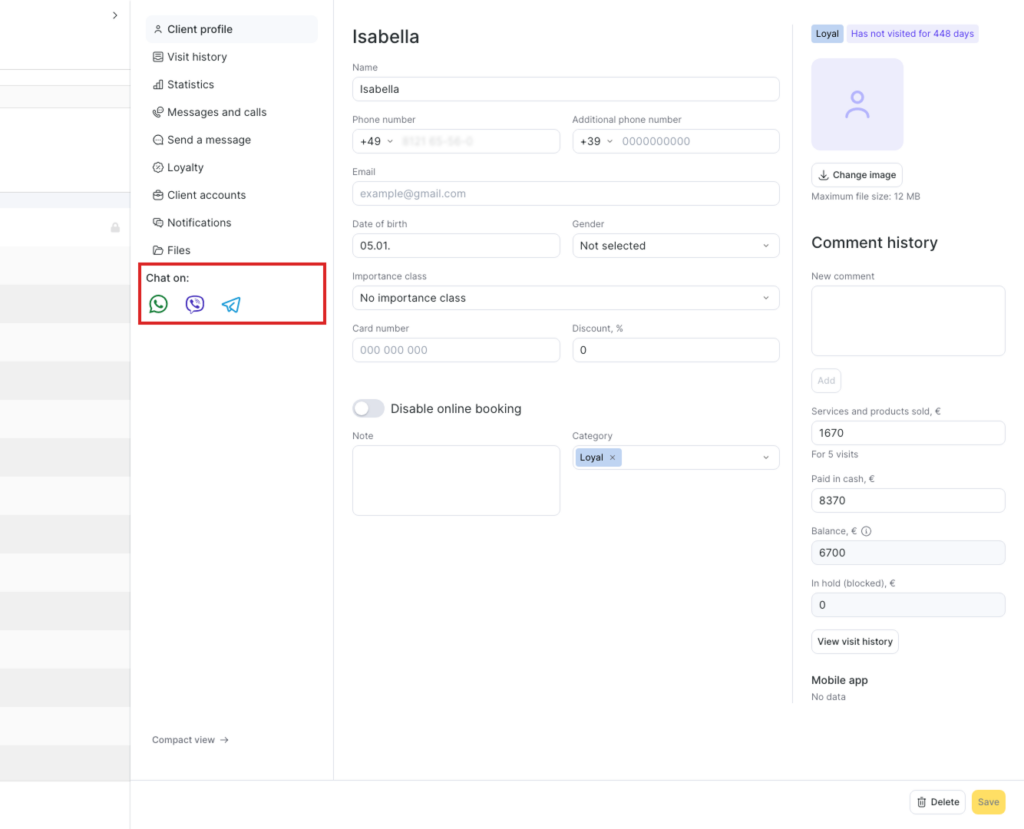
Note. The client card shows the icons of only those messengers that are available in your region.
How to open a chat in the mobile app
- Open the appointment or the client card in the Altegio mobile app.
- In the client block, tap the icon of the messenger you want to write to the client in.
- The messenger app opens a chat with the client’s phone number.
FAQ
Check three things. The client must have a phone number saved: open the client’s details and fill in Phone number. In the appointment window, the appointment must be saved: in a new, not yet saved appointment the Chat on: block is not shown. The Viber and Telegram icons are also limited by country: WhatsApp is available in all countries, Viber in Ukraine, Serbia, Armenia, Moldova, Hungary, Bulgaria. Telegram in Ukraine, Kazakhstan, Moldova, Uzbekistan, Kyrgyzstan, Georgia, Armenia, Azerbaijan, Tajikistan, Brazil, Israel, Latvia, Estonia, Cyprus, Serbia, Thailand.
Viber and WhatsApp opens as a desktop app, not in a browser tab. If the app is not installed on your computer, Altegio offers to download it.
The icons use the phone number from the Phone number field of the client. To change it, open the client’s details and update the number.