
Below you can find the steps for installing webhooks through the Altegio Marketplace.
Register in the Altegio Marketplace Developer Account
- Get access to the developer account.
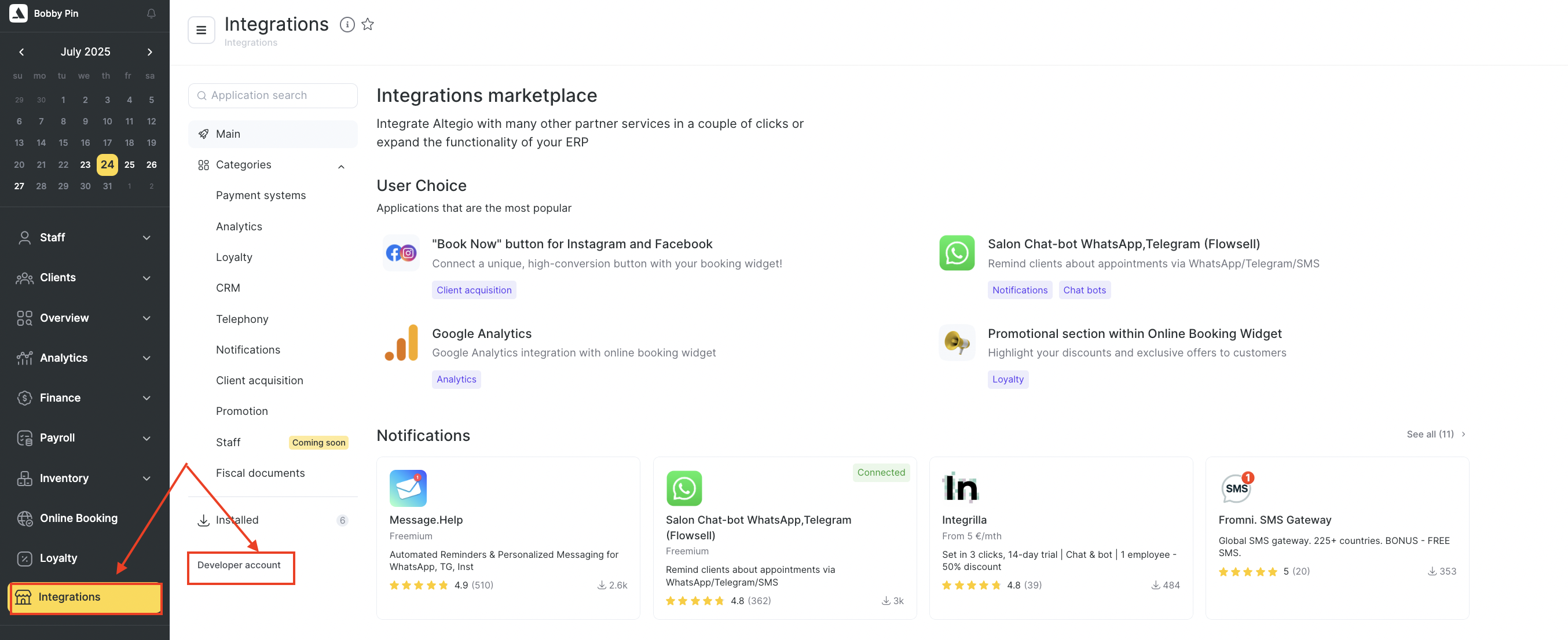
- To do this, go to Administration mode, Integrations > Developer account and create your developer account.
Create an App in the Marketplace
- In your developer account, create your first app for the marketplace.
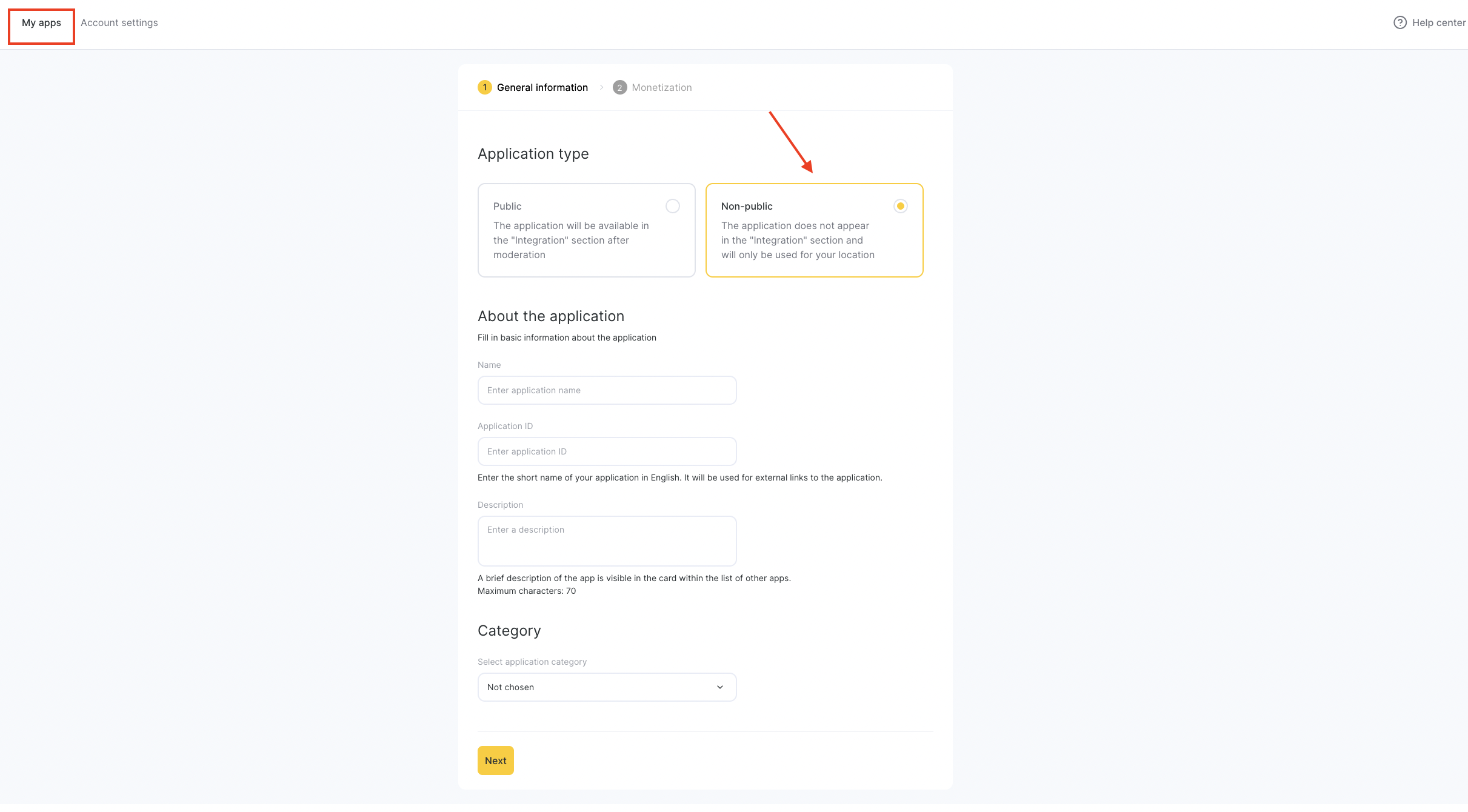
- When creating the app, make sure to check the Non-public checkbox. Otherwise, you won’t be able to install webhooks for a location.
Specify the Webhook URL in the “Connection Settings” Tab
To do this, go to edit your app via Manage button. Navigate to the Connection settings section. In the field “Address to send notifications to”, enter the URL for sending webhooks. This address will be added to locations when the app is connected.

Connect the App to a Location
Your app won’t be publicly available — only you will be able to use it. To open the app connection page:
Go to the developer account. You can do this via Administration mode, Integrations > Developer account, or following the link.
Open the edit form for your app.
In the General Information tab, you’ll find a direct link to your app in the Application link field. Copy this link and paste it into your browser. You’ll see your app’s page with a Connect button.

On the app page, click the Connect button — webhooks will be installed in the selected location.