
What is it and why is it needed?
Analytics from the Altegio online booking form can be sent to an analytics service in the company’s account. Analytics services help you track the number of website/service visitors, segment them by many different criteria, and monitor user actions. Online booking widgets are closely integrated with various analytics services, which allows you to get in-depth customer analytics.
You can set up this process in Online Booking > Online booking links, in the Analytics in the online booking form section, by entering the unique identifier of the service.
To do this, follow these steps:
- Register an account in one of the listed analytics services:
Facebook Pixel (Facebook retargeting pixel)
Google Analytics
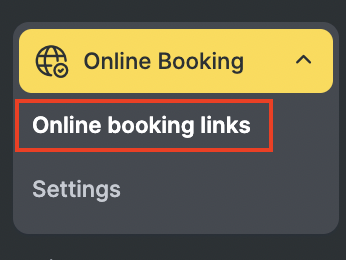
- Create a pixel or a property/resource (depending on the service). Go to Administration mode, Online Booking > Online booking links.
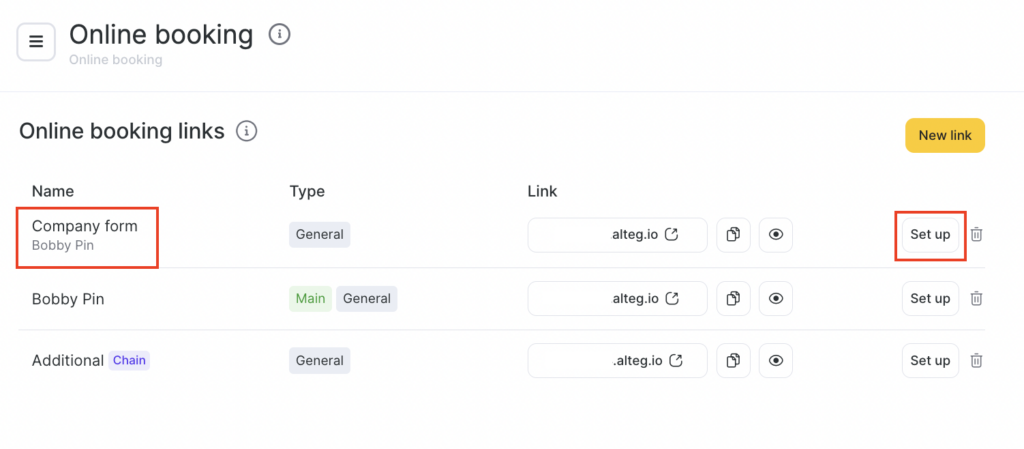
- Select the required online booking form and click its name or the Configure button.
- Scroll to the Analytics block and set up the integration with analytics services.
Integration setup
Setting up integration with Google Analytics and Facebook Pixel
Add the unique identifier of the analytics service (or several services) and click Save. You can find the list of events the widget will send in the article Description of analytics events.
Creating a goal in Google Analytics
More details about setting up integration with Google Analytics are available in the article.
Adding a goal is optional: Google Analytics can track events even without goals. But you can create goals if needed.
- Go to Google Analytics in the required account > Property and app > View.
- Go to Admin, and in the View column select Goals.
- Click + GOAL.
- At the Goal setup step, choose Custom and click Next. At the Goal description step, enter the Name and select the Type — Event, then click Next.
- At the Goal details step, set Action as the event identifier (you need an identifier in Latin characters, for example: booked).
- Click Save.
List of events that can be used to create goals:
| Name | Description |
| group_record_created | Group online booking |
| booked | Individual online booking |
| widget_loaded | Loading widget |
| city_selected | City selected |
| date_selected | Day selected |
| time_selected | Time selected (hours and minutes) |
| group_personal_data_filled | Personal data is filled in the group booking |
| send_contacts | Personal data is filled in an individual booking |
| open_contacts | Contact data form is open |
| master_seance_selected | Selected the soonest booking from the employee |
| master_selected | Employee selected |
| master_page_open | Open employee information |
| review_created | Review has been submitted |
| service_selected | Service selected |
| group_sms_code_confirmed | Client confirmed in group booking |
| phone_approved | Client confirmed individual booking |
| activity_type_showed | Booking type selection open |
| individual_booking_selected | Individual booking selected on booking type selection page |
| group_activity_selected | Group booking selected on booking type selection page |
| company_selected | Company selected |
| company_page_open | Information about the company opened |
| lk_open | Personal account opened |
| group_events_infinity_scroll_used | Loading a page when scrolling through group bookings |
| group_events_week_swiped | Swipe of the carousel in group activity |
| group_events_date_clicked | The date in row line of dates was selected in the group event |
| appointment_deleted | Delete my booking |
| appointment_changed | Transfer my booking |
| last_appointment_repeat_pressed | Booking repeat selected |