This article lists the materials, documents and account access needed to develop your branded mobile app and publish it on the App Store and Google Play.
Prepare the materials after paying the fee under your development agreement. Attach materials and documents to the Personalized Mobile App integration under Integrations > Online booking. You can also send the materials to [email protected].
Preparation steps
- Prepare the documents and materials (images and text) listed below.
- Send the materials and documents to the Altegio team.
- Create an Apple Account and register an Apple Developer account for the business owner. Follow the instructions for an organization or for an individual entrepreneur, as applicable.
- Create a Google Account and register a developer account in Google Play Console. Choose the account type that matches your business, enter the required details and complete Google’s requested verification.
- Provide account access to the Altegio mobile app developer.
- Connect an SMS provider in every location covered by the mobile app license and shown in the app. In each of them, enable the Client phone number confirmation in the online booking widget notification type under Notifications > Notification types. Your clients need this to sign in to the app.
Materials for the app and store listings
Logo
The image is used as your store logo and the app icon on a smartphone.
- Dimensions: 1024 × 1024 pixels, with the logo fitting inside a square.
- Format: PNG without transparency.
Avoid small text and fine details. Keep borders and important elements away from the edges because the icon’s corners are rounded.
Launch screen
The image users see when opening the app.
- Dimensions: 2208 × 2208 pixels.
- Format: PNG without transparency.
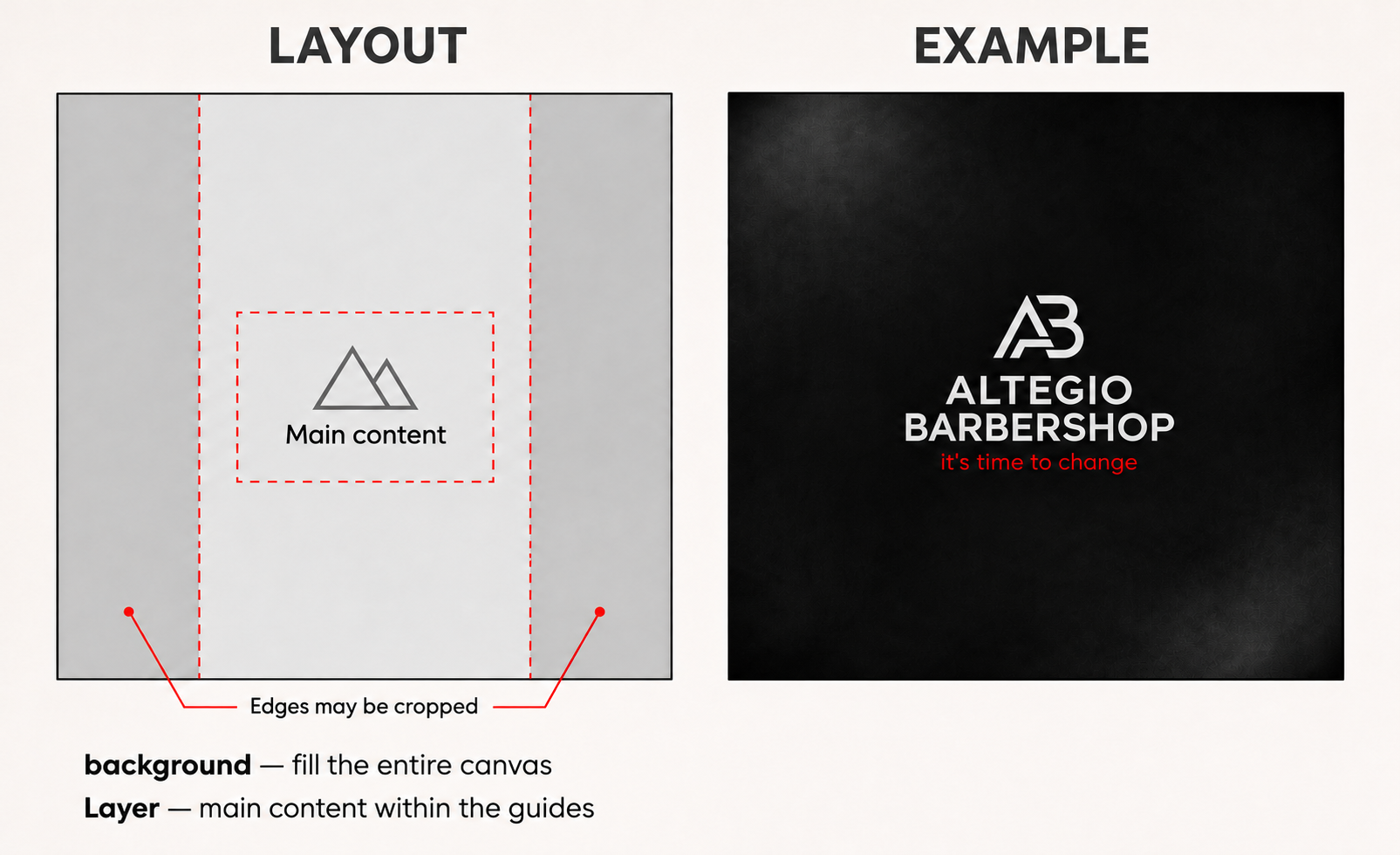
Use the launch screen layout. Fill the entire background layer with your background. Place the logo or text within the marked area of the Layer layer. The background may be cropped on different devices.
Feature graphic
Provide an image for Google Play measuring 1024 × 500 pixels. You can adapt the logo or launch screen.
Full app name
The name displayed on the App Store and Google Play. Maximum length: 30 characters.
If you need to change the name after publication, contact your Altegio developer. Changes depend on the store’s rules and the app version’s status, and the App Store may require a new version.
Short app name
The label below the installed app’s icon. Maximum length: 11 characters, including spaces.
Full description
Write a description of the app, your services and its booking features in the app’s main language. Maximum length: 4000 characters.
- Do not include links or phone numbers.
- Do not include offensive or erotic content.
- Avoid references to other brands and registered trademarks.
- Do not replace the description with a list of keywords.
Example
Book appointments at our studio at a time that suits you. Choose a service and specialist, view upcoming appointments and check your visit history.
Google Play short description
Briefly explain what the app does and its main benefit. This text appears in the Google Play listing before users expand the full description. Maximum length: 80 characters, including spaces.
Example
Book studio services, choose your specialist and find a time that suits you.
Search keywords
A set of words clients can use to find the app in App Store and Google Play search. Separate words with commas. Maximum total length: 100 characters.
Documents and account access
- Access to the Apple Developer account used to publish the app on the App Store.
- Access to the verified Google Play Console developer account used to publish the app on Google Play.
- A government-certified business registration document for the entrepreneur or organization, in Latin script.
- Proof of ownership of the trademark or trade name, in Latin script. If unavailable, provide a sales receipt showing the brand name and the name of the organization or entrepreneur.
Important
For an individual entrepreneur, the Apple account owner’s details must show the entrepreneur’s full legal name. The registration document must list business activities relevant to the app’s brand.For a company, the trademark must belong to the legal entity rather than its general director.
How to provide access
An Altegio mobile app developer will contact you. To prepare and publish the app, they will need the usernames and passwords for your developer accounts. The developer will add an Altegio phone number for two-factor authentication.
Connecting an SMS provider
Connect an SMS provider in every location covered by the mobile app license and shown in the app. In each of these locations:
- Go to Integrations > Notifications.
- In the Channels filter, select SMS or WhatsApp.
- Review the available integrations, choose the one that best suits your needs and connect it.
If you contact the provider’s technical support during setup, explain that you are connecting the integration for the Client phone number confirmation in the online booking widget notification type.
- Once the integration is connected, go to Notifications > Notification types.
- Find the Client phone number confirmation in the online booking widget notification type and enable it.
- Make sure a delivery channel is connected within that notification type.
Before sending your materials
- The launch screen, logo and feature graphic are ready.
- The full and short app names, full description, short description and keywords are ready.
- The documents and business details belong to the business whose brand will appear in the app.
- Both developer accounts are registered and the required verification is complete.
- An SMS provider is connected and the Client phone number confirmation in the online booking widget notification type is enabled in every location shown in the app.
- Materials and documents have been added to the integration or sent to [email protected], and account access has been arranged with the developer.