The Personalized Mobile App integration lets you request a branded mobile app and upload the materials for its development directly in Altegio. You can start preparing before you buy a mobile app license.
Important
The integration is available in all countries except Ukraine and Brazil.
For the app features and pricing, see Altegio branded mobile app for CIS countries and Altegio branded mobile app for Global countries.
Step 1. Connect the integration
Open the location the mobile app will be created for. If the app will show several locations, start connecting the integration in one of them.
- Go to Integrations > Online booking.
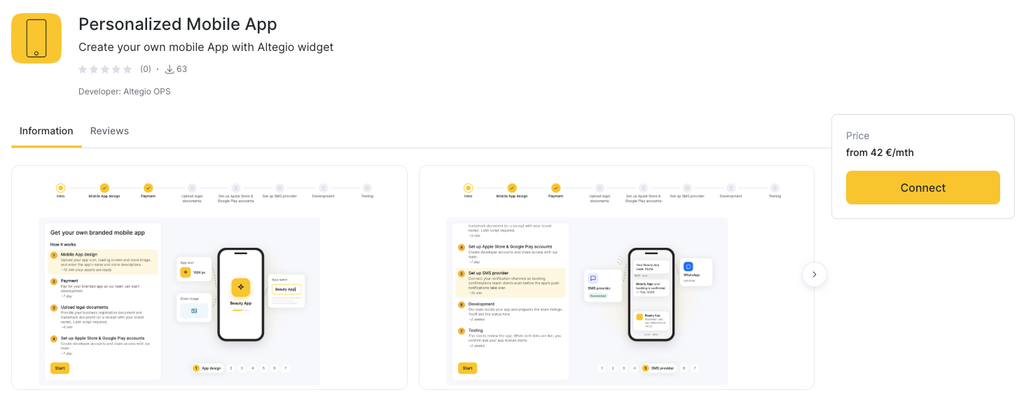
- Open the Personalized Mobile App card and click Connect.
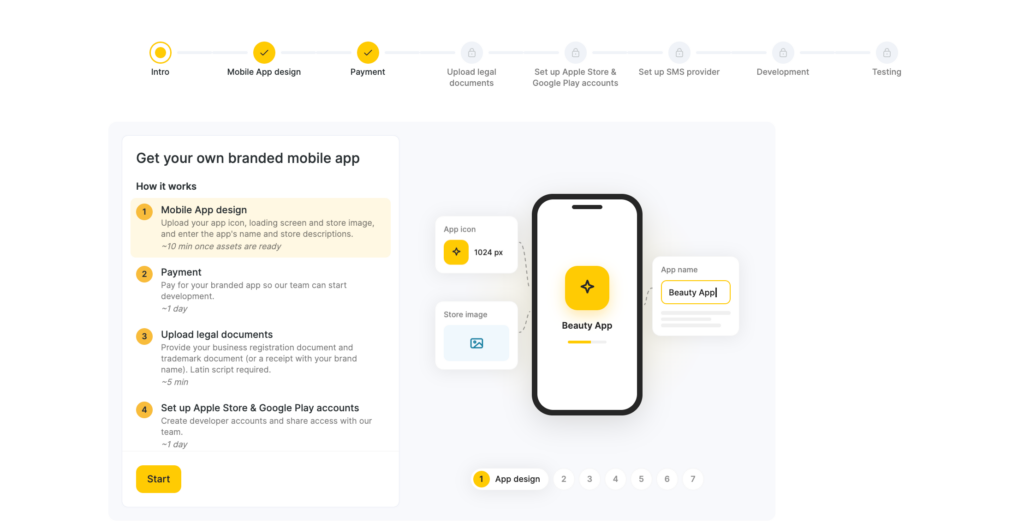
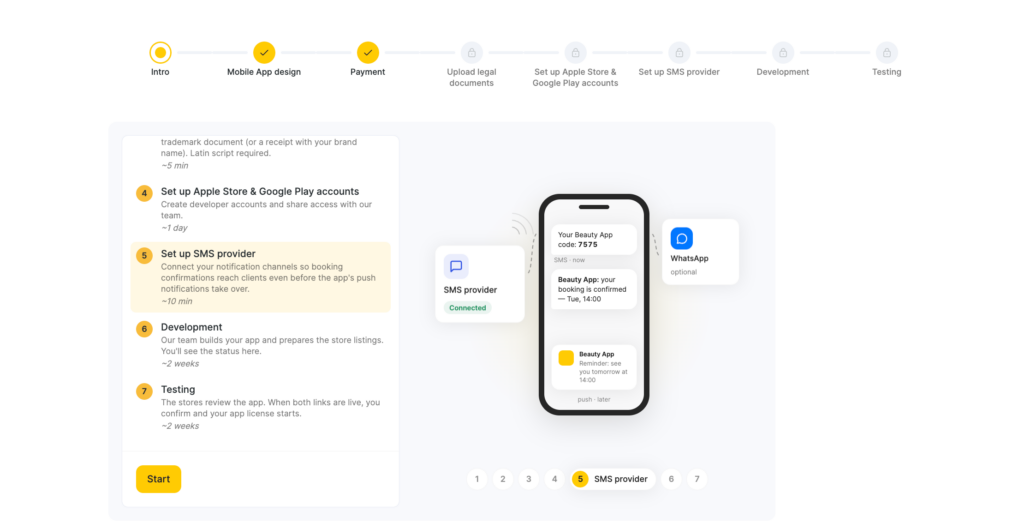
After you connect it, the setup wizard opens. Its first screen lists all stages: Mobile App design, Payment, Upload legal documents, Set up Apple Store & Google Play accounts, Set up SMS provider, Development and Testing. Click Start to go to the first stage.
Step 2. Fill in the details and add materials
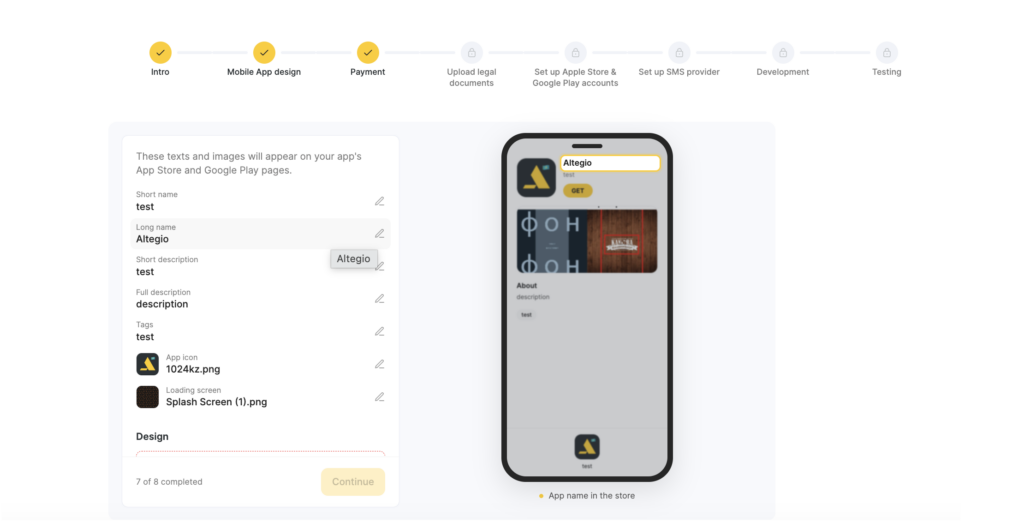
At the Mobile App design stage, fill in all fields, as they are required:
- App icon: the app logo and icon, 1024 × 1024 pixels, PNG without transparency.
- Loading screen: the launch screen, 2208 × 2208 pixels, PNG without transparency.
- Feature graphic for Google Play: 1024 × 500 pixels.
- Long name: the full app name, up to 30 characters.
- Short name: the short name below the icon, up to 11 characters including spaces.
- Full description: up to 4000 characters.
- Short description: the Google Play short description, up to 80 characters including spaces.
- Tags: search keywords, up to 100 characters, separated by commas.
For the launch screen, the background must fill the entire background layer, and the main content must stay within the guides of the Layer layer. The background may be cropped on different devices.
Write the texts in the app’s main language. Do not include links or phone numbers in the descriptions. For detailed requirements and examples, see Technical requirements for mobile app development.
Note
You can edit the details directly in the integration, but we do not recommend doing so after the materials have been handed over. If changes are needed, agree on them with the Altegio mobile app developer.
Step 3. Wait for the manager to contact you
The mobile app request is sent automatically. An Altegio manager will contact you to clarify the details and next steps.
Step 4. Pay for the mobile app license
If you have not bought a mobile app license yet, the process pauses at the Payment stage. The manager will help you agree on the terms and payment. After payment, continue filling in the integration.
Step 5. Add documents, create developer accounts and connect an SMS provider
At the Upload legal documents stage, add:
- A government-certified business registration document for the entrepreneur or organization, in Latin script.
- Proof of ownership of the trademark or trade name, in Latin script. If unavailable, a sales receipt showing the brand name and the name of the organization or entrepreneur is accepted.
Important
For a company, the trademark must belong to the legal entity rather than its general director. For an individual entrepreneur, the documents must list business activities relevant to the app’s brand.
At the Set up Apple Store & Google Play accounts stage, register the Apple and Google Play developer accounts and complete the required verification. For Apple, choose the guide that matches your business type:
- Registering an Apple Developer account for an organization
- Registering an Apple Developer account for an individual entrepreneur
An Altegio mobile app developer will contact you. They will need the usernames and passwords for your developer accounts. The developer will add an Altegio phone number for two-factor authentication.
At the Set up SMS provider stage, connect an SMS provider in every location covered by the mobile app license and shown in the app. Your clients need this to sign in to the app. In each of these locations:
- Go to Integrations > Notifications and connect a suitable provider following How to connect an SMS provider.
- Go to Notifications > Notification types.
- Enable the Client phone number confirmation in the online booking widget notification type.
- Make sure a delivery channel is connected within that notification type.
Step 6. Wait for publication
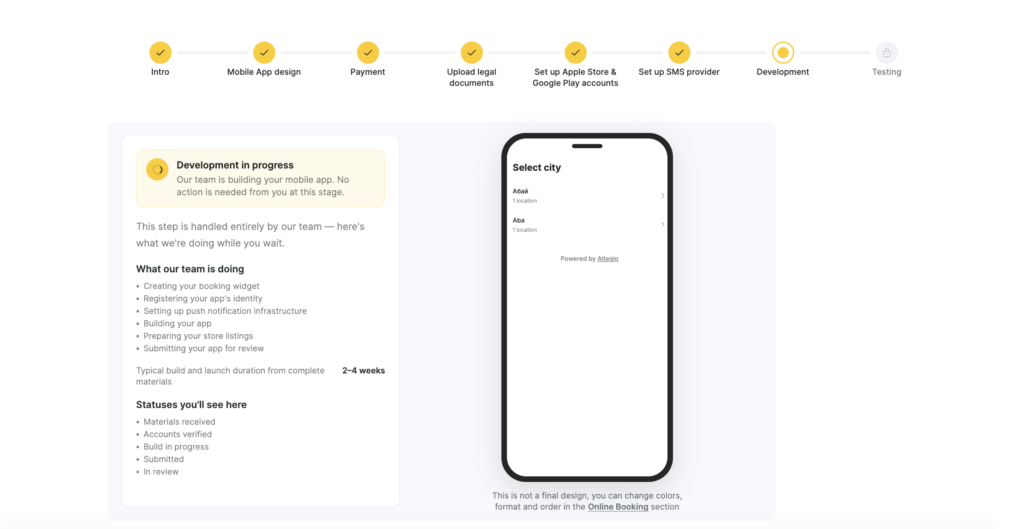
At the Development and Testing stages, the Altegio team builds the app, prepares the store listings and submits the app for review. The integration shows the current status: Materials received, Accounts verified, Build in progress, Submitted, In review.
Development and publication take 4–6 weeks after we receive the complete set of materials. The timeline depends on Google and Apple review times and may change.
The mobile app license starts when both apps have been published.