
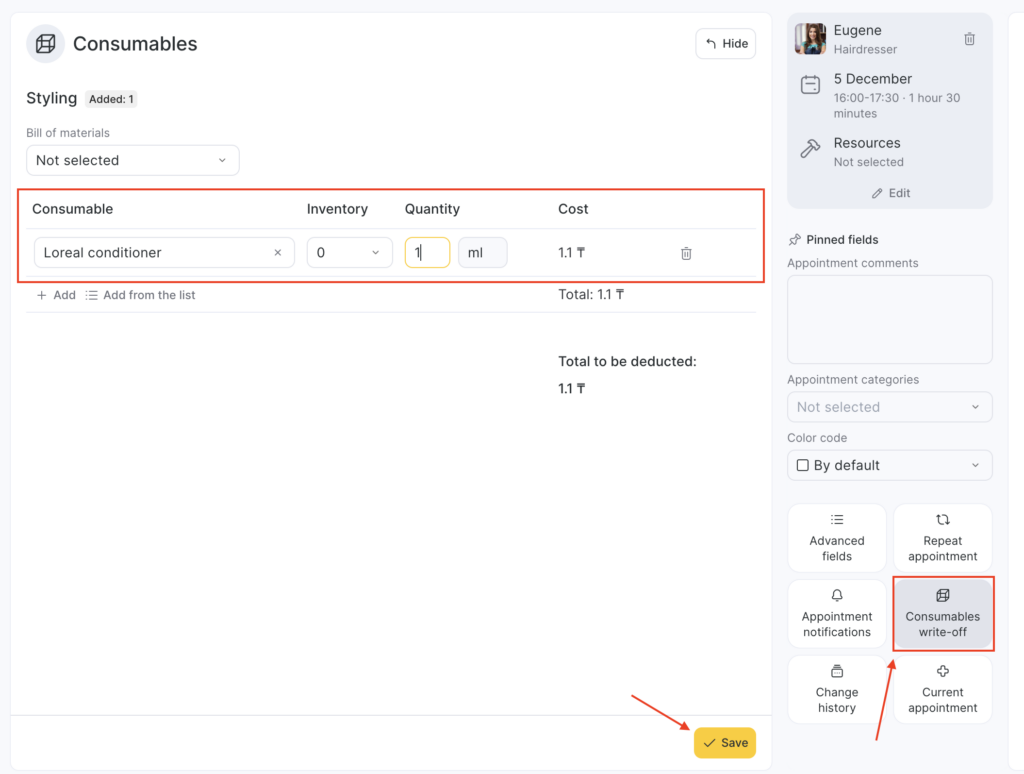
On the Consumables write-off tab in the visit window, you can add consumables manually, as well as view and edit consumables that were written off automatically using bills of materials.
Consumables write-off
- Editing consumables data:
- to add a consumable, click Add consumable;
- to add multiple consumables at once, click Add from list;
- to change the consumable quantity;
- to change the warehouse from which the write-off is made;
- to delete a consumable, click the trash icon.
- Editing bills of materials (manually).
Note
If an appointment includes multiple identical services (for example, not “haircut and manicure,” but two haircuts), then in the Consumables write-off section you must specify the quantity of consumables for one service.
When you process an inventory operation, the system will automatically deduct the product in proportion to the number of services in the appointment. For example, if 2 identical services are added, the consumables will be deducted in double the amount.