
How to write off products via an inventory operation
To process a product write-off:
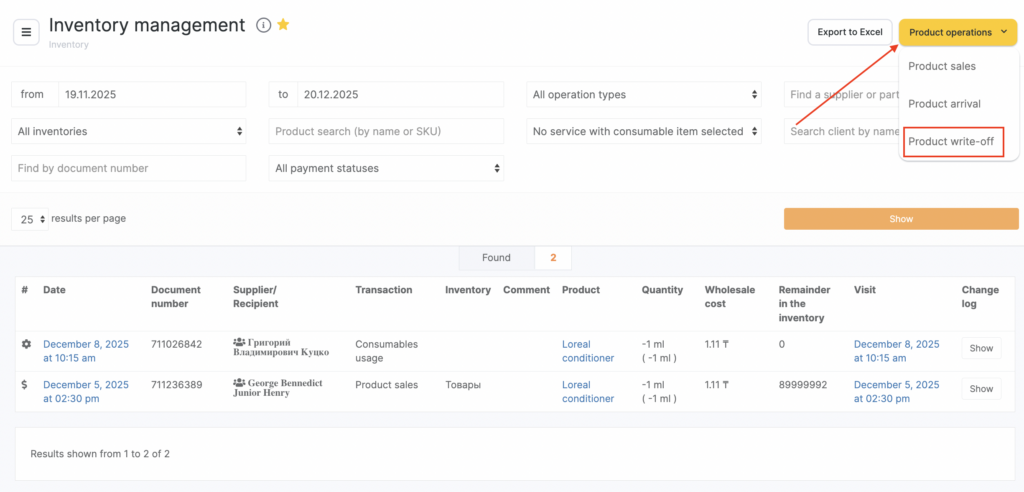
- Switch to Administration mode and go to Products > Inventory Management. Click Product operations.
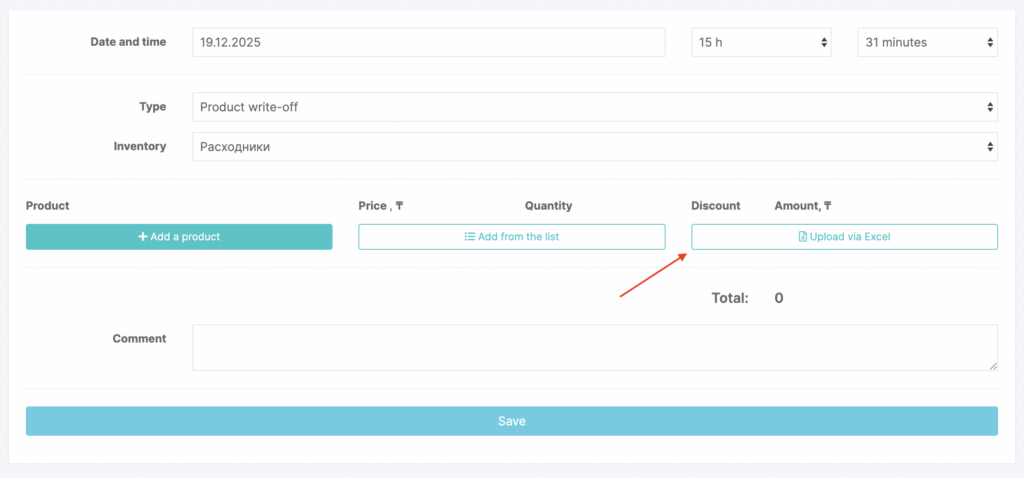
- In the dropdown list, select the operation type Product write-off.
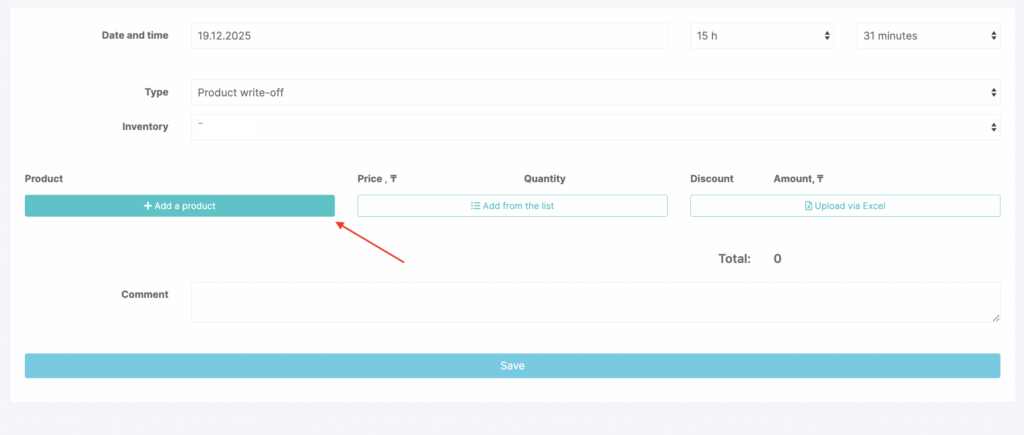
- In the window that opens set the date and time the inventory operation is created.
- Select the inventory (the inventory must have the For writing off products type).
- Add the products.
Three ways to add products
1) Add each product one by one
Click Add product and enter the product name or SKU (see the product catalog setup article for details).
2) Add products from a list
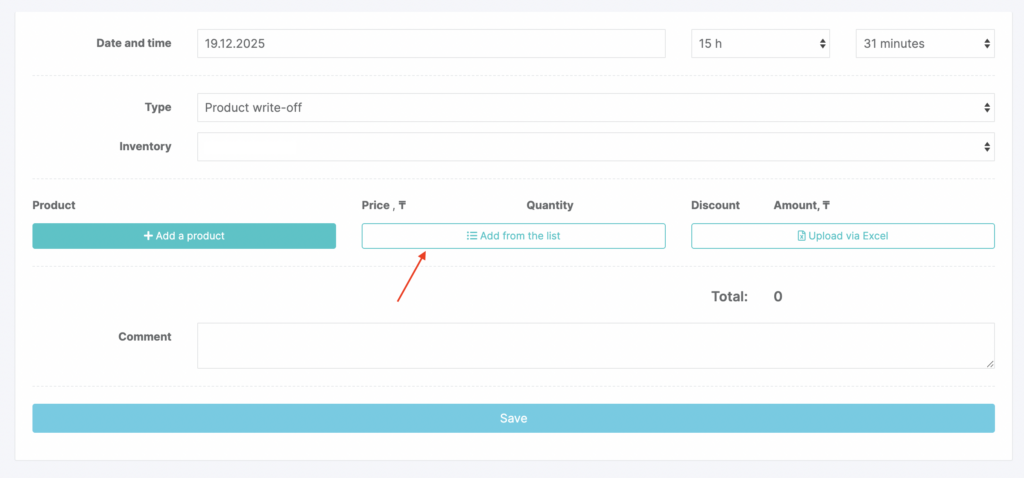
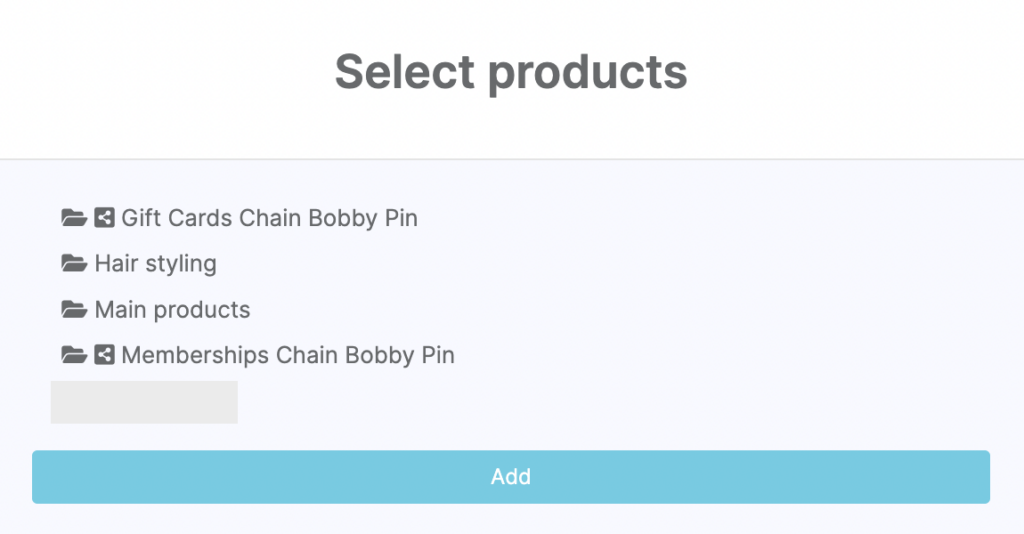
Click Add from list. Select a category, click its name, then click Add. Check the products you want to write off and click Add.
3) Add multiple products from Excel
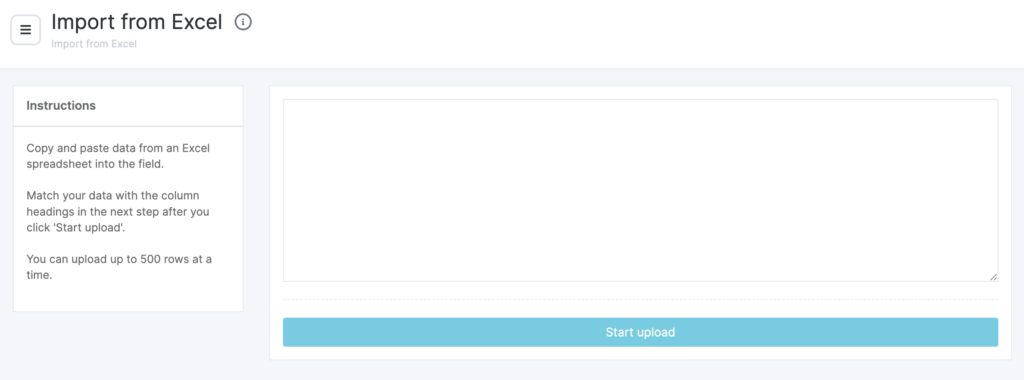
- Click Upload from Excel. The step-by-step process is described in the How to add a product list using Excel article.
The set of fields you can upload here differs from what’s listed in that article (see above).
Here you can add:
- product ID
- name
- SKU
- barcode
- price
- quantity
- discount
- total price
Required fields are: Name, Quantity, Price, and Total price.
After you add products, their details will be filled in automatically. The price equals the cost price (per one write-off unit of measure) set in the product card.
- Enter the quantity (units of measure will be pulled automatically from the product card).
The total amount for each product and for the entire write-off will be calculated based on the quantity.
- Add a comment and click Save.
You can view all data for this operation in Products > Inventory Management.