The Appointment Calendar is a digital tool using which you can work with the schedule and appointments from your clients.
Setup
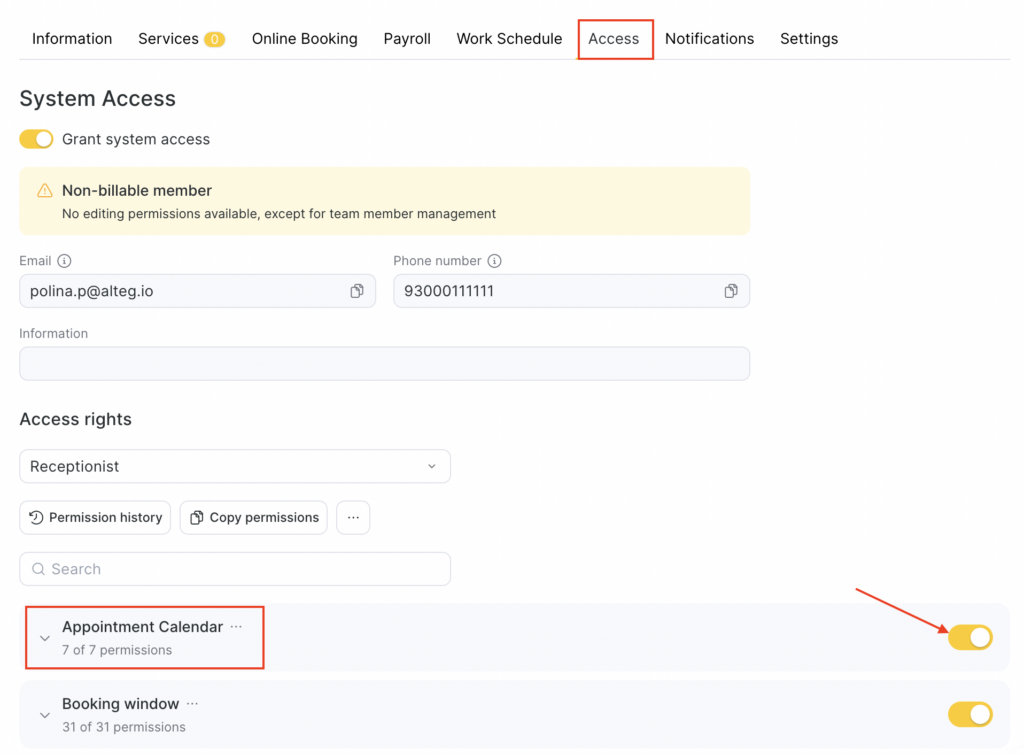
- Go to Team > Team members list (Administration mode), select the needed team member, and open the Access tab.
- Find the required permission block and enable it using the toggle, then click the Appointments Calendar section name and turn on the specific permissions you want to grant.
- To save changes, click Save in the bottom-right corner.
Schedule is in the web version but not visible in the app
If a team member’s schedule is visible in the web version but not in the Altegio Business Management mobile app, check Location access as well as Appointment Calendar permissions. Appointment Calendar permissions control which schedules and appointments the team member can view within a Location.
- Make sure the employee signs in to the mobile app with the same existing Altegio account that was granted access to the Location.
- Verify that the existing account has access to the Location where the schedule is set up. An existing Altegio account does not by itself confirm access to the required Location.
- If the account has Location access, check the employee’s Appointment Calendar permissions for the relevant team member or position. Review View schedule and appointments of team members and View schedule and bookings of positions as applicable.
- Save any changes to the access rights.
More about each permission
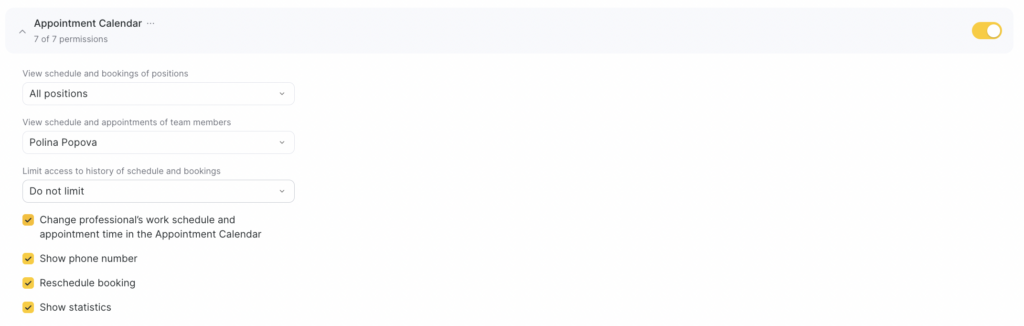
- View schedule and bookings of positions
Select the team member positions whose schedules and appointments this team member will be able to view.
For example, a receptionist can see the schedule and appointments of all company team members, while a specific team member can see only the schedule of team members in their own position.
- View schedule and appointments of team members
Specify the exact team members whose schedules and appointments this team member should see.
For example, a receptionist can see the schedule and appointments of all team members, while a specific team member can see only their own schedule.
- Limit access to history of schedule and bookings
Restrict access to past schedules and appointments by choosing the time period in the past that the team member can view in the calendar.
This setting helps limit backdated schedule edits, reduce the risk of client database leakage, and prevent mistakes when preparing financial reports.
You can limit viewing to a period from 1 day to 6 months, or not limit it at all, or completely block access to viewing past schedules and appointments.
For example, a receptionist will be able to see schedule history without limits, while a service provider will not be able to see past appointments.
- Change professional’s work schedule and appointment time in the Appointment Calendar
Enable this option to allow the team member to edit the work schedule directly in the calendar: add or remove working days and breaks.
- Show phone number
Enable this option so the team member can see clients’ phone numbers in the visit card in the calendar. This access is usually needed by receptionists who call clients and confirm visit details.
If you disable it, phone numbers will be hidden — the team member will see them in a masked format like +3123XXXXX90. This is especially useful for professionals and other team members who don’t need full access to contact details and helps reduce the risk of data leaks.
This setting affects only how phone numbers are displayed in the appointment window within the calendar.
- Reschedule booking
Enable this option if you want to allow the team member to move appointments to another time or to another professional directly in the calendar. This permission also allows changing an appointment’s duration in the calendar.
Important
The Reschedule booking permission controls only moving and changing the duration of individual appointments in the calendar. To reschedule an appointment from the appointment window, a separate set of permissions from the Appointment window block is required.
- Show statistics
Uncheck this option if you need to hide statistics in the appointments log from the employee. Statistics include the top panel data in the log:
- cash and non-cash receipts,
- total amount of created appointments,
- amounts paid with loyalty,
- total discounts granted,
- product sales volume.
Important
To show financial day statistics in the Calendar, the team member needs the Show statistics permission in the Appointment Calendar section, access to Analytics, and access to the root Products/Inventory section. Nested inventory permissions are not required.After changing permissions, click Save to apply the changes.