
The System settings section is used for the basic account parameters: location, display formats, and the language of client notifications. These settings help the system display data correctly in the interface and send messages to clients in the required format.
Where to find it
In Administration mode, go to Settings > System settings > General.
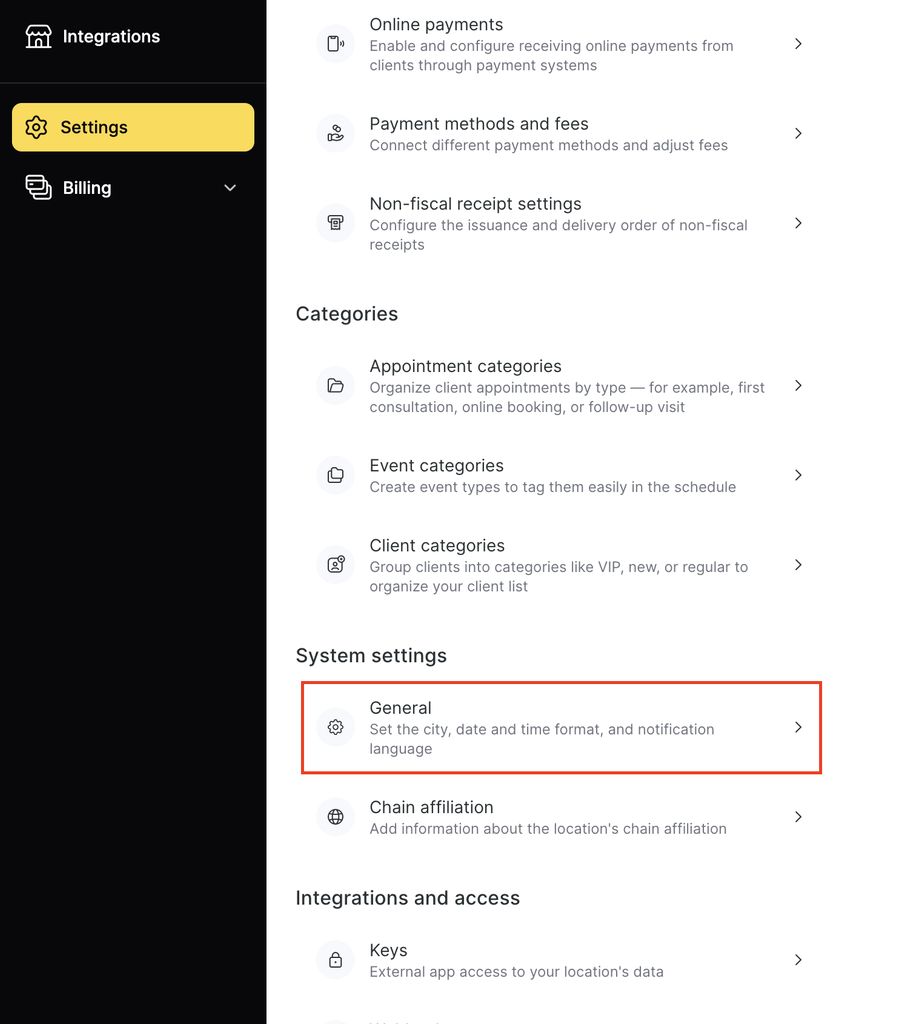
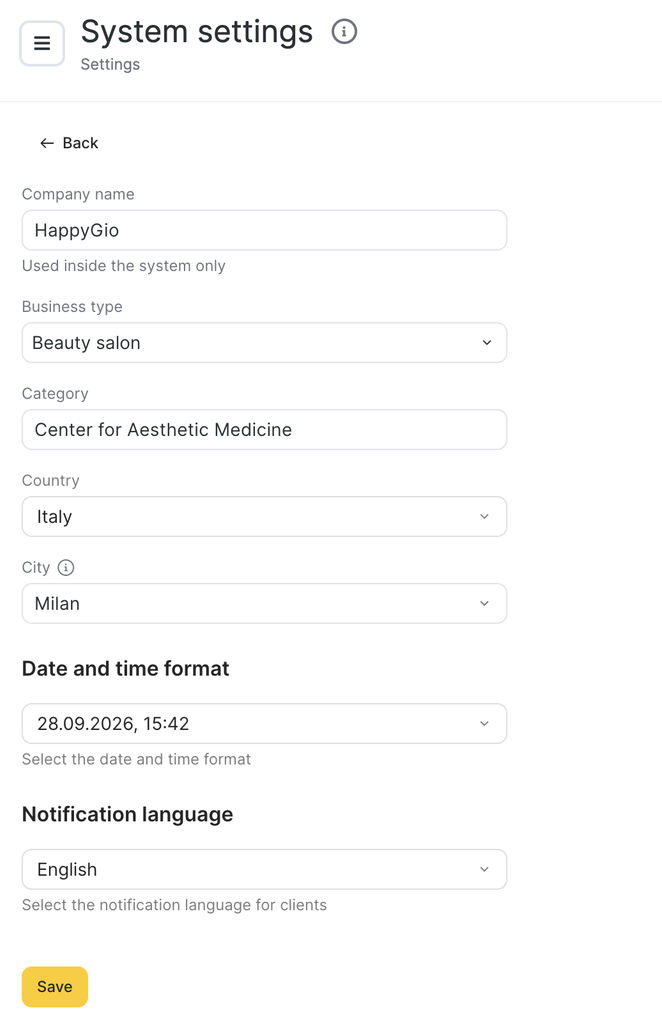
On the page that opens, you will see the following fields:
- Company name
- Business type
- Category
- Country
- City
- Date and time format
- Notification language
What you can configure
Company name
This is your company name inside Altegio, used in internal resources — meaning it’s applied within the system.
Where it’s used:
- in internal interfaces (admin panel, lists, cards, internal account sections);
- for team member convenience when working in the system (especially if you have multiple locations).
Important
This is not a “public-facing” name for clients — it’s your company’s internal identifier in the system.
Business type
This is the base business type (for example, Beauty salon or Clinic). It’s a “top-level” setting that helps Altegio select an appropriate structure and default parameters.
Important
The selected business area affects how the system groups and suggests some parameters depending on the business type.
Category
This is a more specific description of your business (additional detail to the Business area).
Choose a clear category that matches your profile (for example: beauty salon).
Country
The country your company/location belongs to or is located in. This setting affects the availability of some local options such as integrations, providers, etc.
City
Your company’s city within the selected country.
Date and time format
The Date and time format setting defines how Altegio displays dates and time in the interface and in client communications.
What it affects
Display in the system
- dates and time in sections, lists, and cards — including the appointment calendar (the time will be shown in the selected format);
- date/time formats in other internal interfaces where the system shows bookings and events.
Client notifications
- affects how dates and time appear in variables (dynamic values) in notifications: SMS, email, and messages.
Online booking widget
- the format may also be reflected in the online booking widget (depending on settings and the date/time display scenario).
Notification language
The language in which clients will receive notifications.
What it affects:
- the language of notification text sent to the client;
- communication consistency (especially important if you communicate with clients in one language).
Important
Notification language is not the interface language for team members. It determines what the client will see in messages.