A push notification lands on the client’s lock screen, and when it goes through the free Altegio.me client app it costs nothing per message. To make it work, three things have to be switched on: the notification in Altegio, notifications in the app and notifications on the client’s phone. A good cadence for most salons is two touches: a confirmation request 24 hours before the appointment and a reminder 2 hours before. Altegio’s help centre puts the effect of SMS or push reminders at 30–40% fewer no-shows.
TL;DR:
- Push reaches only clients who installed Altegio.me or your branded client app, are logged in and allowed notifications. Everyone else still needs SMS or email.
- In Altegio each appointment gets one reminder, sent 1 to 24 hours before the visit; the email channel can go at a different time.
- For the 24-hour and 2-hour pattern, send the appointment confirmation request 24 hours before (or at a fixed time the day before) and the reminder 2 hours before.
- Test with a real appointment on a real phone. Most failures are a channel that isn’t switched on, an appointment created before the settings changed, or notifications blocked on the phone.
- Waiting list alerts aren’t automatic: work through the list by hand, then send a short bulk push to clients who have the app.
How do you set up push notifications for a salon?
A push only arrives when all three switches are on: the notification type in Altegio, notifications in the client app and notifications on the phone. Miss one, and the message never shows up, however good the text is.
In Altegio, the setup takes a few minutes:
- In Administration mode, open Notifications and the Notification types tab.
- Open each client notification you want to use, such as Appointment reminder, Appointment confirmation request and Appointment cancellation, and on the General settings tab switch on the Branded app or Altegio.me channel. Not every notification type offers every channel, so check each one.
- On the Notification templates tab, write the push text. Each channel can have its own text, and templates can use variables that insert visit, service, client or Location details for you.
- Click Save, go back to Notification types and switch the toggle on. The enabled channels are listed next to the notification name.
- Fill in Settings > Brand > Company name. If it’s empty, the push shows Altegio as the sender instead of your business.
- Create a real test appointment with your own phone number and check that the push arrives.
On the client side, the client installs Altegio.me (iOS 12 or Android 5 and higher) and logs in with the same phone number they used to book; a confirmation code arrives by SMS. The app shows only the businesses where that number has an appointment. Notifications must stay on in the app’s personal account and in the phone’s settings: on iOS under Settings > Notifications, on Android under Settings > Apps > Notifications, and on Android it’s worth checking that battery saving isn’t blocking the app in the background. If you have your own branded client app, the same rule applies to it.
That last test matters more than it sounds. A setting can look “on” in the account and still fail on a specific phone, so always check with a real appointment rather than trusting the toggle.
What to send: message types and quick templates
Five messages cover the whole appointment, and each works best short, personal and readable on a lock screen. Lock screens cut long texts, so put the day, time and team member first.
- Appointment created: “You’re booked, Marta: colour with Lena, Thursday at 14:00.”
- Confirmation request, 24 hours before: “Marta, please confirm your colour with Lena tomorrow at 14:00.” The client confirms with the button or link in the message, and the appointment status changes automatically. Clients can’t confirm by replying with text.
- Reminder, 2 hours before: “See you today at 14:00, Marta. Lena is expecting you.”
- Cancellation: “Your appointment on Thursday at 14:00 is cancelled. Book a new time: [link].”
- Free slot alert, sent by hand: “A 15:00 slot with Lena opened up today. Book it in the app.”
The first four are automatic notification types in Altegio; the free slot alert is a bulk push you send yourself (see below). Each channel gets its own text, and templates can use variables. Email templates can’t be fully rewritten, but you can add your own text, image or link to them.
Pro Tip: Read every template on your own phone’s lock screen before you switch it on. If the time or the team member’s name gets cut off, shorten the text.
When should you send appointment reminders?
The 24-hour and 2-hour cadence has a reason behind it. The first touch gives the client time to reschedule if something has come up, and you time to offer the slot to someone else. The second catches the “I completely forgot” moment while there’s still time to get to the salon.
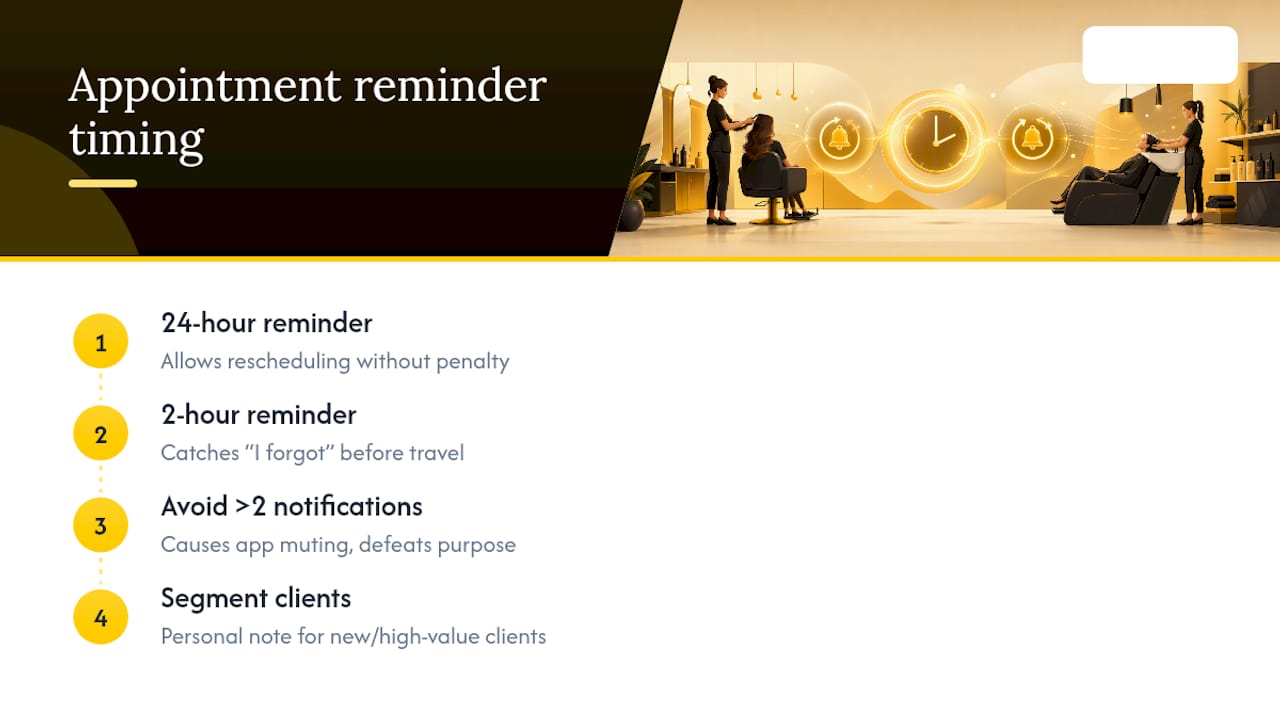
In Altegio, the Appointment reminder is sent once per appointment, at the same time on all channels: 1, 2, 3, 4, 5, 6, 9, 12, 15, 18, 21 or 24 hours before the visit. Only email can go at a different time. So there are two ways to get the 24-hour and 2-hour pattern:
- Confirmation request plus reminder: set the Appointment confirmation request to 24 hours before, or to a fixed time such as 14:00 for all clients with an appointment the next day, and the reminder to 2 hours before. The request is sent only while the appointment is still unconfirmed, and if the client doesn’t tap the button, the appointment simply stays in the schedule.
- Email plus push: set the reminder to 2 hours before and tick Different time for email sending to send the email 24 hours before.
Two more details are worth knowing. Clients can choose their own reminder time, or turn the reminder off, in the online booking widget, and you can change the reminder for a single appointment in the appointment window under Notifications. Changes to the settings apply only to future appointments; until you change them, the defaults are SMS 1 hour and email 12 hours before.
Sending more than two touches risks the opposite problem. Clients who get four or five messages for one appointment start switching notifications off, which defeats the purpose. New or high-value clients may deserve a warmer touch, such as a personal message from their stylist, while regulars rarely need more than the standard two.
How can you fill last-minute cancellations?
A cancellation an hour before the slot is either a lost appointment or a filled one, depending on how fast someone reacts. In Altegio the waiting list has no automatic alerts, so this is a quick manual routine at the front desk:
- Open the waiting list and contact the clients on it first.
- If nobody takes the slot, filter the client base, for example to clients who have Altegio.me (Clients > Altegio.me > Has the app).
- Select them and use Bulk actions > Send Push to Altegio.me, or Send Push to the mobile app if you have your own branded app. Bulk messaging has to be enabled by Altegio Support first.
- Keep the message specific: service, team member, today’s time. When the client taps a push from Altegio.me, your online booking widget opens, so whoever books first gets the slot.
- Don’t send free slot alerts to everyone every day. A narrow, relevant group keeps the alerts useful instead of annoying.
A free slot alert is closer to marketing than to an appointment reminder. Clients can switch off notifications from your business in Altegio.me themselves, and consent rules for promotional messages differ between EU countries, so check yours before you send alerts regularly.
Push, SMS or email: which channel should you use?
No single channel reaches every client, so most salons run two or three in parallel rather than picking one.
- Push: high lock-screen visibility, and free through Altegio.me, but it only reaches clients who installed the app and allowed notifications. Altegio.me also shows the client’s appointments, loyalty cards, memberships and gift cards.
- SMS or messengers: reach nearly every client with a phone number and need no app. They run through an SMS provider or chat-bot connected from the Integrations Hub (Integrations > Notifications), and each message is billed by that provider, so they suit clients without the app.
- Email: a free channel for automatic notifications, useful for details clients may want to look up later, but rarely read in time for a same-day reminder.
A practical split: push for clients with the app, SMS for the rest, and email as the extra channel for confirmations and the day-before message. You choose the channels and how they combine separately for each notification type.
Why aren’t my salon’s push notifications arriving?
Most delivery problems come down to a handful of causes, and working through them in order usually finds the fault in a few minutes.
- The notification type is switched off, or the Branded app or Altegio.me channel isn’t enabled for it. Check the channel names next to the notification in Notification types.
- The appointment was created before you changed the settings. Old appointments keep the previous settings; change them in the appointment window under Notifications.
- The client chose to turn the reminder off when booking online.
- The client installed the app but logged in with a different phone number from the one in your client base, or didn’t log in at all.
- Notifications from your business are switched off in the app, or notifications for the app are off on the phone. Phone updates and battery-saving modes can also block them.
- The app or the phone’s system is out of date.
The Has the app filter can still show a client who deleted Altegio.me; once a bulk push to that client fails to deliver, the filter updates. If one client misses alerts, check their phone; if a whole group does, contact Altegio Support. Always confirm the fix with a real test appointment.
How Altegio handles appointment notifications
Altegio is booking and business management software for appointment-based businesses: beauty, wellness, clinics, auto services, fitness and more. Altegio works on a Zero-Competition Policy: it doesn’t compete with your business for its audience, there is no marketplace showing your clients other businesses, and your client base is never resold. Its SMS and email notifications are triggered by the appointment itself, so confirmations, reminders and cancellations go out automatically once the notification types are switched on.
- Channels: SMS or chat-bots through a connected provider, free email, push to your branded client app and push to Altegio.me. Read more about the Altegio.me, branded and employee apps.
- Client notifications: appointment created, confirmation request, reminder from 1 to 24 hours before, changes, cancellation, cancellation after a No-show status, an invitation to book again after a no-show, review requests, repeat-visit invitations with an interval per service, birthday greetings and discount notifications.
- Team notifications: receptionists and team members can be notified about new, rescheduled and deleted appointments, set up in the same Notifications section.
- Bulk push: from Clients > All Clients > Bulk actions to Altegio.me or your branded app, once Support has enabled bulk messaging.
- Waiting list: a manual tool for the front desk, without automatic alerts.
Because the reminders run from the same online booking and appointment calendar, there’s nothing to copy between systems. SMS and messenger channels need a provider connected from the Integrations Hub; push through Altegio.me and email don’t. You can try the full setup on your own calendar with a 7-day free trial; the price then depends on the number of team members and the billing period (pricing).
Treat notifications as appointment economics, not marketing extras
Notifications are part of how appointments work, not an add-on. A missed reminder costs a real slot; a missed promotional message costs, at most, an upsell. Get the confirmation request and the reminder working reliably before adding anything promotional on top.
Roll out in steps: switch on the confirmation request and the reminder first, show the front desk the troubleshooting list above, then compare the number of appointments marked No-show over a few weeks before and after the change. For long or expensive services, a reminder works best together with a deposit. Altegio’s payment policies support deposits with any connected payment provider in your region, and card guarantees through Adyen in EU countries.
Keep the volume low. A client who switches your notifications off because of noise is far harder to win back than one who simply hasn’t installed the app yet.
FAQ
Can Altegio send two reminders, 24 hours and 2 hours before?
The Appointment reminder goes once per appointment, at one time for all channels, with an optional different time for email. To get two touches, set the confirmation request to 24 hours before and the reminder to 2 hours before, or send the reminder by email 24 hours before and by push or SMS 2 hours before.
Should I allow notifications on my salon’s phones?
Yes. Receptionists and team members can be notified about new, rescheduled and deleted appointments, and those alerts only help if they actually reach the phone. Check the channel on each team member’s own device, the same way you test client notifications.
Can you give an example of a salon push notification?
A typical reminder reads: “See you today at 14:00, Marta. Lena is expecting you.” Confirmation requests, cancellations and free slot alerts follow the same short, personal format, with the day, time and team member first.
What should a salon look for in scheduling software for notifications?
Look for reminders, confirmation requests and cancellation notices that are triggered by the appointment itself, a free push channel and a choice of SMS for clients without the app. In Altegio these are built into the same system as online booking, the client base, finance and inventory.
How can notifications help a hair salon win repeat clients?
Notifications are better at bringing clients back than at finding new ones. Use repeat-visit invitations timed to each service, an invitation to book again after a no-show and birthday greetings, and keep free slot alerts for a small group of clients who have the app.
How often should a salon send appointment reminders?
Two touches per appointment, about 24 hours and 2 hours before, cover most clients without causing notification fatigue. Give new or high-value clients a more personal message rather than sending everyone more reminders.
Read next
- Reminders and deposits: how to reduce no-shows
- Altegio Mobile Apps: Client (Altegio.me/Branded) and Employee
- Why a salon needs a booking system: 5 numbers
- The Retention-Led Salon: 18 Data-Driven Playbooks to Scale Revenue When Foot Traffic Slows