
Most appointment businesses don’t need a new website to win more online appointments. They need a booking page that makes the next step obvious: a visible, high-contrast booking button, a form cut to the fields you really need, a layout built for phones, a fast page, consent handled the way the GDPR expects, and search-friendly content on your own pages. This guide walks through six fixes you can check in an afternoon, how to measure them, and where an online booking tool such as Altegio already does part of the work.
TL;DR:
- A visible booking button and a shorter form are the cheapest fixes and the first ones to test.
- Build for phones first and keep pages fast: clients who book on a phone need large buttons and a page that loads quickly on a mobile connection.
- Under the GDPR, consent can’t be a pre-ticked box, and you must be able to show it was given. Altegio’s booking form has one mandatory personal-data consent checkbox, so marketing consent has to be collected and recorded separately.
- The booking widget isn’t what ranks in search. Put service descriptions, prices and location details on your own pages, and only mark up structured data that visitors can see.
- Measure before you change anything: connect GA4, Google Tag Manager or Meta Pixel to the booking form, and remember that EU visitors are only tracked after they accept cookies.
What is a booking flow, and why does it need optimising?
A booking flow is every screen a client moves through between landing on your page and confirming an appointment: choosing a service, a specialist or a time, entering contact details, sometimes paying a deposit, and confirmation. Each screen is a chance for someone to lose patience and leave.
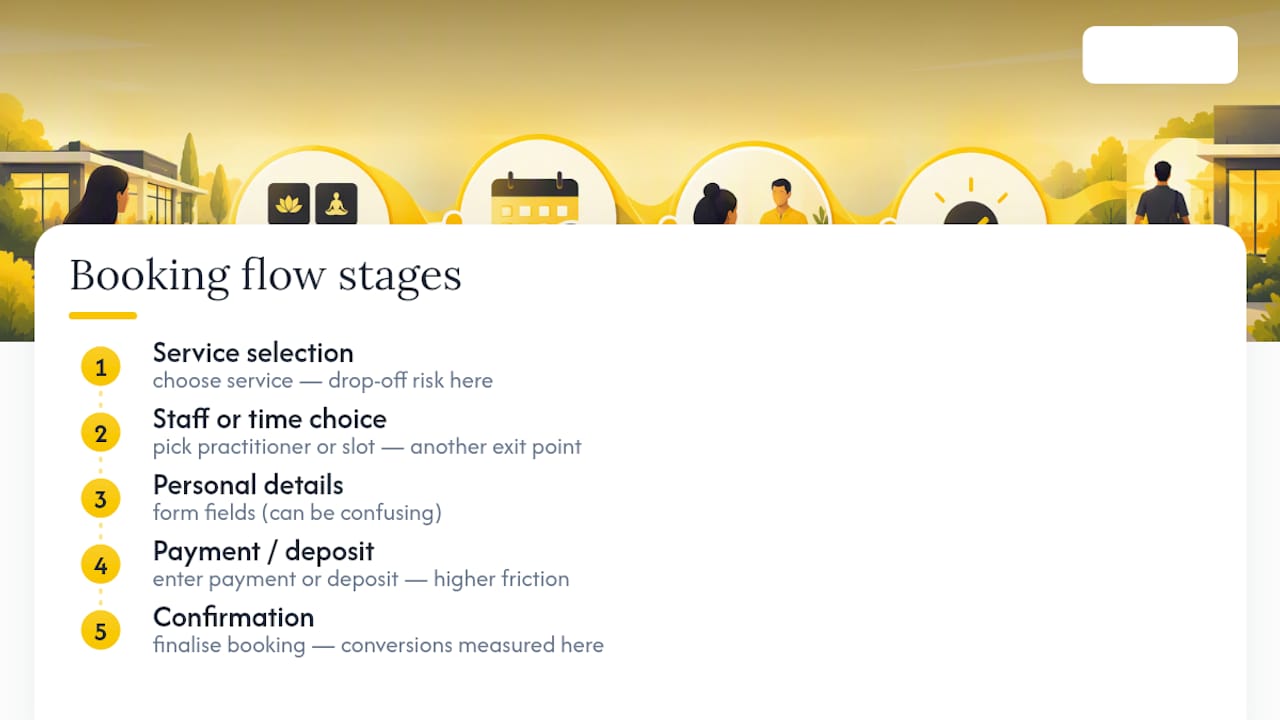
That matters more for appointment businesses than for most online shops, because you ask for more than a card number. You want a service choice, often a preferred specialist, a time slot and contact details, sometimes a deposit, all before the client has met anyone. E-commerce research shows how quickly long processes cost sales: Baymard Institute’s average of 50 studies puts online shopping cart abandonment at about 70%, and in its survey of US online shoppers 17% said they had abandoned an order because checkout was too long or complicated. A booking form isn’t a shop checkout, but the lesson carries over.
Optimising the flow isn’t about redesigning your website. It’s about removing the small frictions that make a client hesitate and then quit, testing one change at a time and keeping what works.
The 6 fixes: a quick booking page audit
Run this list against your current page before you make bigger changes. Most items take an afternoon, not a developer sprint.
- Make the booking button impossible to miss. Put it above the fold, in a colour that contrasts with the rest of the page, with a specific label such as “Book an appointment” rather than “Submit”.
- Cut the form to what you need now. Audit every field and ask whether you need it now, later or never. Baymard’s checkout research found that the average US e-commerce checkout shows about 23 form elements, while an ideal flow can manage with 12–14.
- Design for phones first. Buttons should be big enough for a thumb, and text should be readable without zooming. Google also uses the mobile version of a page for indexing, so a weak mobile page hurts twice.
- Keep booking front and centre. If booking is your core action, link to it from the main navigation and the top of the homepage, not from a submenu.
- Show trust signals. A clear cancellation and deposit policy, real photos of your work and a way to see genuine client reviews reassure first-time clients. Be realistic about what review markup can do in search (more on that below).
- Make the page fast. Compress images, remove scripts you no longer use and enable caching. Google’s Core Web Vitals – loading (LCP), responsiveness (INP) and visual stability (CLS) – are a good checklist for what clients feel on a slow mobile connection.
None of these fixes needs a rebuild. They need someone to sit down with the current page and be honest about where it slows people down.
How do you reduce friction in your booking form?
Friction hides in the details: an extra field, an unclear label, a date picker that offers times you can’t actually do. Fixing it is mostly a matter of discipline, not technology.
Start by sorting every field into three buckets: required now (service, date and time, name, phone or email), can wait until the visit (preferences, how they heard about you), and never needed at all. Most forms fail this test because nobody has ever asked why each field is there.
- Cut to essentials first. Name, a contact method, the service and the time slot are usually enough to confirm an appointment. Everything else can wait.
- Show extras later. Add-ons and preferences belong after the core choice, so the first screen doesn’t look intimidating.
- Validate as people type. Flag a phone number with a missing digit when the client leaves the field, not after they press “Confirm”.
- Offer only real availability. A booking form connected to your schedule shows only free times, so nobody picks a slot and learns on the next screen that it’s gone.
- Pick a step order that suits your clients. New clients often prefer a guided sequence (service, then specialist, then time); regulars may want to start with a favourite specialist or a date.
- Build accessibility in from the start. Labels tied to fields, enough colour contrast and full keyboard and screen reader support let every client finish their booking.
In Altegio, these settings sit in the Online booking section. Under Settings > Functionality > Customize client data fields you can hide the email and comment fields or make them required, and rename the comment field (online booking settings). In each online booking link you choose the format: Menu lets clients pick a service, team member and time in any order, Step-by-step follows the sequence you set, and Short step-by-step always runs service, team member, then date and time (booking steps settings).
Consent: what the GDPR expects from a booking form
Consent needs the same care as the rest of the form. The GDPR (Regulation 2016/679) defines consent as a freely given, specific, informed and unambiguous indication of a person’s wishes, given by a statement or a clear affirmative action (Article 4(11)). Recital 32 adds that silence, pre-ticked boxes or inactivity don’t count. Where you rely on consent, you must be able to demonstrate it (Article 7(1)), and withdrawing it must be as easy as giving it (Article 7(3)).
Two things often get mixed up on booking forms. Using a client’s details to book and remind them of an appointment is one purpose. Sending them promotions is another. For marketing by email or SMS, the ePrivacy Directive 2002/58/EC requires prior consent, with a narrower exception for your existing clients and your own similar services, provided they can object easily and free of charge when you collect their details and in every message (Article 13). National rules implementing the directive differ, so check yours.
In Altegio, the booking form shows one mandatory checkbox at the final step: the client consents to the processing of personal data and confirms they have read your Privacy Policy and User Agreement. The client can open your consent text from the link before ticking the box, can’t book without it, and you can add the text in each widget language (personal data processing). The form has no separate marketing-consent checkbox. If you want to send promotions, collect that consent another way and keep a record, and when a client opts out, exclude them from mailings in their client card.
Pro Tip: Keep the consent text plain and short, and link to your privacy policy rather than pasting it into the form. A client who understands what they agree to has one less reason to stop at the last step.
How do you optimise a booking page for SEO?
Start from an honest premise: the booking widget is where people book, not the page that ranks. Online booking forms usually load from the booking provider’s own address – in Altegio, a link such as nXXXX.alteg.io or a personal domain such as your-brand.altegio.me – even when they open on top of your site, so the text search engines should read about your services belongs on your own website.
That means real paragraphs about each service, what it includes, price ranges, who performs it and where you are, on the page next to the booking button. A page that is nothing but an embedded calendar gives search engines almost nothing to work with.
Structured data is the second lever. Google recommends JSON-LD and supports LocalBusiness markup for details such as your name, address, opening hours and phone number. Markup helps search engines understand a page, but it never guarantees a rich result.
- Mark up only what visitors can see on the page. Describing services, prices or reviews that aren’t visible breaks Google’s structured data guidelines.
- Don’t expect stars from reviews on your own site. Google doesn’t show star review rich results for LocalBusiness or Organization pages that publish reviews about themselves, even through an embedded third-party widget. Reviews on your Google Business Profile are what people see in Google Maps and local results.
- Validate every change with Google’s Rich Results Test or the Schema Markup Validator before it goes live, and again after a template update.
- Let people book straight from Google. Reserve with Google is free to connect in Altegio under Integrations > Client acquisition > Google Maps, so clients book in your Altegio booking form right inside Google Maps.
- Keep images compressed and pages cached: speed helps visitors first and search visibility second.
How do you measure whether your changes worked?
Track four numbers before you change anything, so you have a baseline: the share of visitors who open the booking form, the share who complete an appointment, where people drop off between steps, and average revenue per appointment. Your own baseline matters more than any industry benchmark.
- Instrument the steps, not just the result. With Google Tag Manager connected to Altegio online booking, the form sends events for opening the form, choosing a service, team member and time, and creating an appointment (Google Tag Manager integration). GA4 and Meta Pixel can also be connected to the form directly, with a completed appointment sent as the
bookedevent. - Don’t count twice. If you connect GA4 directly and your GTM container also has a GA4 tag for the same data stream, events are counted twice. Keep one route.
- Allow for cookie consent. For EU visitors, Altegio’s booking form denies analytics and advertising cookies by default (Google Consent Mode) and grants them only after the client accepts the form’s cookie banner. Expect your analytics to undercount appointments, and compare trends over time rather than absolute numbers.
- Rank test ideas by effort versus impact. Button copy and colour take an hour to change; a new step order or a redesigned page takes longer and should wait until the quick wins are done.
- Read small samples carefully. Most service businesses don’t get enough traffic for a classic A/B test in a week. Change one element at a time, run it long enough to cover a full booking cycle, and don’t mistake one lucky week for a trend.
- Report on a fixed cadence. Monthly is usually enough for a single Location; weekly makes sense during an active test.
In Altegio, the Appointments report splits appointments into online and offline only, so channel questions such as which ad or which post brought a client are answered in GA4 or Meta, not in the booking system. Our overview of booking widget integration paths and GA4 analytics walks through the setup.
How Altegio online booking covers the checklist
Most of the checklist becomes easier when the booking form, schedule, client records, payments and reminders live in one system. Here’s how the fixes above map to Altegio online booking, built for appointment businesses in beauty, wellness, clinics, auto services, fitness and more.
- Booking button. The website button’s colour, position and animation are set in the online booking link settings, and you paste its code once before the closing body tag of your pages. Altegio recommends the button over an iframe embed, because it doesn’t guarantee that the widget works properly inside an iframe.
- Design. Choose a light or dark theme and any button and icon colour by HEX code; colours with too little contrast can’t be saved. Add your logo and a 16:9 image for the first screen (widget design).
- Steps and fields. Pick Menu, Step-by-step or Short step-by-step, set the step order, and decide whether the email and comment fields are shown or required.
- Languages. The widget is available in more than 20 languages. You set the default language of each online booking link, and clients can switch the language in their personal account inside the widget.
- A link people remember. A personal domain turns the technical address into a short one such as your-brand.altegio.me, or a subdomain on rsrv.ws, assigned to the online booking link you choose.
- Business details. Your brand name, logo, short description, contacts, working hours, social media links and a photo gallery appear on your online booking page.
- Payments and no-shows. Clients can pay online when they book through a connected payment provider, and a payment policy can ask for a deposit. Automatic reminders can go out up to 24 hours before the visit; email notifications are free, and SMS goes through a connected provider.
- More ways in. Reserve with Google adds a Book button to Google Maps, where your Altegio booking form opens without leaving Google, and the Book now button for Instagram and Facebook is connected through the Integrations Hub.
Altegio works on a Zero-Competition Policy: it doesn’t compete with your business for its audience, there is no marketplace showing your clients other businesses, and your client base is never resold.
Prices depend on the number of team members and the billing period, as shown on the pricing page. There is no free plan, but a 7-day free trial lets you set up a real online booking link, add it to your own site and see how the fixes in this guide work with your services.
Which fixes should small teams tackle first?
If you run a single Location with no in-house developer, sequence matters more than ambition. Fix the booking button and page speed first: both are cheap and quick to test. Trim the form next, since every extra field is another reason to stop. Only then start testing copy, step order or layout.
A ready-made widget is the right call for most small teams; a custom form built on Altegio’s Open API only earns its cost once your volume or workflow outgrows the standard one. And brief your front desk before a promotion: a surge of online appointments nobody expected can undo a week of optimisation in a single afternoon.
FAQ
Can I do booking page optimisation myself?
Yes. Most of the fixes in this guide – cutting form fields, moving the booking button above the fold, compressing images and writing service copy – need no coding. Structured data benefits from a developer’s eye, but Google’s Rich Results Test lets you check your own markup before you publish it.
Does Altegio have a free plan?
No. Altegio offers a 7-day free trial, and the price depends on the number of team members and the billing period. The pricing page lists current plans.
Does the Altegio booking page help my SEO?
Treat it as the place where people book, not the page that ranks. The booking form loads from an Altegio address or your personal domain on altegio.me or rsrv.ws, so your rankings come from your own website and your Google Business Profile. Link to the booking form from every service page and connect Reserve with Google.
What does the Altegio booking form do about consent?
It shows a mandatory personal-data consent checkbox with your own consent text in each widget language, and for EU visitors it keeps analytics and advertising cookies off until the client accepts the cookie banner. Your privacy notice, marketing consent and how you use client data remain your responsibility.
How do you optimise a booking page step by step?
Audit your page against the six fixes, record a baseline, then fix the cheapest, highest-impact issues first (booking button and speed). Reduce form fields next, then test one element at a time using the event tracking described above.
Read next
- Altegio booking widgets: integration paths, social/maps channels, and GA4 analytics.
- Google Tag Manager now runs inside Altegio online booking: 11 ways to use it.
- Reminders and deposits: how to reduce no-shows.
- Best website builders for beauty salons and barbershops.
This article is general information, not legal advice; rules differ between EU countries.