
Most Google Calendar sync problems come down to the method you picked. Adding your Google account to the other app lets you add and edit events on both sides in apps that support it. A secret iCal address gives you a read-only copy that refreshes on the other app’s schedule, not instantly. A third-party tool is worth paying for only when you need two-way sync across different providers. Appointment-based businesses have a fourth case – sending appointments from a booking system into Google Calendar – and in Altegio that sync runs one way, from Altegio to Google. The steps below cover each method, the usual fixes, and which client details should end up in a calendar at all.
TL;DR:
- Adding your Google account to Outlook, Apple Calendar or Android is the closest you get to two-way sync without extra software, but it only works in apps that support Google accounts.
- A secret iCal address is free and quick to set up, but read-only and not instant; treat it like a password and reset it if it leaks.
- Paid third-party tools sync Google, Outlook and iCloud in both directions, but they need a careful look at the permissions they ask for.
- Most stuck syncs are fixed by checking visibility and sync toggles, signing in again or re-adding the account – not by revoking everything.
- Altegio’s Google Calendar sync is one-way: appointments go from Altegio to Google, not back, and you decide whether client contact details go with them.
Quick comparison: three practical ways to sync Google Calendar
Before touching any settings, work out which of these three you actually need.
- Native account connection. Sign in with your Google account inside Outlook, Apple Calendar or Android. In apps that support it, you can add and edit events from either side and keep reminders across devices. It’s the closest thing to two-way calendar sync without extra software.
- iCal/ICS feed subscription. You paste a calendar’s secret address into another app and get a read-only copy of its events. It’s quick to set up, but it refreshes on a schedule rather than instantly, so it suits people who need visibility, not editing rights.
- Third-party two-way sync tool. Purpose-built services connect Google, Outlook and iCloud and push changes in both directions, which matters when you’re juggling calendars across different providers rather than just devices.
Most readers should start with the first option and only move on if it doesn’t cover their case.
Compare methods and tool types (decision checklist)
Directionality is the first thing to get straight. A native account connection and most third-party tools go both ways: edit an event in either calendar, and the change appears in the other. An iCal subscription is one-way by design. It shows you events but doesn’t let you create or move them, and the subscribing app decides how often it checks for changes, so it’s a poor fit when you need to see new meetings straight away.
Privacy works differently depending on the method. The secret iCal address is effectively a password: anyone who has it can view your calendar, so treat it like a credential rather than a shareable link. Third-party tools use OAuth instead and ask for permission scopes that can range from a single calendar to your entire Google account.
- One-way iCal: simplest and free, but delayed and view-only.
- Native account: free, fast and with full editing, but tied to apps that support Google accounts.
- Third-party two-way tool: paid or freemium, built for cross-platform sync, but it needs an OAuth trust decision.
Pro Tip: If a sync tool only offers full-account OAuth access with no per-calendar option, treat that as a red flag rather than a minor inconvenience.
Paying only makes sense when you sync across different ecosystems (Google, Outlook and iCloud) and keep running into conflicts, not when you just want Google Calendar on all of your own devices.
How to sync Google Calendar with Outlook (practical steps and notes)
Outlook’s approach depends on which version you’re running and what you need from the connection.
- Try adding your Google account first, where your Outlook version offers it. This is the route Google’s own help describes for adding and editing events from either app, including invitations.
- If that option isn’t available, subscribe using the secret iCal address. Copy it from the calendar’s Integrate calendar settings in Google Calendar and use “Subscribe from web” in Outlook. This is a one-way, view-only feed that refreshes periodically rather than instantly.
- If Outlook imported a static snapshot instead of subscribing, delete that imported calendar and add it again as a subscription so future changes actually appear.
- Check which Outlook you’re using. New Outlook, classic Outlook and Outlook on the web handle Google accounts and delegated calendars differently, and mismatched permissions are a common cause of silent sync failures.
How to sync Google Calendar with Apple Calendar (Mac, iPhone, iPad)
Apple devices handle Google accounts natively, which makes this one of the more reliable pairings once it’s set up correctly.
- On a Mac, open Calendar, go to Settings, then Accounts, and add your Google account there rather than importing a file.
- On an iPhone or iPad, open Settings, then Calendar (under Apps on newer iOS versions), then Accounts, and add Google the same way.
- Choose which calendars sync and how often your Mac checks for updates in the account’s settings, since syncing every calendar you own can clutter the view.
- Turn off any older CalDAV or delegation workarounds you set up before. Running two sync methods for the same account is a frequent, avoidable cause of duplicated or missing events.
How Google Calendar syncs on Android and the web (quick fixes and limits)
On Android, open the Calendar app’s settings, confirm that sync is switched on for your account, then refresh if events look stale. Clearing the app’s data should be a last resort, not a first attempt. To see what is actually stored in your account, check Google Calendar on the web rather than trusting a single device.
Troubleshooting checklist for calendar sync problems
Work through these in order rather than jumping straight to the drastic fix.
- Confirm the calendar is visible and enabled in the app you’re checking. It’s easy to have a calendar hidden rather than unsynced.
- Check the account’s sync toggles, then sign out and back in if events still don’t appear. Signing in again resolves a surprising number of stuck syncs.
- Remove and re-add the account if toggling sync doesn’t help. This forces a fresh connection between the two services.
- On Android, clear the Calendar app’s storage and cache as a further step, but expect to lose anything that was only stored on the device.
- If delays persist across platforms after all of this, a native connection or iCal feed probably isn’t enough for your setup, and a dedicated two-way sync tool is the next step.
Pro Tip: Note the exact time of a test change before troubleshooting further. If it shows up in Google Calendar on the web but not on the device, the problem is on the device, not in your account.
How Altegio’s Google Calendar sync works
If your appointments live in Altegio, you can send them to a team member’s Google Calendar so they see their working day next to their other plans. The sync is one-way: appointments go from Altegio to the connected Google Calendar, not the other way around. You can connect a calendar for a single team member or for several.
- Open the team member’s card. Go to Team > Team members list, open the team member and switch to the Settings tab.
- Connect Google. In the Integration block, click Sign in with Google and log in to the Google account whose calendar should receive the appointments.
- Decide on client data. With Export client data to Google Calendar turned on, client information is uploaded to the calendar when an appointment is created. With it off, only the client’s name appears.
- Check the time zone. Make sure the Google Calendar uses the time zone of the city where your business is, so appointment times line up.
From then on, appointments are uploaded to the connected calendar automatically. The help centre doesn’t give a delay figure, so create a test appointment and check when it appears before you rely on it.
Because nothing flows back, treat Google Calendar as a read-only mirror. Events you add or move in Google Calendar are not sent to Altegio and don’t change a team member’s availability there. Create, move and cancel appointments in Altegio, and enter time off in the team member’s work schedule in Altegio too.
To see the whole team in one calendar, add the same Google Calendar for every team member. Then open that calendar’s Settings and sharing in Google Calendar, add each team member under Access for individual users with the email address of their Altegio account, and set their access rights. To stop the sync, open the Integration block in the team member’s card and click Disable. The full steps are in the help centre article Connecting team member’s Google Calendar.
Privacy and permission best practice when using third-party sync tools
Grant access to individual calendars rather than your whole Google account whenever a tool offers the choice, since narrower OAuth scopes limit what a compromised app could ever see. Review connected apps in your Google account settings from time to time and revoke anything you no longer use. If your secret iCal address has ever been shared or pasted somewhere public, reset it straight away. Where privacy matters more than detail, choose tools that can show events as simple busy or free blocks.
Client data in calendar events: GDPR data minimisation
Every appointment you copy into Google Calendar copies client data with it, and the GDPR (Regulation 2016/679) expects you to keep that copy small. Article 5(1)(c) says personal data must be “adequate, relevant and limited to what is necessary” for the purpose. Article 25(2) asks for measures that, by default, process only the data needed for each purpose – and that applies to how much you collect, how long you keep it and who can access it.
A team member who needs to know who is coming and when can usually manage with a name and a time. The contact details stay in the client card in Altegio’s client base for when they are really needed. Six habits keep the calendar copy small.
- Leave Export client data to Google Calendar off unless a team member genuinely needs client details outside Altegio. With it off, only the client’s name appears in the event.
- Look at a test event. Create a test appointment and open the event in Google Calendar, on the web and on a phone, to see exactly what it shows.
- Take extra care in clinics. Data concerning health is a special category of personal data under Article 9 GDPR. A client’s name next to a treatment that reveals their health status is exactly the kind of detail to keep out of a personal or shared calendar.
- Use calendars the business controls. A calendar in a team member’s private Google account stays with them when they leave. A calendar in an account the business manages is easier to review and close down.
- Keep sharing narrow. Give access to a shared team calendar only to the people who need it, and remember that phone notifications can show event titles on a locked screen.
- Close access when someone leaves. Disable the sync in the Integration block of their card and remove them from the shared calendar’s sharing settings in Google.
National rules on health data and on work devices differ between EU countries, so if you handle health information, check your national data protection authority’s guidance or ask your data protection officer.
How to choose a third-party sync tool (criteria and red flags)
Run a short, deliberate test before committing to any paid plan.
- Test two-way updates first. Create an event on each side and confirm it appears correctly on the other, including recurring events and last-minute edits, which are where most tools stumble.
- Check platform coverage and limits. Find out whether a free plan limits how many calendars you can connect or how often they sync.
- Ask how conflicts are resolved. If the same event is edited on both sides before the next sync, does one version simply overwrite the other, or does the tool flag it?
- Avoid anything demanding blanket account access when a per-calendar OAuth scope would do the job just as well.
Syncing Google Calendar with enterprise calendar systems
Businesses running Microsoft Exchange or Microsoft 365 face a different problem from individuals connecting a personal Google account: they usually sync on behalf of a team, not one person. Adding a Google account inside Outlook still works for individual mailboxes, but it doesn’t scale cleanly across an organisation’s shared calendars, resource bookings or delegated access.
At that scale, IT teams typically look at server-side connectors or dedicated integration platforms that sync at directory level rather than per mailbox, keeping free/busy status consistent between Exchange and Google Workspace without every employee setting up their own subscription. This matters most for shared resources: meeting rooms, equipment or on-call rotas that several people need to see accurately.
The trade-off is complexity. A one-person iCal subscription is quick to set up and breaks in an obvious way when it fails. An enterprise sync layer touches authentication policies and data retention rules, and often needs sign-off from whoever approves OAuth apps for the organisation. Get the permission scopes wrong at that level and you risk exposing internal scheduling data far more widely than intended.
If your business runs client appointments rather than internal meetings, this enterprise layer is usually the wrong tool. Client-facing service businesses such as salons, clinics and studios rarely need Exchange-grade calendar federation. They need one system of record for appointments that the team and clients both trust, which is a different problem from keeping two corporate calendar systems in step.
Automating calendar sync with APIs and scripting
Developers and technically confident users can skip consumer sync tools and use the Google Calendar API directly. This gives you full control over which events sync, how conflicts are resolved and what metadata is copied, at the cost of writing and maintaining your own code.
The typical approach uses either polling (checking for changes on a schedule) or push notifications via webhooks, which alert your script when an event changes rather than waiting for the next check. Two-way sync built this way has to store external IDs and metadata for every event, so it can match a Google event to its Outlook or iCloud counterpart on the next pass instead of duplicating it.
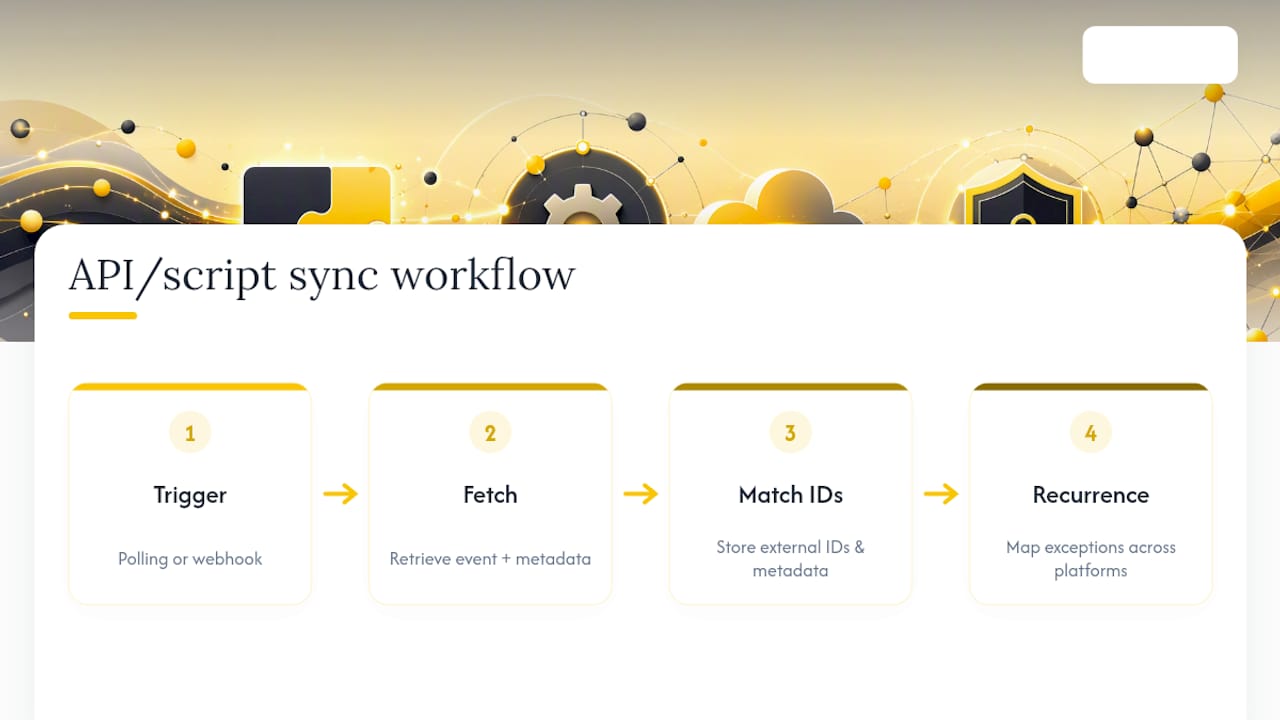
Recurring events are the hardest part to get right. A script has to decide whether an edit applies to a single occurrence or the whole series, then map Google’s recurrence exceptions onto however the other platform represents the same idea. Get this wrong and you end up with duplicated meetings or a series that silently stops updating.
This route makes sense for developers bringing calendar data into an internal tool, or for businesses building a custom booking flow around their own systems. For most individuals and small businesses, it’s far more effort than the payoff justifies. If your appointments are in Altegio, its Open API and webhooks are the starting point for a custom integration; otherwise a managed sync tool will get you there faster.
How to revoke or manage sync permissions
Removing access you no longer want is straightforward once you know where to look, and it’s worth doing regularly rather than only when something goes wrong.
- Open your Google Account’s security settings and find the list of third-party apps and services connected to your account.
- Review each entry and check what it can actually see. Some will list a single calendar; others will show broader account access than you remember granting.
- Remove anything you no longer use, or anything asking for more access than its function requires.
- If you’ve shared a secret iCal address and want to shut it off, open the calendar’s Integrate calendar settings in Google Calendar and click Reset to create a new secret address, so the leaked one is no longer the address in use.
- For accounts added to Outlook or Apple Calendar, remove the account in that device’s Accounts settings rather than assuming that uninstalling an app is enough.
Doing this every few months takes little time and closes off forgotten integrations quietly sitting on your account.
Author perspective: balancing convenience with privacy in calendar sync
Adding a Google account to another app is the easiest option for individuals, but it can quietly expose more business data than intended once a personal calendar mixes with client appointments. Businesses are usually better served by one appointment system with a few controlled integrations than by stitching several calendars together and hoping nothing breaks. Regular permission reviews aren’t optional extra work. They’re the cheapest insurance against a forgotten integration causing real damage.
Altegio as an alternative for appointment-driven businesses
If your business juggles team schedules, client appointments and availability across Google, Outlook and a spreadsheet, syncing your way out of it is a losing game. Every extra calendar you connect is another point where a missed refresh or a revoked permission can lead to a double booking. Altegio keeps appointments in one appointment calendar for the whole Location: clients book online, team members work from the same schedule, and automatic notifications such as appointment reminders go out from the same system. Google Calendar then becomes an optional, one-way mirror for team members who like to see their day there, not a second place where appointments are managed.
Altegio is built for appointment-based businesses – beauty, wellness, clinics, auto services, fitness and more. You can try online booking and the rest of the system with a 7-day free trial. After that, the price depends on the number of team members and the billing period.
FAQ
How do I get Google Calendar to sync?
Add your Google account to the app or device you’re using, since in apps that support it you can add and edit events from either side. If that’s not available, subscribe using the secret iCal address for a read-only view instead.
Why isn’t my Google Calendar syncing across devices?
The most common causes are a disabled sync toggle, a calendar that is synced but hidden, or a stale connection that needs you to sign in again. Working through the troubleshooting checklist in order usually resolves it.
Can I sync Google Calendar with my iPhone calendar?
Yes. Add your Google account in the Calendar accounts settings on your iPhone and choose which calendars to sync. This lets you add and edit events from either app, rather than giving you a read-only copy.
Why aren’t all my calendars showing up in Google Calendar?
Usually because a calendar has been switched off in your visibility settings, or because a linked account needs you to sign in again. Check each calendar’s visibility toggle before assuming the sync itself has failed.
Do I need a third-party tool to sync Google Calendar with Outlook or iCloud?
Not for basic use. Native account connections and iCal subscriptions cover most personal needs. A third-party two-way tool becomes worth it once you need fast, two-way updates across different platforms rather than just devices.
Does Altegio sync with Google Calendar both ways?
No. Altegio sends appointments to a team member’s connected Google Calendar, but events created or changed in Google Calendar are not sent back to Altegio. Make all appointment changes in Altegio.
What client data does Altegio put in Google Calendar events?
It depends on the Export client data to Google Calendar option in the team member’s settings. With it on, client information is uploaded when an appointment is created; with it off, only the client’s name appears.
Read next
- Google bookings vs Google Calendar – what’s the difference?
- Reserve with Google & Reserve with Meta (Instagram/Facebook)
- A salon booking system: how to choose
- “Your own system in three days, for next to nothing”: what you’re really buying from a vibe coder
This article is general information, not legal advice. Rules differ between EU countries, so check your national law or ask a data protection specialist before acting.