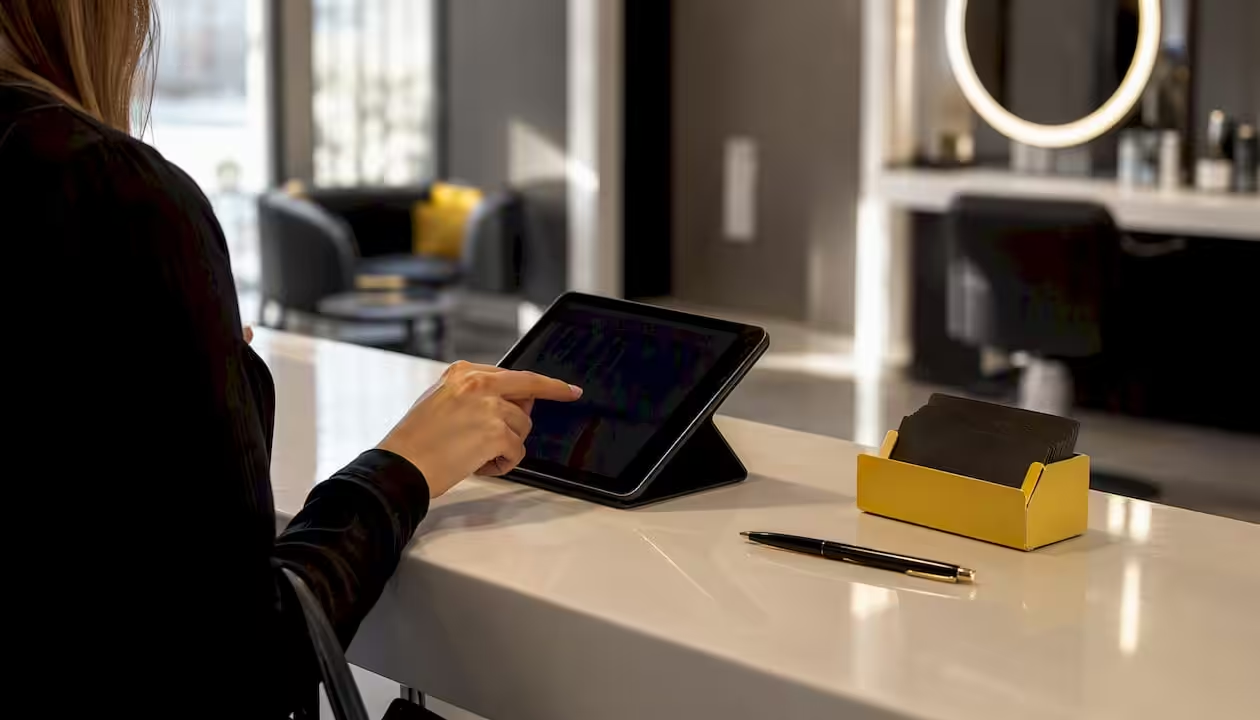
Your online booking page is the last thing a client sees before they commit to an appointment. If it looks generic, asks for too much or hides the price, the client closes the tab and calls someone else. The fix is rarely a full redesign. It is one short, mobile-friendly flow: a visible “Book” button, a clear service list, the right team member, a free time slot, a few contact fields and an instant confirmation.
Three changes that usually pay off first:
- Make the page look like your business. A logo, your brand colour, a cover photo and a short description tell the client they are in the right place.
- Put the steps in the order your clients think in. Quick services work best time-first; specialist services work best when the client picks the person first.
- Ask for prepayment where a no-show really hurts. A paid appointment is a firmer commitment than a free one, especially for long or expensive services.
Quick audit checklist:
- A “Book” button on every service page of your website and a booking link in your social media profiles.
- A service chosen in three taps or fewer.
- Only the fields the appointment really needs.
- Price, duration and any prepayment visible before the client confirms.
Pro Tip: Check your button wording. A specific label such as “Book an appointment” tells the client what happens next; “Submit” or “Continue” does not.
Key takeaways
A booking page converts when it looks trustworthy, follows the way clients decide and removes every unnecessary step between interest and a confirmed appointment.
| Point | Details |
|---|---|
| Branding | Logo, colours, a cover image, a gallery and a short description make the page read as part of your brand. |
| Order of steps | Time-first for quick services, person-first for specialists; choose by how your clients decide. |
| Service and team member details | Descriptions, photos, prices and specialisations answer questions before the client has to call. |
| Prepayment | Full or partial prepayment for the services where an empty slot costs most, with clear cancellation rules. |
| Consent and accessibility | A privacy notice at the point of collection, a separate route for marketing consent and readable contrast. |
| SEO | The booking page doesn’t rank; your website and Google Business Profile do, so link both to it. |
What success looks like: metrics to watch
Before you change anything, decide what you will measure. Two groups of numbers matter.
Conversion metrics:
- Booking completion: how many people opened the booking form and how many finished it.
- Time to book: book your own service on a phone and time it.
- Mobile completion, tracked separately from desktop.
Operational metrics:
- No-show rate, before and after you switch on prepayment or reminders.
- Share of appointments made online versus by phone or at the desk.
- New clients who come back for a second visit.
Tracking essentials: in Altegio you can connect Google Analytics 4, Google Tag Manager or Meta Pixel to the booking form, and a completed appointment is sent as the booked event. To compare channels, give each placement its own link and tag it with the ?add_ga or ?add_fb parameter. The Appointments report itself splits appointments only into online and offline, so channel-level analysis happens in your analytics tool. For ideas on what to track, see Google Tag Manager in Altegio online booking; for the reports inside the account, see statistics and analytics.
Make the booking page look like your business
An empty or generic booking form lowers trust. A branded page feels like an extension of your website, so the client books with more confidence. In Altegio the look of the page is set in two places.
- Online booking > Online booking links > Set up > Online booking design: a light or dark theme, a colour for buttons and icons from the palette or as a HEX value, and an image for the first screen in 16:9 format. If the colour you pick has too little contrast, Altegio shows a warning and won’t save it.
- Online booking > Settings: your brand name, logo (500 × 500 px recommended, up to 12 MB) and a short description; phone, email, address, working hours and social media links; a gallery with photos of the interior and your work; a promo block for current offers; and the partner brands you work with.
For the link itself, set up a personal domain in Online booking > Personal domain. You choose a subdomain and a base domain (altegio.me or rsrv.ws) and assign the result, for example your-studio.altegio.me, to one of your booking links. A short, readable address looks better in ads, social media bios and messages than a technical URL.
Pro Tip: Use real photos of your space and your work in the gallery and on the first screen. Stock images look like every other page; your own interior tells the client exactly where they are going.
Choose the order of booking steps
Think of the booking page as a short conversation: the order of questions should match how your clients decide. In Online booking > Online booking links > Set up, Altegio offers three formats for individual appointments:
- Menu – the client chooses the service, team member and time in any order. The team member step shows the nearest available time, and the client can edit the details on the final step.
- Step-by-step – the client goes through the steps strictly in the order you set. This suits businesses where most clients are new and shouldn’t have to decide where to start.
- Short step-by-step – always service, then team member, then date and time. The order can’t be changed.
In the Menu and Step-by-step formats you drag the steps into the order you want. Each step can be renamed, and you can preselect a service or a team member – or hide the team member step altogether, so every appointment goes to the preselected person. You also choose whether clients see a team member’s position or specialisation.
Two practical booking flows
Most appointment-based businesses fit one of two patterns. Pick the one that matches how your clients choose, then test it on a phone.
Time first: quick services for barbers and nail studios
Best when clients care more about getting a slot soon than about a particular person.
- Switch on the “Any professional” mode: the client picks a service and a time, and Altegio assigns a free team member. Only team members with “Skip choosing professional” enabled in their profile are included.
- Keep the service list short and grouped, so the first step takes one or two taps.
- Ask only for the contact details you need, and confirm.
Note that in this mode prepayment rules set for an individual team member don’t apply – only the service’s prepayment setting counts. If you need prepayment, set it on the service.
Person first: specialist appointments for clinics and spas
Best when clients choose a specific therapist, doctor or stylist deliberately.
- Show the team member step first, with a photo, specialisation and a short profile.
- Then the services that person provides, with descriptions and prices.
- Then the date and time, contact details and, where needed, prepayment.
You can also create a separate booking link for each team member and place it next to their profile on your website – a “Book with Dr Novák” button opens straight into that person’s schedule. Separate links per service work the same way.
One rule applies to both flows: if a client picks several services in one appointment, the appointment is created only when one team member can perform all of them. If different people do different parts, set it up as a package service.
Service and team member details that answer questions
Many calls to the front desk are questions the booking page could have answered: what’s included, how long it takes, what it costs and who does it.
For each service, the Online booking tab in the service settings lets you set:
- whether the service appears in online booking at all;
- a client-facing name – if you leave it empty, the main service name is used;
- a description of up to 450 characters;
- an image (645 × 300 px recommended, up to 12 MB);
- online prepayment for this service.
The Languages tab holds the service name in other languages for clients who switch the widget language. Prices can be set per team member and as a price range, so you can show what a senior stylist costs instead of hiding the price.
For each team member, the team member card (Team > Team members list) holds:
- name, position, specialisation and a profile photo;
- whether clients can book this person online;
- a profile description clients see when booking online, optionally with ratings and reviews;
- online prepayment for this person’s services;
- whether they are included when a client chooses “Any available professional”;
- online booking hours: the location’s general hours or personal ones.
Pro Tip: Group services into categories first, then show individual options. A client looking for colour should not scroll past twenty haircut variants to find it.
Languages for international clients
In tourist areas and cities with many international residents, a booking page in the client’s own language removes a real barrier. The Altegio booking widget is available in more than 20 languages. You set the default language for each booking link, and new clients see it. Any client can switch the language in the widget’s personal account: the profile icon, then Change language. Clients who are signed in – for example, because they booked online recently – see the language saved in their personal account, and the business can’t override it. Translate your service names as well, so the whole menu reads naturally.
UX patterns and microcopy that lower abandonment
Every word and interaction on the page either helps the client finish or slows them down.
- Test your booking flow on a real phone, not a browser emulator. Emulators miss keyboard overlap and slow mobile connections.
- Rename the steps in plain words: “Choose your treatment”, “Choose your therapist”, “Pick a time”.
- Give the comment field a useful label (up to 60 characters), such as “Allergies or anything we should know?”. Make the comment or email field required only if you really need it, and hide it if you don’t.
- Keep the price and duration visible next to each service, so there are no surprises at the end.
- For services with prepayment, write the cancellation rule into the service description, so the client knows it before paying.
- For last-minute openings, post a story on Instagram with a booking link that has the service preselected.
- Use one button colour throughout, so the main action is never in doubt.
Prepayment and cancellation rules
For long or expensive services, a no-show costs you the whole slot. Prepayment turns a reservation into a commitment.
- How much. Prepayment can be 100% or any percentage, set per service or per team member.
- How it’s paid. Online payments go through a connected provider – Stripe, or Adyen in EU countries – and Altegio doesn’t add its own commission. With Adyen in EU countries you can also use a card guarantee instead of a deposit. See payment policy and no-show protection and Adyen payments in Altegio.
- Cancellation cutoff. Set how late clients can cancel or reschedule online, in 15-minute steps up to 48 hours before the appointment.
- Refunds. If a client cancels a prepaid appointment, the money isn’t returned automatically: it stays on the client’s balance, and a receptionist refunds it manually through Client Refunds if needed.
- Testing. Run the full payment flow on a phone before going live, including a failed payment and a cancellation.
Pair prepayment with an automatic reminder. Reminders go 1–24 hours before the visit by email, push or SMS through a connected provider, and Altegio’s help centre cites 30–40% fewer no-shows after businesses switch on SMS or push reminders. For a deeper look at deposits and card guarantees, read Protect your most expensive slots.
GDPR and consent on the booking form
The GDPR (Regulation (EU) 2016/679) applies to every booking page that collects personal data from clients in the EU. The practical points:
- Privacy information at the point of collection. Article 13 requires you to tell people who you are, why you process their data and how long you keep it at the moment you collect it. Link your privacy notice next to the booking button and the contact fields, not only in the footer.
- Collect only what the appointment needs. The data minimisation principle (Article 5(1)(c)) limits you to what the purpose requires. A name, a contact detail and the chosen service are needed to provide the appointment (Article 6(1)(b)); anything extra needs its own reason.
- State the retention period. Your privacy notice must say how long you keep booking data or how you decide that period.
- Keep marketing consent separate. Silence or a pre-ticked box is not consent (Recital 32), and where you rely on consent you must be able to prove it (Article 7(1)). Email and SMS marketing is also covered by the ePrivacy Directive 2002/58/EC, which each country implements in its own way.
- Keep card details out of the conversation. Payments run through the connected provider, so there is no reason to collect card numbers in a comment field or by message.
What this means in Altegio: the booking widget has one mandatory checkbox – consent to personal data processing. There is no marketing-consent checkbox, so collect marketing consent another way, for example in a form on your website or at the desk, and keep your own record of it. If a client opts out of messages, set Exclude in their client card. For visitors in the EU, the booking form blocks analytics and advertising cookies until the visitor consents.
Accessibility and the European Accessibility Act
The European Accessibility Act (Directive (EU) 2019/882) applies to e-commerce services provided to consumers after 28 June 2025 – services offered at a distance, through websites and apps, with a view to concluding a consumer contract. Online booking with prepayment on your website can fall under that definition. Microenterprises providing services are exempt: businesses with fewer than 10 people and an annual turnover or balance sheet total of no more than €2 million. Each country has written the Act into its own law, so if your business is larger, check the national rules.
Whatever your size, these habits help every client, including those with poor eyesight or shaky hands:
- Enough contrast between text, buttons and background. In Altegio a low-contrast button colour can’t be saved.
- Large tap targets for the booking button on your own website; WCAG 2.1 success criterion 2.5.5 suggests at least 44 × 44 CSS pixels.
- Labels above the fields in any form on your website, rather than placeholder text that disappears when the client starts typing.
- Alt text for the photos on your website and plain-language service names and descriptions.
- Never rely on colour alone to show meaning, for example which slots are free.
SEO: your website ranks, not the booking page
The booking page converts visitors; it isn’t a page that ranks in search. What ranks is your own website and your Google Business Profile, so the job is to connect both to the booking page.
- Your website. Add the booking button to every service page. Its colour, position and animation are set in Online booking > Online booking links > Set up > Website button. If you are still choosing a site, see website builders for beauty salons and barbershops.
- Google. Connect Reserve with Google for free in Integrations > Client acquisition > Google Maps, so clients book in your Altegio booking form right inside Google, without leaving your Business Profile. If you advertise, see the Book button in Google Ads.
- Instagram and Facebook. Connect the Book now button through the app in the Integrations Hub; in Instagram or Facebook you pick Altegio, and no URL is needed.
- Consistency. Keep service names, prices and descriptions the same on your website, your Business Profile and the booking page.
Common mistakes that kill bookings and how to fix them
Run through this list in one sitting. Most fixes are settings, not development work.
- Hidden book button. Fix: a high-contrast button on every service page and a booking link in your Instagram bio.
- A wall of services with no categories. Fix: group services, give them client-facing names and hide the ones that can’t be booked online.
- Too many required fields. Fix: ask only for the essentials; make comment or email required only if the appointment depends on it.
- An empty, generic page. Fix: add a logo, a cover image, a gallery and a short description.
- Steps in the wrong order. Fix: time-first for quick services, person-first for specialists.
- Multi-service appointments that won’t go through. Fix: if the services are done by different people, create a package service.
- Prepayment that surprises the client. Fix: mention it and the cancellation rule in the service description, and test the payment flow on a phone.
- Expecting the booking page to bring search traffic. Fix: link to it from your website and your Google Business Profile.
A 30-minute booking page audit
Start small and change one thing at a time.
- Book your own most popular service on a phone over mobile data. Time it and note every pause.
- Look at the first screen as a new client would: logo, cover image, description, prices.
- Check the step order against how your clients actually decide.
- Read every step name and field label aloud and rename anything vague.
- Check which services have prepayment and whether the cancellation cutoff matches your policy.
- Check the consent checkbox and the link to your privacy notice.
- Switch the widget to another language and read the menu as a visitor from abroad would.
Then switch on prepayment for your three longest or most expensive services, keep reminders on and compare the no-show rate over the next four weeks. Keep what works and roll it out to your other locations.
How Altegio covers the checklist
Altegio’s online booking is built for appointment-based businesses – beauty, wellness, clinics, auto services, fitness and more. Everything in this article is configured in the account, without custom development:
- Branding: light or dark theme, button colour, cover image, logo, description, gallery, promo block and a personal domain.
- Flow: three step formats, a preselected service or team member, the “Any professional” mode and separate links per team member or service.
- Content: client-facing service names, descriptions and images; team member profiles with specialisation and optional ratings and reviews.
- Availability: online booking shows only free slots, with online booking hours, slot rules and exceptions for the location or each team member.
- Payments: full or partial prepayment per service or team member through Stripe or Adyen, and a card guarantee with Adyen in EU countries.
- Reminders: automatic notifications, with email as a free channel.
- Languages: a widget in more than 20 languages and translated service names.
- Chains: a chain widget where the client first picks a location, then the service, team member and time.
- Analytics: Google Analytics 4, Google Tag Manager and Meta Pixel on the booking form.
Appointments made through your booking page go straight into your calendar and client base, and the client books with you directly rather than through a third-party catalogue. For beauty salons and spas, branding, prepayment and reminders together cover the most common reasons a booking page loses clients.
You can set all of this up during the 7-day free trial and test the flow on your own phone. The price depends on the number of team members and the billing period – see pricing.
FAQ
What is the ideal number of steps in a booking form?
For most appointment-based businesses, three: service, team member and time, followed by contact details. In Altegio you choose between the Menu, Step-by-step and Short step-by-step formats, and the “Any professional” mode lets clients skip choosing a person.
How do deposits reduce no-shows on a booking page?
A client who has paid in advance has a reason to come or to cancel in time, and you keep the prepayment on their balance if they cancel. Set prepayment for the services where an empty slot costs you most, and pair it with an automatic reminder.
Does GDPR apply to booking pages?
Yes. Give privacy information at the point of collection, ask only for the data the appointment needs and keep marketing consent separate and never pre-ticked. The Altegio booking widget has only a mandatory personal-data consent checkbox, so marketing consent has to be collected another way.
Does the European Accessibility Act apply to my booking page?
It can, if you sell services to consumers online, for example with prepayment. Microenterprises providing services – fewer than 10 people and an annual turnover or balance sheet total of no more than €2 million – are exempt. National rules differ, so check how your country implemented the Act.
Will my booking page rank on Google?
No. Your website and your Google Business Profile rank; the booking page is where clients finish the job. Link to it from every service page and connect Reserve with Google.
Can Altegio handle multi-location booking pages?
Yes. A chain widget lets the client choose a location first, then the service, team member and time, and each appointment goes into the right location’s schedule. Administrators can see a client’s visit history across the whole chain.
Read next
- A salon booking system: how to choose
- Protect your most expensive slots: payment policies, card guarantee and Adyen
- Google Tag Manager now runs inside Altegio online booking: 11 ways to use it
- Best website builders for beauty salons and barbershops
This article is general information, not legal advice. Rules differ between EU countries, so check your national law or ask a lawyer before acting.