
Set up role-based access, give every job the narrowest rights it needs, and hide client contact details from anyone who doesn’t contact clients. That’s the whole system in one sentence. Everything else is detail.
If you do nothing else this week, do these three things in your salon software:
- Keep one owner account with full access, and don’t share its login with anyone.
- Give everyone else a narrower starting role – for example receptionist (appointments and payments, no financial reports) and stylist (own schedule and own clients only).
- Hide client phone numbers and email addresses, and switch off client-list export, for everyone who doesn’t need them.
This is also what the GDPR expects of you. Article 32 asks a business to protect personal data against unauthorised disclosure or access with measures that fit the risk, and to make sure that anyone working under its authority handles that data only on its instructions. Article 25(2) adds that, by default, personal data should be accessible only as far as each purpose needs. In a salon, staff permissions are one of the most practical ways to show you’ve done both.
Key Takeaways
| Point | Details |
|---|---|
| Start with least privilege | Give every role the narrowest access that still lets them do their job, then widen deliberately. |
| Hide contact details by default | Phone numbers and email addresses should be visible only to the people who actually contact clients. |
| Treat exports as a separate right | Exporting the whole client list is a far bigger risk than opening one client card, so grant it rarely. |
| Limit how far back people can look | Restricting access to past appointments and transactions cuts backdated edits and casual browsing. |
| Check the logs, not just the settings | A log of exports and changes tells you who actually did what. |
| Altegio covers this in team member access rights | Preset roles, per-section rights, hidden contacts, export rights and security logs are all set up per team member. |
What is role-based access, and how does it map to salon jobs?
Role-based access control (RBAC) means permissions attach to a job function, not a person. Give someone the junior stylist role and they get that role’s access – no more, no less. It beats the old habit of copying an account and adjusting it by hand for each new hire, which is how salons end up with a receptionist who can delete last month’s payments.
The areas that matter in a salon break down cleanly:
- Appointments and calendar – who can view, create, move or delete appointments, and whether that extends to colleagues’ columns.
- Client data – contact details, visit history, notes, comments, files and allergy flags.
- Payments and discounts – who can take payment, change a service price or apply a discount at checkout.
- Finance – cash registers, transactions, payroll and supplier data.
- Inventory – stock levels, product arrivals and write-offs.
- Reports – revenue, team performance and appointment lists.
Contact details deserve their own rule. Hide phone numbers and email addresses by default from junior and front-of-house roles that don’t phone clients. Separate toggles, rather than one fixed role label, let you give access without giving control: a senior stylist might see a client’s visit history but not their phone number. Card numbers are a different matter – they shouldn’t sit in client notes or comments at all. Online card payments belong with a payment provider, and in Altegio they go through a connected provider such as Stripe or Adyen.
How do you build permission templates that don’t decay over time?
Templates only stay useful if you resist the urge to widen them “just in case”. Every right you grant is one more thing to audit later, so start narrow and add only when a real task demands it.
- Write a one-page role map. List each job – receptionist, senior stylist, junior stylist, manager, accountant – and the rights it needs. This page becomes the standard you check everyone against.
- Start everyone from a role, not from scratch. In Altegio, a team member’s Access tab offers eight preset roles: Owner, Manager, Receptionist, Call Center, Accountant, Team member, Read-only and System Manager. Each comes with a preset set of rights, and you switch off the ones that person doesn’t need.
- Copy rather than rebuild. Once one receptionist is set up exactly right, use Copy permissions to give the next receptionist the same rights. When your role map changes, recheck every team member in that job.
- Allow individual exceptions sparingly. A trusted senior team member might get a report their role lacks. Write the exception on the role map, don’t just quietly toggle it.
- Put someone in charge of access. Name an access owner, usually the manager or owner, who reviews rights on a set schedule rather than whenever something goes wrong.
Roles also affect your subscription. In Altegio, a team member is counted in the subscription if they provide services and have a work schedule, or if their role includes any editing rights. Read-only and System Manager are free roles for people who only view data or manage the team and subscription. The price itself depends on the number of team members and the billing period – see Altegio pricing.
Pro Tip: Book a 15-minute access review into your existing monthly stock-take. Piggybacking it on a habit you already keep means it actually happens, rather than sitting on a to-do list nobody opens.
How do you invite a new team member and check their permissions are right?
Before you send a single invitation, decide two things: which role this hire starts on, and which client data stays hidden from them regardless. Settle this before the invitation goes out, not after.
Sending the invitation in Altegio:
- Go to Team > Team members list, click Add and choose Team member.
- Enter the name and specialization. The specialization is visible to clients in online booking, so write it the way clients would understand it.
- Choose billable or non-billable, enable Altegio access, enter the email address or phone number for the invitation and set the role. Without a connected SMS provider an invitation can’t reach a phone number, so email is the safer choice.
- Open the Access tab, switch off whatever the role map says this person doesn’t need and click Save.
If you typed the wrong address, use Revoke invitation. If the invitation didn’t arrive, use Resend invitation, or Copy invitation link and send it yourself.
Checking it worked:
- Walk through a short checklist on the new starter’s own device during their first shift.
- Confirm they see the schedules you intended – for a stylist, usually just their own.
- Confirm phone numbers really are hidden. In Altegio’s Appointment Calendar, a team member without the Show phone number right sees a masked number such as +3123XXXXX90.
- Confirm they can’t export the client list.
A view-only or narrow role is the safe default for new hires, with further rights switched on once they’ve settled in.
After probation, widen access deliberately:
- A receptionist who has proved reliable might get the right to change discounts at checkout.
- A stylist with a loyal following might see the contact details of their own clients only. In Altegio, the Show clients setting can limit the client list to people who have visited that team member.
- Anyone leaving the business is dismissed on their last day. In Altegio, Dismiss disables the person’s access, and Link access to other team member moves system access to whoever replaces them.
What security controls stop internal misuse of client data?
Permissions decide who can see something. Logs tell you who did. Both matter, and salons that only configure the first half leave a gap.
In Altegio, two logs sit under Analytical Reports > Security:
- Data exports – who downloaded what and when from All Clients, the Appointments report, Financial Transactions and Inventory Management.
- Data changes – every addition, change and deletion of appointments, financial transactions and inventory operations, with the author and filters by period, entity, author and action.
Pair the logs with limits on how far back people can reach – backdated edits are hard to spot and easy to prevent:
- Calendar history – limit how far back a team member can view past schedules and appointments, from 1 day to 6 months, or block it entirely.
- Appointment edits – set the period in which earlier appointments can still be changed, and decide separately who may edit paid appointments.
- Finance – restrict viewing to the current day, the last 1–15 days or the last 1, 2, 3 or 6 months; give access only to selected cash registers and selected transaction types; and keep Delete transactions for the owner or accountant.
One catch worth knowing: limiting a team member to selected cash registers applies inside the Finance section only. If they also have the right to take payment in the appointment window, they can still take payments into any cash register.
Pro Tip: Put a ten-minute look at Data exports and Data changes into your weekly routine. A full client-list export, a deleted transaction or an edited paid appointment deserves a same-week conversation, not an end-of-quarter surprise.
None of this replaces encryption or a secure payment provider – it complements them. Encryption protects data in transit and in storage; access rights decide who gets to look at it once someone is logged in.
There’s a practical HR side too. A clean log is often the clearest record of what happened in a dispute about a discount or a deleted appointment. Rules on monitoring employees and using such records differ between EU countries, so check them with your adviser before you rely on logs in a disciplinary case.
How do you roll out new permissions without disrupting the salon?
Rolling out a new permission structure in your busiest weeks, with a full appointment book, is asking for trouble. Sequence it properly instead.
- Map before you touch anything. List every role in the salon and every field that counts as sensitive: contact details, notes, payments, commission rates and supplier costs.
- Set up the roles, then pilot with one or two people. Don’t flip the switch for the whole team on day one. Watch how the pilot group’s access works for a week.
- Explain the change before people notice it themselves. Nothing erodes trust faster than a stylist discovering they’ve lost report access with no warning. A two-line message explaining what’s changing and why takes five minutes.
- Train on what they’ll actually see. A ten-minute walkthrough of the new screens beats a written policy nobody reads.
- Review on a schedule, not by accident. Quarterly is reasonable for most salons. Remove access for leavers the day they leave, not the day someone remembers to do it.
- Watch two signals. How often team members ask for access they lack, and how many appointment mistakes you have to fix in the first month.
How should multi-location salons handle branch-level permissions?
A single-site salon can get away with a simple role map. A chain can’t: a stylist at your Porto branch has no business browsing the client base of your Lisbon site, and a manager who runs both shouldn’t be locked out of either.
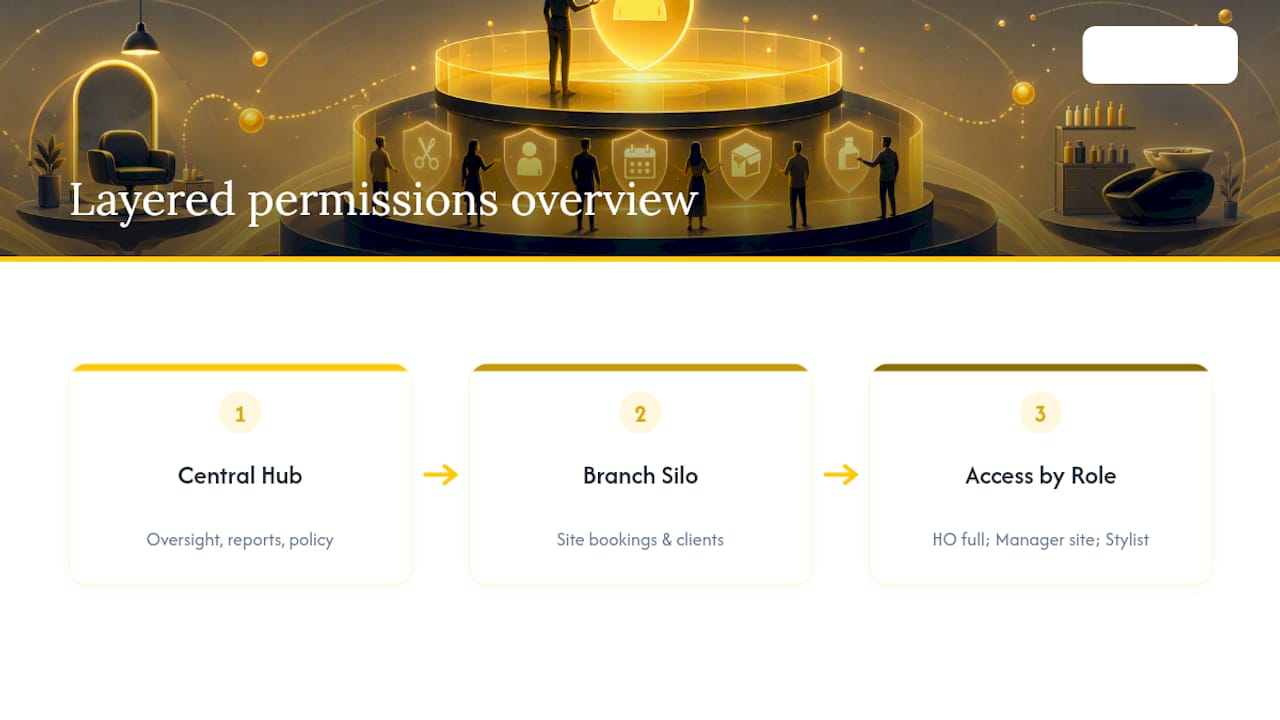
The fix is layering. Head office keeps oversight of reports and policy across every site, each branch works with its own appointments and clients day to day, and each person’s role decides what they see inside a branch. A branch manager sees their own site’s appointments, clients and team schedule – not another branch’s payroll or client list, unless you grant it deliberately.
In Altegio, access works per Location: a team member’s account needs access to each Location they work in, and their access rights control what they can do there. In a Chain, users are added and invited in Settings > Users in the chain interface, and you can configure which Chain’s client data a user can see in the appointment window.
Two things to decide specifically for multi-site teams: what people who float between branches can see at each site, and whether a regional manager needs client-level detail or just totals. Get either wrong and you frustrate your best mobile stylist or expose every branch’s client list to someone who only needed the top-line numbers.
How does Altegio support staff permissions in practice?
Altegio is booking and business management software for appointment-based businesses – beauty, wellness, clinics, auto services, fitness and more – and access rights are part of every team member’s profile. Altegio also follows a Zero-Competition Policy: it isn’t a marketplace, so clients book through links that belong only to your business, they don’t see competitors while booking, and your client base is never resold. Go to Team > Team members list, open a team member and switch to the Access tab. From there:
- Roles – pick one of eight preset roles, switch whole sections on or off, and add or remove individual rights. Copy permissions gives another team member the same set.
- Client contacts – showing phone numbers is a separate right in the client list, the client profile, the Appointment Calendar and reports, and email addresses follow the same rights in the client list and profile, so you can hide contacts everywhere except the front desk.
- Which clients – a team member can see all of the Location’s clients or only those who have visited them.
- Exports – exporting the client list, appointment lists and financial transactions to Excel are separate rights, and exports are recorded in the Data exports log.
- Finance – limit cash registers, transaction types and how far back someone can view, create or edit transactions. Payroll access can be limited to one team member’s own data.
- Logs – Data changes records who added, changed or deleted appointments, financial transactions and inventory operations.
To see how these rights sit alongside the rest of the system, look at the client base, finances and accounting, salary calculation and statistics and analytics. A 7-day free trial is the quickest way to check whether your current role structure needs rebuilding or just fine-tuning.
FAQ
What is the difference between staff roles and permissions?
A role is a named bundle of permissions, like receptionist or senior stylist, while permissions are the individual rights – view appointments, edit client notes, export the client list – that make up the bundle. In Altegio, a role is a starting point: you pick it, then switch off the rights a particular team member doesn’t need.
Should junior staff see client contact and payment details?
Usually not. Hide phone numbers and email addresses from roles that don’t contact clients, keep finance access limited to the cash register and the period they actually work with, and never store card numbers in notes or comments.
How often should salons review staff permissions?
A quarterly review is reasonable for most salons, with a quick look at the export and change logs in between. Remove access the day someone leaves rather than waiting for the next review.
Does the GDPR require access control for salon staff?
The GDPR doesn’t prescribe specific settings. Article 32 requires security measures appropriate to the risk, including protection against unauthorised access to personal data, and Article 25(2) requires that, by default, personal data are accessible only as far as each purpose needs. Role-based access with hidden contact details is a straightforward way to work towards both.
Can multi-location salons keep branches separate?
Yes. Give each person access only to the Locations they work in, and keep their rights narrow at each one. In an Altegio Chain, users are managed in Settings > Users in the chain interface.
Does Altegio support role-based permissions for salons?
Yes. Altegio has eight preset roles, per-section access rights you can switch on or off for each team member, separate rights for client phone numbers, email addresses and exports, finance limits by cash register and transaction type, and the Data exports and Data changes logs under Analytical Reports > Security.
Read next
- Altegio trust, privacy and compliance: GDPR, security and governance.
- Protecting your business: how to safeguard data from leaks.
- End-of-day reconciliation: 6 checks to keep salon records audit-ready.
- What you’re really buying with a booking system built in three days.
This article is general information, not legal advice. Data protection and employment rules differ between EU countries.