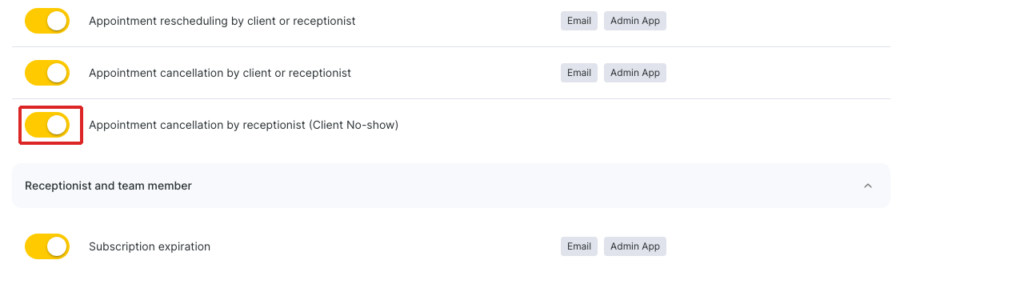
This notification is sent automatically as soon as a receptionist or a team member updates an appointment’s status to No-show. The notification lands on the team member assigned to provide the service so they immediately know the slot has freed up and can use the time differently.
Setup and editing
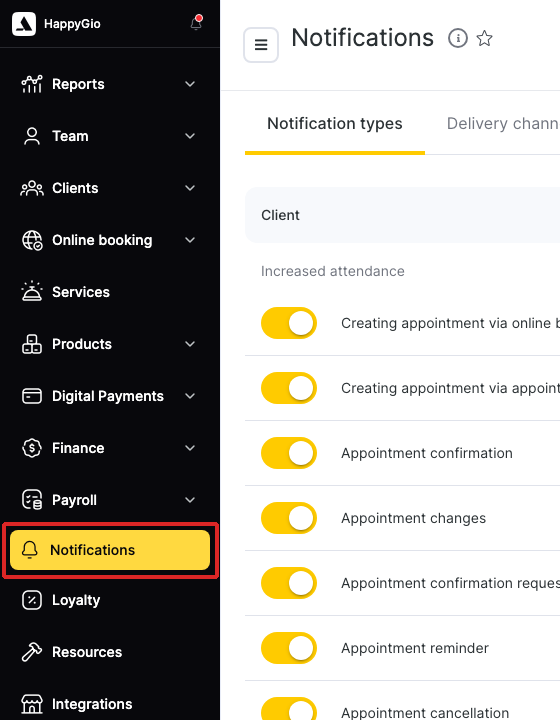
To open the notification settings:
- In Administration mode, click Notifications in the sidebar.
- On the Notification types tab, scroll to the Team member group.
- Click the row Appointment cancellation by receptionist (Client No-show).
The notification opens in a list view where every row in the Team member group represents a separate notification type that fires for staff.
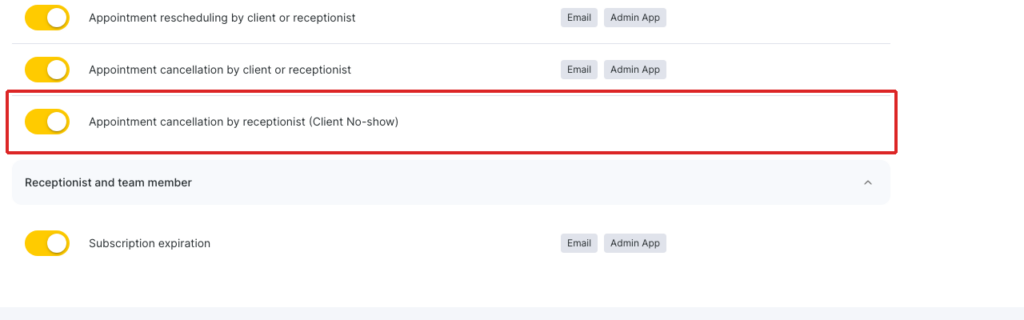
- Clicking the row opens the notification’s settings page with two tabs:
General settings — choose which channels deliver this notification.
Notification templates — write the message that goes out on each channel.
- Three channels are available for this notification:
Admin App — push notification in the Altegio app for team members. Active by default.
Email — sent to the team member’s email. Active by default.
SMS — listed under. Not connected until your salon connects an SMS provider. Click Connect to set it up.
For each connected channel, use the dropdown on the right to pick Send (the notification fires on this channel) or Do not send (the channel stays off for this specific notification, even though it’s enabled at the salon level).
Note
The channels available here mirror the channels you’ve connected for the whole salon on the Delivery channels tab. If a channel you want to use is greyed out as Not connected, switch to the Delivery channels tab first and connect it there.
Templates
Switch to the Notification templates tab. Each connected channel has its own template block — open it by clicking the channel header to expand it.
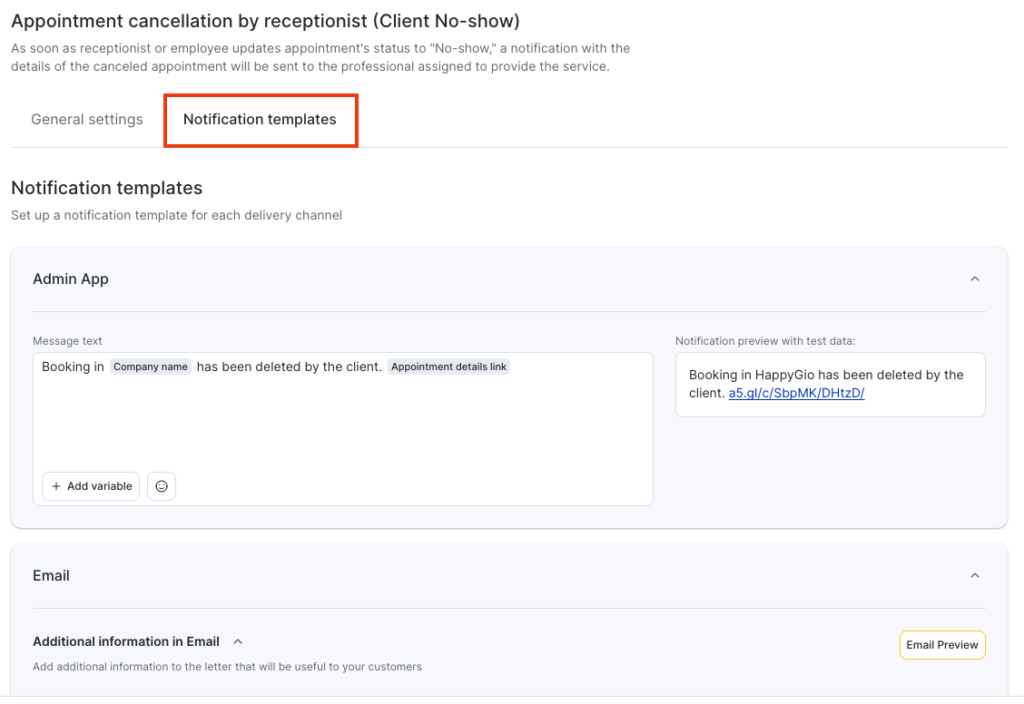
Admin App template
The Message text field is where you write what the team member will see in the push.
• Use + Add variable to insert a placeholder for live data from the cancelled appointment — client name, service, master, visit date and time, location name. The placeholder is replaced with the real value at send time, so each notification arrives fully filled in.
• The smiley icon next to + Add variable opens an emoji picker. Adding an emoji or two helps the message stand out in the team member’s notification list.
• The Notification preview with test data panel on the right shows what the message will look like with sample values, so you can spot a misplaced variable or a layout issue before saving.
Email template
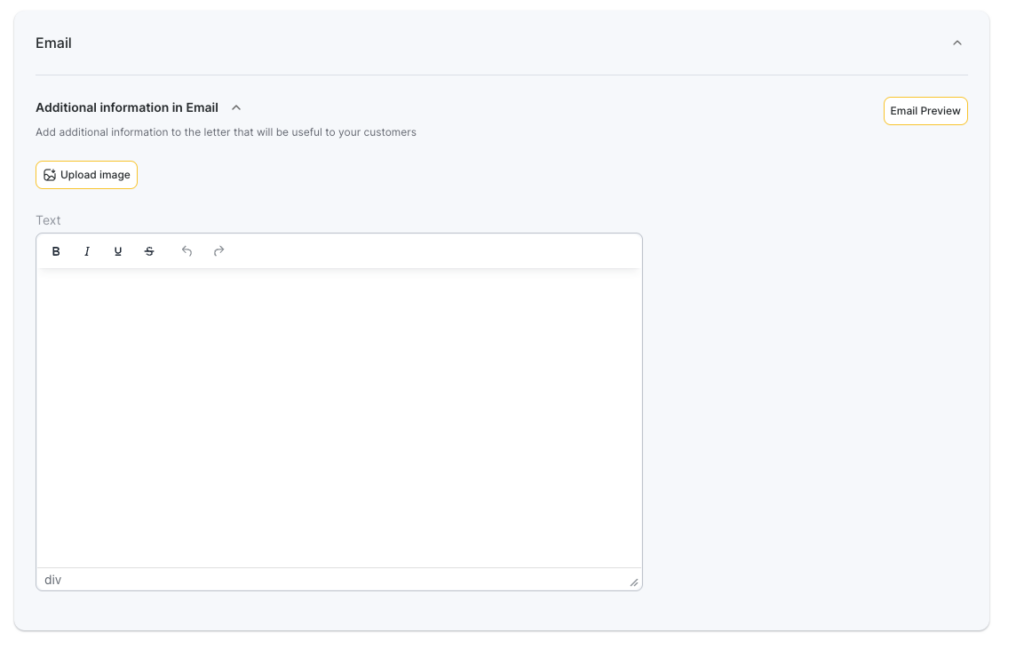
Open the Additional information in Email block to add extra content that will appear in the email alongside the standard appointment-cancellation layout. Click Email Preview to see the final email exactly as it will appear in the team member’s inbox.
SMS template
The SMS template editor becomes available once your salon has connected an SMS provider on the Delivery channels tab. It works the same way as the Admin App editor — a Message text field, a + Add variable button, and a preview area.
Important
When you insert a variable into an SMS template, leave a single space between the variable and the surrounding text. Altegio does not add it automatically, so without a space the variable’s value will run into the next word in the delivered message.
Note
Every channel has its own preview. Use it before saving — it’s the fastest way to catch a missing space, a stuck {…} placeholder, or a line break that breaks the layout.
Finishing setup
Once General settings and Notification templates are configured the way you want, click the yellow Save button at the bottom-right of the page. Your changes apply to every future no-show cancellation immediately.
To turn the whole notification off across every channel, go back to Notifications > Notification types, find the row, and toggle it off. The channel settings and templates you saved stay in place — toggling the row back on later re-applies them without losing your work.