
SMSAPI (https://www.smsapi.pl/) is a Polish business SMS platform on the market since 2007, part of the international LINK Mobility group. You can send service SMS from your own SMSAPI account: visit confirmations and reminders, reschedule and cancellation notices, and other SMS types you enable in Altegio notification settings. Message text and send rules are set in Altegio; delivery is charged to the client’s SMSAPI balance.
Integration Hub app: https://app.alteg.io/e/mp_2178_altegiosmsapigateway/
Provider: SMSAPI, brand of LINK Mobility Poland
Website: https://www.smsapi.pl/
SMS pricing: https://www.smsapi.pl/cennik
Support: +48 327 201 200 (Mon–Fri 8:00–17:00), [email protected]
What the integration can do
In Altegio, the SMSAPI app enables SMS for standard notification scenarios:
- appointment confirmation;
- visit reminder;
- cancellation or reschedule notice;
- other service SMS you turned on under Settings → Notifications.
Additional capabilities:
- connect your own SMSAPI account via OAuth (Continue with SMSAPI in app settings; the client pays SMSAPI directly, not through a global Altegio SMS aggregator);
- choose an approved sender name (nadawca) for each Altegio location when several names exist in SMSAPI;
- link several Altegio locations to one SMSAPI account;
- automatic authorization renewal during normal use;
- SMS delivery statuses in Altegio.
Marketing campaigns, MMS, VMS, and other SMSAPI products are configured in the provider panel. This integration only sends SMS triggered by your Altegio notification rules.
How it works with Altegio
The client registers a separate business account at https://www.smsapi.pl/.
In SMSAPI, the client tops up the balance or uses postpaid, registers an approved sender name (nadawca), and completes company billing details if required.
In Altegio, the client installs SMSAPI for Altegio from the Integration Hub and completes SMSAPI authorization (Continue with SMSAPI, sign-in in a separate browser tab).
In Altegio, the client selects a sender name for the location and enables SMS on the required notification types.
Altegio sends SMS on behalf of the client when enabled notifications fire; charges apply to the SMSAPI balance.
Balance top-ups, invoices, and SMS billing are handled in SMSAPI, not in Altegio.
How to connect
Step 1. Prepare your SMSAPI account
- Register a business account: https://www.smsapi.pl/rejestracja
- Complete verification and sign in to the customer panel (e.g. https://ssl.smsapi.pl/).
- Fill in company billing details (payment information). Sending may stay limited until this is done.
- Top up the balance (prepaid from 49 PLN) or set up postpaid. Rates: https://www.smsapi.pl/cennik
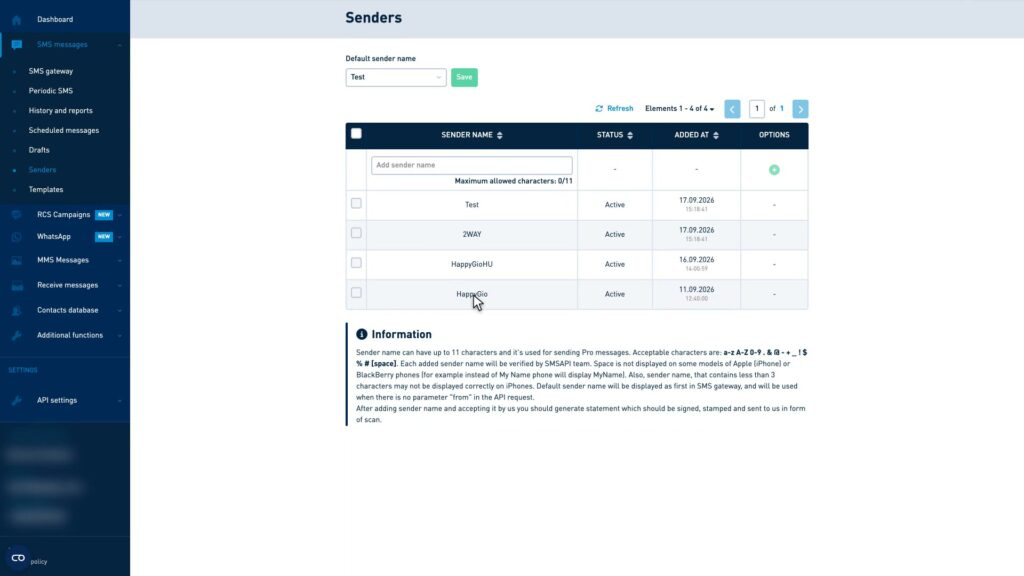
- Add a sender name (nadawca):
- in SMSAPI open Wiadomości SMS → Nadawcy (EN: SMS messages → Senders);
- click Dodaj nazwę nadawcy / Add sender name, enter a name (up to 11 characters, per SMSAPI rules);
- wait until status is Active / Aktywny (SMSAPI verifies each name; extra documents may be required).
On a test account, SMSAPI may only allow sends to the phone number used at registration until billing details are complete and the balance is topped up.
Step 2. Find the app in Altegio
- In Altegio, open Administration.
- In the sidebar, select Integrations.
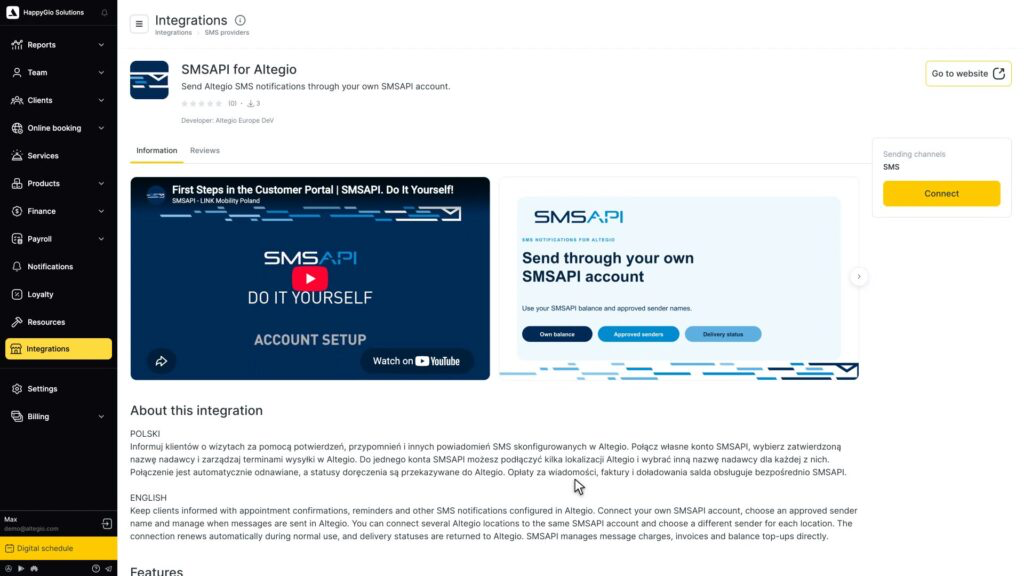
- In the catalog, open Notifications and find SMSAPI for Altegio.
- Or use the direct link: https://app.alteg.io/e/mp_2178_altegiosmsapigateway/
Step 3. Install the app and grant access
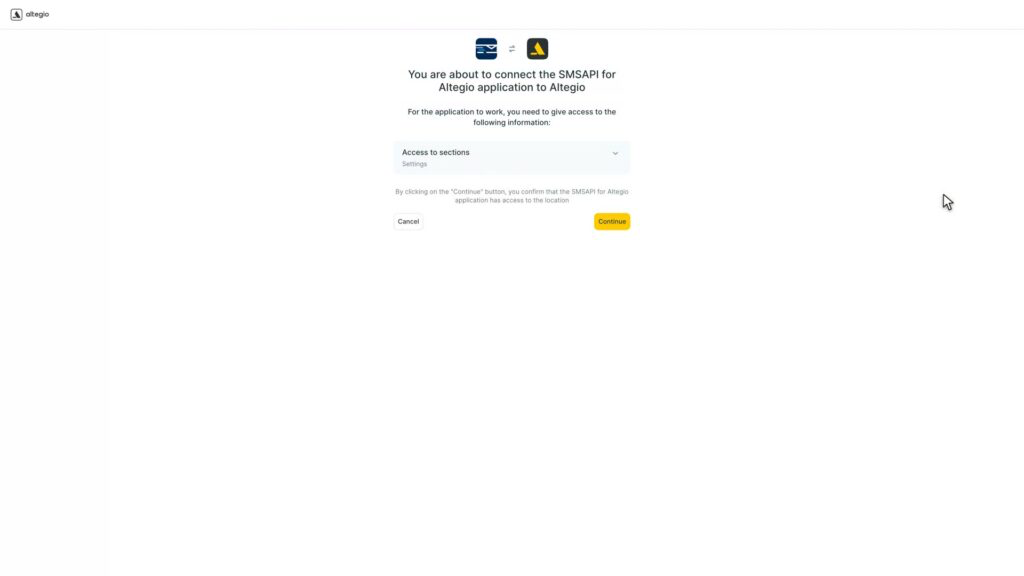
- On the Information tab, click the yellow Connect button.
- Confirm consent to API data transfer. It is required for the integration to work.
- Click Continue.
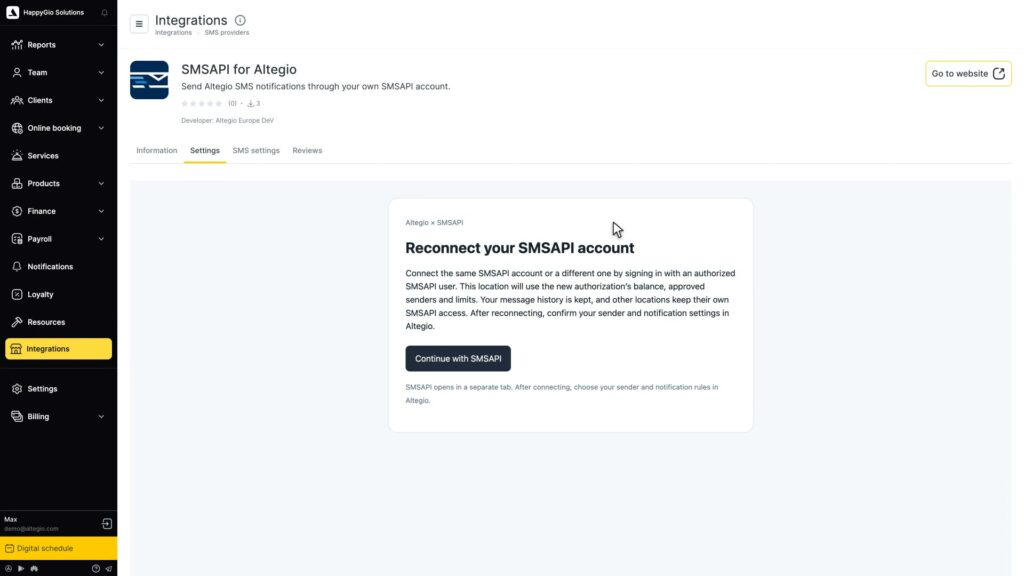
Step 4. Authorize your SMSAPI account (OAuth)
- Open the Settings tab in SMSAPI for Altegio.
- In the Altegio × SMSAPI block, click Continue with SMSAPI.
- A separate tab opens. Sign in to SMSAPI and approve access for Altegio.
- Return to Altegio. This location uses that account’s balance, approved senders, and limits.
After connecting, check sender name and notification rules in Altegio. Authorization renews automatically during normal use. If the link breaks, on Settings click Continue with SMSAPI again.
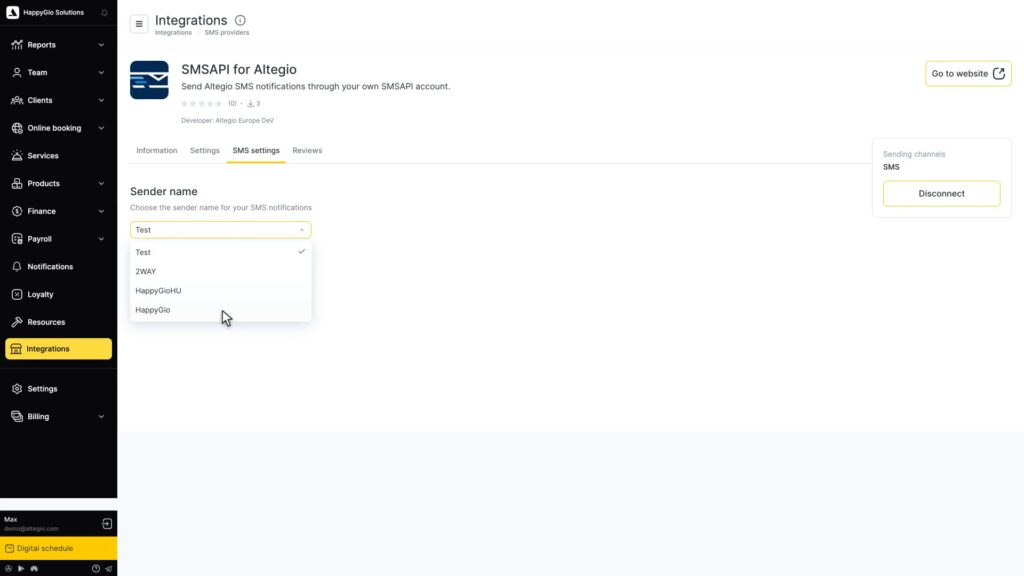
Step 5. Choose sender name in Altegio
- Open the SMS settings tab in SMSAPI for Altegio.
- Under Sender name, select an approved name from your SMSAPI account.
- Save.
If the list is empty or the name is inactive, complete Step 1 in SMSAPI (Nadawcy / Senders).
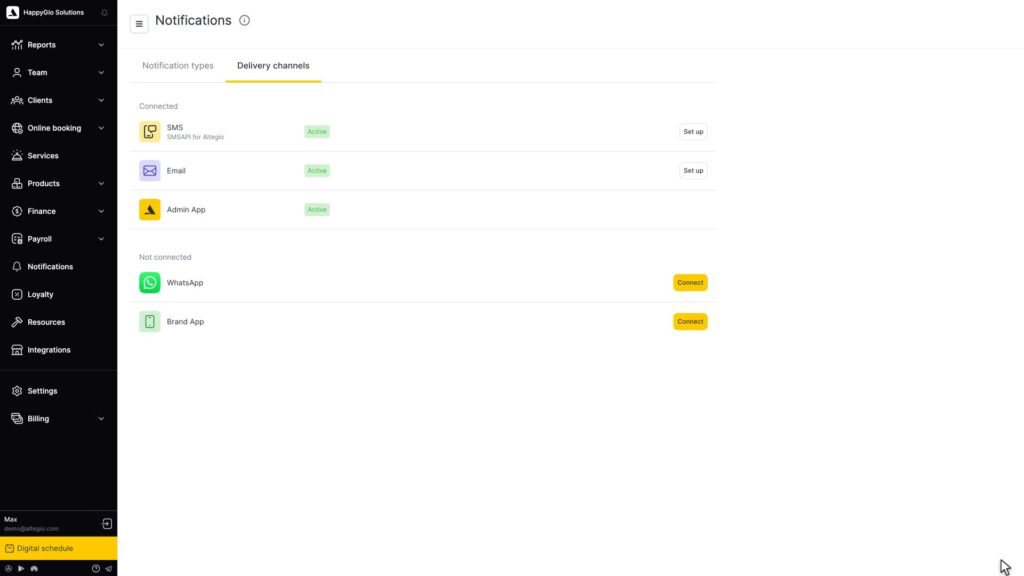
Step 6. Enable SMS in Altegio notifications
Delivery channels
- In the sidebar, open Notifications.
- Go to the Delivery channels tab.
- Under Connected, find SMS (SMSAPI for Altegio). Status should be Active. Click Set up if needed.
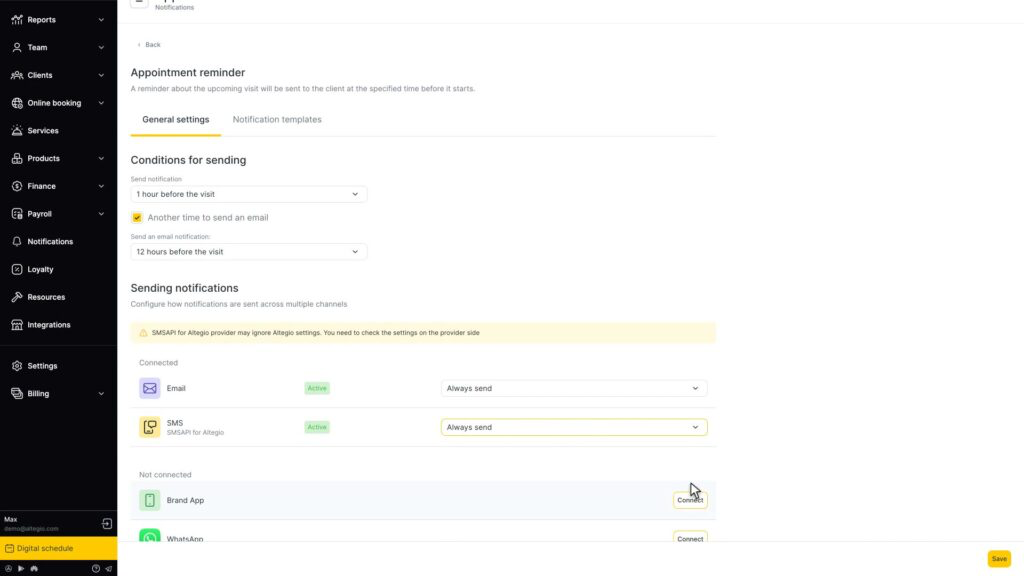
Notification types (example: appointment reminder)
- On Notification types, open a scenario, e.g. Appointment reminder.
- Under General settings, set how long before the visit to send the reminder.
- Under Sending notifications, for SMS (SMSAPI for Altegio) set status Active and send mode, e.g. Always send.
- Note the in-product warning: SMSAPI for Altegio may ignore some Altegio settings; check limits on the SMSAPI side.
- Edit copy on Notification templates if needed.
- Click Save.
Repeat for other notification types (confirmation, cancellation, reschedule, etc.).
Step 7. Test sending
- Create a test booking with a client phone number (respect SMSAPI test limits).
- Wait for the notification or shorten the reminder delay for a quick check.
- Confirm the SMS was delivered and delivery status appears in Altegio.
Sender name (nadawca)
- SMSAPI panel: SMS messages → Senders, add a name, wait for Active.
- Altegio: SMS settings tab, Sender name field.
Name rules (length, characters, verification) are shown in the info block on the SMSAPI Senders page.
Several locations on one SMSAPI account
- On each Altegio location: SMSAPI for Altegio → Settings → Continue with SMSAPI (same or different SMSAPI account).
- On SMS settings, choose the sender name for that location.
- Message history is kept; other locations keep their own SMSAPI link.
Availability
The SMSAPI app in the Altegio Integration Hub is available in Poland only.
Polish clients register and pay on smsapi.pl (PLN).
Pricing
SMS cost: billed by SMSAPI in Polish zloty (PLN). Public prepaid and postpaid rates: https://www.smsapi.pl/cennik
FAQ
Does each salon need its own SMSAPI account?
Recommended: each client has their own SMSAPI account and balance. One account can be linked to several locations in the same chain.
What is the difference between smsapi.pl and smsapi.com?
For Poland, use smsapi.pl (PLN, local support). smsapi.com is a separate account with different verification rules.
How do I authorize SMSAPI in Altegio?
SMSAPI for Altegio → Settings → Continue with SMSAPI, sign-in in a separate tab.
Should the client enter partner_id?
No.
Why are SMS not sending?
Check: SMSAPI balance, approved nadawca, company billing details, OAuth authorization, SMS channel enabled in Altegio notifications, client phone number with country code.
Are delivery statuses visible?
Yes. Statuses are returned to Altegio after send.
Support
SMSAPI / LINK Mobility Poland
- Website: https://www.smsapi.pl/
- Pricing: https://www.smsapi.pl/cennik
- Phone: +48 327 201 200 (Mon–Fri 8:00–17:00)
- Email: [email protected]