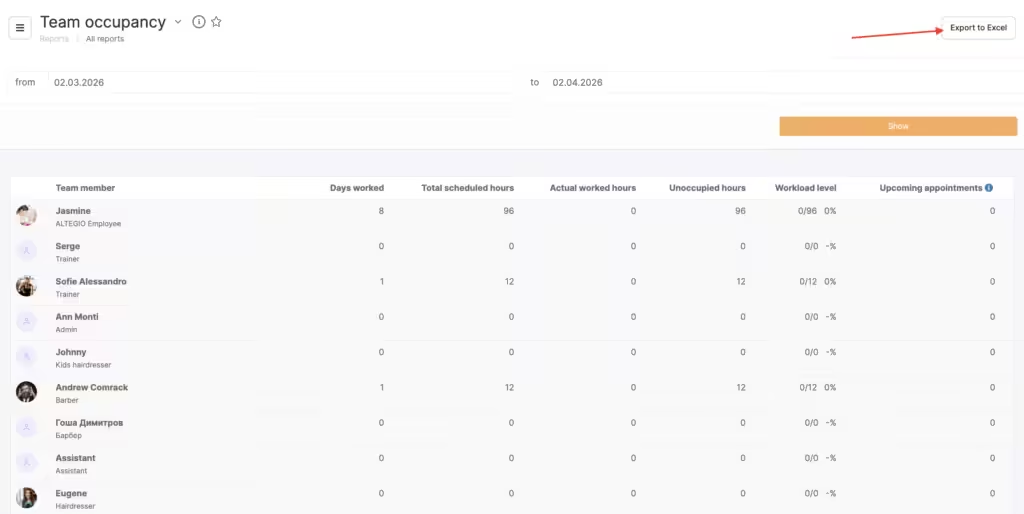
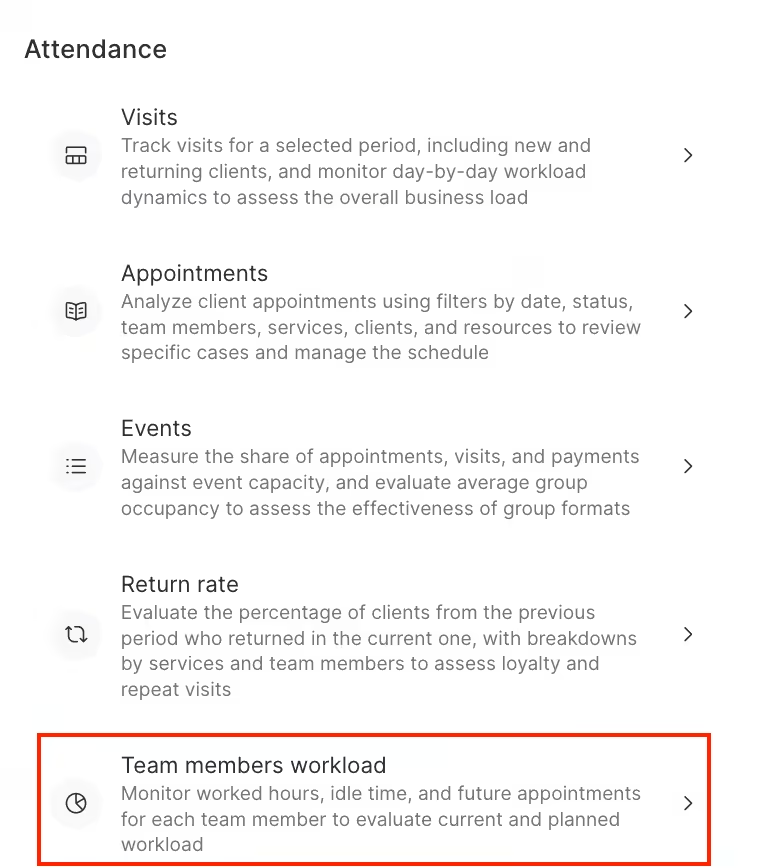
In the Analytical Reports > All reports > Attendance > Team members workload section, you can see the workload of team members. Specify the period for which you want to see the report and click Show.
The report displays the following information:
- team member
- days worked
- total scheduled hours
- actual worked hours
- unoccupied hours
- workload level
- upcoming appointments
Occupancy is the ratio of the number of hours worked to the number of working hours of a team member. The occupancy percentage is calculated only for completed appointments. For future periods, it is shown as 0%. Future employee occupancy for next month cannot currently be viewed as a percentage. This is different from upcoming appointments, which is a separate metric showing appointments made after the end date of the selected time range.
Upcoming appointments are appointments made in the time period after the end date of the selected time range.
You can open a data chart for each team member, it displays the occupancy by days. To do this, click the button at the end of the line.
If needed, the report can be downloaded as Excel.