
What is it and what is it for?
To view the inventory balance report, simply navigate to the Analytical Reports >Inventory > Inventory balance section. This report can be customized to display the information you need in a variety of ways, depending on your specific requirements.
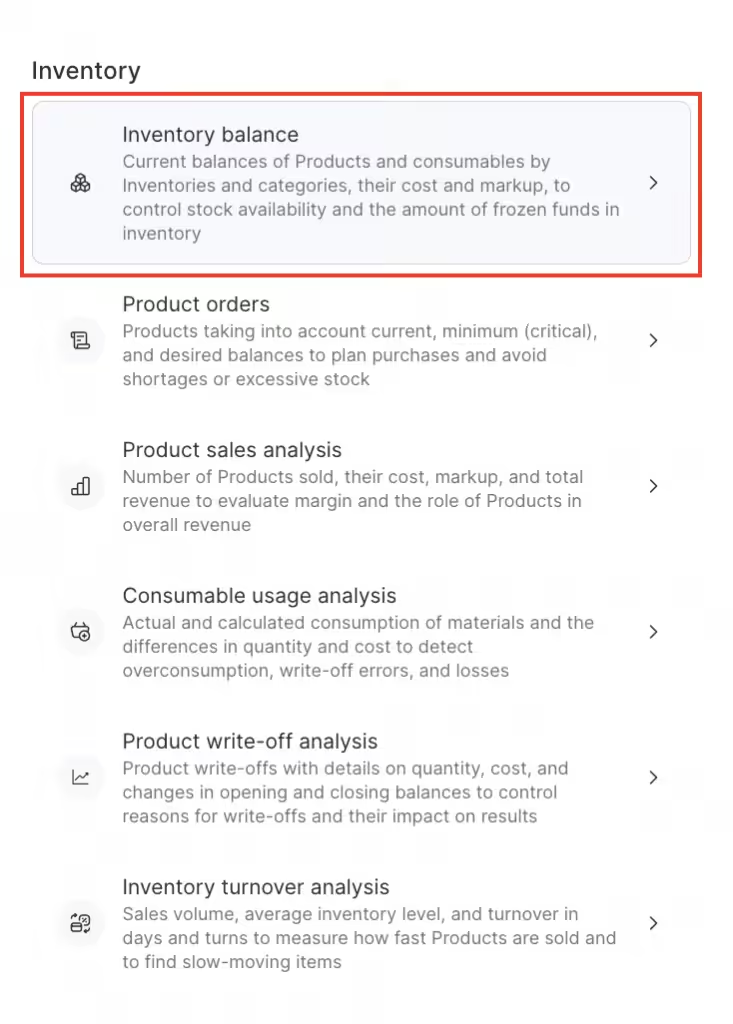
The report contains the following information:
- SKU
- Product
- Category
- Stock on-hand
- Write-off units quantity
- Wholesale price
- Additional fees
- Price
- Total cost price
- Total cost
How to read the report?
To generate an inventory balance report, navigate to the Analytical Reports > Inventory > Inventory balance section. Next, filter the list according to the items you need, and then click on the “Show” button to generate the report.
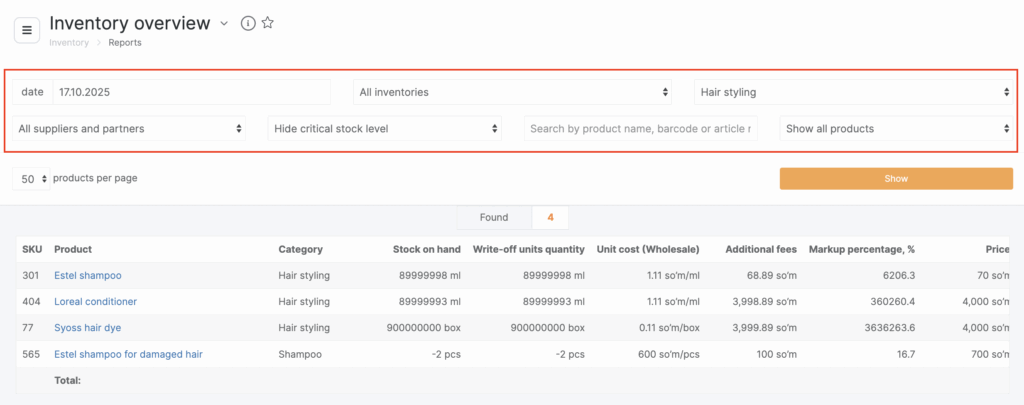
Filters that can be used in the report include:
- Date
- Storage/inventory
- Product category
- Suppliers (partners)
- Critical balance
- Products with and without zero balance
Thus, you can view, for example, the report only on the balance of a specific category of products in one storage.
The data in the Product column is presented as clickable links. Click the link in the Product column to go to the product card.If necessary, the report can be downloaded as Excel using the Download as Excel button in the upper right corner.