
Altegio can issue an invoice for your subscription so you can pay by bank transfer instead of a card. You generate the invoice in the checkout, pay it from your company account, and the subscription is extended once Altegio confirms the payment.
Before you start
- Permission: the Billing permission (the Access to the Billing section checkbox). The account Owner and the System Manager access level have it by default. See Billing access rights.
- You can pay by bank transfer for: a subscription and additional team members.
- You cannot pay by bank transfer for: balance top-ups and the mobile app.
- Payer: a company. Bank transfer requires company billing details.
Bank transfer is available in 32 countries: Austria, Azerbaijan, Belgium, Bulgaria, Croatia, Czech Republic, Denmark, Estonia, Finland, France, Germany, Greece, Ireland, Italy, Kazakhstan, Kyrgyzstan, Latvia, Lithuania, Luxembourg, Malta, Moldova, Netherlands, Portugal, Romania, Serbia, Slovakia, Slovenia, Spain, Sweden, Tajikistan, United Arab Emirates, Uzbekistan.
How to pay by bank transfer
Step 1. Open the checkout
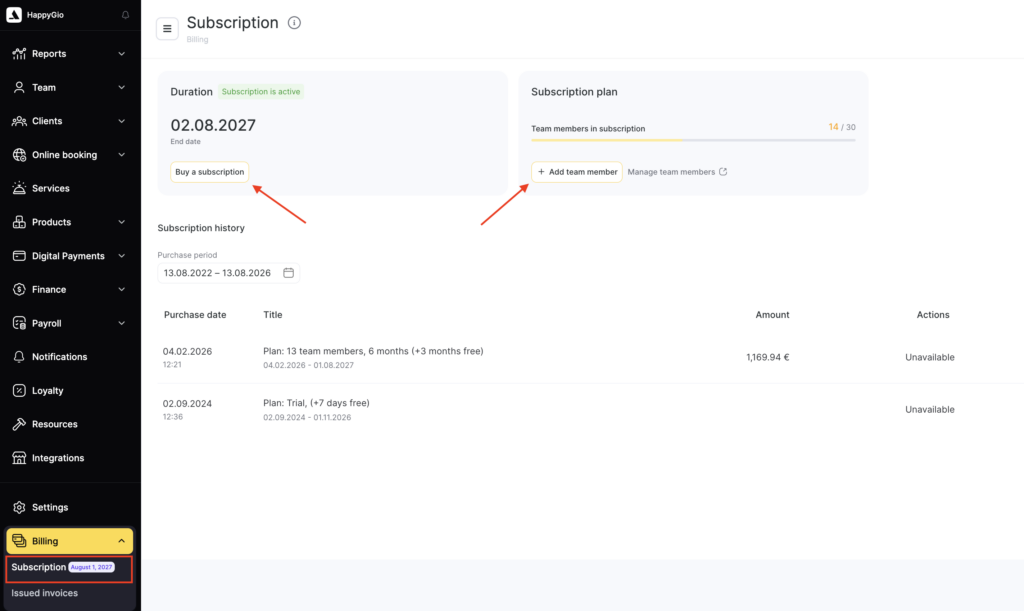
Go to Billing > Subscription and start the purchase: Buy a subscription in the Duration card to renew, or Add team member in the Subscription plan card to add paid seats.
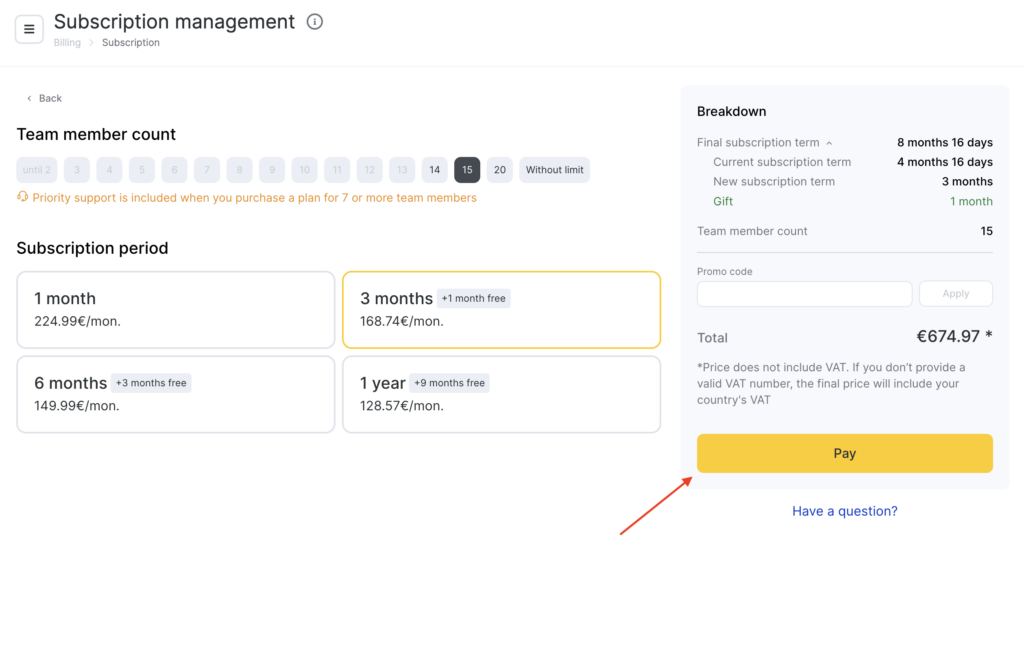
The Payment for subscription page opens. Choosing a plan and a period is described in Billing: manage your subscription and team members.
Step 2. Select Bank transfer
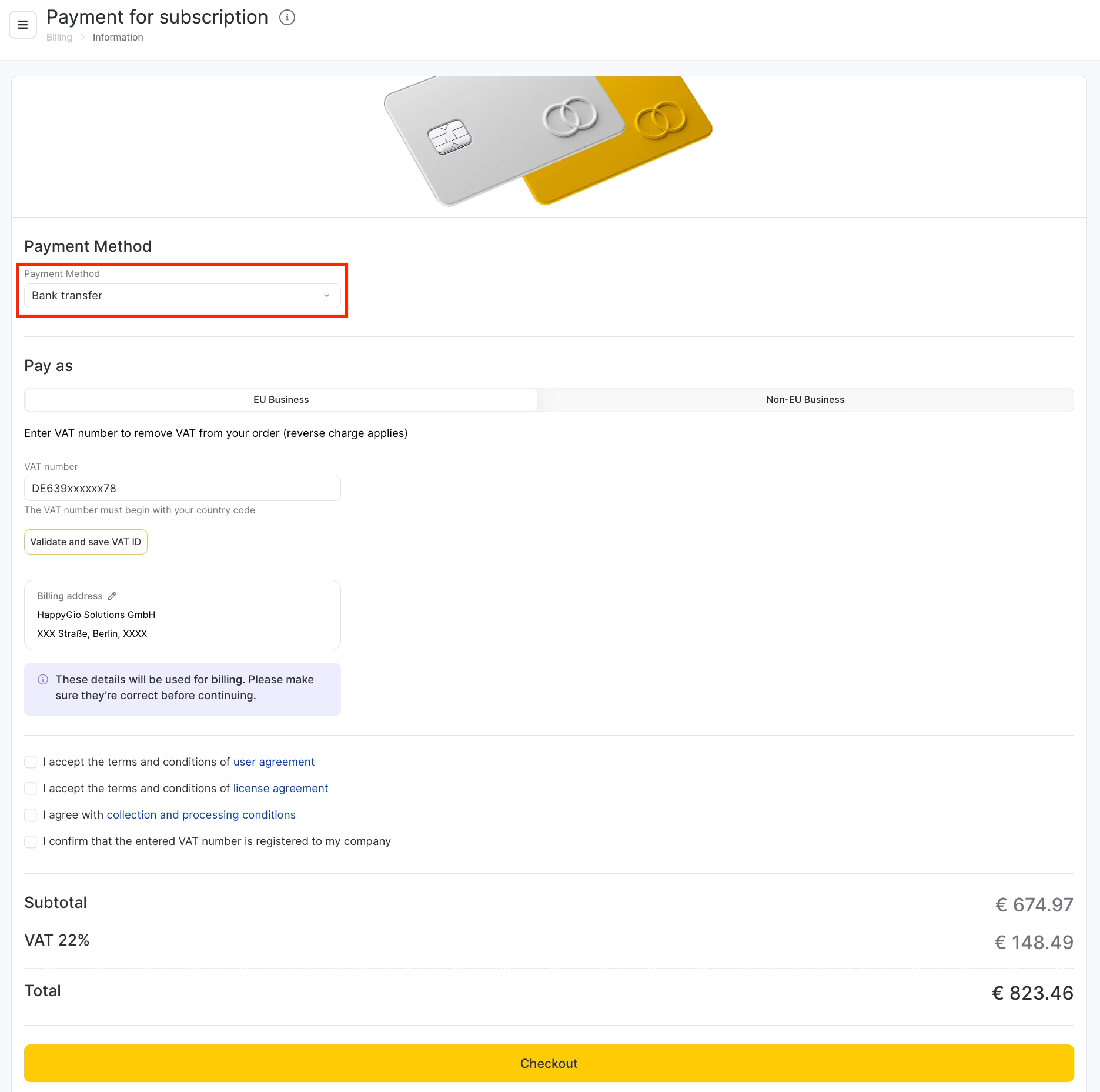
In the Payment Method list, select Bank transfer. The list also offers Gift card and a card option named after your country’s payment provider, for example Bank cards & Adyen.
Step 3. Fill in the VAT details (companies in the European Union)
Companies registered in the European Union get an extra block on the page. Companies outside the European Union do not see it and go straight to Step 4.
- Switch to the tab that matches your company: EU Business or Non-EU Business.
- In the VAT number field, enter your number starting with your country code (for example,
DEfor Germany), then click Validate and save VAT ID. A valid VAT number removes VAT from the order and the reverse charge applies. - Select the I confirm that the entered VAT number is registered to my company checkbox.
- Check the company name and address in the Billing address block. To correct them, click the pencil icon. These details are printed on the invoice.
If the VAT number field is empty, VAT is added to the order and shown in the Subtotal, VAT, and Total lines.
Step 4. Accept the terms and check out
Select the checkboxes for the user agreement, the license agreement, and the collection and processing conditions, check the amount, and click Checkout. The invoice is generated and downloads as a PDF.
Important!
Transfer the exact amount shown on the invoice and put the invoice number in the payment reference. Incoming transfers are matched to your account by these two values. A different amount, a missing invoice number, or incorrect bank details may prevent the payment from being matched automatically: it will have to be traced manually, and the subscription will be extended several days later. Make sure you have checked the amount, the bank details, and the invoice number before sending the payment.
Result
Pass the PDF to your accounting department and transfer the exact amount to the bank details printed on the invoice, keeping the invoice number in the transfer reference.
The subscription is extended after Altegio confirms the incoming payment, not at the moment you generate the invoice. Bank transfers take a few business days to arrive and to be matched, so generate and pay the invoice before your current end date.
Where to find your invoices
Go to Billing > Issued invoices. The list shows the invoices issued to your account with the number, the date of issue, the payment status, and the amount, and lets you download the PDF again. Filter it by date, by payment purpose, and by payment status: Unpaid, Paid, Cancelled.
FAQ
Yes, in 32 countries. In Billing > Subscription, start the purchase, and on the Payment for subscription page select Bank transfer in the Payment Method list. The invoice downloads as a PDF and you transfer the amount to the bank details printed on it.
Bank transfer is available only in 32 countries for now. Contact Altegio support for the options available in your country.
This applies to companies registered in the European Union. On the Payment for subscription page, enter your VAT number, click Validate and save VAT ID, and select the I confirm that the entered VAT number is registered to my company checkbox. The number must begin with your country code. A company outside the European Union sees a shorter form with no VAT block, and VAT is not added to the order.
The subscription is extended after Altegio confirms the incoming payment, not at the moment of the transfer. If the money left your account more than 5 business days ago, contact Altegio support with the invoice number.
Yes. In Billing > Subscription, in the Subscription history table, use the Actions column: Open receipt opens the payment receipt, and Generate invoice in the Select menu issues an invoice for that purchase. That is a document for a completed payment, not an invoice to pay.