
The Billing section is where you manage your Altegio subscription — check whether it’s active and when it ends, buy or extend it, add team members to it, and look up your payment history and documents.
This article covers the Subscription page: checking your plan, buying or extending it, adding team members, and reading the subscription history.
When to use
- Check whether your subscription is active and when it ends.
- Renew or extend your subscription for a new period.
- Add paid seats to your plan when you bring on more team members.
- Find a past payment, open a receipt, or generate an invoice.
Before you start
- The section lives in the main menu under Billing > Subscription.
- Access to it is sensitive (it exposes your subscription, payment history, and Altegio payments), so it’s limited. It’s available to the account Owner and to any team member whose role has the Billing permission — the Access to the Billing section checkbox. The free System Manager access level includes it by default.
- An Owner or admin grants it in Team > Team members list, opening the team member and, on the Access tab, turning on Grant system access and then enabling the Billing permission. See Billing access rights.
Check your subscription status
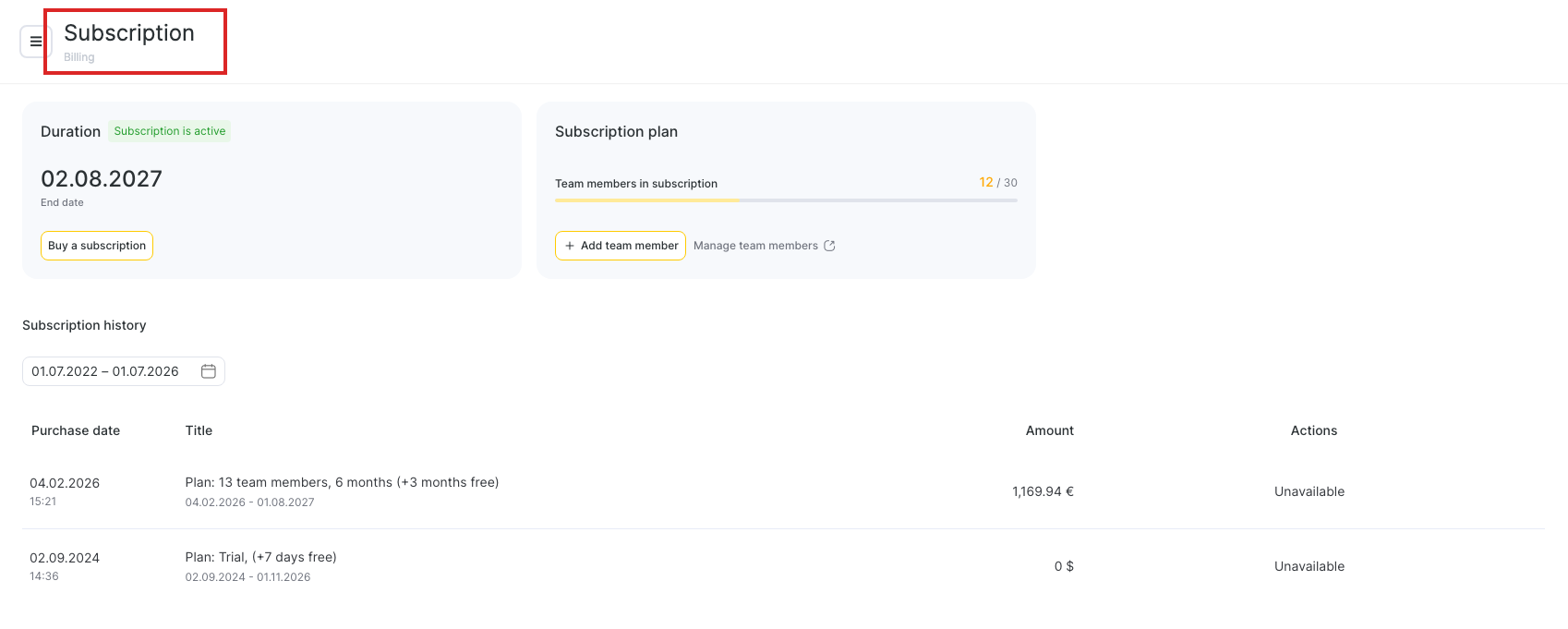
The Subscription page shows your plan at a glance:
- Duration — whether the subscription is active and its exact end date.
- Subscription plan — how many team members your subscription currently covers, for example 12 / 30 (paid seats used out of the plan’s limit).
Buy or extend your subscription
Note. Subscription renewal is not available in the mobile app. You can renew only in the web (browser) version, in Billing > Subscription.
Use this to renew your subscription for a new period.
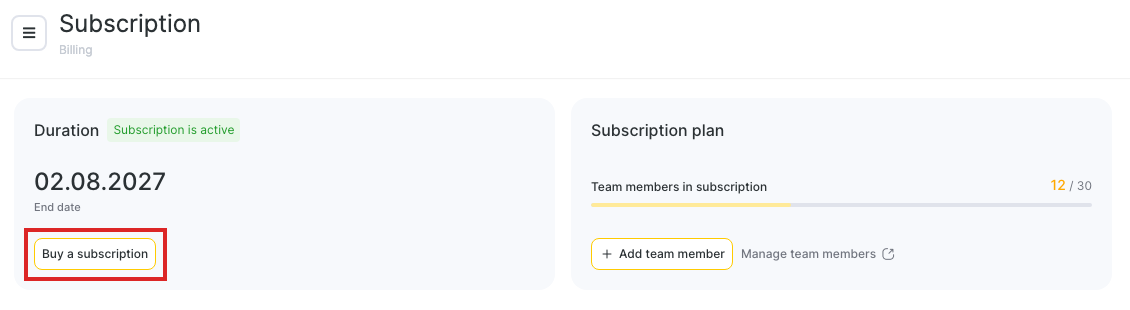
- On the Subscription page, in the Duration card, click Buy a subscription.
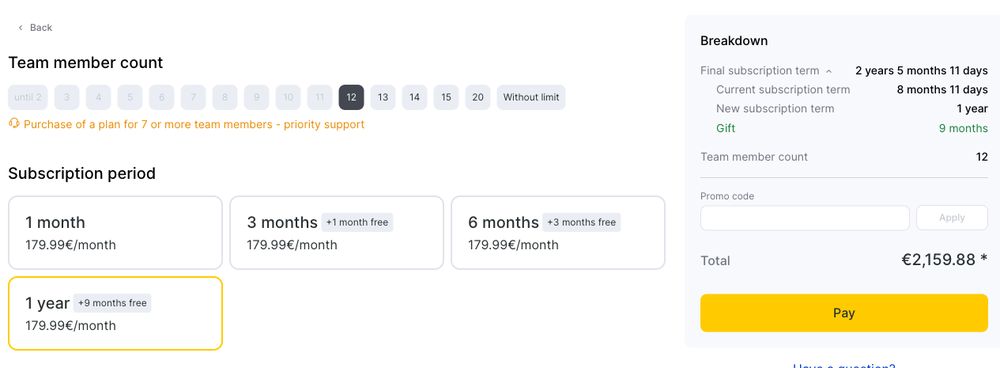
- The Subscription management page opens. Under Team member count, choose how many team members the subscription should cover (buying a plan for 7 or more includes priority support).
- Under Subscription period, choose the term — 1 month, 3 months, 6 months, or 1 year. Longer periods include bonus free months (for example, 1 year + 9 months free).
- Check the Breakdown panel: your current term, the new term, any gift (bonus) months, the resulting end date, and the total.
- If you have a promo code, enter it and click Apply.
- Click Pay.
Reducing paid seats
To move to a plan with fewer paid team member seats, first select the lower plan and pay for it. Altegio then recalculates the unused time and value from the current higher-seat license under the new plan and adds the recalculated value to the new paid period. Switching to a lower plan without payment is not possible.
Example. If your current plan covers 8 paid seats and you move to a plan covering 6 seats, pay for the 6-seat plan first. The unused time and value from the 8-seat license are recalculated under the 6-seat plan and added to the new paid period.
Add team members to your subscription
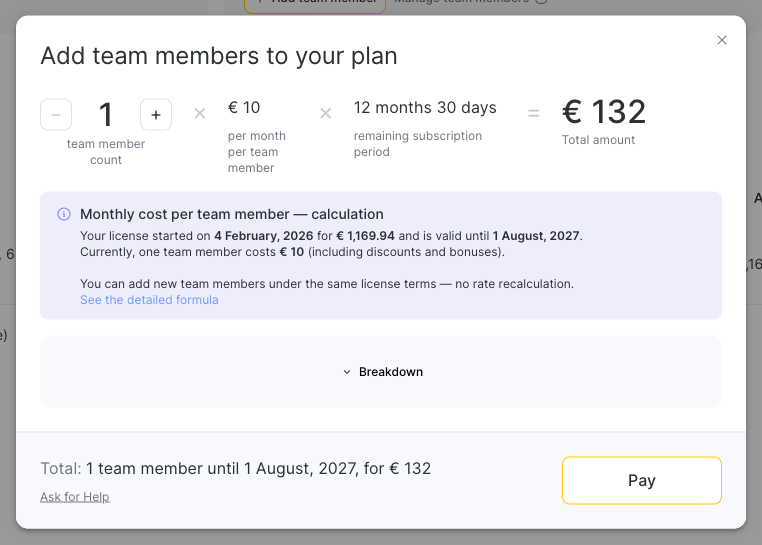
Use this when your subscription is active but you need it to cover more employees. New team members join on your current terms — the same per‑member rate, valid until your current end date — and you pay only the prorated amount for the time remaining.
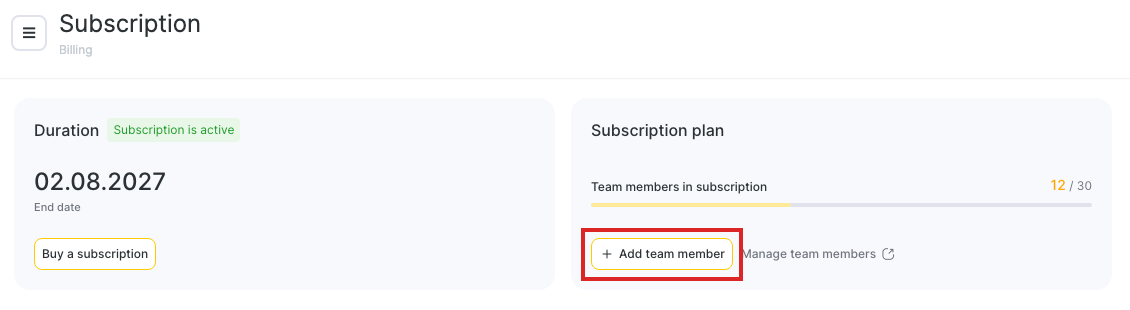
In the Subscription plan card, click Add team member.
- In the Add team members to your plan window, set how many to add with the – / + stepper. The window shows the calculation: number of team members × cost per member per month × remaining subscription period = total.
- (Optional) Expand Breakdown for the details.
- Click Pay.
Your end date does not change — only the number of covered team members increases.
Next to the button, Manage team members opens your team list, where you add, edit, or remove employees.
Subscription history
At the bottom of the Subscription page, Subscription history lists everything you’ve purchased. Pick a date range above the table to filter it; each row shows the purchase date, the plan title (team member count, period, and any bonus months), the amount, and the covered dates.
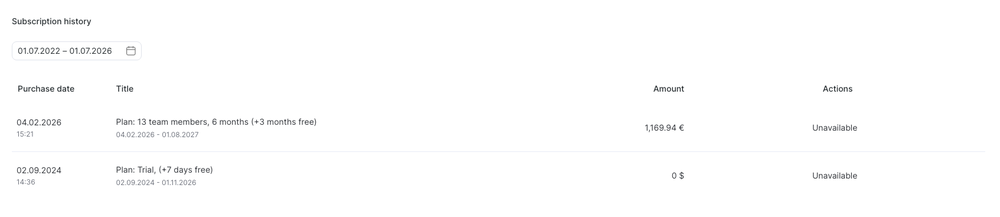
In the Actions column you can get the payment documents for a purchase:
- Open receipt — open the payment receipt.
- Generate invoice — available from the Select menu on eligible purchases.
If no documents are available for a purchase, the column shows Unavailable.
Note. All Altegio functionality is available on every subscription. There are no separate modules to buy, and no limits on the number of clients or appointments. The price of an Altegio subscription depends only on how many team members it covers and on the period you buy.
Some integrations with third-party services are paid separately: payment systems, SMS providers, and similar external tools charge for their own service. In that case the money goes to that third-party provider, not to Altegio. To see all available integrations, open Integrations in the main menu.
FAQ
The account Owner, and any team member whose role has the Billing permission (Access to the Billing section). The free System Manager access level includes it. Grant it in Team > Team members list, then open the team member and use the Access tab.
Buy a subscription renews or extends your subscription for a new period (you pick the term and team member count). Add team member adds paid seats to your current subscription — same rate, same end date — and charges only the prorated amount for the time left.
Yes. Adding team members increases how many people your subscription covers; it doesn’t change when the subscription ends.
It means your subscription currently covers 12 team members, and the plan’s limit is 30. Use Add team member to raise the number of covered team members.
You can get an invoice for past subscriptions in Billing > Subscription. For this in the Subscription history table use the Actions column: Open receipt opens the payment receipt, and Generate invoice in the Select menu issues an invoice for that purchase. That is a document for a completed payment, not an invoice to pay.