
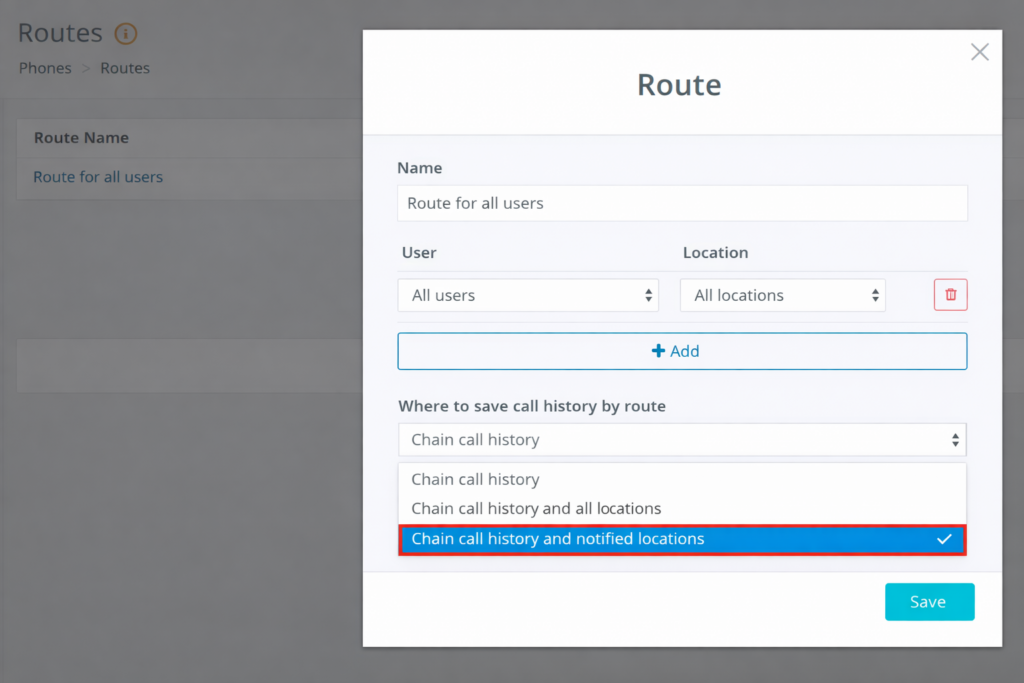
If, when setting up IP telephony for the chain, the routes Chain and all salons call history or Chain and notified salons call history were selected, you can configure pop-up call notifications in the web version of the system.
When a client calls, a pop-up window will appear on the computer screen with their name and phone number, as well as the option to view their last visit and select a date and time for a new appointment.
If the client is calling for the first time, a card will also pop up with the caller’s phone number, a field to enter their name, and the option to book them for a visit.
To set up pop-up call notifications in the web version:
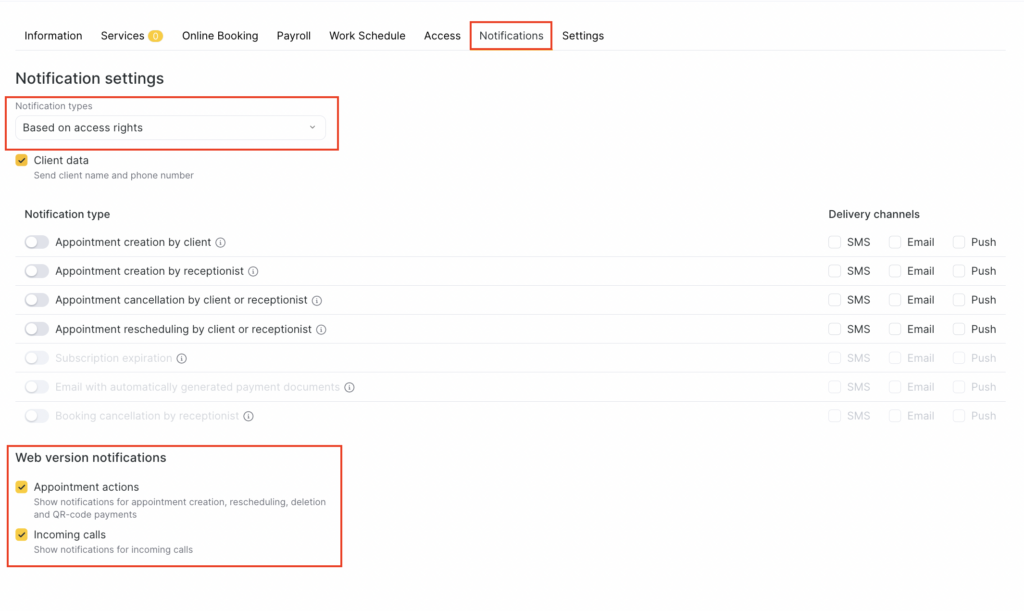
- In the location, go to Settings > Team.
- Click the team member’s name and open the Notifications tab.
- In the Notification types field, select from the drop-down list which types of notifications the team member will receive.
- In the Web version notifications block, check Incoming calls.
- Click Save.
Important
The selected type does not affect web version notifications, but it does affect sending notifications via SMS, Email, and Push.If a team member or receptionist needs to receive other notifications, select the appropriate type and configure sending the required notifications.
For more details on setting up all team member notifications, see the article.
If the team member only needs to receive call notifications, choose any type except Disabled.