
After you have configured the payment acceptance method: payment by link in Finance > Online payments in Administration mode, let’s look at how to send a payment link to a client from a visit and how to work with a QR code.
Sending payment links from the visit window
When working with a visit, you can send a payment link directly from the visit window. To do this:
- Open the visit.
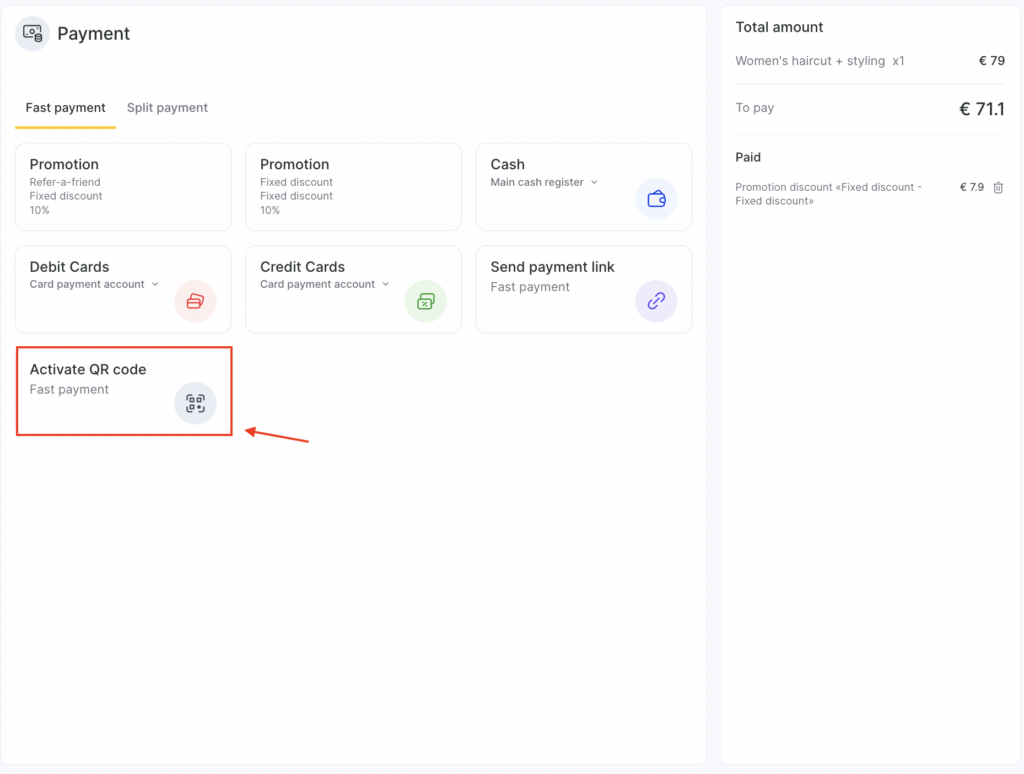
- Select the payment method Send payment link (if available for your payment system).
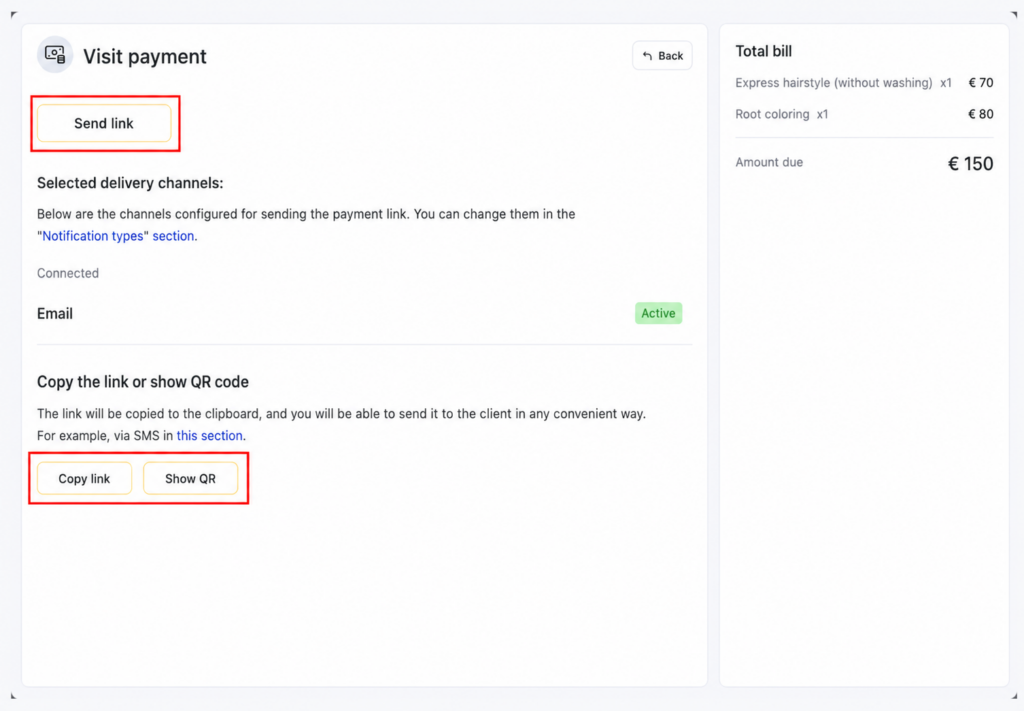
- The following options will be available in the payment link block:
- Send link
Sends a notification with the payment link through all selected channels available for this client:
- Email (if an email address is specified in the client card and the channel is active)
- SMS (if a phone number is specified and SMS is active)
- WhatsApp (if integrated and available for this number)
Note
Sending a payment link via WhatsApp requires an active WhatsApp integration. Connect it in Integrations > Notifications in Administration mode. Until the WhatsApp integration is connected, the WhatsApp option is inactive, and the payment link is delivered only through the other active channels (Email, SMS).
- Copy link
Copies the payment link to the clipboard. You can paste it into any messenger or send it manually if needed.
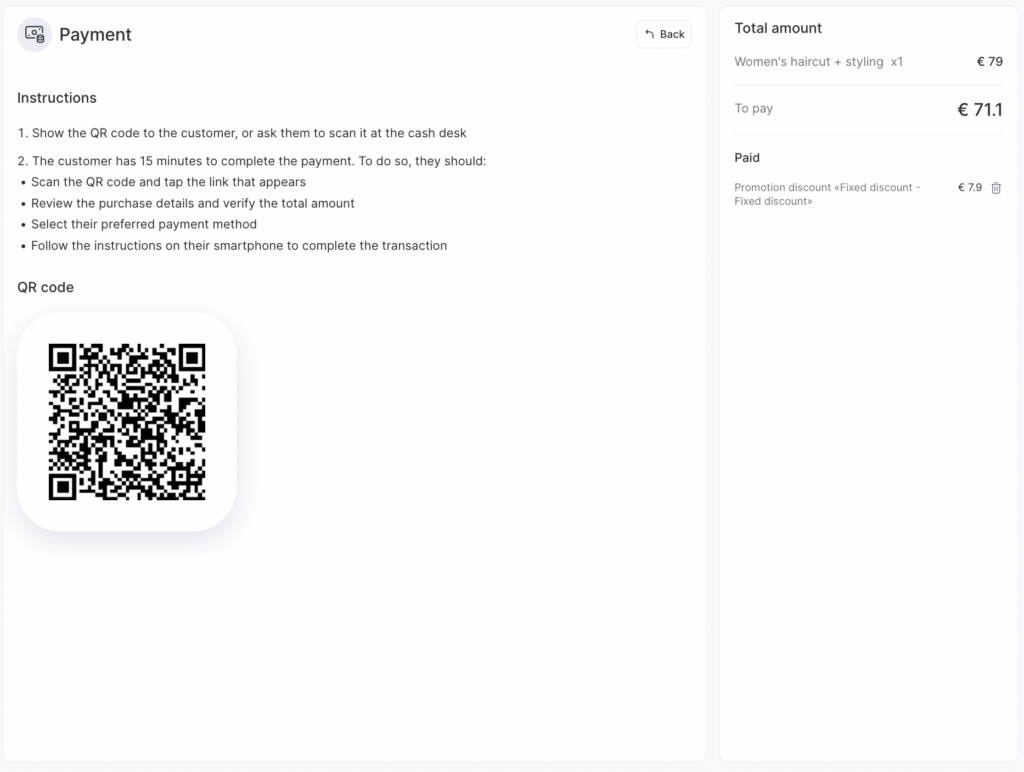
- Show QR
Displays a QR code with the payment link on the screen. The client can scan the QR code and pay from their phone.
After the client opens the link, they will be redirected to the payment page. A new payment will be automatically created in the payment system, and the visit will be blocked for 15 minutes.
On the payment system page, the client needs to click Pay and complete the payment within one hour. After this time expires, payment on the open page will no longer be available, and the client will need to open the same link again to pay for the visit. In other words, payment will be unavailable if the client keeps the payment page open for more than one hour without completing the payment. However, the link itself will still remain active until the client completes the payment.
After payment, the visit will be displayed as Paid.
Partial payment
Altegio also supports partial payment for visits by link. To do this:
- The receptionist records a partial payment for the visit in the appointment calendar using any payment method: loyalty, cashback, cash, bank card, etc.
- Then they click Copy payment link and send it to the client.
- The client opens the link and pays the remaining amount for the visit.
Printing a QR code for on-site payment
If you want to accept payments in the salon using a static QR code:
- Go to Payment acceptance > Payment by link.
- In the QR code payment block, download the template:
- Color template
- Black-and-white template
- SVG (for custom printing/design)
- Print the layout and place it at the reception desk or near the checkout area.
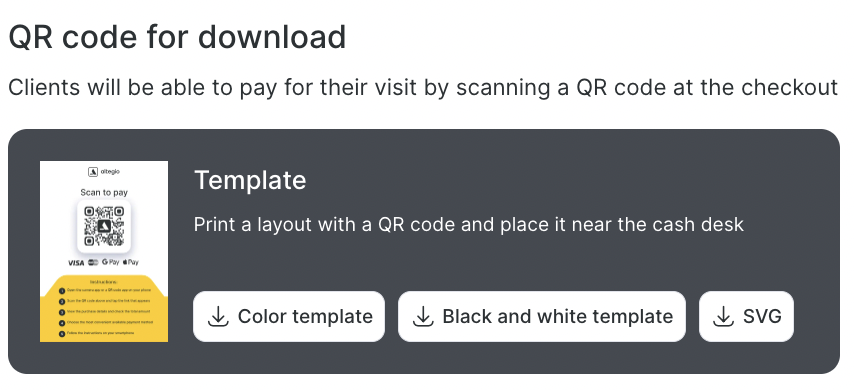
Clients will be able to scan this QR code, open the payment link, and pay for the visit in a convenient way.
How the QR code works for the client
The receptionist sends a payment link from the visit window, or the client scans the QR code.
The client opens the link, checks the visit details, and pays online.
After the payment is completed:
- The client receives a confirmation and receipt.
- The payment is reflected in Altegio in the selected payment system.
Selling products by link
After connection and setup, you can add any products for sale to the visit window, including memberships and gift cards.
To sell products in the digital appointment calendar:
- Open a visit or create a new one.
- Add a product — enter the product name/SKU or select a product from the list, then add the product to the visit.
- Click Pay.
- Select Send link / Copy link / Show QR code. If the visit is new, you first need to save it and then open it again.
- After payment, the visit will be displayed as Paid, and financial and inventory transactions will be created for the visit.
Important
You cannot sell products/services — any items — that have different tax systems.
Notes
The payment link can be copied in a visit with any status.
Visit payment is processed through the acquiring cash register of the created provider.
The transaction is saved with the visit date.
This functionality is currently available only in the web version of the program.
Selling products by link is currently possible only from the visit window.
Products can be sold without services.
Partial payment is available for selling products by link.
To display the payment by link button, the access right in Finance > Online payments is required. Read more about setting up access rights in the article.
Frequently asked questions
Q: Why is the WhatsApp option inactive (greyed out) when I send a payment link?
A: WhatsApp delivery works only when a WhatsApp integration is connected for your location. Connect it in Integrations > Notifications in Administration mode. Until then, the WhatsApp option stays inactive, and you can send the payment link via Email or SMS instead.
Q: If the minimum price of a service is, for example, $50, and the maximum is $100, can I copy the link and send it to the client so they pay $50, and when the client comes for the service, change the service price in the visit to $100 and accept the remaining $50 in cash or by card?
A: Yes, you can.
Q: Will the money from the client for a visit paid by link be received in the cash register at the time of the visit?
A: The money will be received immediately, but in the transaction report, the payment is linked to the visit date.
Q: Is fiscalization available for this payment method?
A: A fiscalization request is sent to the payment system. After that, everything depends on the online cash register settings.
Q: Can a payment link for a membership/gift card be generated using this functionality?
A: Yes, it can be generated from the visit window.
Q: If a visit is paid online, it gets blocked. How can an additional payment for the visit be made?
A: The visit will be blocked for 15 minutes so the client can complete the payment. After that, you can work with and edit the visit again.
Q: What happens if the client does not pay for the visit within 15 minutes / one hour or more?
A: Nothing. The visit will remain, and the receptionist can manually process the payment at the location or remind the client that they wanted to pay online. Even after copying the link, if the payment is not completed, the visit can be paid for using another method.
Q: If the client paid for the visit by link and then wants to purchase another service, can they pay for the additional service in the same visit in the same way?
A: No. If the visit has already been paid, it cannot be paid again using the same link.