
With Payment links, you can send clients a short payment link directly from the visit window. The link can be delivered via Email, SMS, or WhatsApp, or paid using a QR code.
This helps you:
- Take prepayments or full payments remotely
- Get faster confirmation for online/phone bookings
- Reduce manual work for receptionists (no need to copy and paste links)
Set up
- Go to Administration mode Finance> Online Payments > Payment links and click the Set up button.
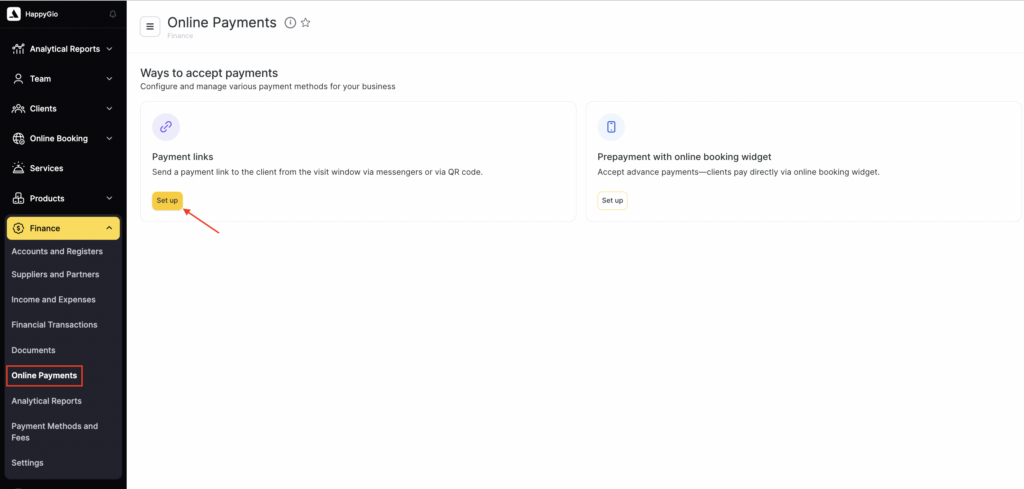
- In the Payment system section click Select and choose a connected payment system that will receive the funds.
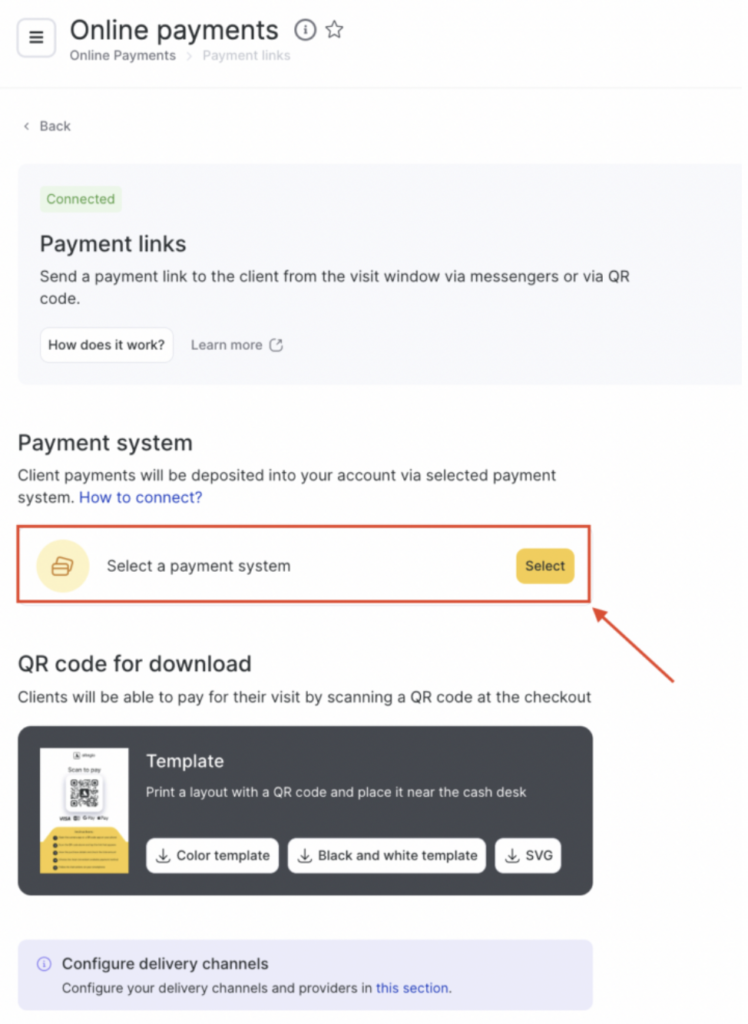
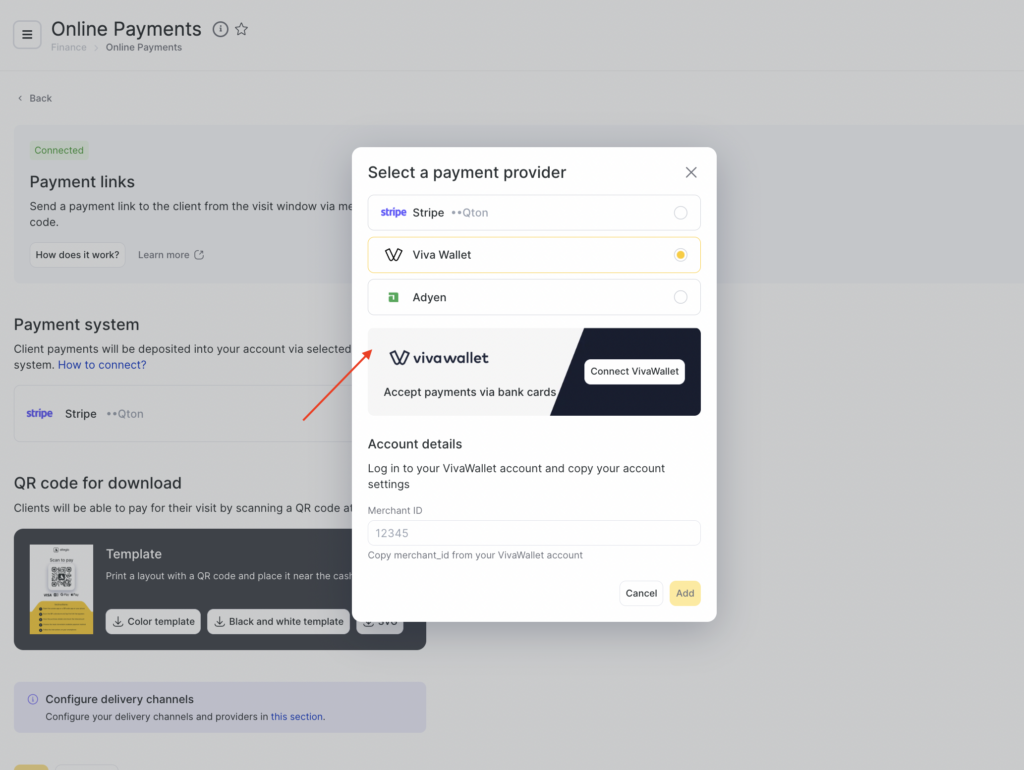
- In the window that opens, enter your payment system account details. If you have not connected the payment system yet, you can do this directly from the current window by clicking the Connect button. Read more about connecting the integration in the articles.
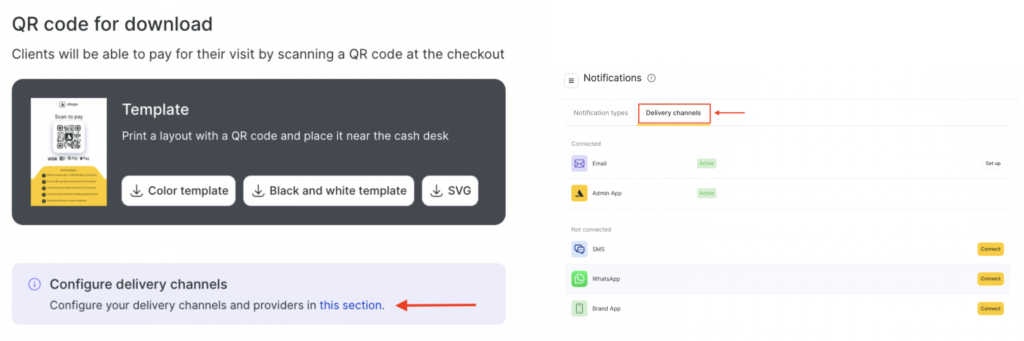
- Set up the channels for sending the payment link: Email, SMS, or WhatsApp. You can open the channel settings section by clicking “this section”, or by going to Notifications > Delivery channels tab in Administration mode.
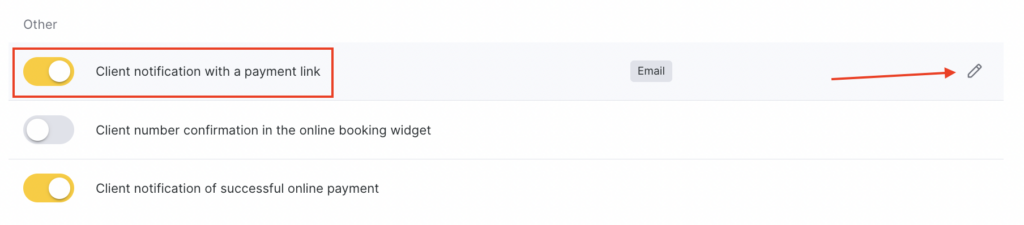
- Next, you need to configure the Client notification with a payment link notification type. To do this, go to the Notifications section in Administration mode.
- Click the pencil icon next to the notification name to start editing.
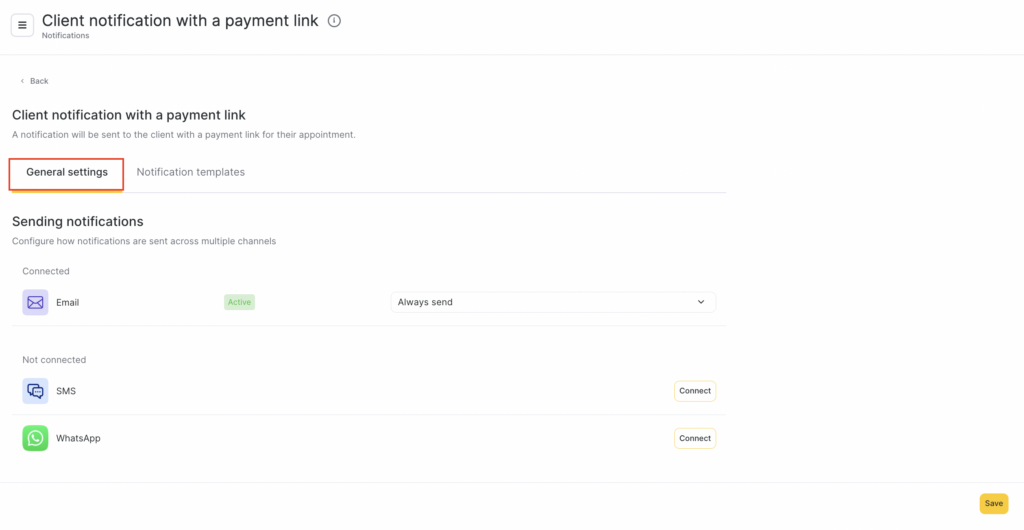
- In the General settings tab, configure how notifications with a payment link for a visit/products will be sent through multiple channels.
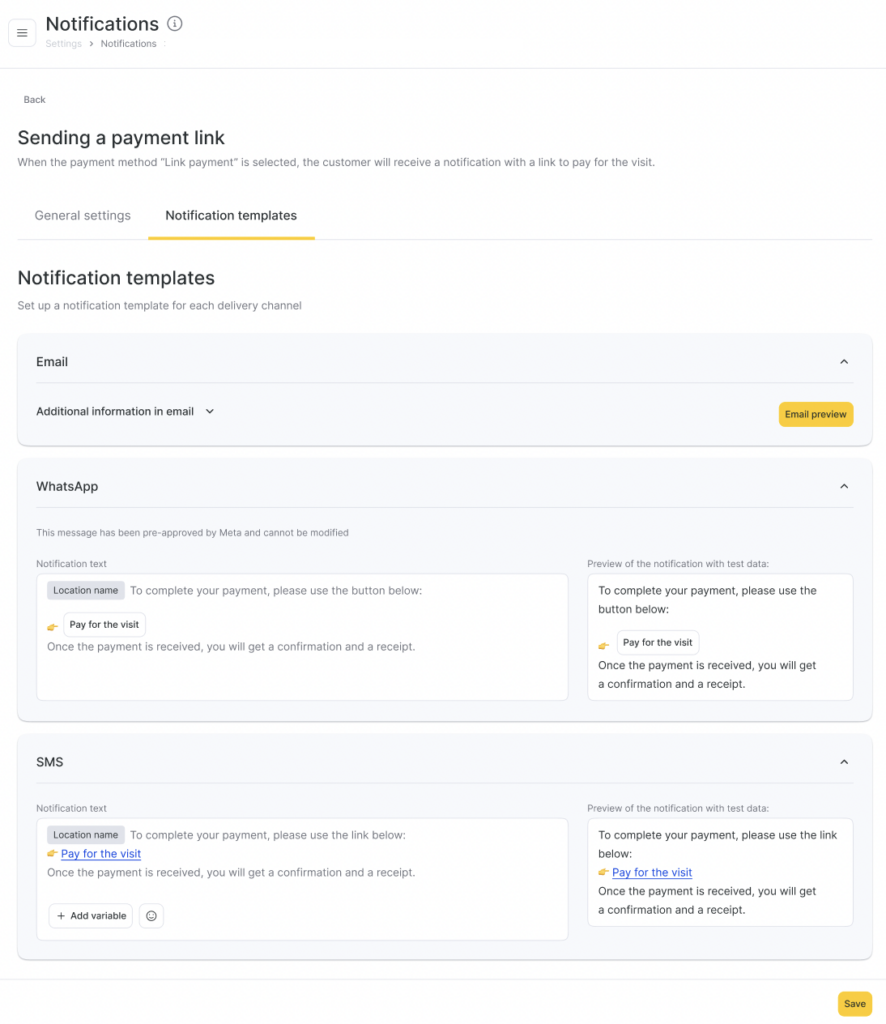
- In the Notification templates tab, you can configure and preview the notification templates that will be sent to your clients.
- Click Save in the bottom-right corner of the screen to save the settings.
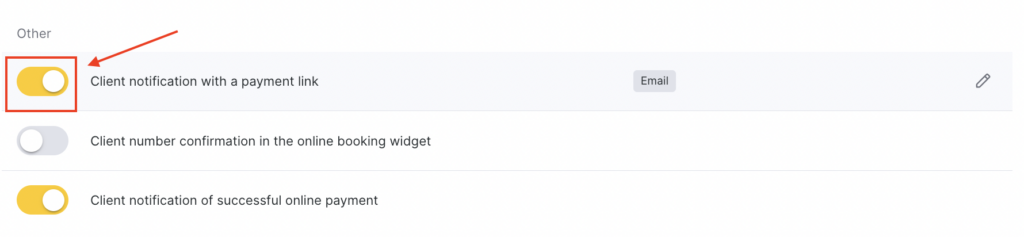
- Return to the Notification types section and switch the toggle to the active position to complete the setup.
Printing a QR code for on-site payment
If you want to accept payments in the salon using a static QR code:
- Go to Finance> Online Payments > Payment links in Administration mode.
- In the QR code payment block, download the template:
- Color template
- Black-and-white template
- SVG — for custom printing/design
- Print the layout and place it at the reception desk or near the checkout area.
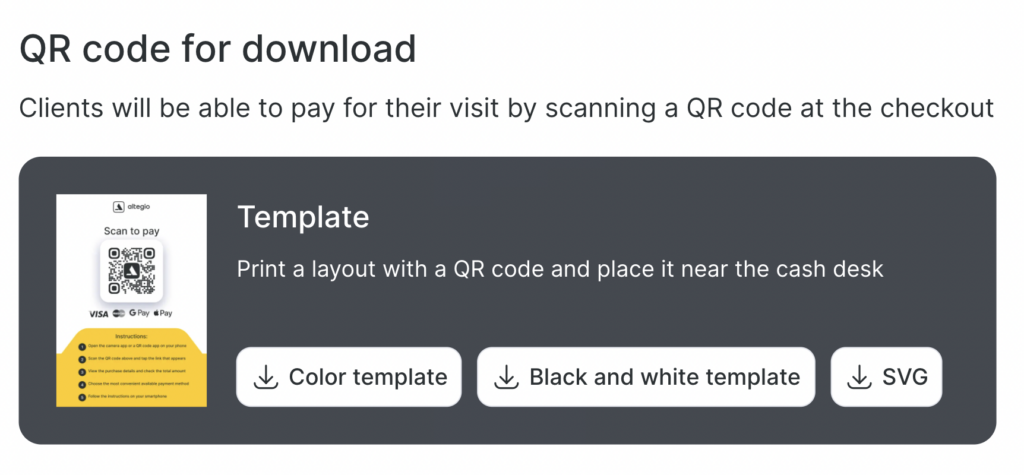
Clients will be able to scan this QR code, open the payment link, and pay for the visit in a convenient way.
Done! Now you can send online payment links to your clients or accept payments via QR code. You can learn how to work with links and QR codes in the article Payment links & QR code: use.