
Clients who book through the online booking widget can reschedule and cancel upcoming appointments, view previous visits, and see up-to-date loyalty information.
In the online booking personal account, clients can:
- reschedule or cancel upcoming appointments;
- repeat past appointments;
- view loyalty cards and promotion terms;
- see the remaining balance on memberships;
- view certificate balances.
Authorization
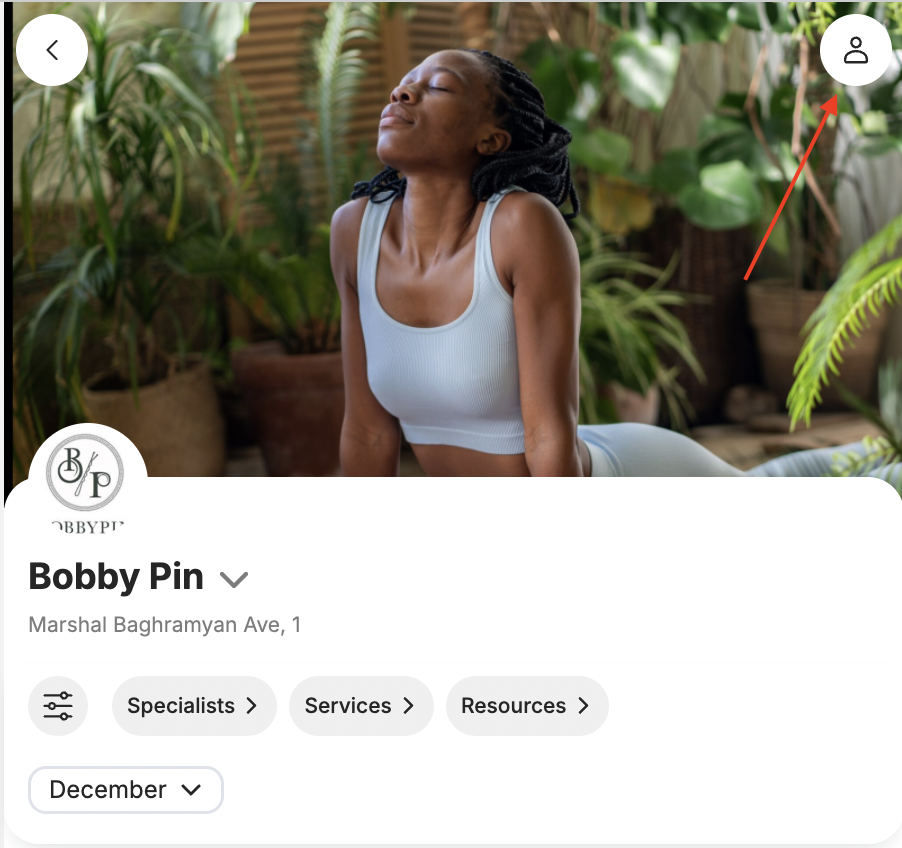
- Open the salon’s online booking page.
- Click the profile icon 👤 in the top-right corner of the screen.
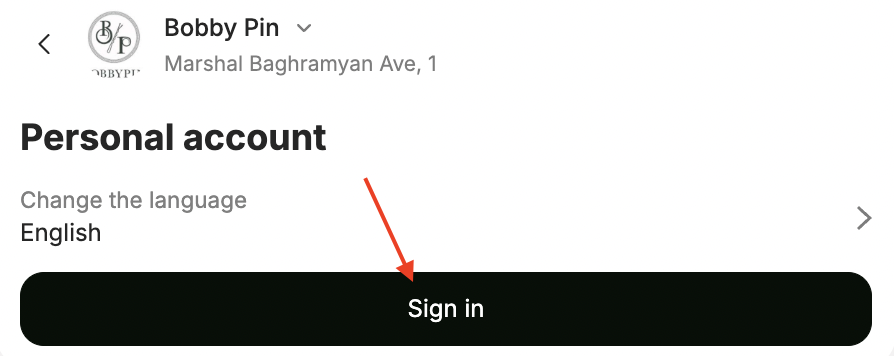
- Click Sign in.
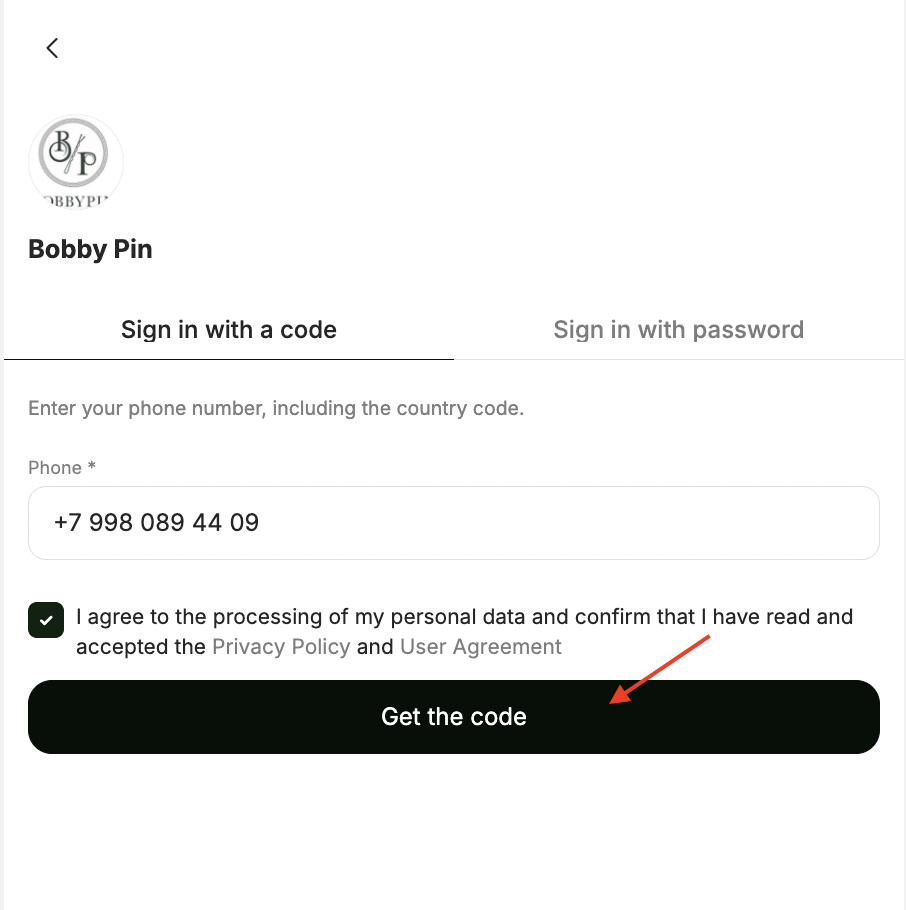
- Enter your phone number with your country code.
- Give consent for personal data processing and confirm that you have read and agree to the Privacy Policy and the User Agreement.
- Click Get code.
- In the window that opens, enter the SMS code you received. After entering the code, you will be taken to the Personal account.
Important
To send the client an SMS with the code, you must connect and configure an SMS aggregator. All setup information is available in the article.
For the client to see full visit and loyalty information, they must sign in using the same phone number that was used for all bookings at the location.
Signing in to the Personal account with a password is currently not available.
Personal account features
In the My bookings section, you will find:
- Upcoming appointments — shows all upcoming bookings. By tapping a booking, the client can reschedule it to another available date or cancel it.
- Past — shows all past bookings. By tapping a booking, the client can repeat it by selecting an available date.
In the section below:
- Memberships — shows all available memberships and the remaining number of services;
- Gift cards — shows available certificates and their balances;
- Loyalty cards — shows accumulated points, cashback, or a discount, depending on the promotion linked to the card.
In the Personal account, clients can also:
- Change language — changes the language of the online booking widget.
- Sign out — logs out of the online booking personal account.
- Use the New booking button to book a new appointment without leaving the Personal account.