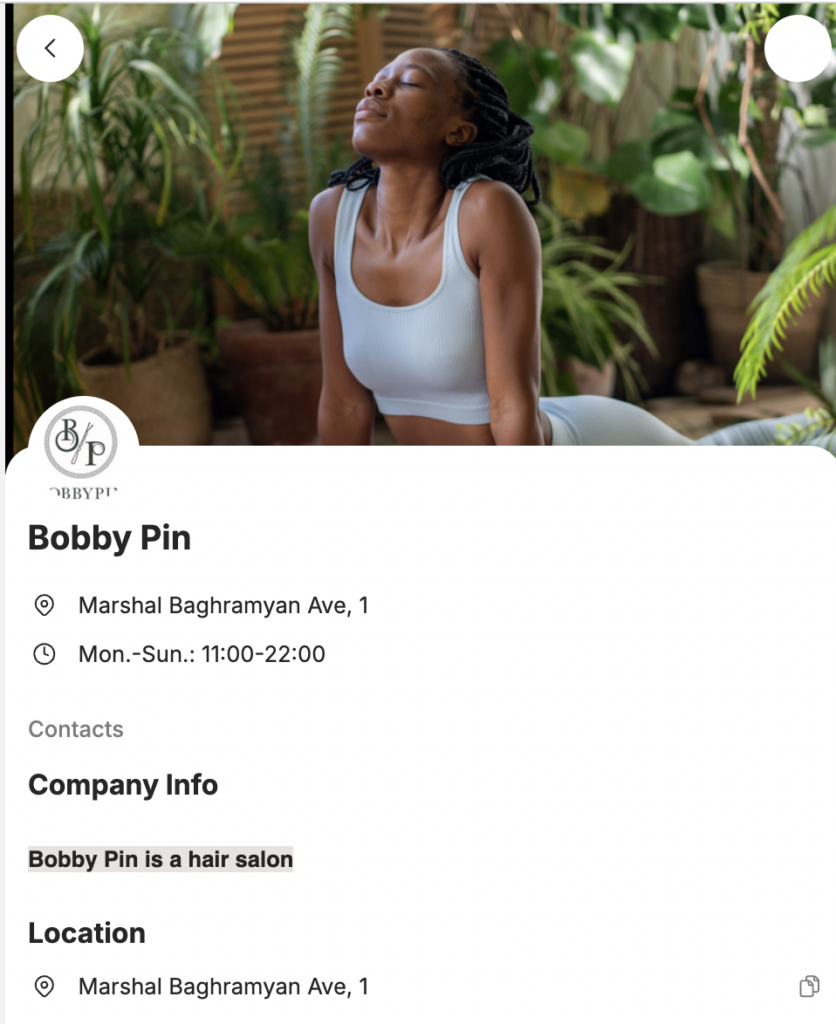
In Altegio, you can set any interface color, customize the widget design to match your brand, and add a logo and images.
Color settings
To set widget colors in Altegio:
- In the Administration mode, go to Online booking > Online booking links.
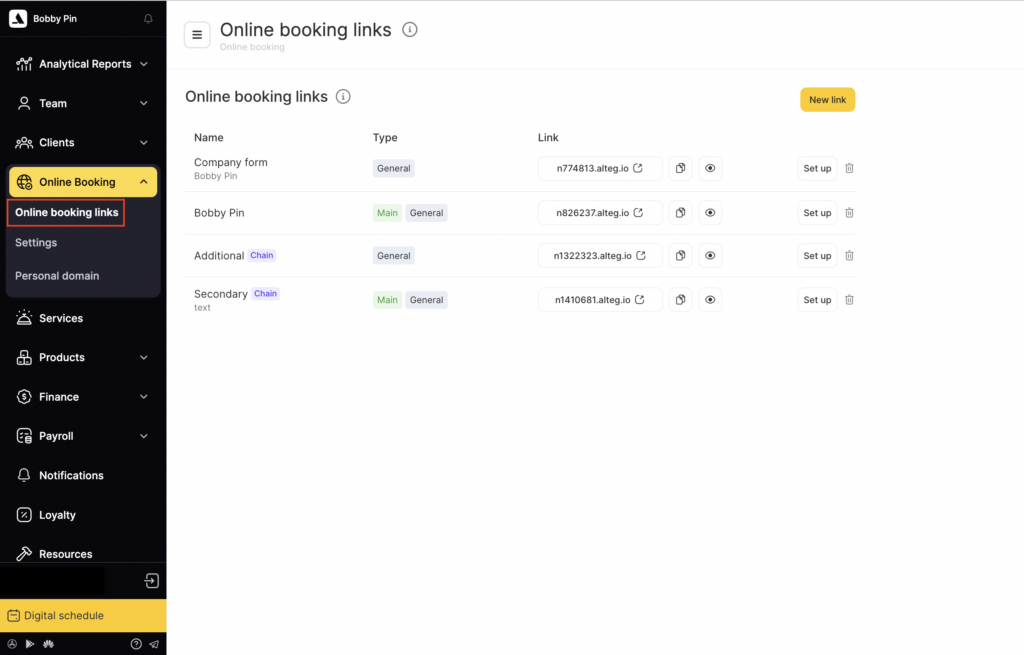
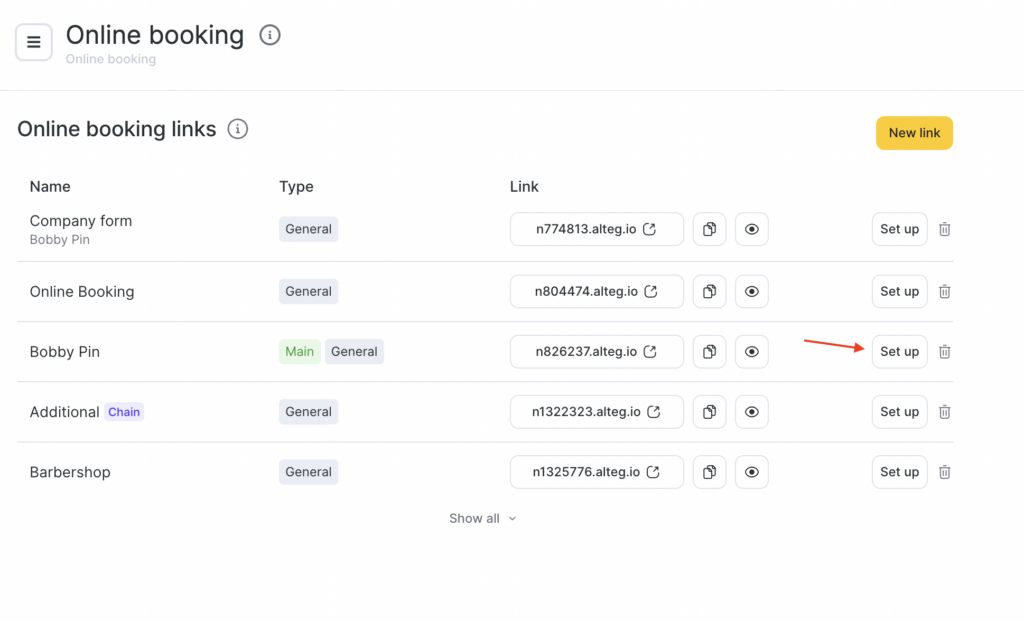
- Select the required online booking link and click its name or the Set up button to open editing mode.
- In the window that opens, find the Online booking design section.
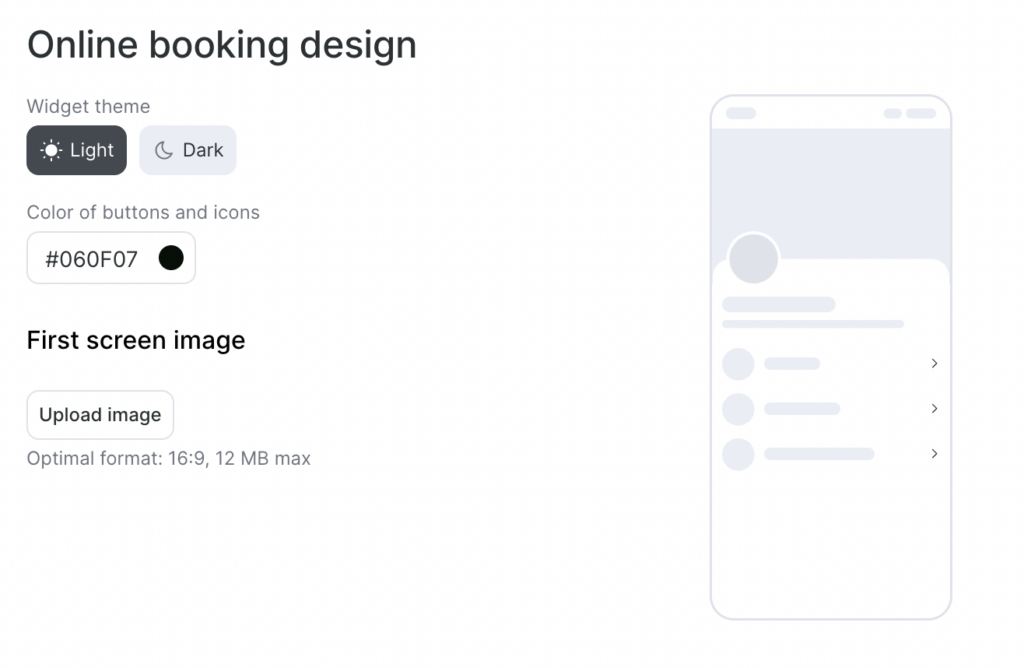
- Choose the preferred widget theme — light or dark.
- Select a suitable color for buttons and icons from the palette, or enter a HEX color value.
By default, the widget is set to black #060F07. You can always restore it by clicking Restore default color.
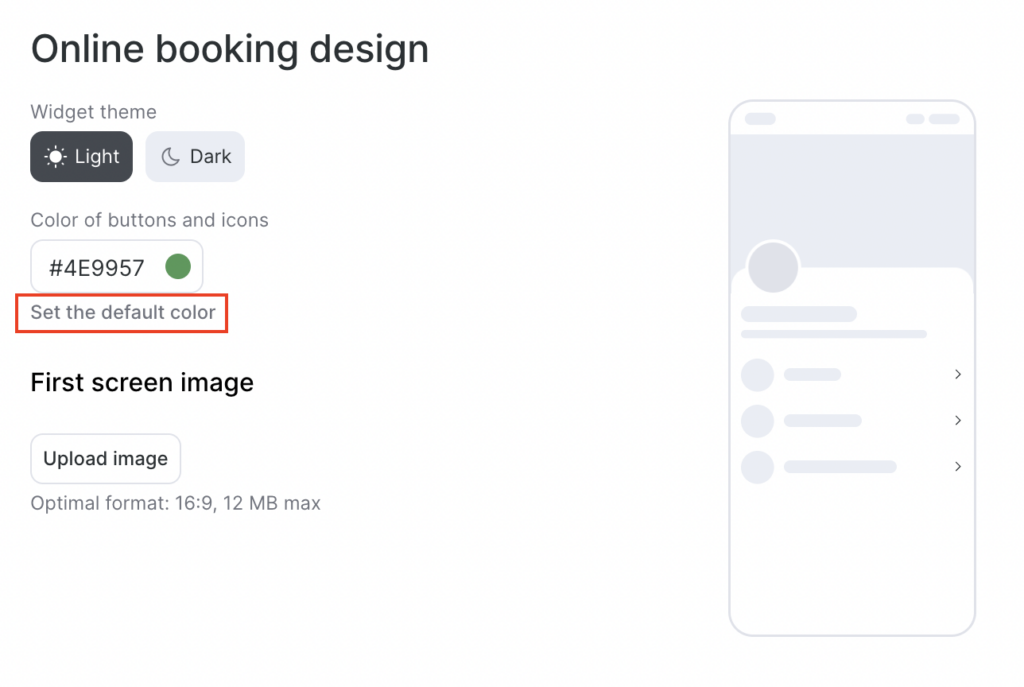
If the selected color has low contrast, text and UI elements may be hard to see. In that case, an error warning will appear: “Low contrast of elements. Choose a lighter or darker shade.” You won’t be able to save and apply that color in the widget.
Uploading an image to the first screen
To upload an image to the first screen of the widget:
- Go to Online booking > Online booking links.
- Select the required link and click its name or Set up to open editing mode.
- To upload an image for the first screen, click Upload image. In the window that opens, find the Online booking design section.
- In the upload form, select an image from your device, adjust the size if needed, then click Save.
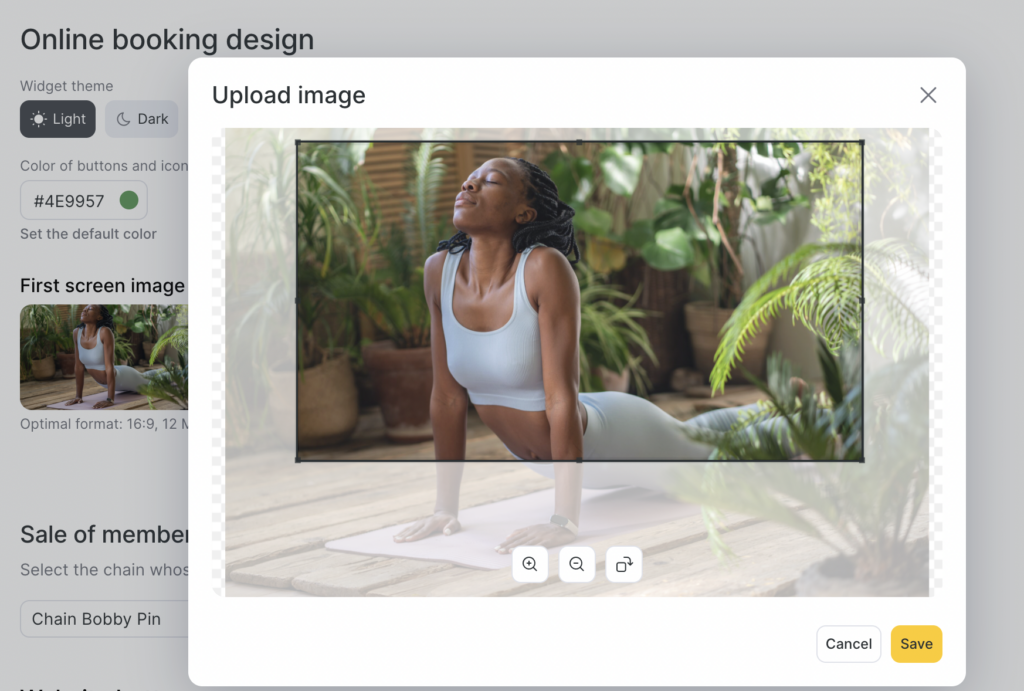
Uploading a logo
To upload a logo that will be displayed in the online booking link:
- Go to Online booking > Settings and open the Brand block.
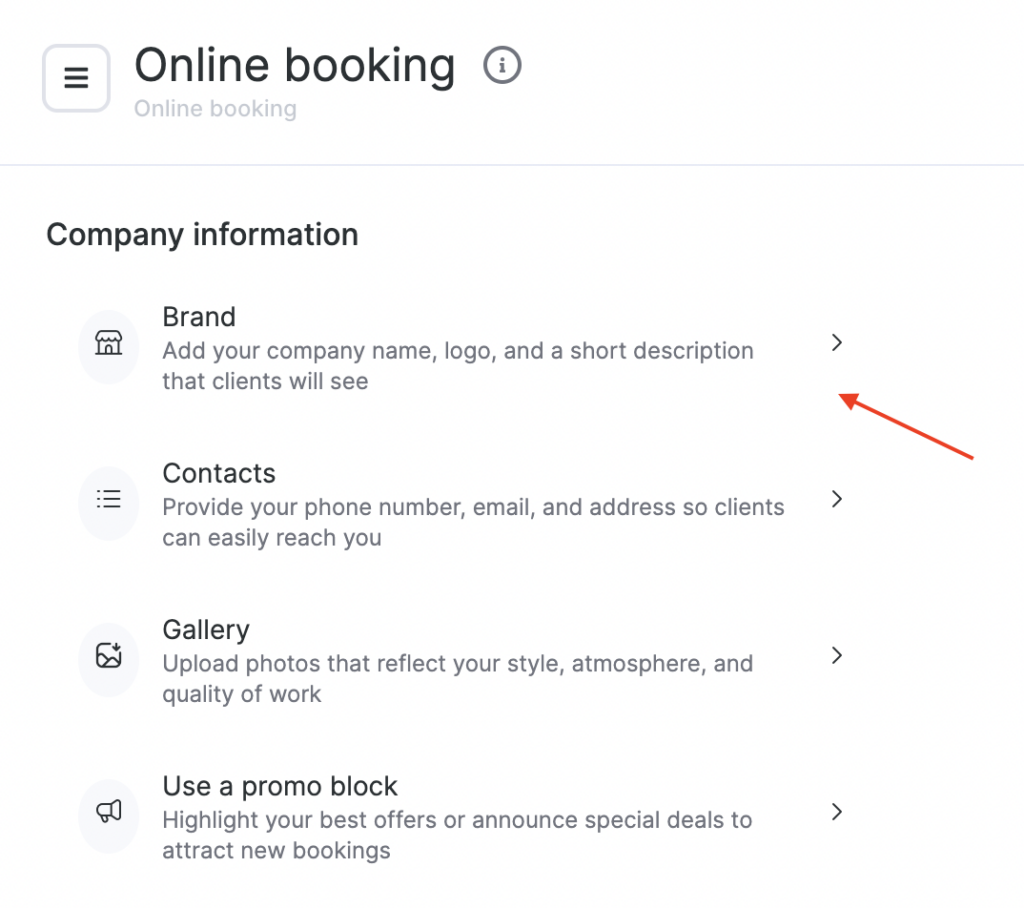
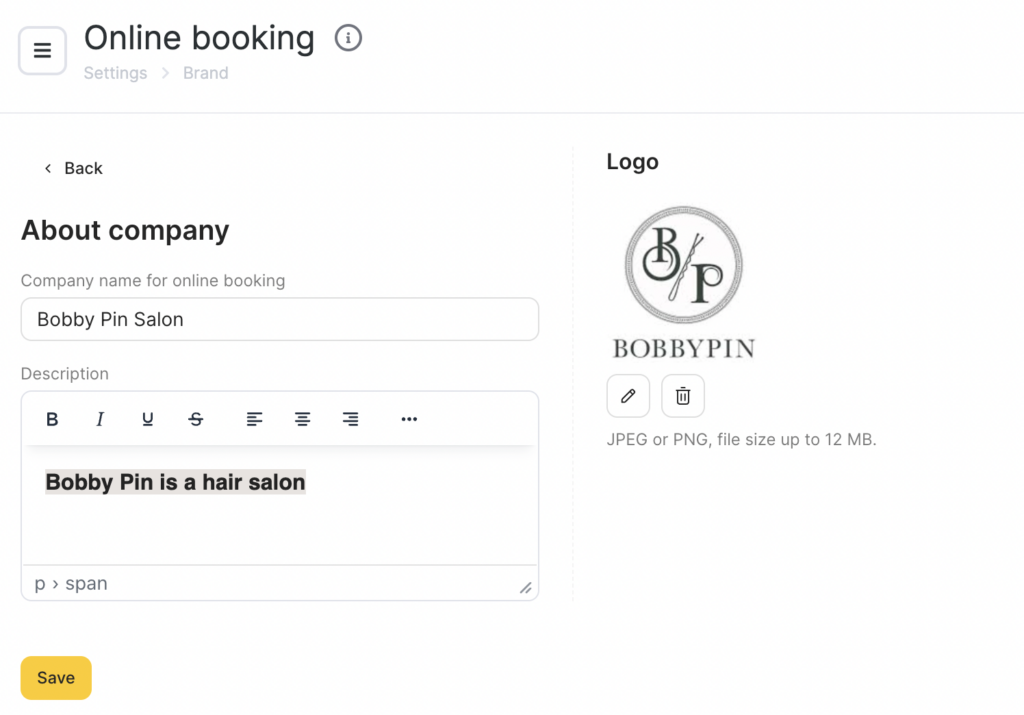
- Upload an image in the logo field and save changes.
- Recommended resolution: 500×500 px. Maximum file size: 12 MB.
The image format for the widget’s first screen is 16:9.
The uploaded image will be shown in the header for any online booking scenario (Menu, Step-by-step, Short step-by-step for individual booking, as well as group and mixed booking) on the first page.
For mixed booking, the image will appear on the booking type selection page, on the first page of individual booking, and on the event selection page.
After finishing the setup, open your widget using the link at the top of the page and check how the uploaded images are displayed.