
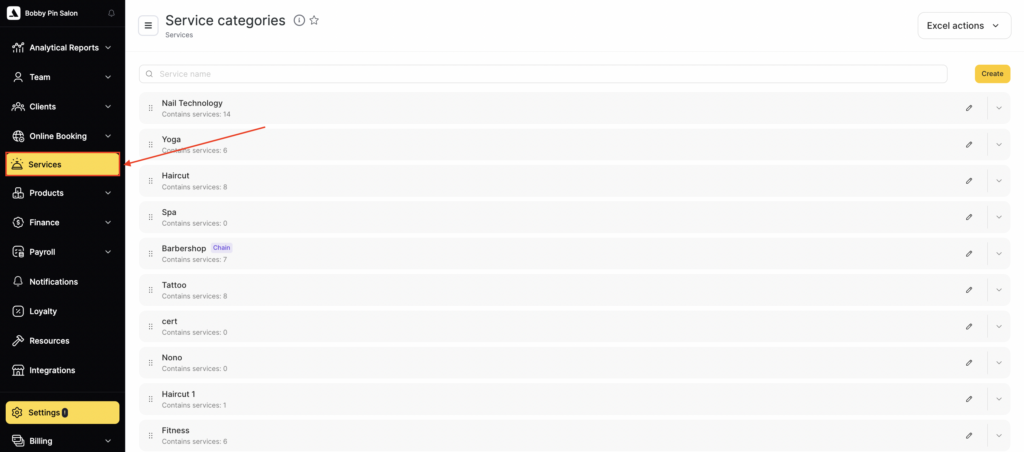
- Go to Services section (Administration mode).
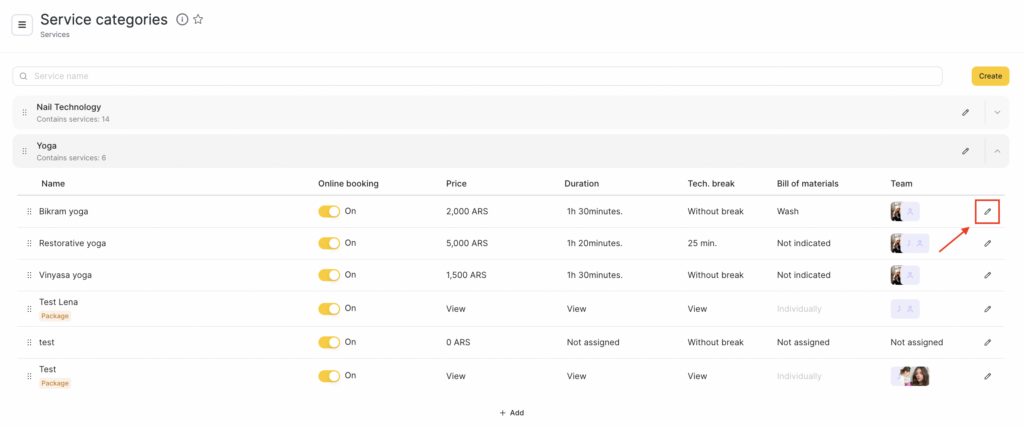
- Select a service category or a service and click the Edit button next to its name.
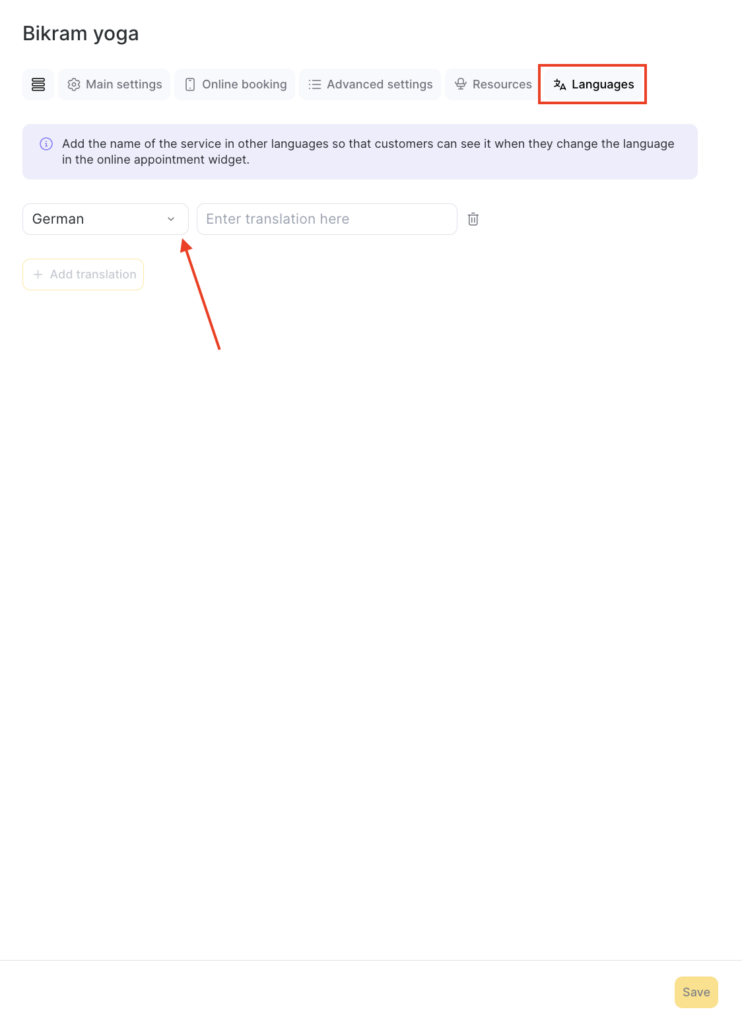
- Go to the Languages tab. To add a translation, click Add translation, select the required language from the drop-down list, and enter the category or service name in the corresponding language in the field opposite.
- To delete a translation, click the delete button with the trash bin icon next to it.
- Click Save to apply the settings.
If a client selects another language during online booking, they will see the translated category or service name.
Important
Translations of chain services are added in the chain interface, not in a location. In a location, the Languages tab of a chain service shows only the message Translations for chain services are managed in the chain settings. For instructions, see Create and manage chain services. Chain service categories cannot be translated.
After you make a location service chain-wide, open it in the chain interface and check the Languages tab. Add the translations that are missing there.