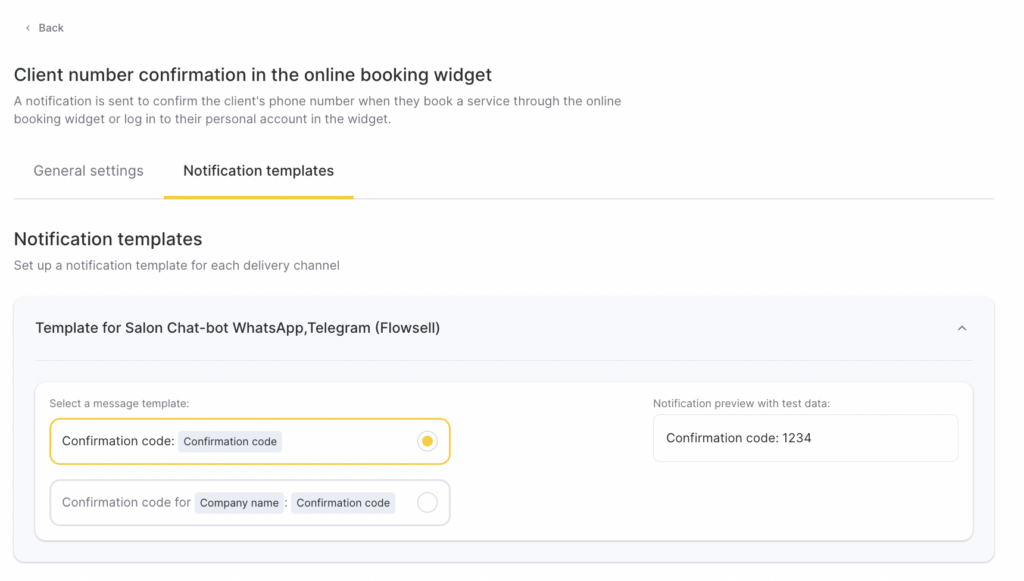
Automatic notification with a confirmation code that is sent to the client to authorize in the personal account of the online booking widget and to confirm the phone number when creating an appointment, if this option is enabled in the online booking settings.
The notification sending channel is SMS.
Important
To send confirmation codes, your branch must have an SMS provider or a chatbot connected.
Be sure to consult your aggregator about the specifics of sending confirmation codes. Different providers have different conditions. For some mobile operators that providers work with, Altegio’s standard template with only the code is not suitable. In this case, you can configure a different template that also includes your company name.
The standard length of one message is 69 characters. If the template includes the company name but it is too long, try shortening it so the SMS fits into a single message.
Authorization in the personal account in the online booking widget
In the online booking personal account, clients can:
- reschedule or cancel upcoming appointments;
- rebook past appointments;
- view loyalty cards and promotion terms;
- see the remaining balance on memberships;
- view the balance on certificates.
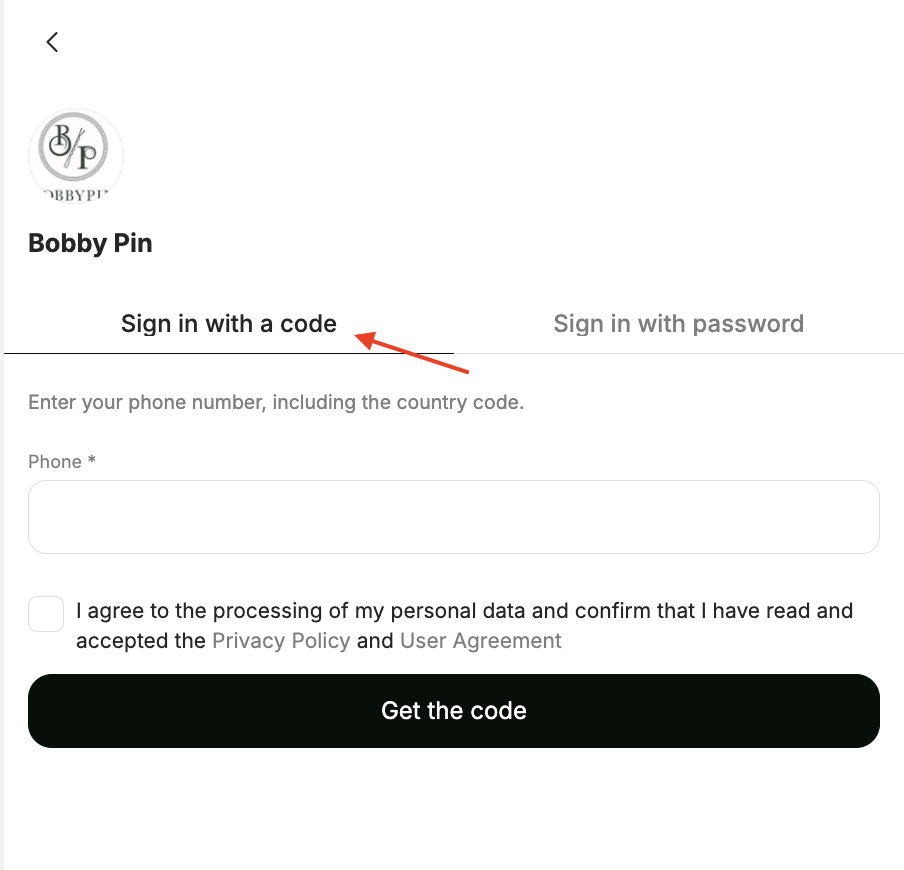
You can read more about the personal account in the widget here.
Client phone number confirmation via SMS
In Online booking > Settings, go to Customize client data fields section and enable “SMS verification for client’s phone number” if you want the client to be able to complete the booking only after confirming their phone number. This feature helps prevent invalid and test bookings from being created.
Setup and editing
- In the Administration mode, go to Notifications, and open the Notification types tab.
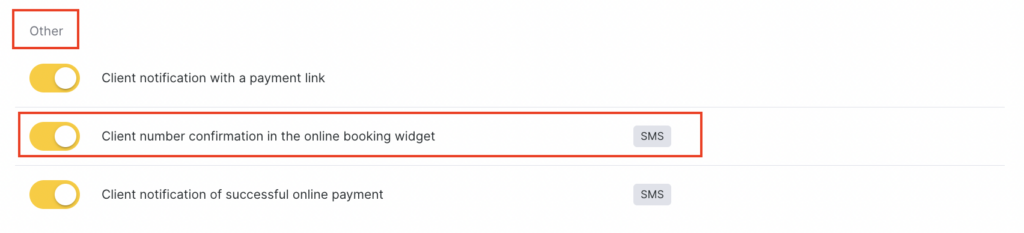
- In the Client notifications section, select Client number confirmation in the online booking widget and click Edit (the pencil icon).
- By default, the notification is always enabled, but it will be sent only if there is an active integration with a notification provider that sends confirmation codes.
- Select one of the two standard templates. Creating your own template is not available.
- Click Save.
Templates
Each template contains variables that are automatically replaced with relevant data: