
Hutko належить до однієї банківської групи з ПУМБ (Перший Український Міжнародний Банк) і приймає онлайн-платежі для бізнесу в Україні. Після підключення hutko до вашої філії в Altegio клієнти оплачують візити на платіжній сторінці hutko карткою Visa або Mastercard, через Apple Pay або Google Pay, а кошти надходять на ваш бізнес-рахунок у ПУМБ.
Коли використовувати
- Клієнт записується телефоном або в месенджері, і ви хочете, щоб візит оплатили до приходу клієнта. Надішліть клієнту посилання на оплату з вікна візиту.
- Ви вимагаєте передоплату за послуги, на які клієнти записуються онлайн. Клієнти оплачують ці послуги у віджеті онлайн-запису.
Що потрібно заздалегідь
Вимоги:
- Філія: в Україні. hutko доступний лише для філій Altegio в Україні.
- Бізнес: ФОП або юридична особа. hutko не працює з фізичними особами.
- Банківський рахунок: бізнес-рахунок у ПУМБ. hutko виплачує кошти лише на рахунок у ПУМБ.
- Мерчант hutko: зареєстрований у мерчант-порталі hutko та активований hutko.
- Права доступу в Altegio: Безготівкова оплата з доступом до змінення, щоб обирати платіжну систему для способів оплати. Докладніше: Права доступу до розділу Фінанси.
Як підключити hutko
Крок 1. Зареєструйте мерчанта в hutko
hutko приймає платежі лише після активації вашого мерчанта. Перед активацією hutko разом із ПУМБ перевіряє дані вашого бізнесу. До початку реєстрації ознайомтеся з вимогами до проєктів і обмеженнями щодо підключення hutko.
- Створіть акаунт у мерчант-порталі hutko, вказавши email.
- Перейдіть за посиланням у листі від hutko, створіть пароль і увійдіть.
- Зареєструйте мерчанта. Заповніть:
- країну та форму власності;
- юридичну назву та код ЄДРПОУ або РНОКПП;
- посилання на сайт, бізнес-сторінку, канал або мобільний застосунок;
- номер телефону.
- У розділі Налаштування мерчанта відкрийте вкладку Банківський рахунок.
- Прив’яжіть бізнес-рахунок у ПУМБ:
- Якщо у вас уже є бізнес-рахунок у ПУМБ, натисніть Я вже з ПУМБом і зачекайте на дзвінок від hutko.
- Якщо рахунку немає, відкрийте його в застосунку ПУМБ Бізнес.
- Зачекайте, доки фахівець hutko зв’яжеться з вами.
Повна інструкція: Інструкція з реєстрації на сайті hutko.
Крок 2. Скопіюйте ID мерчанта та ключ платежу
Altegio підключається до вашого мерчанта hutko за двома значеннями з мерчант-порталу hutko: ID мерчанта та ключем платежу.
- Увійдіть у мерчант-портал hutko.
- Відкрийте Налаштування мерчанта > Основний профіль.
- Скопіюйте ID мерчанта та ключ платежу.
Примітка
Вказувати callback URL у мерчант-порталі hutko не потрібно. Altegio передає його hutko з кожним платежем.
Крок 3. Підключіть hutko в Інтеграціях
- У режимі Адміністрація відкрийте Інтеграції в меню зліва.
- У списку Категорії натисніть Платіжні системи.
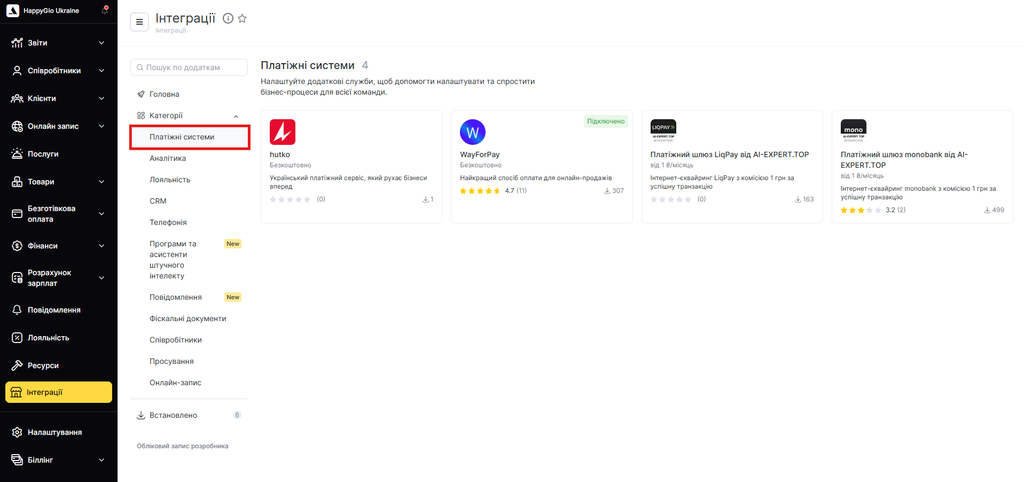
- Натисніть hutko.
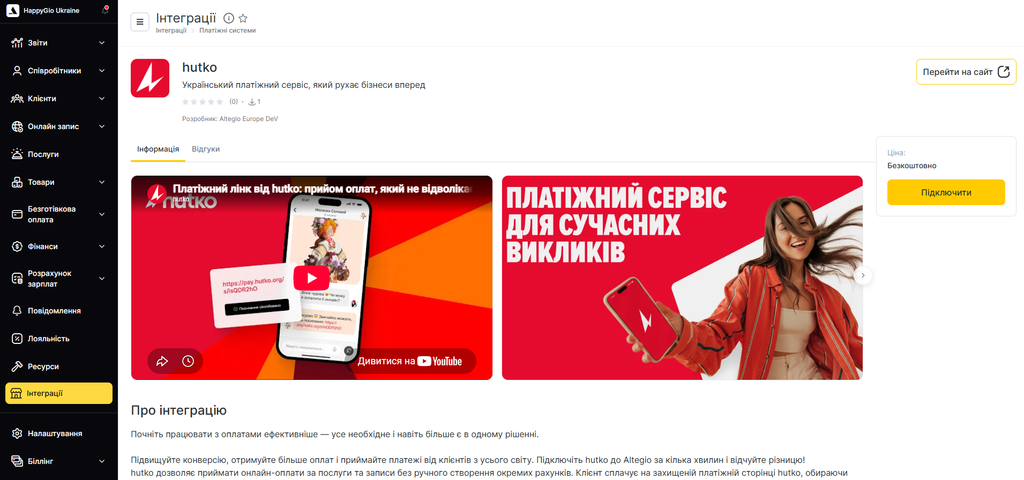
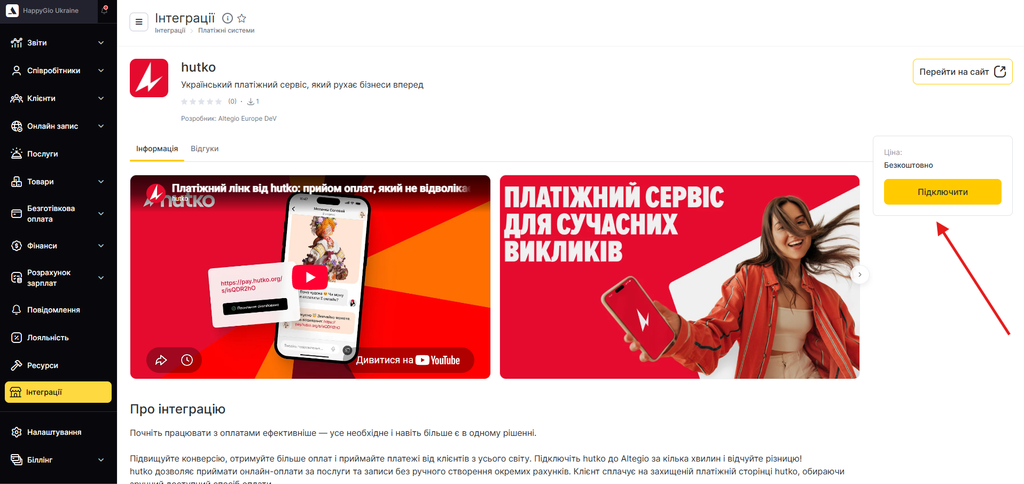
- На сторінці hutko натисніть Підключити.
- У вікні Підключення hutko введіть ID мерчанта в поле Merchant ID і ключ платежу в поле Payment Key.
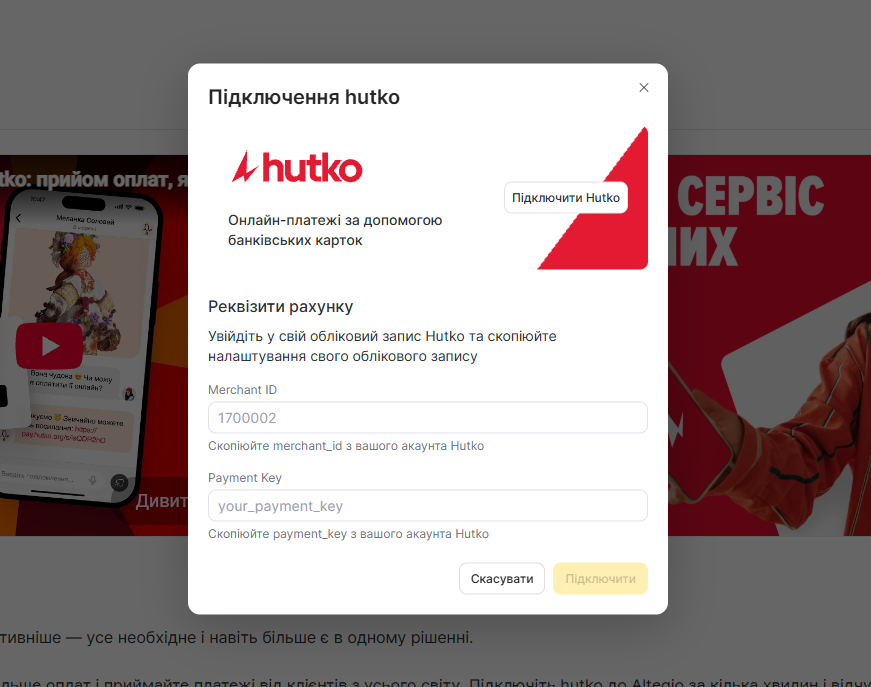
- Натисніть Підключити внизу вікна.
Сторінка hutko відкривається також із розділу Безготівкова оплата: у вікні Платіжні системи виберіть Hutko і натисніть Підключити Hutko.
Крок 4. Виберіть hutko для способів оплати
hutko приймає платежі для таких способів оплати, де його вибрано платіжною системою: Оплата за посиланням та Передоплата у віджеті онлайн запису.
- У режимі Адміністрація відкрийте Безготівкова оплата > Каса.
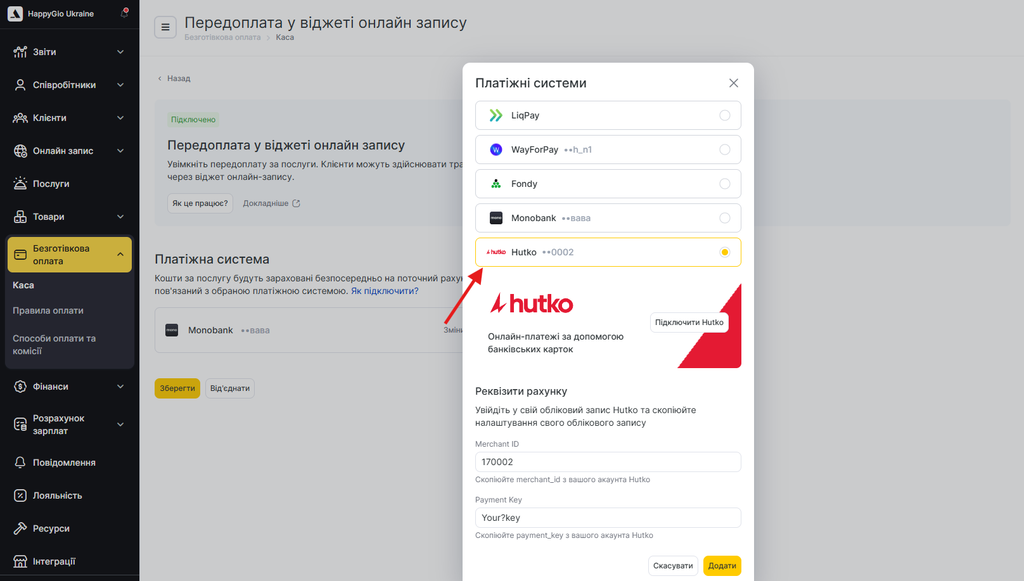
- Біля Оплата за посиланням або Передоплата у віджеті онлайн запису натисніть Підключити або Налаштування, якщо спосіб оплати вже підключено.
- У блоці Платіжна система натисніть Змінити або Вибрати, якщо платіжну систему ще не вибрано. Якщо в блоці вже вказано hutko, перейдіть до кроку 7.
- У вікні Платіжні системи виберіть Hutko.
- Якщо поля Merchant ID і Payment Key у блоці Реквізити рахунку порожні, введіть значення з мерчант-порталу hutko.
- Натисніть Додати.
- Натисніть Підключити внизу сторінки або Зберегти, якщо спосіб оплати вже підключено.
Повторіть ці кроки для іншого способу оплати. Налаштування кожного способу оплати описано в статті Налаштування оплати візитів за посиланням (надсилання через Email, SMS і WhatsApp) / QR-кодом.
Результат
Після вибору hutko платіжною системою клієнти оплачують візити на платіжній сторінці hutko карткою Visa або Mastercard, через Apple Pay або Google Pay. Банк може попросити клієнта підтвердити оплату карткою через 3-D Secure.
Оплата за посиланням
Клієнт відкриває посилання на оплату з вікна візиту, перевіряє деталі візиту й оплачує на платіжній сторінці hutko. Після оплати Altegio позначає візит як оплачений. Як надіслати посилання, описано в статті Оплата візитів та товарів за посиланням.
Передоплата у віджеті онлайн-запису
Коли клієнт записується на послугу з обов’язковою передоплатою, віджет онлайн-запису відкриває платіжну сторінку hutko. Після оплати Altegio позначає візит як оплачений. Якщо клієнт не оплатить у межах часу на передоплату, Altegio скасовує неоплачений запис.
Де перевірити платежі hutko
- В Altegio: відкрийте візит у журналі запису. Візит, який клієнт оплатив через hutko, позначено як оплачений.
- У мерчант-порталі hutko: відкрийте Транзакції > Платежі. У списку видно кожен платіж і його статус: успішний, відхилений або повернений. Відкрийте платіж, щоб побачити точну дату, коли hutko виплатить його на ваш рахунок у ПУМБ.
Часті запитання
hutko доступний лише для філій Altegio в Україні. Якщо ваша філія в Україні, а hutko немає в розділі Інтеграції > Платіжні системи, зверніться до підтримки Altegio.
Ні. hutko виплачує кошти лише на бізнес-рахунок у ПУМБ, тому він потрібен для роботи з hutko. Якщо рахунку в ПУМБ немає, відкрийте його в застосунку ПУМБ Бізнес під час реєстрації мерчанта hutko.
Ні. hutko працює лише з ФОП і юридичними особами.
У мерчант-порталі hutko відкрийте Налаштування мерчанта > Основний профіль. В Altegio введіть обидва значення у вікні Підключення hutko: відкрийте Інтеграції > Платіжні системи, натисніть hutko, а потім Підключити.
Ні. Altegio передає callback URL у hutko з кожним платежем. Вказувати його в мерчант-порталі hutko не потрібно.
Так. На платіжній сторінці hutko клієнти оплачують карткою Visa або Mastercard, через Apple Pay або Google Pay. Apple Pay і Google Pay працюють одразу після активації вашого мерчанта hutko, окремо налаштовувати їх не потрібно. Точний перелік способів оплати залежить від налаштувань і умов вашого мерчанта hutko.
hutko зараховує платежі клієнтів на ваш мерчант-рахунок hutko і наступного дня до 06:00 переказує їх на ваш бізнес-рахунок у ПУМБ, зокрема у вихідні та святкові дні. Точну дату виплати за платежем видно в деталях платежу в розділі Транзакції > Платежі мерчант-порталу hutko.
Поверніть платіж у мерчант-порталі hutko повністю або частково. Якщо повернути платіж у день оплати, hutko не стягує за нього свою комісію.
Відкрийте Безготівкова оплата > Каса, натисніть Налаштування біля способу оплати, натисніть Змінити в блоці Платіжна система, виберіть Hutko, натисніть Додати, а потім Зберегти. Повторіть ці кроки для кожного способу оплати, який має приймати платежі через hutko.
hutko підключається в кожній філії Altegio окремо. У кожній філії, яка приймає онлайн-оплати, виберіть hutko платіжною системою та введіть ID мерчанта і ключ платежу. За одним договором із hutko можна створити окремого мерчанта для кожної філії того самого ФОП або юридичної особи.
Інтеграція hutko в Altegio безкоштовна. Підключення до hutko теж безкоштовне: hutko стягує комісію лише за успішні платежі. Актуальні тарифи наведено на сторінці тарифів hutko.