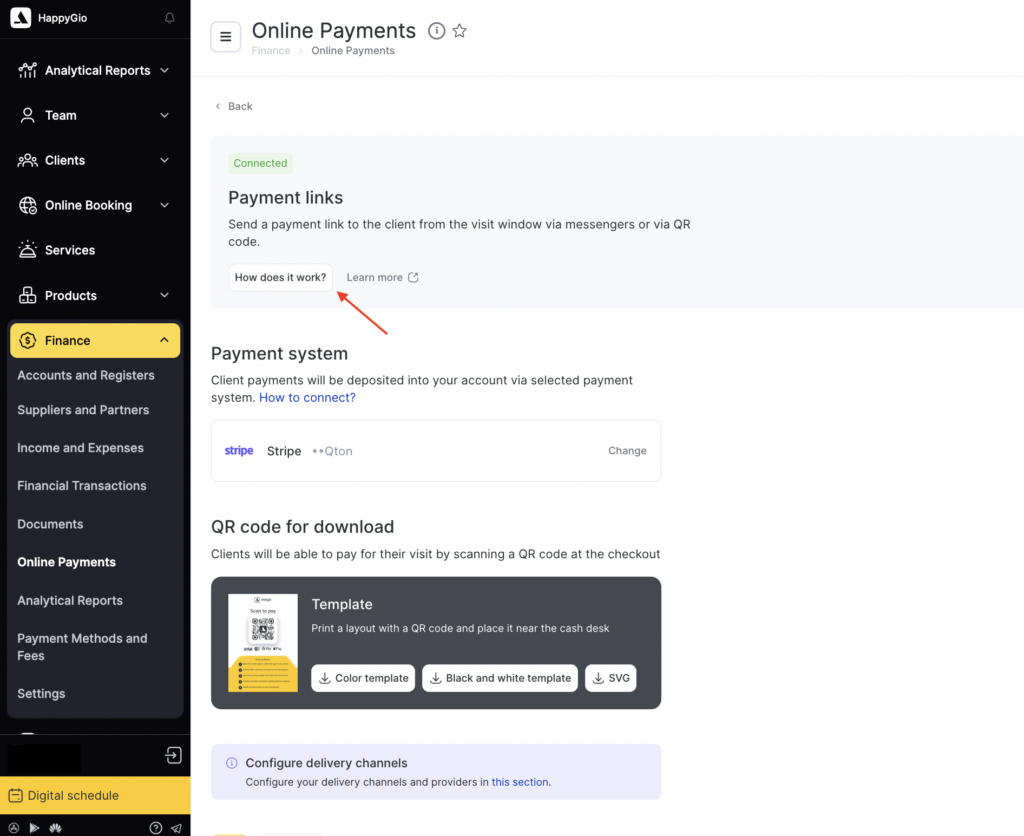
With Altegio, you can accept online payments for your services right in the online booking widget.
You can set up a required or optional prepayment for certain services or team members.
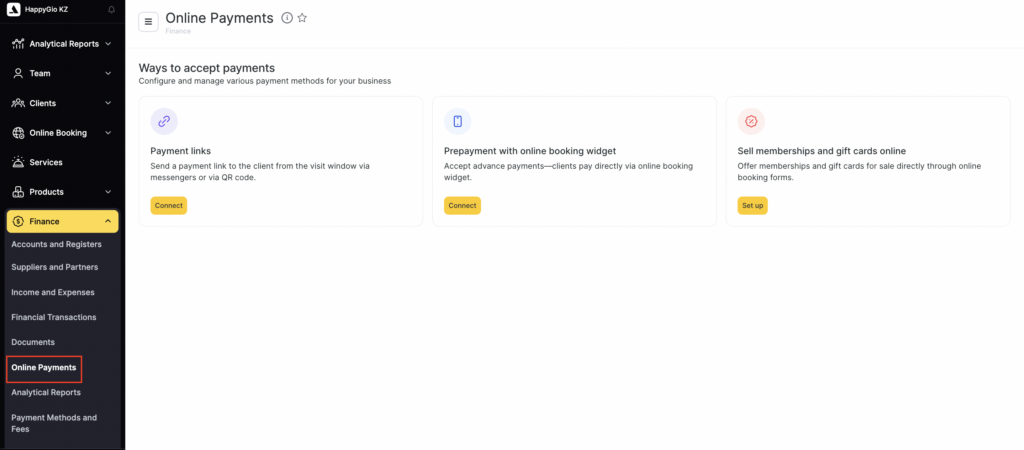
In Administration mode, under Finance > Online Payment, all available methods for accepting online payments are listed.
- Payment via link and QR code. The receptionist can send the client a payment link for the appointment in any convenient way: by SMS, email, messenger, or social media, or accept payment via QR code.
- Prepayment in the online booking widget. The client can pay for services directly in the widget when booking online.
- Online sale of memberships and gift cards. The client can purchase a membership or a gift card directly in the online booking widget.
To set up online payments, you need to connect one of the payment systems available in Altegio.
Important
Altegio does not charge a payment processing fee. The bank’s fee depends on the selected partner.
After you sign an agreement with a partner for accepting online payments, you need to complete the setup on the Altegio side.
Connection and setup
- Go to Finance > Online Payments in Administration mode.
- Choose the non-cash payment methods: Payment by link (and QR code), Prepayment in the online booking widget, or Online sale of memberships and gift cards.
- Click Connect or Set up. Then follow the instructions for the selected online payment method.
Note
In the location-level Payment Acceptance section, you can configure all online payment methods except online sale of memberships and gift cards. After clicking Set up in that method’s card, the chain-level Online Sales section will open.
You can learn more about each online payment method in detail. To do this, click How it works in the settings card. A pop-up window with a description and examples will open.