
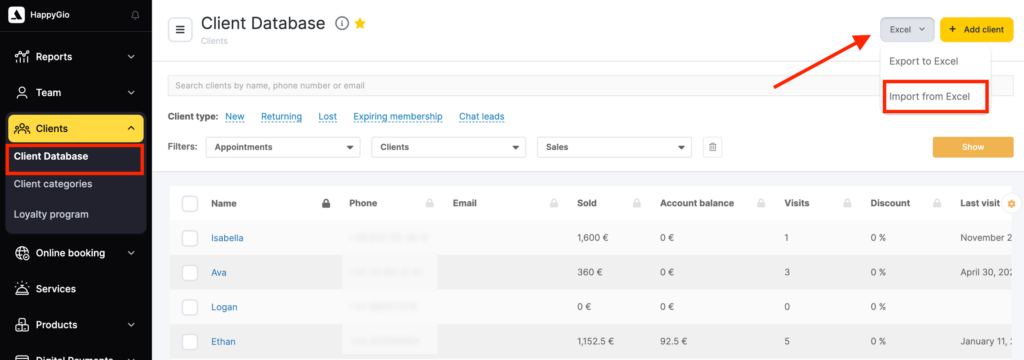
- To upload a list of clients from Excel go to the Clients > Client Database section, click the Excel button and select Import from Excel.
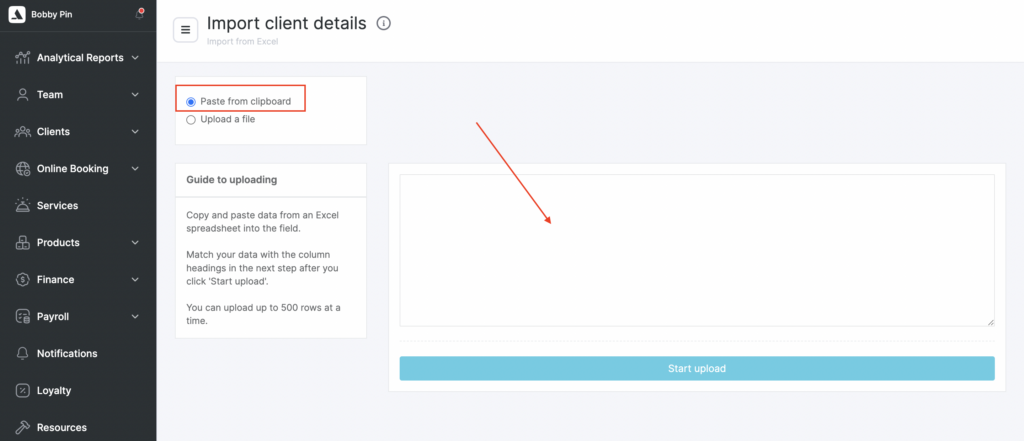
- Upload data. You can do this in two ways: copy and paste the data from an Excel spreadsheet it into the Altegio upload window, or simply drag and drop the file from a folder.
Copy and paste
Paste data you copied from the spreadsheet and click Upload.
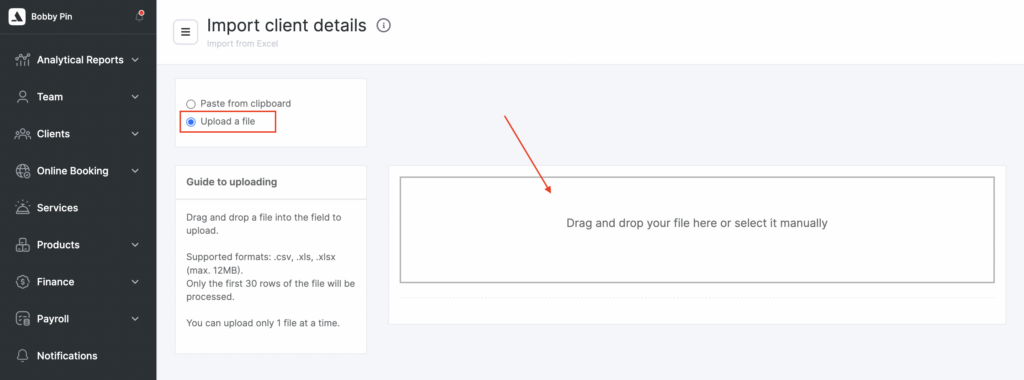
Upload file
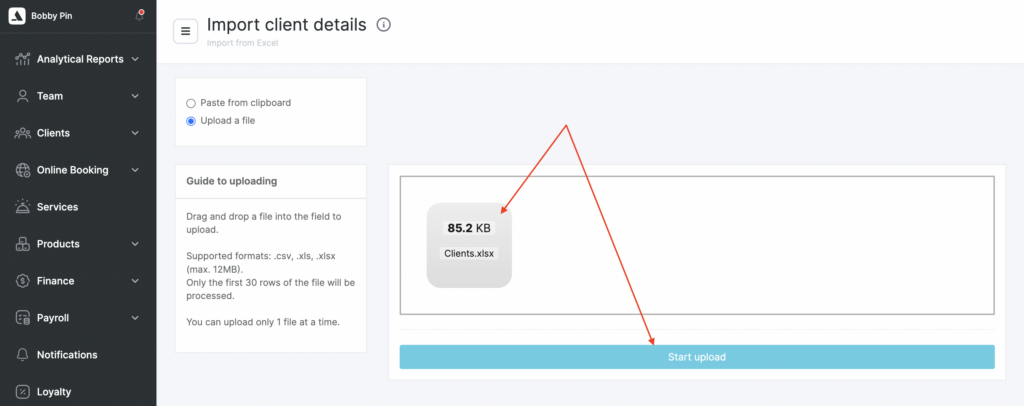
Select the Upload a file option in the upper left corner. Drag the file into the window or upload it from your computer. You can upload files with the .csv, .xls, or .xlsx extensions and no larger than 12 MB.
Note
You can only upload 1 file at a time.
- In the window that opens match data with the column headers:
- Name (required)
- Phone (required)
- Additional phone
- Comment
- Date of birth
- Gender
- Total spent
- Total paid
- Discount
- Card
- Click Save.

Note
The phone number must be in the format 37493000000, without any extra characters (no plus signs, dashes, brackets, spaces, etc.).The email format must strictly follow @.* (e.g., [email protected]); otherwise, the client will not be uploaded.
Only one client can be uploaded per phone number, so to prevent data loss, you must check for duplicate phone numbers before uploading.
Comments with line breaks can be uploaded only via file upload (not by copying and pasting).
You can upload no more than 500 rows of the table at a time, or only 1 file.
To specify clients’ gender, use the symbols M and F, or the numbers 1 and 2 respectively.
Date of birth must be provided in the format DD-MM (Day–Month) or DD-MM-YYYY (Day–Month–Year).
The fields “Sold” and “Paid” (in the upload table they are labeled as “Spent” and “Paid”) are added to the current values in the client cards during upload, not replaced.
For example, if the client card shows “Sold” $500 and “Paid” $500, then after exporting and re-uploading via Excel, if you keep the same values unchanged, the client card will display “Sold” $1000 and “Paid” $1000. If you change the values to, for example, $100, then after upload the client card will show “Sold” $600 and “Paid” $600.