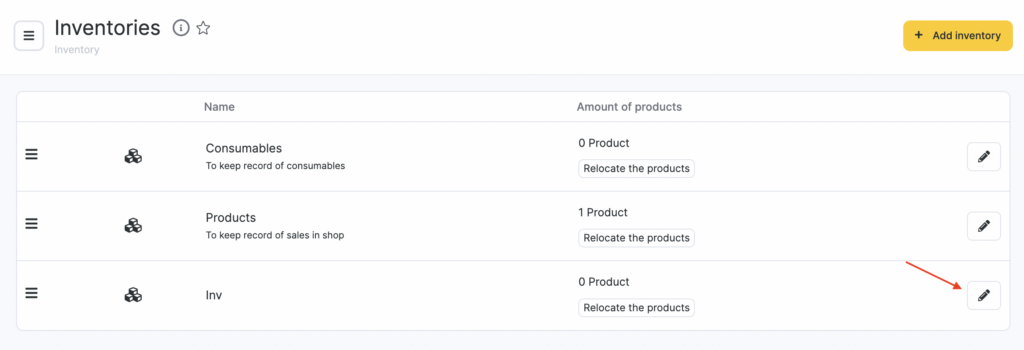
By default, Altegio has two inventories created: Consumables and Products. You can add, configure, and delete inventor.
New inventory
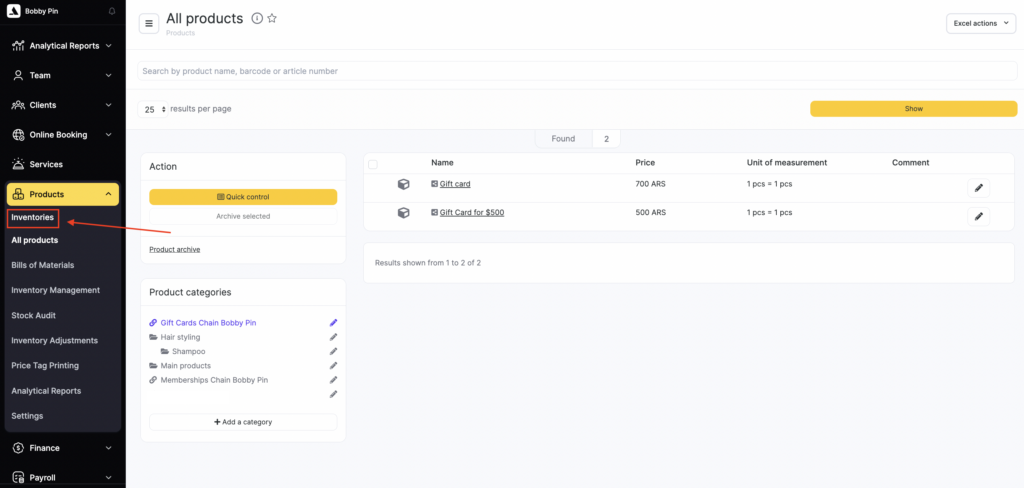
- Go to Products > Inventories
- Click Add inventory
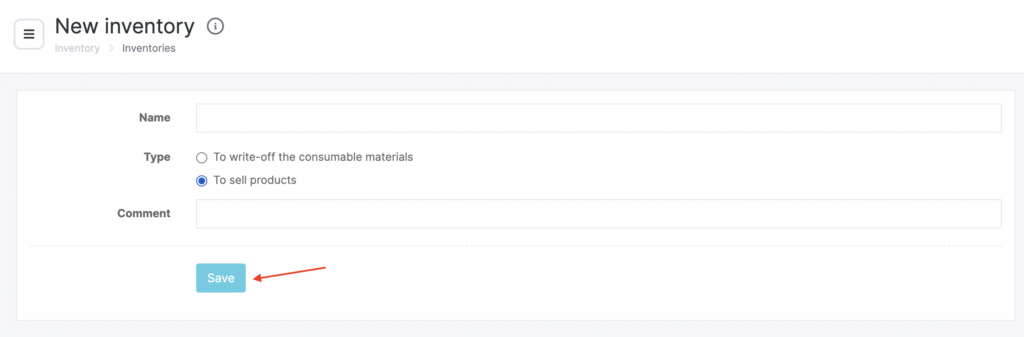
- In the window that opens, enter the Name, Inventory type (for writing off consumables or for selling products), and a Comment.
- Click Save.
Editing
You can edit information for all inventory. To do this:
- Select an inventory by clicking its name or the pencil icon.
- In the window that opens, change the inventory name, type, and comment.
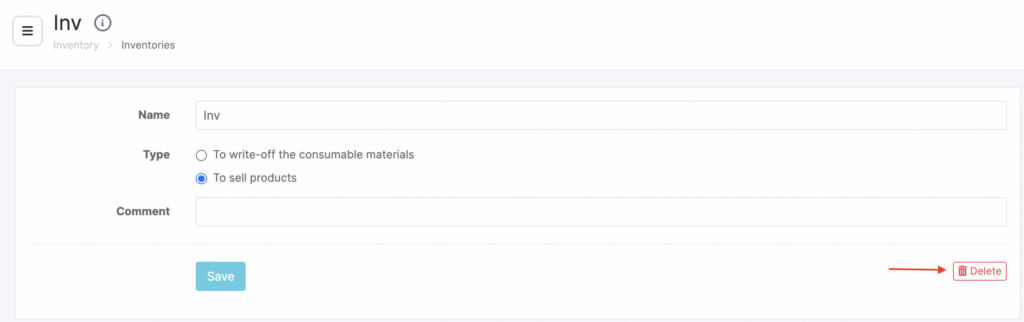
- ClickSave. You can also delete the inventory here.