You can open a WhatsApp chat with your client directly from the Altegio mobile app.
Important
To open a chat with a client, you must have the following access rights:Booking window > Access to client data (to open WhatsApp from the appointment window)
All Clients > Show phone numbers and emails in the client list (to open WhatsApp from the client database)
All Clients > Show phone number in the client profile (to open WhatsApp from the client profile)
Messaging
You can open a chat with a client from two sections:
- From the client profile
- From the appointment
Open WhatsApp from the Clients list
- In the mobile app, go to the main menu — tap More in the bottom-right corner.
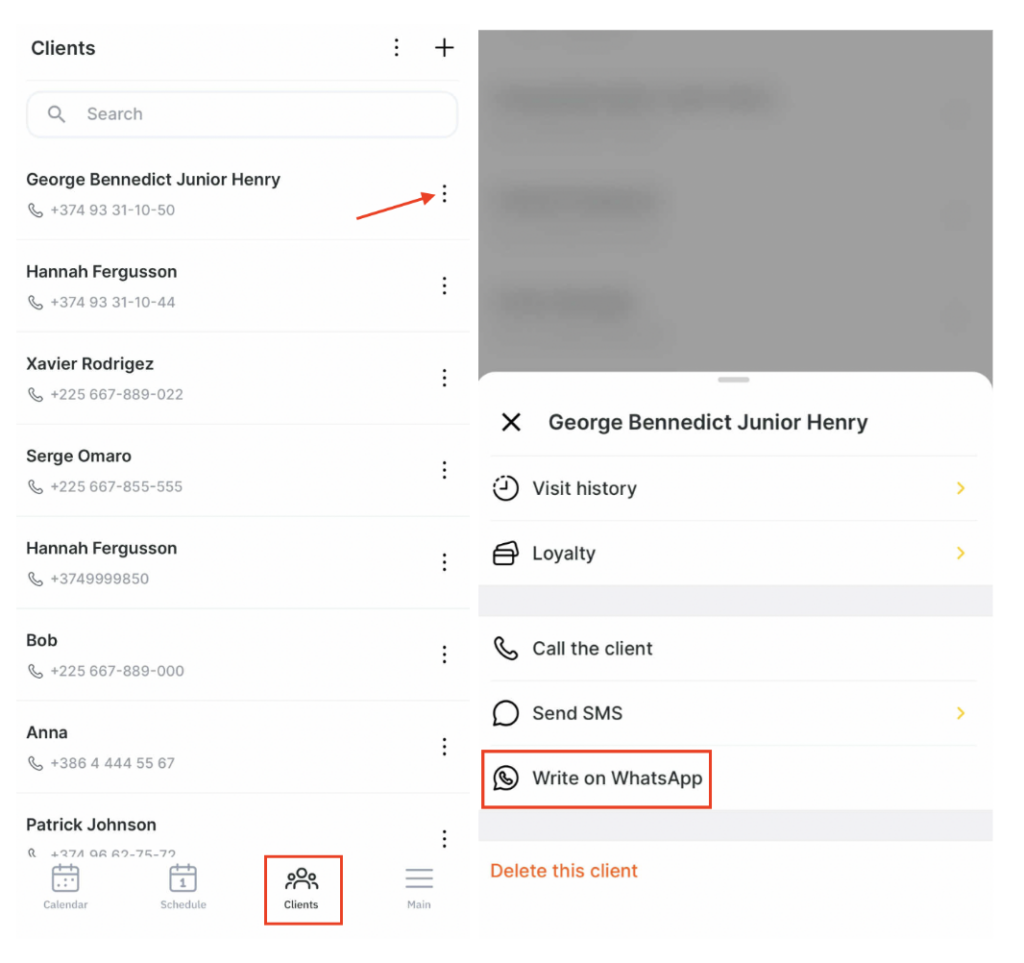
- Open the Clients section.
- Tap the menu (three dots) next to the selected client’s name or inside the client profile, and select Write on WhatsApp.
Open WhatsApp from the appointment window
- Go to Schedule at the bottom.
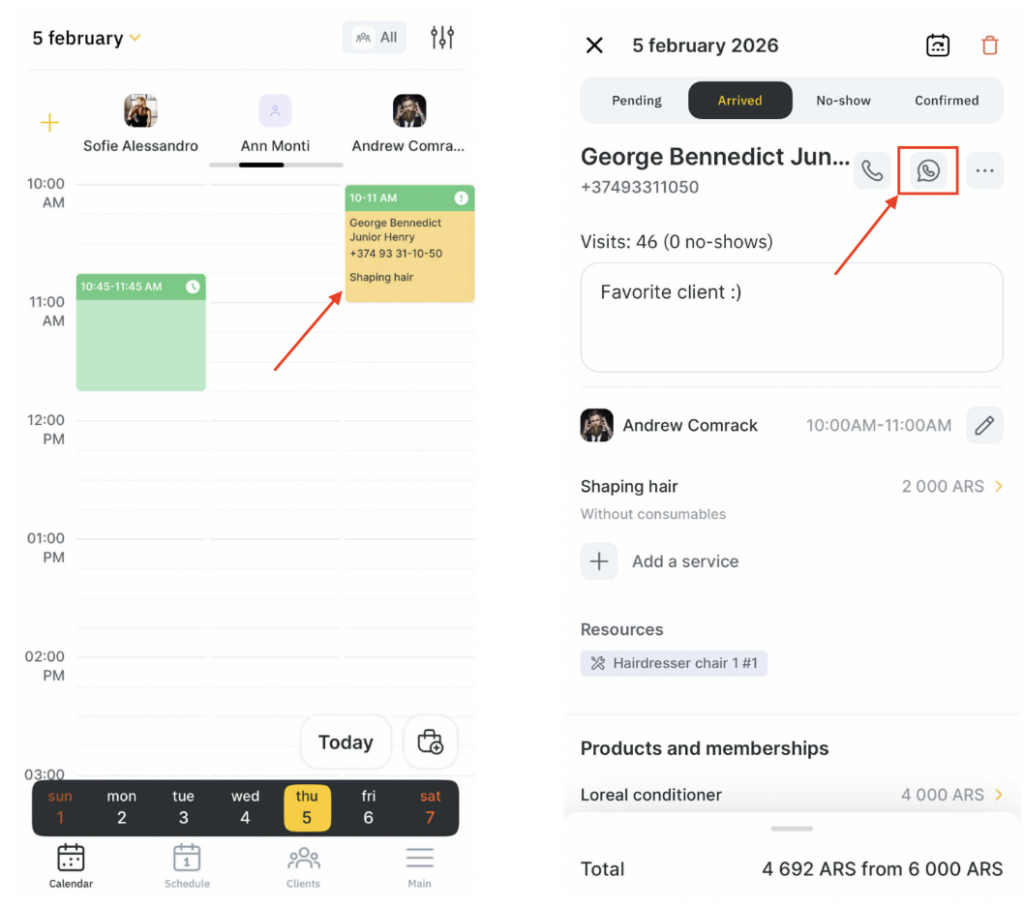
- Tap the appointment you need.
- In the appointment window, tap the WhatsApp icon to the right of the client’s name.
- After that, WhatsApp will open the chat with the client, and you can start messaging.