
With Altegio, you can effectively communicate and engage with both new and existing clients. The platform allows you to notify them about services, special discounts, and promotions. You can also keep them informed about their upcoming appointments booked through the online booking widget and request feedback after their visit. Additionally, Altegio enables seamless communication with your employees, keeping them informed about new appointments, as well as any rescheduling or cancellations.
Configuration and editing #
To manage your notifications, navigate to the Administration mode, go to the Notifications section and open the Types of notifications tab. In this section, you can customize and enable/disable notifications based on specific events.
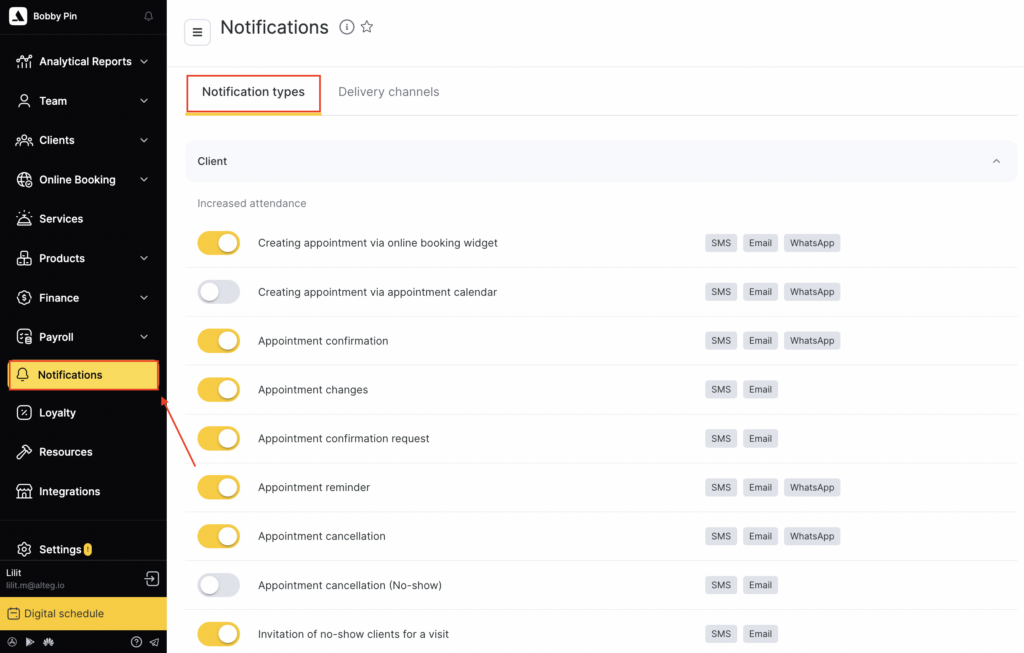
Choose from a variety of pre-defined templates or create your own personalized templates for each notification type. Additionally, you can specify the channels through which the notifications will be sent, ensuring that your messages reach your intended audience effectively.
- PUSH notifications
- SMS

To edit the notification type click Edit (pencil button) in the notification.
Notification templates #
In the pop-up that opens configure status, notification template, channels and click Save button.
Important
Adding emojis to notification templates is not recommended as they may be displayed incorrectly for the recipient, impacting the message’s clarity and readability.
By default, the Upcoming visit notification type is configured to send an SMS message 1 hour before the appointment and an Email 12 hours before the appointment. If the booking was created prior to modifying the notification settings, the default settings will apply. Any changes you make to the settings will only affect future bookings. However, if needed, you can manually adjust the settings for bookings created prior to the changes by accessing the Notifications tab within the specific booking. For more detailed instructions, refer to the documentation provided here.

Additional information in Email #
If your location’s clients receive Email notifications, you have the option to include additional text in the following notifications:
- Upcoming visit
- Request a review after a visit booked via the online booking widget
- Request a review after a visit booked via the appointment calendar
- Creating a booking via the online booking widget
- Creating a booking via the Appointment Calendar
- Delete a booking made via the online booking widget
To enter additional text open the Additional Information in Email tab.
- Check the box in Display additional information in the Email option to enter the text.
- Check the box in the Indent option if you want the text to start with the indent.
- Click Edit.
- Enter additional text, add an image, video or a link.
- To view what this email will look like click the Preview button.
- Click the Save button.

Important
Certain Email notification types display client’s name, phone number and email as they are indicated in the Client Database. Information will be displayed in the following notification types:
- Upcoming visit
- Creating a booking via online booking widget
- Creating a booking via Appointment Calendar
- Invitation for upcoming visit
- Confirmation of a customer booking made via online booking widget
- Delete a booking made via online booking widget
Events that messages can be sent for #
Messages will be sent for specific events. You’ll need to configure each one separately. You can find detailed information on configuration of each type of notification in the articles below.
Client notifications: #
- Appointment created via the online booking widget
- Appointment created via the appointment calendar
- Appointment confirmation notification
- Booking changes
- Appointment confirmation request
- Appointment reminder
- Appointment cancellation
- Appointment cancellation via the “Client didn’t show up” status
- Invitation for no-show clients to book again
- Review request after an appointment created via the online booking widget / appointment calendar
- Birthday greeting
- New discount
- Discount expiration
- Invitation for a follow-up visit
- Client notification with a payment link
- Client phone number verification in the online booking widget
- Client notification about successful online payment
Receptionist notifications: #
- Creating a customer booking (via online booking widget/Appointment Calendar)
- Delete a booking via online booking widget
- Reschedule a booking made via online widget
- Imminent end of work schedule
Team member notifications: #
- Creating a customer booking (via online booking widget/Appointment Calendar by receptionist)
- Delete a booking by a customer or receptionist
- Booking rescheduled by the client or receptionist
- Cancelling an appointment by the receptionist using the “No- show” status
Notifications for receptionists and team members #
Loyalty notifications #
If you use chain loyalty, you can configure notifications for loyalty cards, promotions, and memberships. Network loyalty notifications can currently be configured only in the network interface, and the delivery channel is SMS.
Available notifications #
For loyalty cards #
- Notification about issuing a loyalty card
- Notification about bonus points being credited
- Notification about bonus points being redeemed
More details on creating cards and setting up notifications are available here.
For promotions #
- Notification about a change in the discount amount
- Notification about an upcoming discount cancellation
- Notification about a change in the amount of bonus points credited
- Notification about upcoming reset of accumulated bonus points
More details on creating promotions and setting up notifications are available here.
For memberships #
- Notification about membership expiration
- Notification about deduction from a membership
More details on creating memberships are available here, and on setting up membership notifications — here.
Important
Notification setup may differ depending on the selected partner. For example, for chatbots, notifications may also be configured in the partner’s personal dashboard. For SMS aggregators, notifications are typically configured in Altegio. Please уточните the setup details with your chatbot or SMS aggregator.
For testing SMS notifications, do not use your own phone number — some notification types may not be delivered. Test notifications using a different number.
If you use an integration with digital loyalty cards, you can send push notifications directly to the digital cards instead of sending SMS.
Important
Changes in notification settings will not be applied to existing (older) appointments.

